Lead Forms
Lead Forms that turn website visitors into contacts
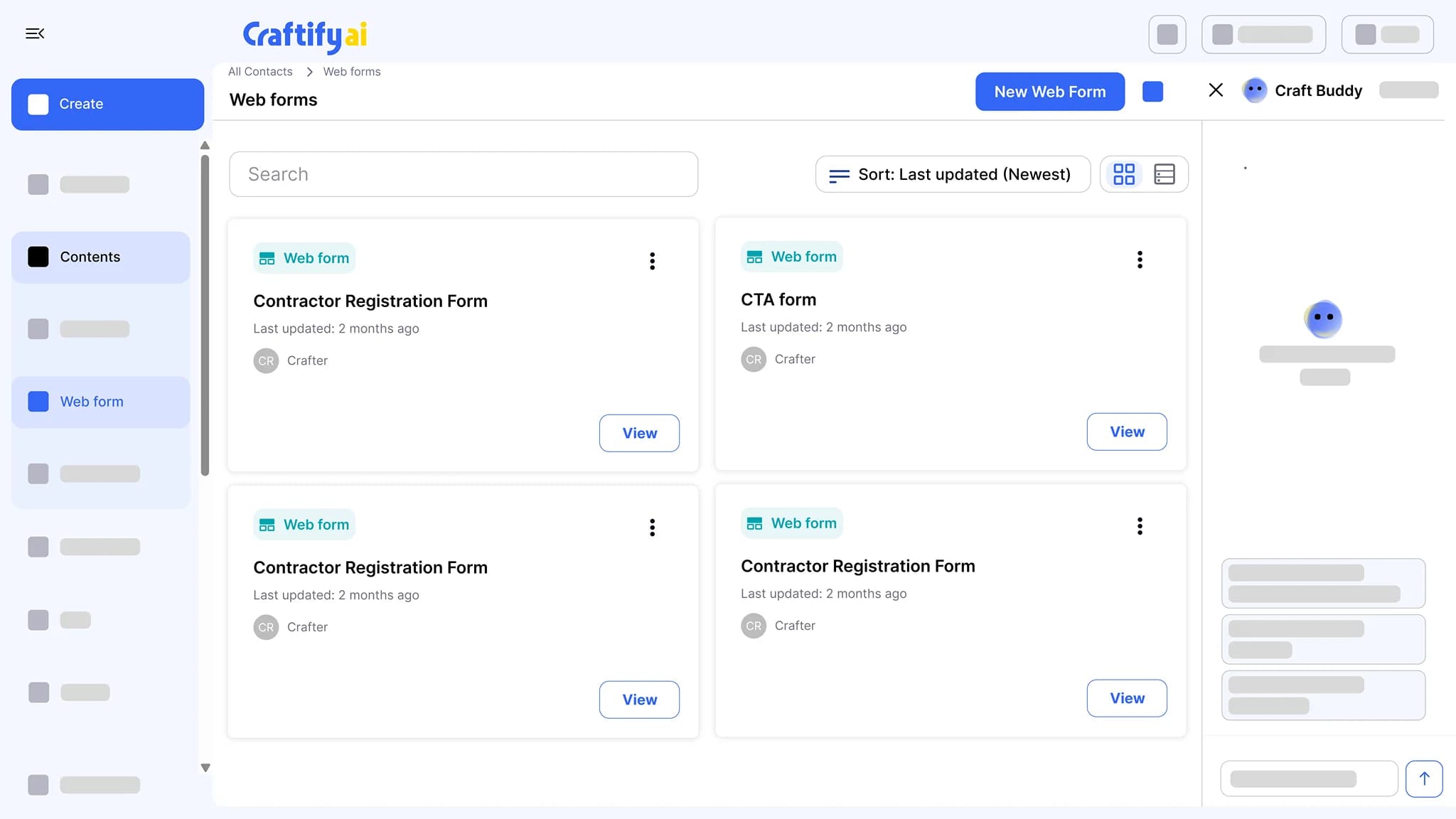
Build a form in the form designer, embed it on your website, and every submission becomes a contact with the form fields on the record. A welcome automation can start the moment the form is sent.
Embeds on your website
Lands in Contacts
Starts a welcome automation
Form submissions pile up in your email and die there.
A quote request, a newsletter signup, a contact form, all landing as notification emails with no contact record, no segment, no follow-up. By the time you copy them somewhere useful, the lead is cold.
Manually copying form submissions into your contact list every Friday.
Sending a generic welcome email because the form did not capture what they actually wanted.
Paying for a separate forms tool just to embed a contact form on your website.
See lead forms that actually feed your follow-up →
Why a form belongs inside your customer platform
Build the form, embed it, and the submissions feed your contacts, segments, and automations directly.
Build it in the form designer
Text, select, multi-select, date, radio, checkbox, and image upload fields, with required-field validation. Embed the form on your website with one snippet.
Submissions land in Contacts
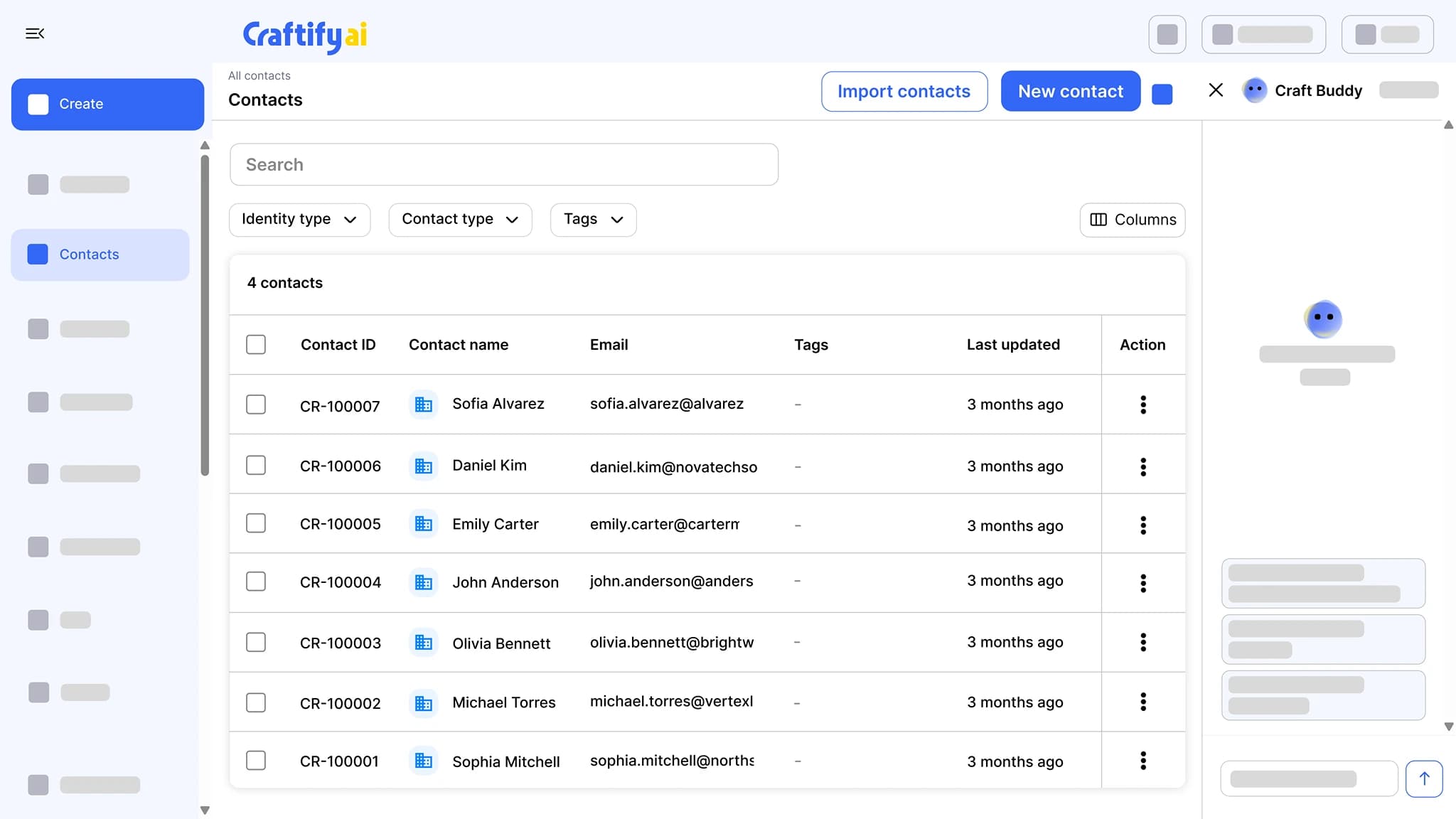
Every submission becomes a contact with the form fields on the record and the form as its source. No copy-paste, no spreadsheet sync.
Starts the follow-up
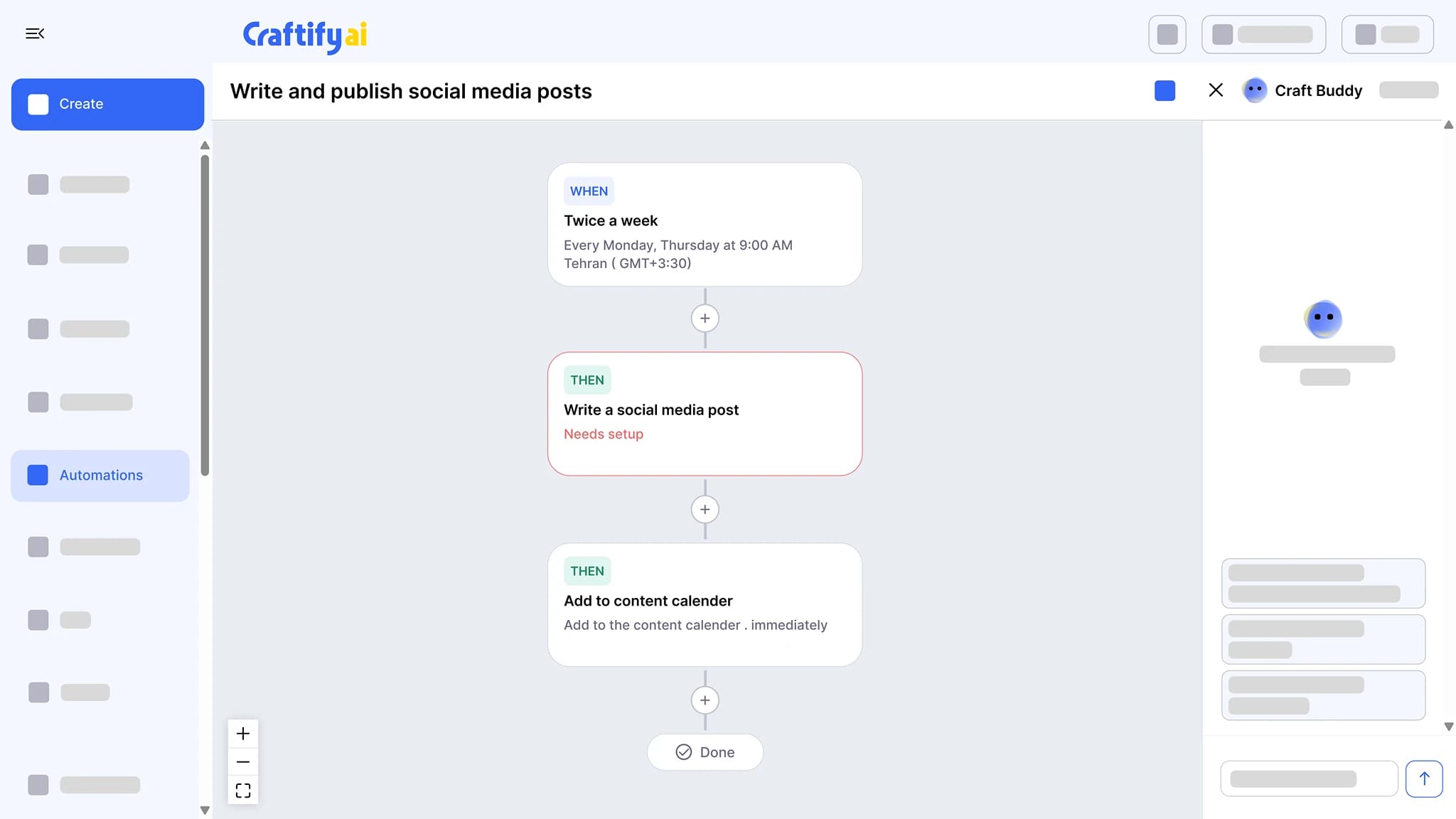
A welcome automation can start on submission, so the first email goes out while the lead is still on your site. Segment by source to reach form contacts again later.
From form submission to follow-up, on its own
Quote requests, newsletter signups, contact forms, lead magnets. Each one lands in Contacts with its fields and its source.
What it does
From a website visitor to a contact
The form, the contact record it creates, and the follow-up that starts on its own.
Build a form, embed it on your website, and every submission becomes a contact with the form fields on the record. A welcome automation can start the moment the form is sent.
Import from CSV, QuickBooks, or Shopify, or let your website lead forms add contacts for you. Tag, segment, add notes, and move leads through pipelines that trigger follow-ups.
See the CRMChain a trigger to actions: write a social post twice a week and add it to the calendar, send a birthday email, or follow up after a job. Set the schedule once and approve what it drafts.
See marketing automation
Need a form for a specific use case? Talk to our team about your setup.
How it works
Build the form, paste the embed snippet, and the rest is automatic.
1
Build the form
Pick the fields in the form designer: text, select, multi-select, date, radio, checkbox, or image upload. Mark the ones that are required.
2
Embed it on your website
Copy the embed snippet and paste it into your website or landing page.
3
Submissions become contacts
Every form fill creates a contact with the form fields on the record and the form as its source, and can start a welcome automation.
Ready to put your forms to work?
Frequently asked questions
Lead Forms is the form builder in Craftify AI: you build a form in the form designer, embed it on your website, and each submission becomes a contact in your CRM with the form fields on the record. A welcome automation can start as soon as the form is submitted.
Text, select, multi-select, date, radio, checkbox, and image upload. Any field can be marked required, and the form will not submit until it is filled in.
Yes. The form comes with an embed snippet you paste into your website, whether it runs on WordPress or any other site builder that accepts embedded code.
It becomes a contact in your CRM. The form fields are saved on the contact, the form is recorded as the source, and any welcome automation you tied to the form starts.
Yes. Connect a welcome automation to the form and the email goes out on submission, without you doing anything.
Yes. Contacts created from a form carry the source, so you can build a segment of everyone who came through a specific form and use it for an email send or an automation.