Topic Idea Generator Tutorial
- The Topic Idea Generator is here to help you with new ideas for your marketing!
- Step 1: Open Topics
- Step 2: Configure your topics
- Step 3: Advanced Options (Optional)
- Step 4: Generate Topics
- Step 5: Generate Topics
- Step 6: Review the Topics that Craftify AI created for you
- Next: Use Topics in Blog, Social Media, Email, or Automations!
The Topic Idea Generator is here to help you with new ideas for your marketing!
We totally get it that you've been doing a lot of thinking and you sometimes just can't come up with more ideas for your social media or blog posts. So Craftify AI made a tool to help you come up with more ideas. Not just the idea, but also the prompt to help you create your next great post.
Follow this short tutorial to see how it works.
Step 1: Open Topics
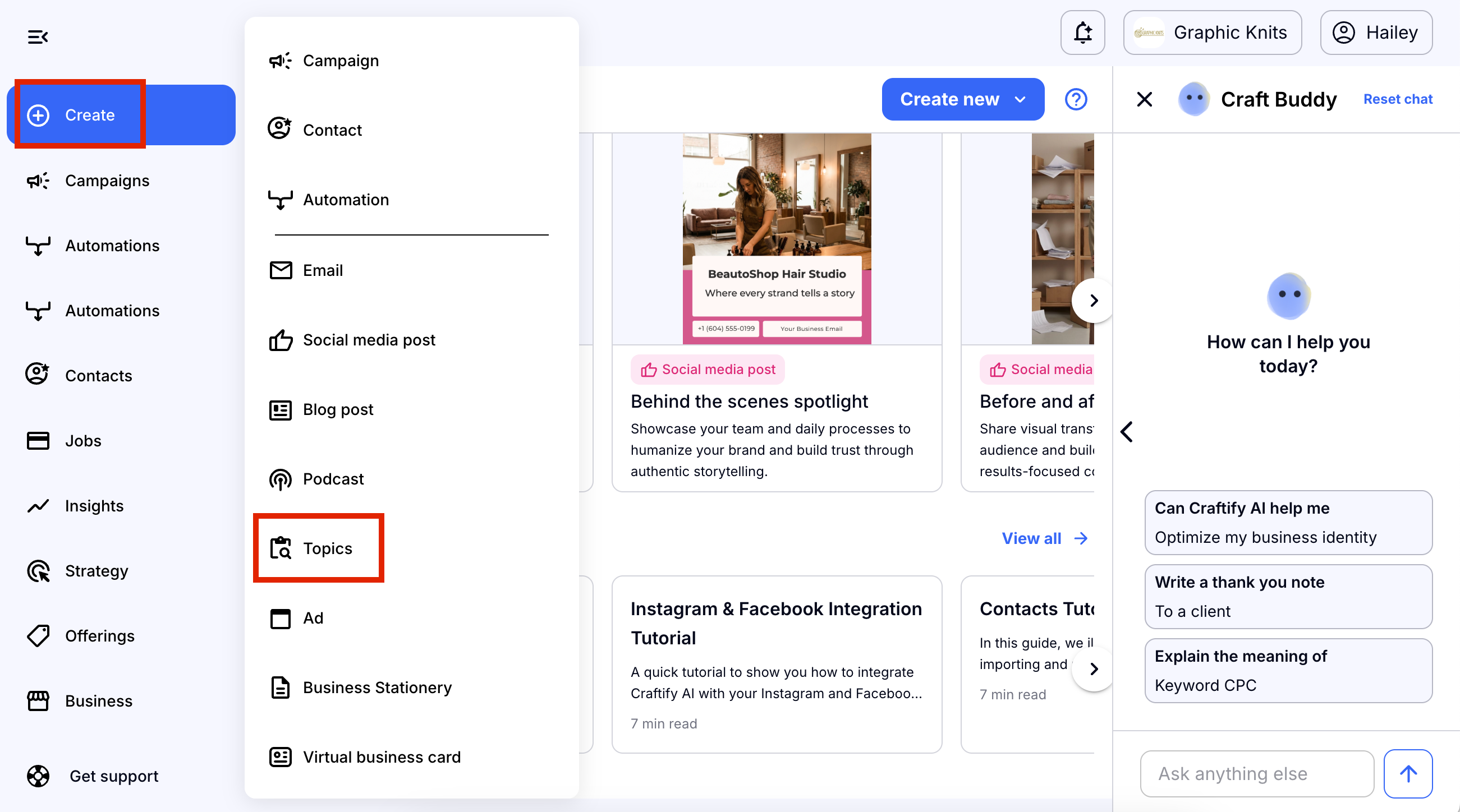
Choose the 'Create' button on the left-hand side and then from the drop-down menu choose 'Topics.'
Step 2: Configure your topics
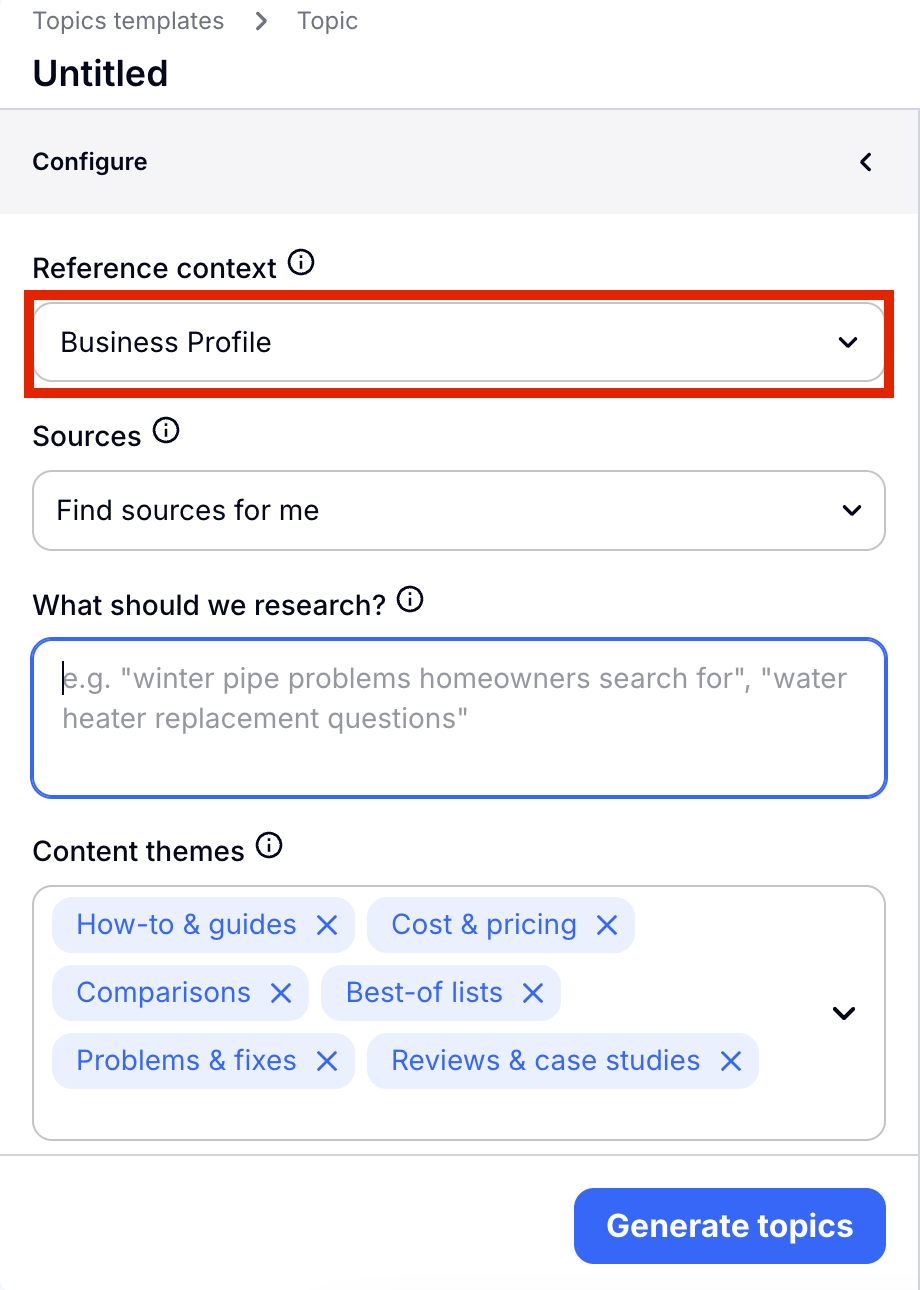
Start off by deciding what the context will be for these topics. Automatically you will find your Business Profile selected, but you can use any campaign, product, or service as well!
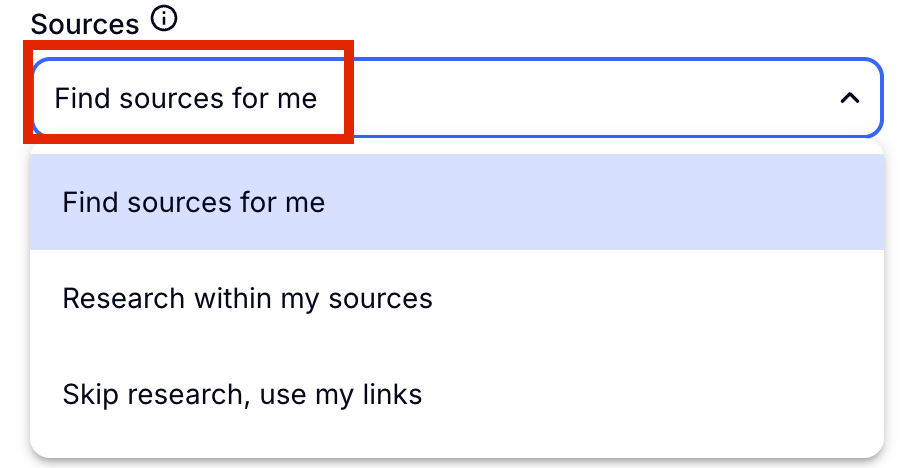
Next you will choose how to find your sources for the topics. For this tutorial we will choose the 'Find sources for me' option. If you have several links that you would like to search within, then choose either of the other options. If you don't have any sources to start with, then simply go with the first option here.
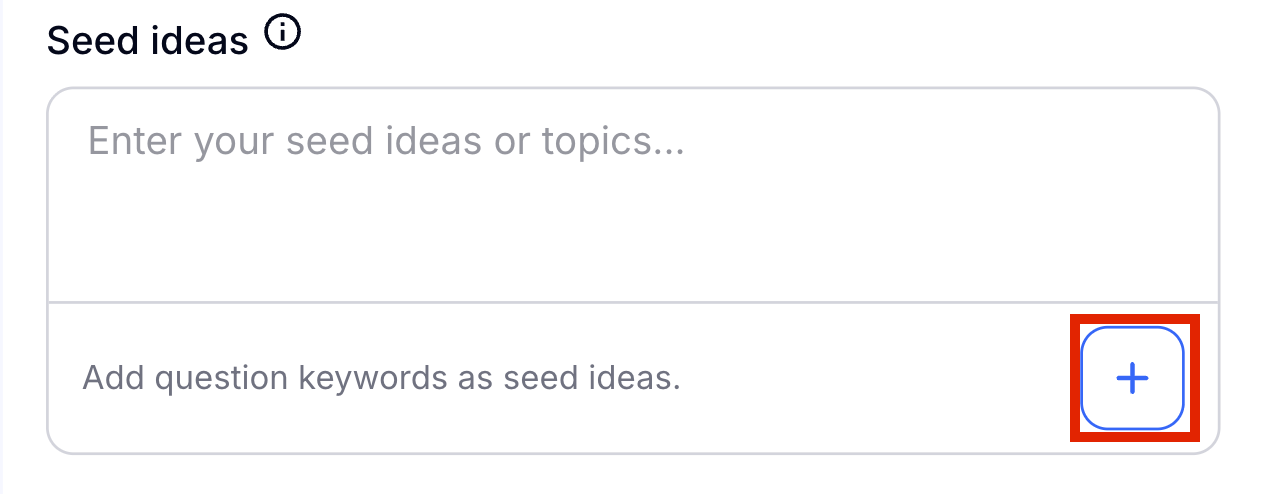
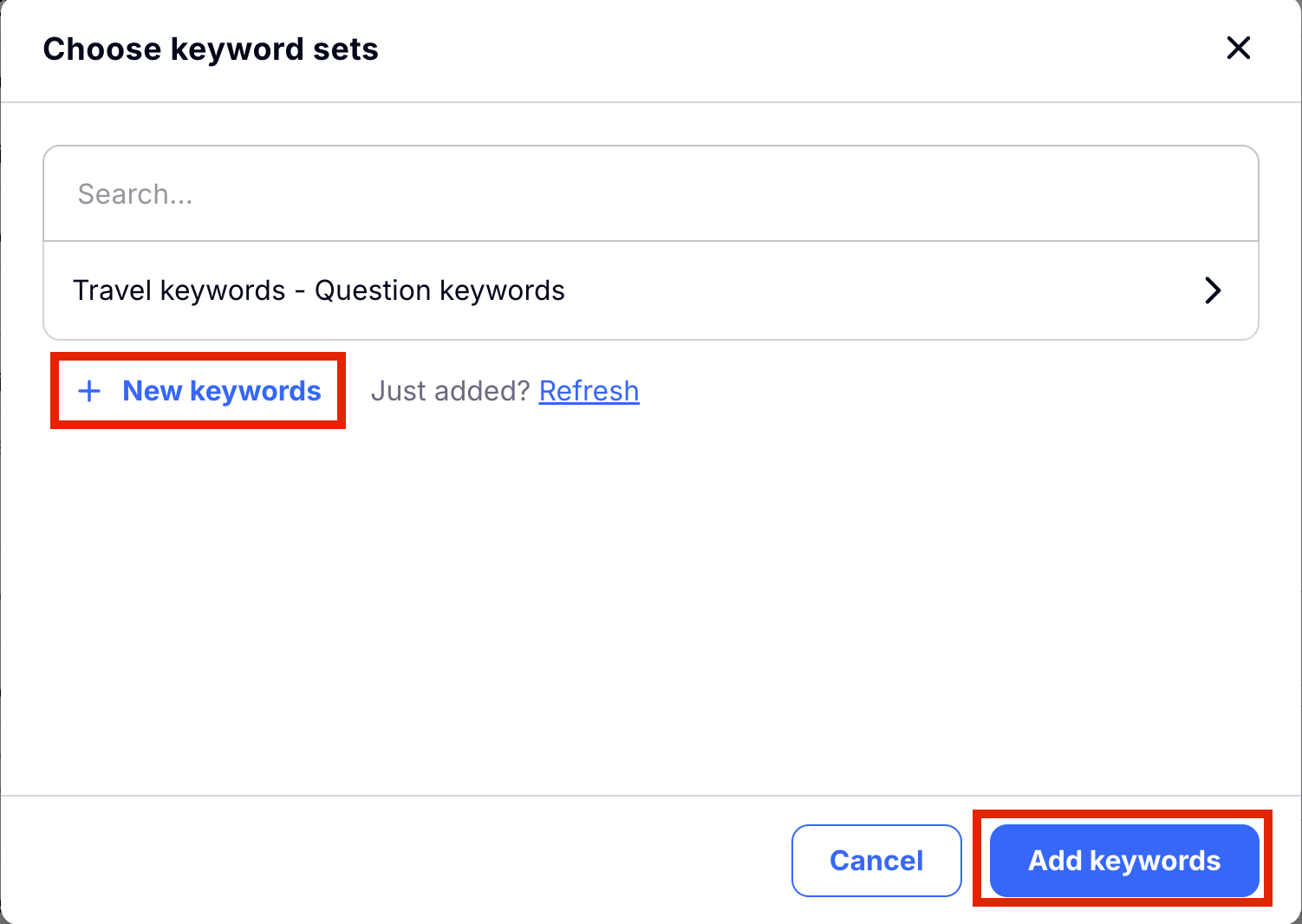
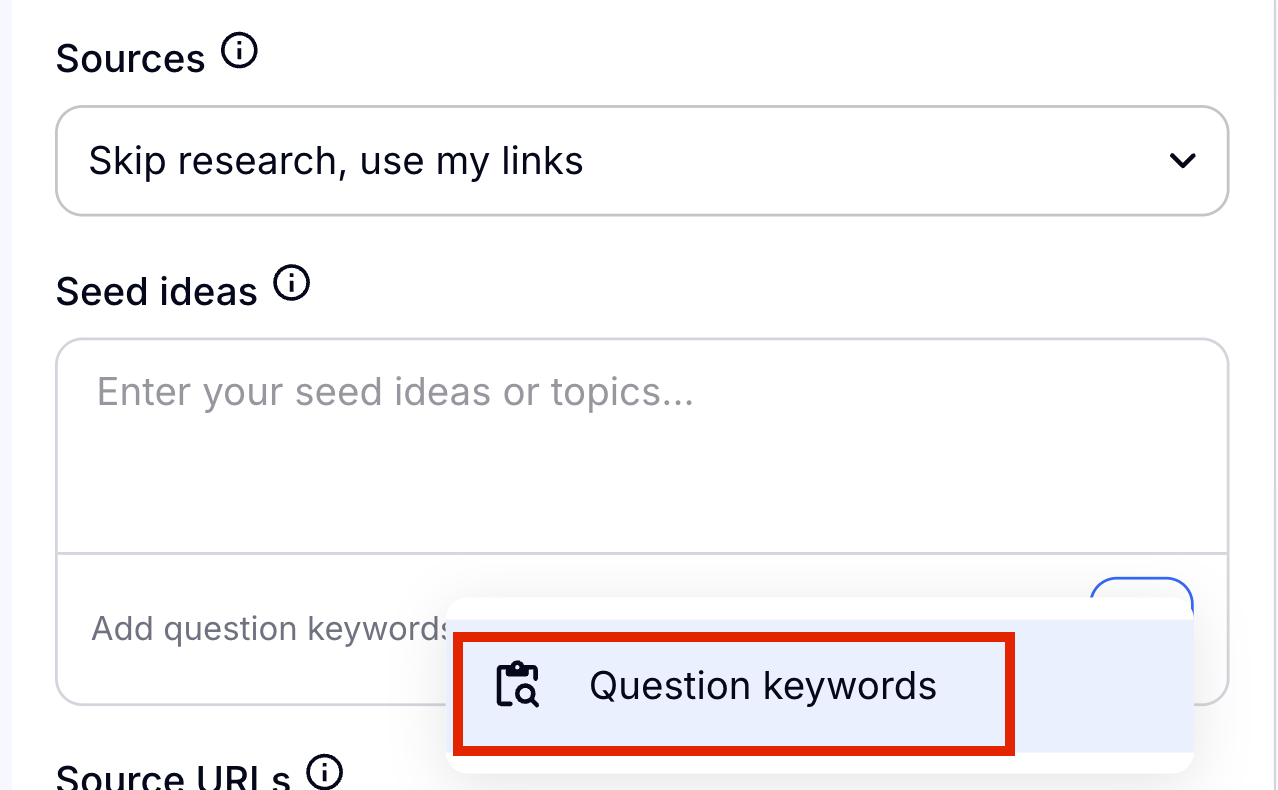
Next you will need to give your Seed Ideas. These are the ideas of topics that you already have on the top of your head. You can use simple phrases here. If you have made keyword sets before you can use a keyword set as your seed idea, or you can make a new keyword set!
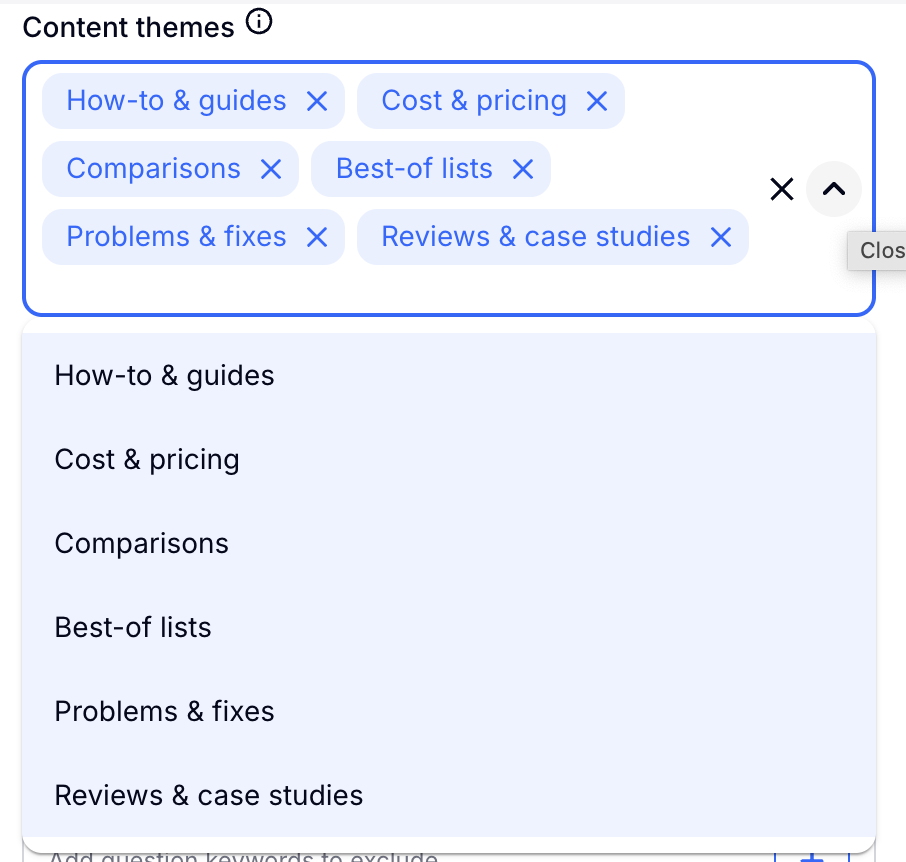
Next you will choose your Content Themes. Automatically all of them will be selected. Simply unselect the ones you wish to not include.
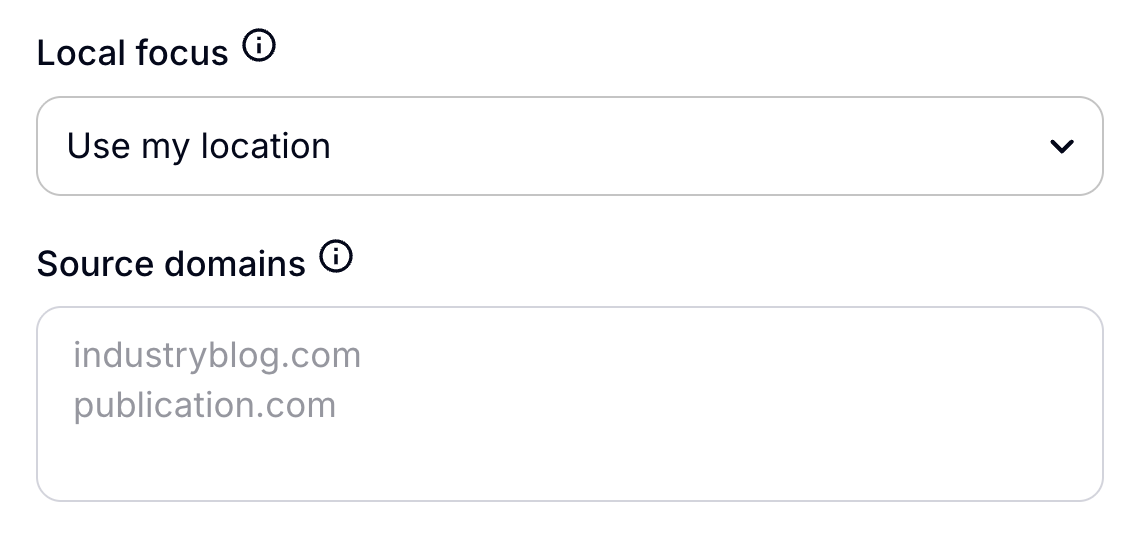
Then you will choose the Local Focus. Are these topics specific to your local area or are they broad topics? Choose whether or not you want these to be connected to your business location.
Under this you will find the Source Domains if you chose the option earlier to use your own sources for research.. Copy and paste any source links you want to use here.
Step 3: Advanced Options (Optional)
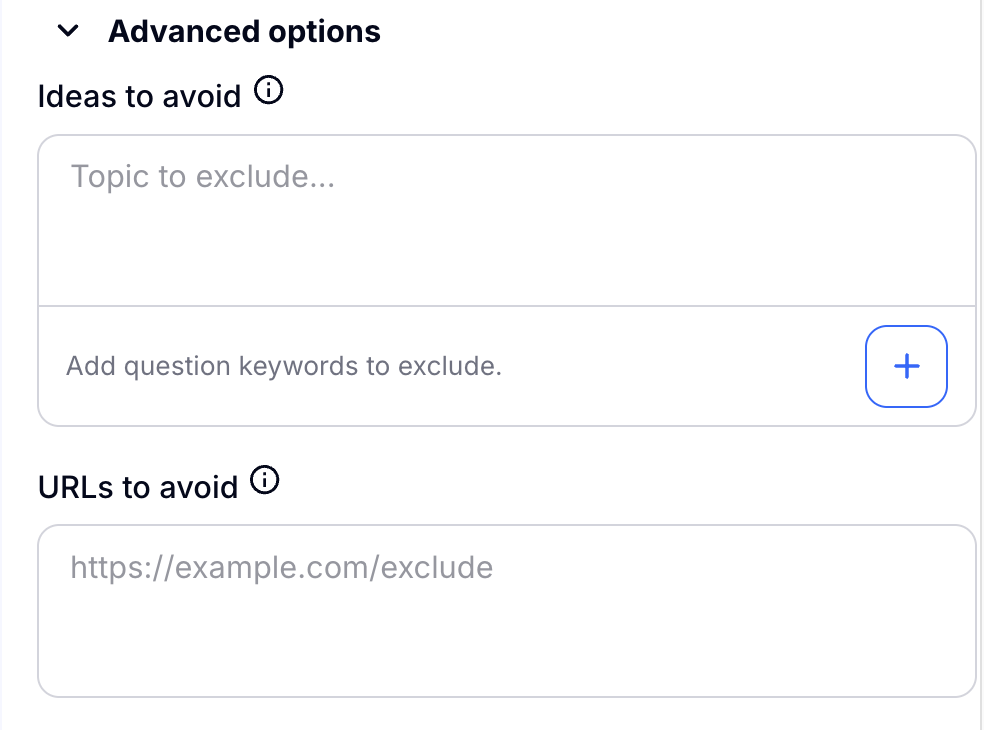
These are optional configuration settings for Topics if you would like to use them. If there are any topics that you would like Craftify AI to avoid while making the research, add those ideas and links here.
Step 4: Generate Topics
Under the Advanced Options you will see the same Target Audience and Tone of voice as is found in the context in the first part of configuration. If you choose your Business Profile as context, then this will be the same as you have set there.
You can change or update this simply by choosing a different audience that you created in Audience Segment Persona or you can simply write in what you like.
Step 5: Generate Topics
When you're ready, choose 'Generate topics.'
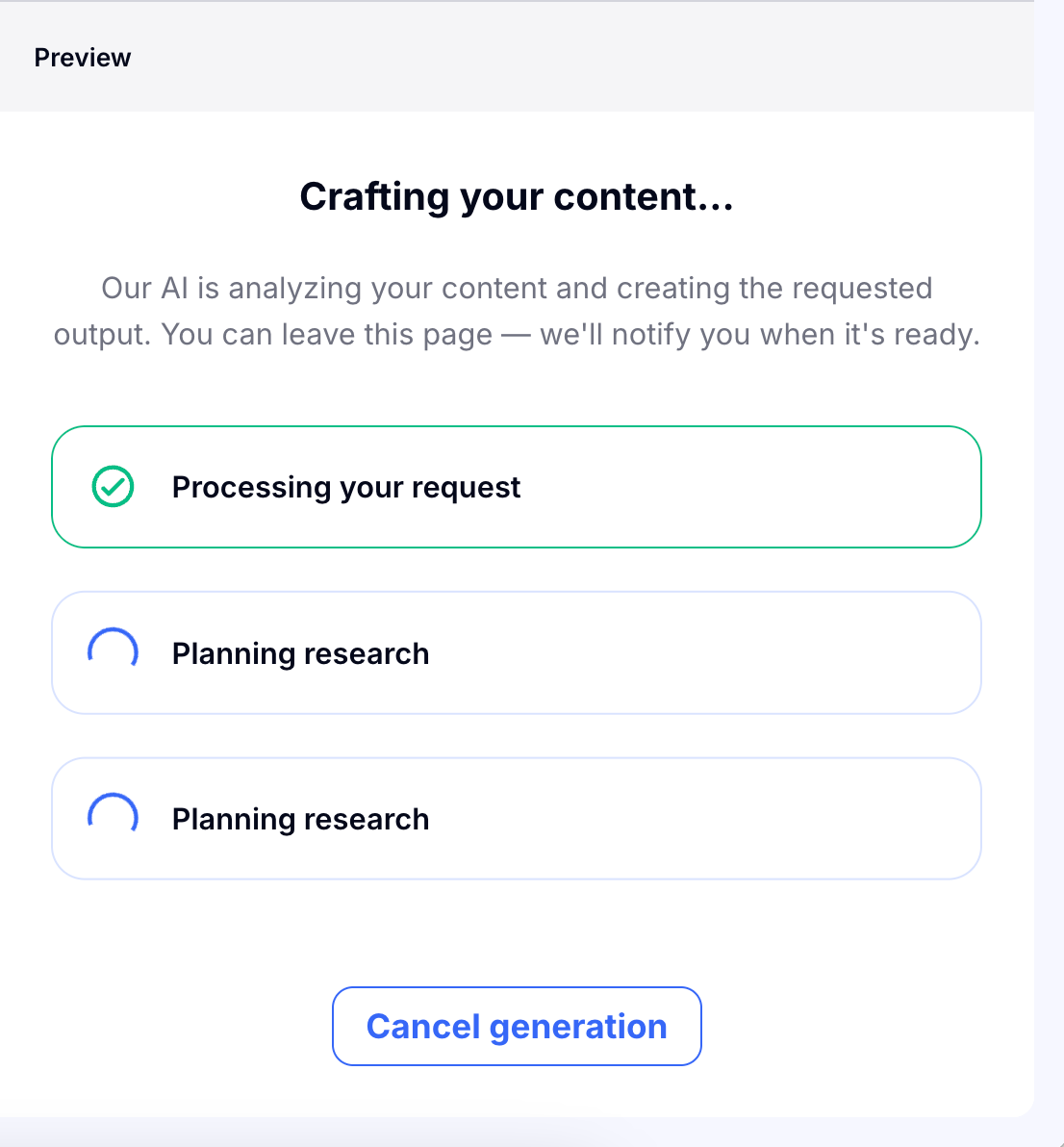
Then sit back and relax while Craftify AI does the creative thinking for you and finds topics that are relevant to your configuration. You will be able to watch the progress as it loads. If you wish to stop the craft, you can choose 'Cancel generation' at any time.
Step 6: Review the Topics that Craftify AI created for you
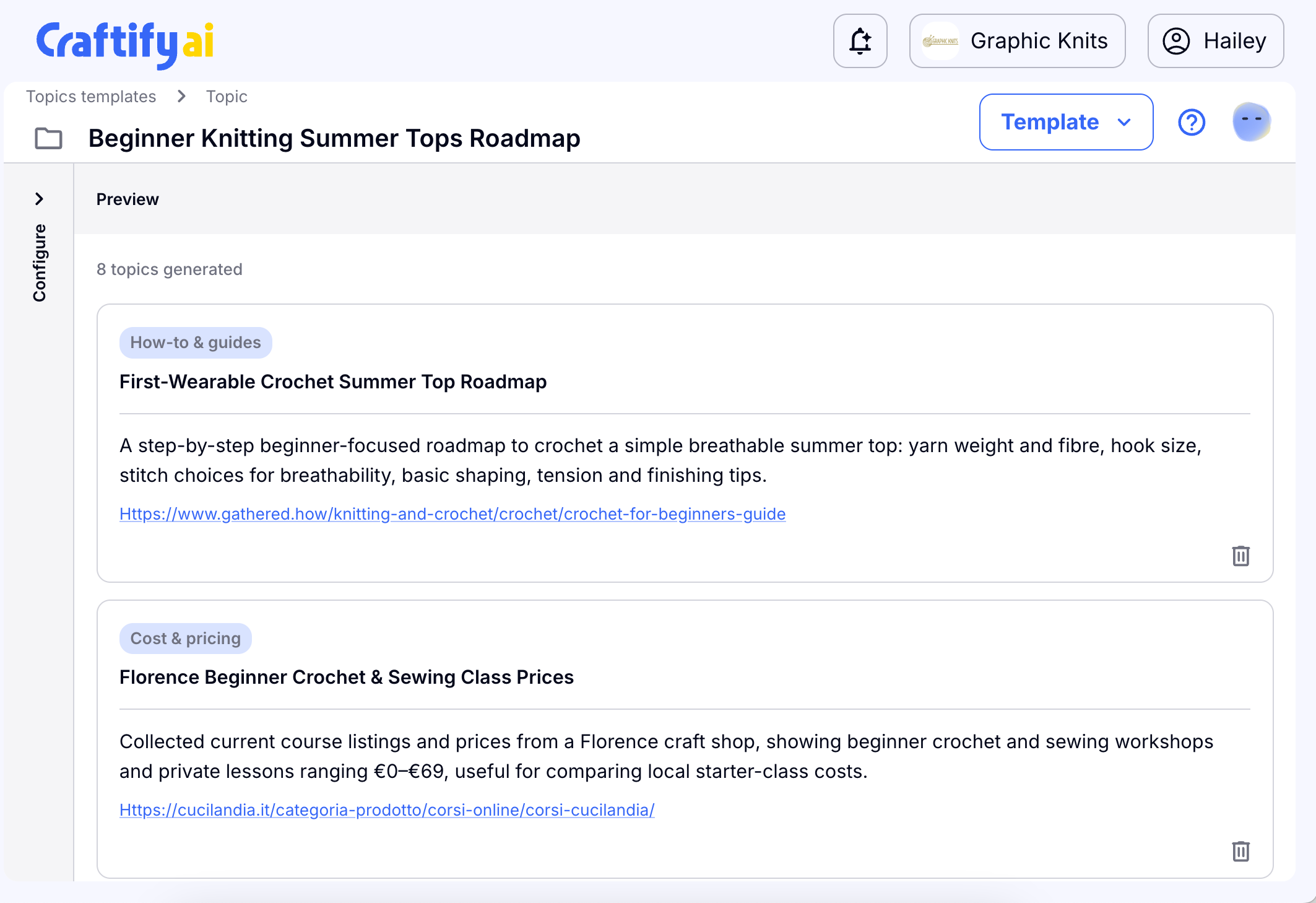
Read through the new topic ideas you have based off of your idea or keyword search. You can choose to delete any of the options from the search simply by clicking the little trashcan on the right-hand side of each topic.
Next: Use Topics in Blog, Social Media, Email, or Automations!
You can now use this new Topic Set to create blogs, social media posts, emails, and automations! Click the following relevant links to learn how to do each type of craft!

