Merge Contacts Tutorial
Accidental duplicates in your contacts? We can fix that easily!
In this quick tutorial we show you how easy it is to merge duplicate contacts in your Craftify AI Contacts.
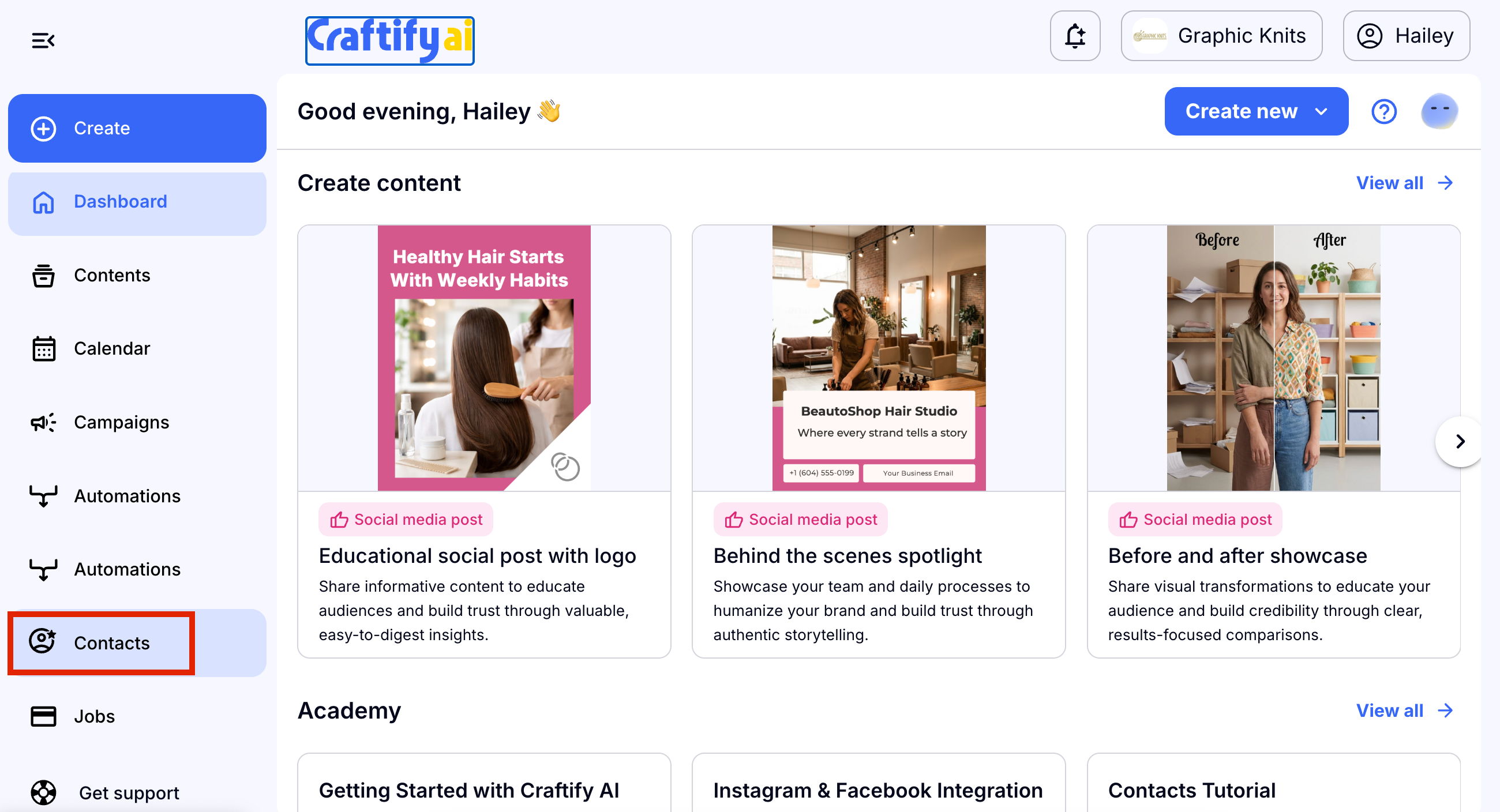
Step 1: Go to your Contacts
On the left-hand side menu, click 'Contacts' to access all of your contacts.
Step 2: Select both contacts to merge
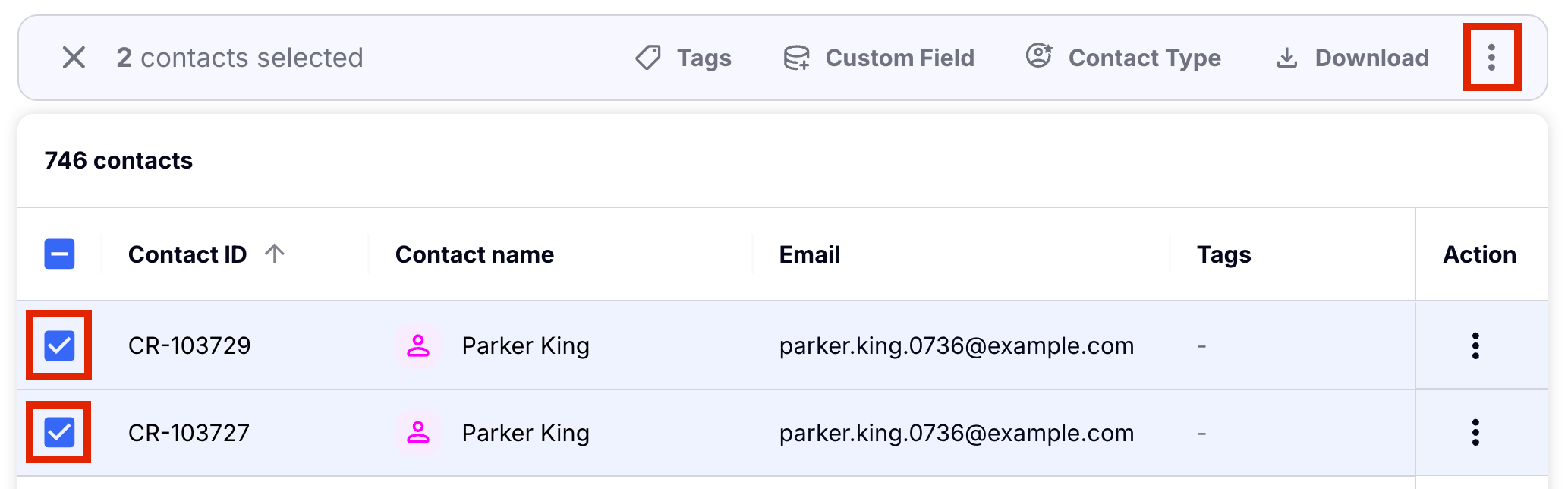
Find the two contacts that you wish to merge together and click the box on the left-hand side to select them. Once they are selected, click the three-dot icon in the right-hand side of the menu bar.
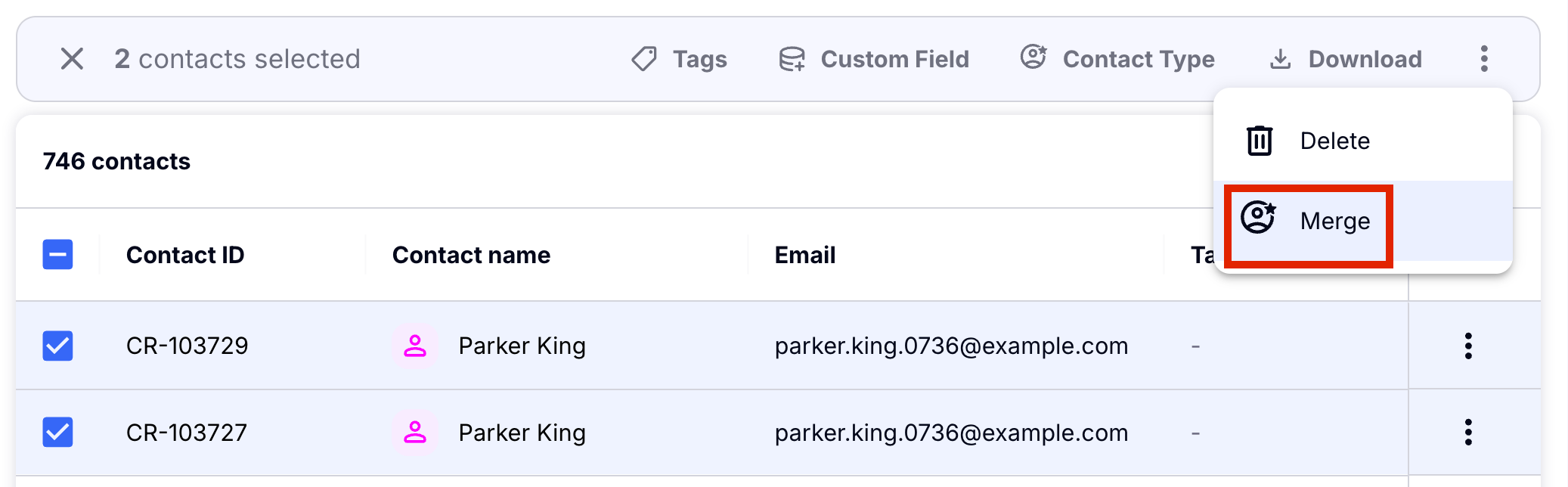
Then, choose 'Merge Contacts'.
Step 3: Configure the new contact from the two merged
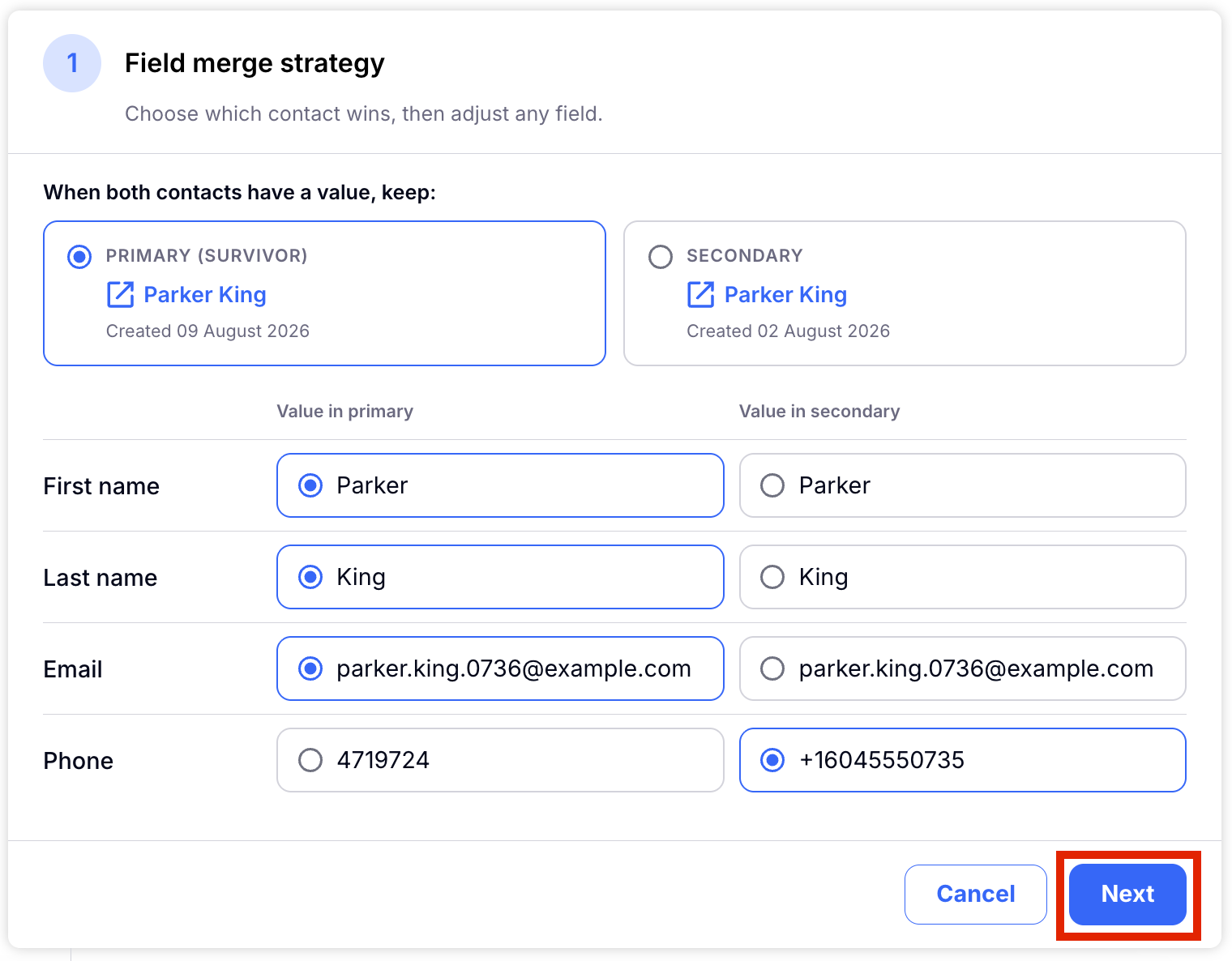
Info from both contacts will be visible and you will be asked to choose which data from each of those contacts is the correct information to include in the merged contact. Choose the correct choices for each field, then choose 'Next.'
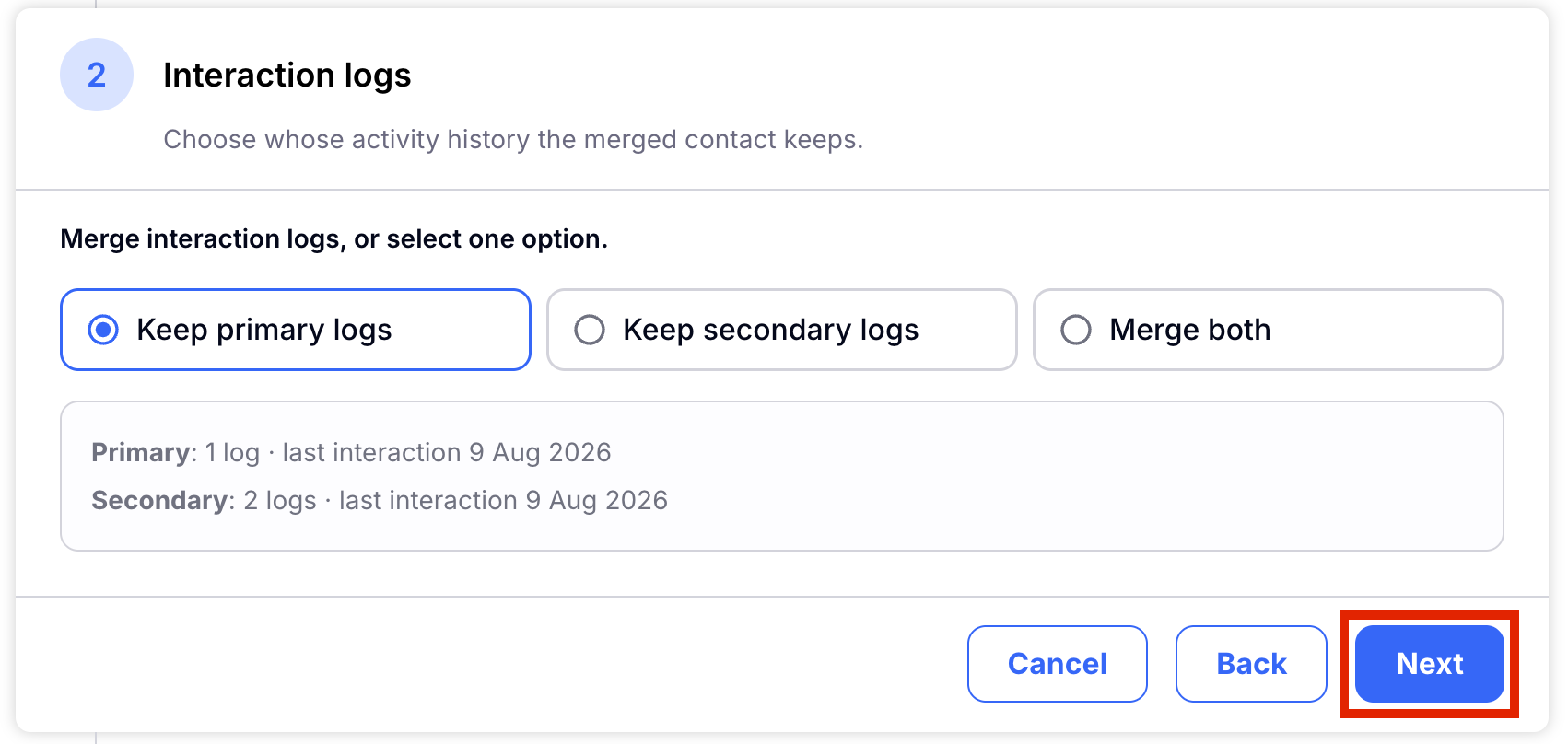
You will now choose which contact has the correct interaction logs. You can also choose to merge both logs into one. Choose 'Next' to continue.
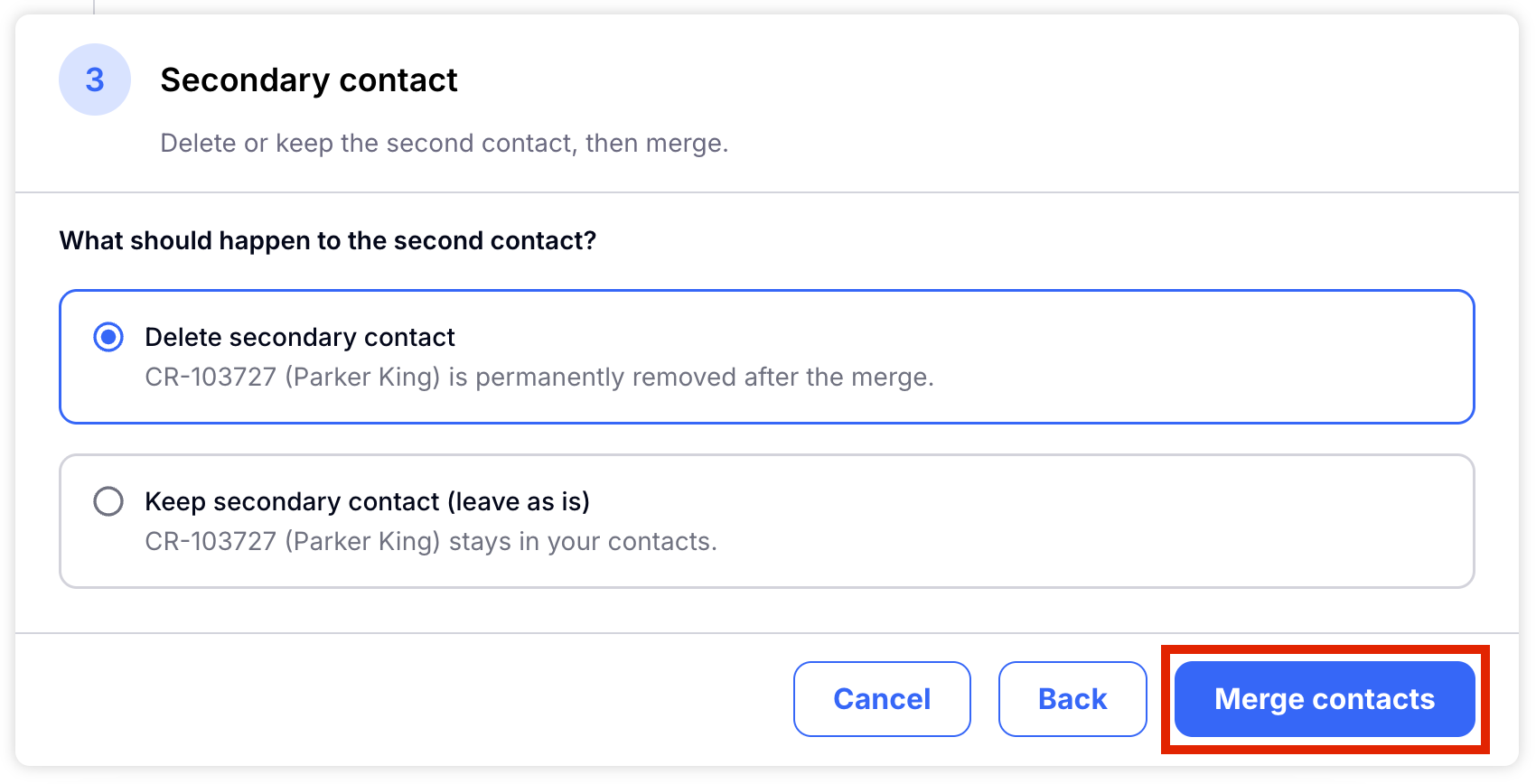
Now choose what to do with the secondary contact. You can keep it or choose to delete it. Choose 'Merge contacts' to finish.
Step 4: Review the new merged contact
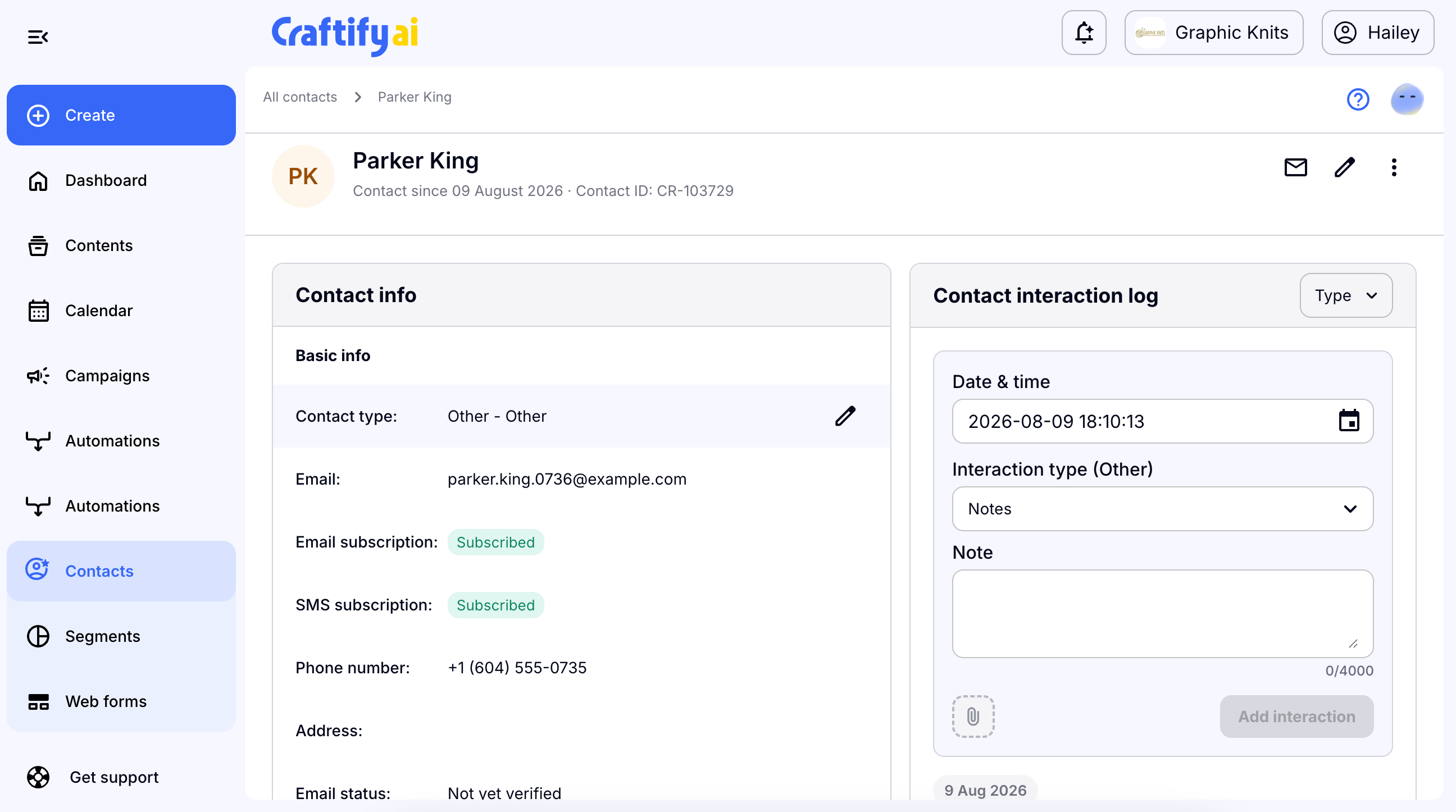
The new contact card will appear. From here you can review the changes made and the information saved in the new contact.
Next: Learn more about managing your Contacts
You can learn more about managing your contacts at the following tutorials:

