Import Contacts Tutorial
Manually updating your CRM list is slow and prone to errors. With the recent enhancements to our CSV Contact Import tool, you can now upload records in batches and leverage unique system identifiers to execute clean round-trip edits—allowing you to download your existing list, make fast offline updates inside your spreadsheet editor, and re-upload to refresh your contacts automatically.
Here is how to properly plan, map, and execute your batch contact imports within our 750-record core package capacity limit.
Pre-Plan and Clean Your Data File
Before initializing any data upload, navigate to your account Usage and Limits dashboard to verify your storage capacity complies with your package allowance. The core plan allows you to have up to 750 contacts. You can do this by clicking your name in the top right-hand corner, choosing 'Settings' and then choosing 'Usage and Limits.'
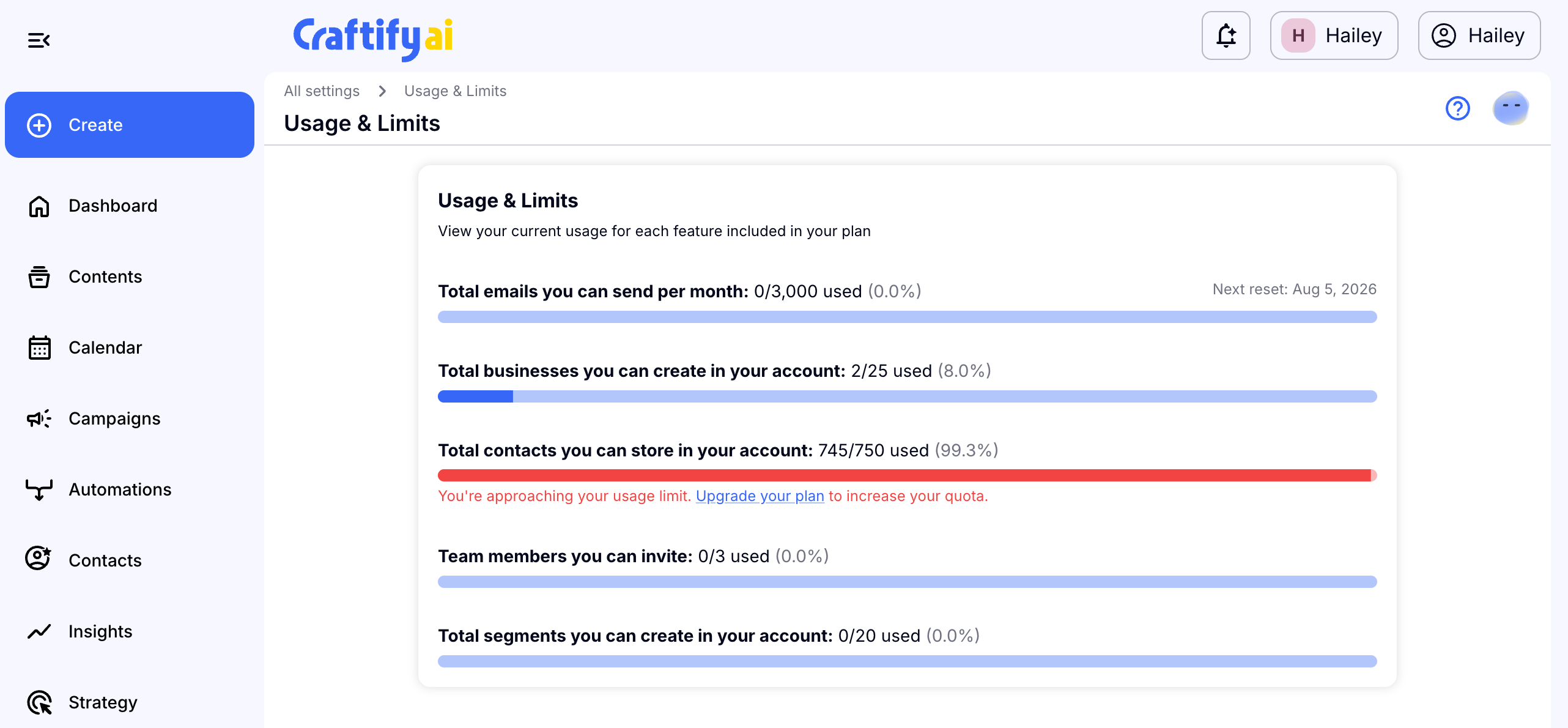
Once confirmed, open your spreadsheet file with your contacts to upload and do a quick audit of your contacts and clean your file layout. We recommend making sure every column has a title and that the information below corresponds with that title.
Configure Contact IDs for Round-Trip Bulk Updates
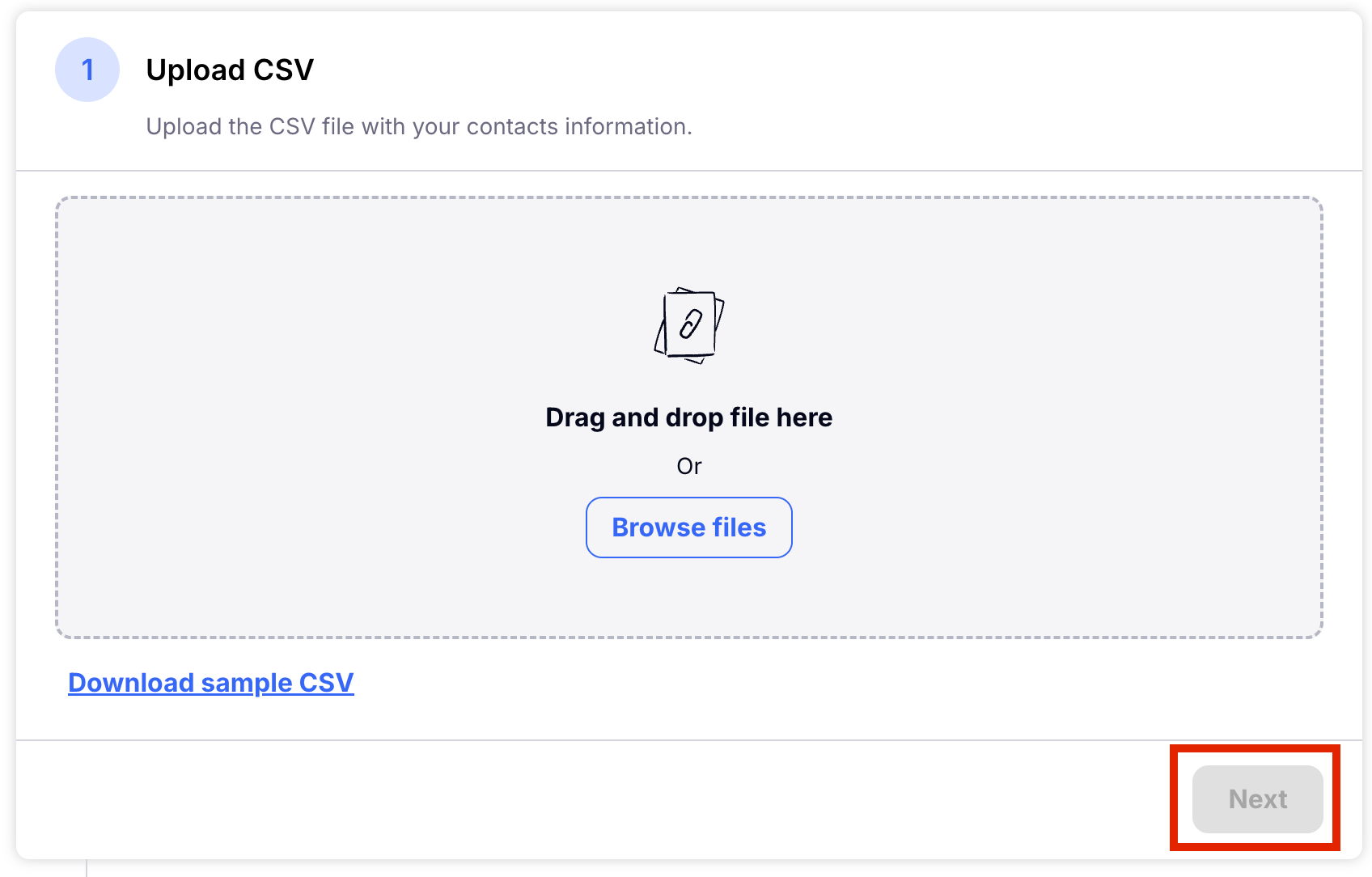
Upload your sample CSV sheet into the import screen. Once uploaded, choose 'Next.'
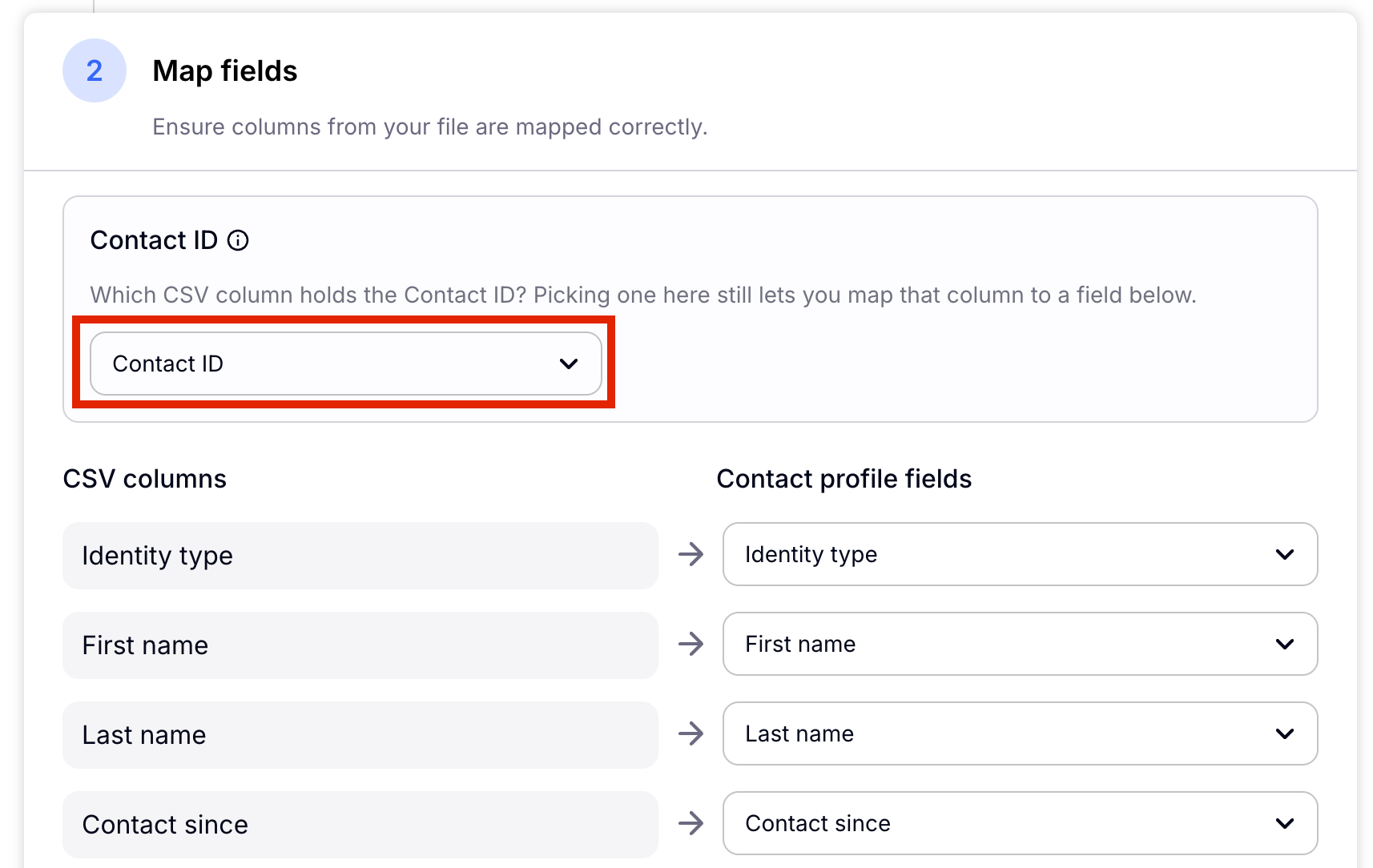
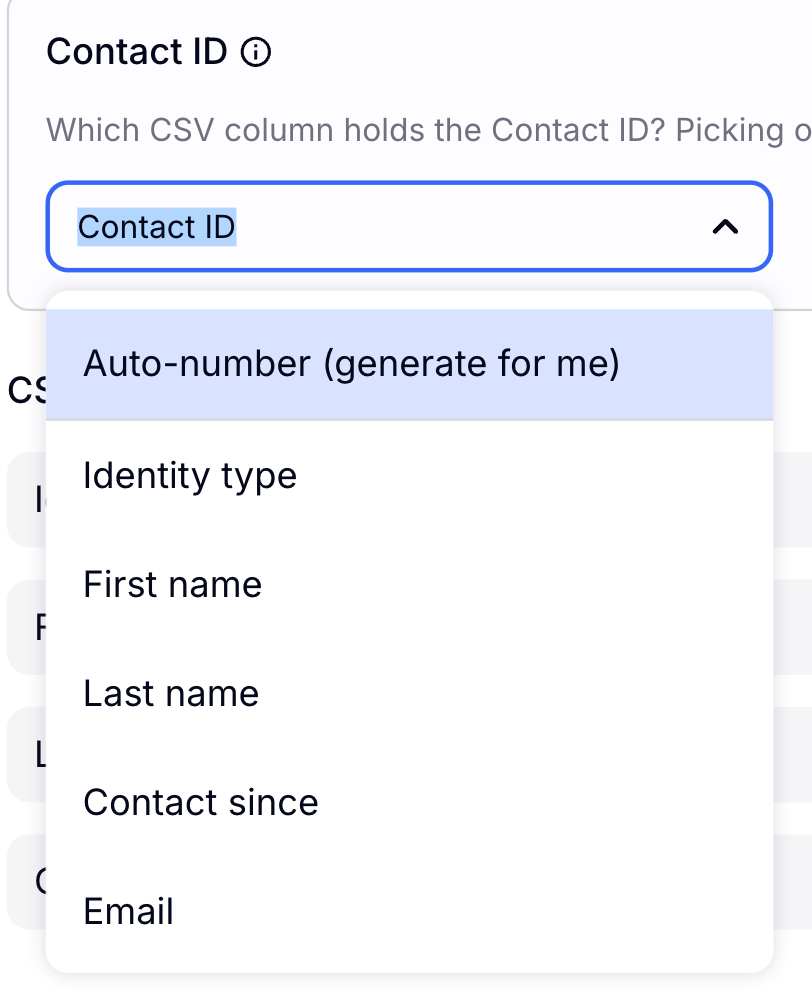
To protect your database from duplicates and configure future round-trip bulk editing workflows, map your unique Contact ID column. If your sheet does not contain a pre-existing identifier, the platform generates a unique system ID automatically during the import. You can also choose that the Contact ID is based off of the Name, Email, or other data.
Map Custom Fields and Establish Permanent Data Types
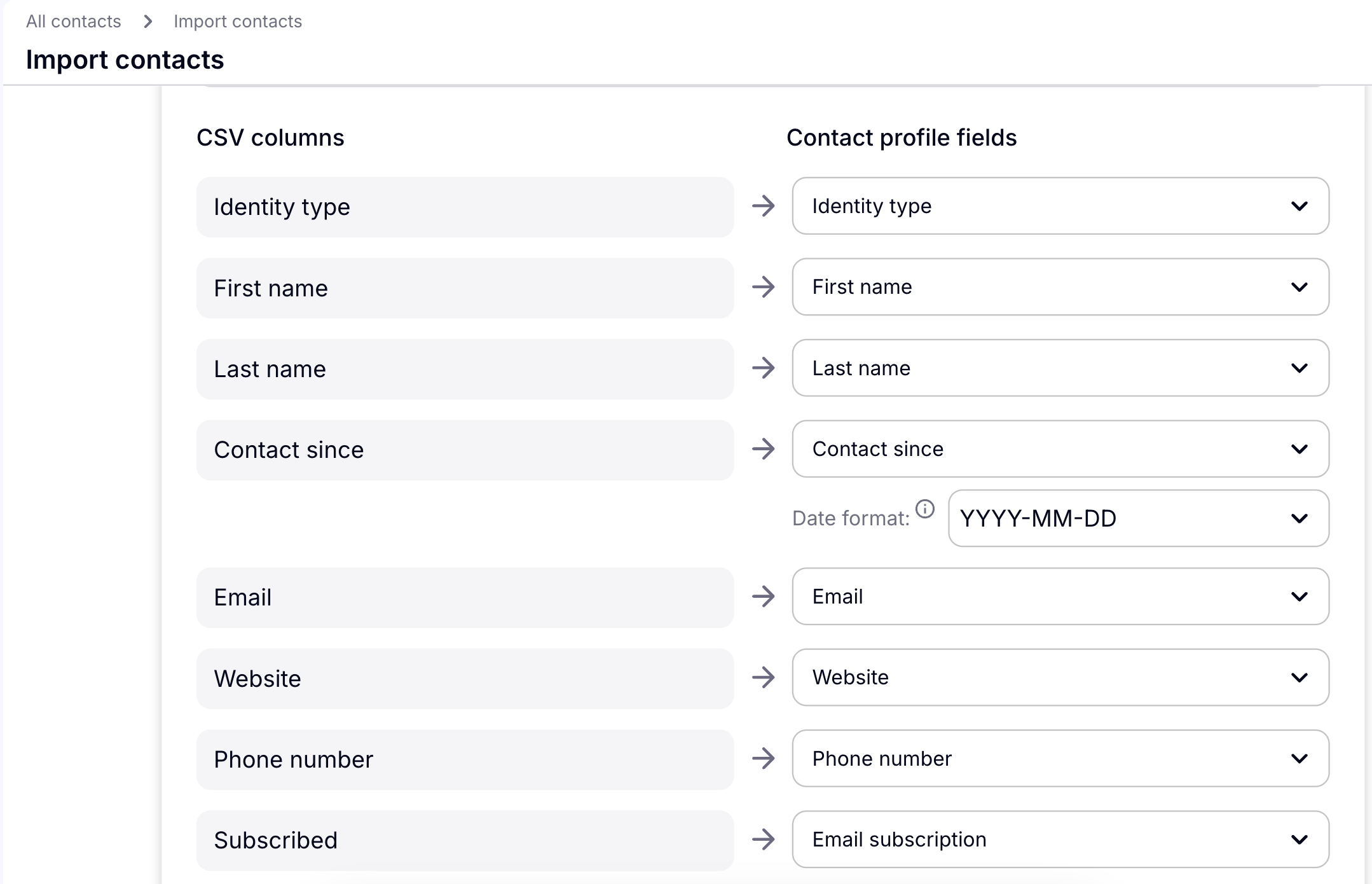
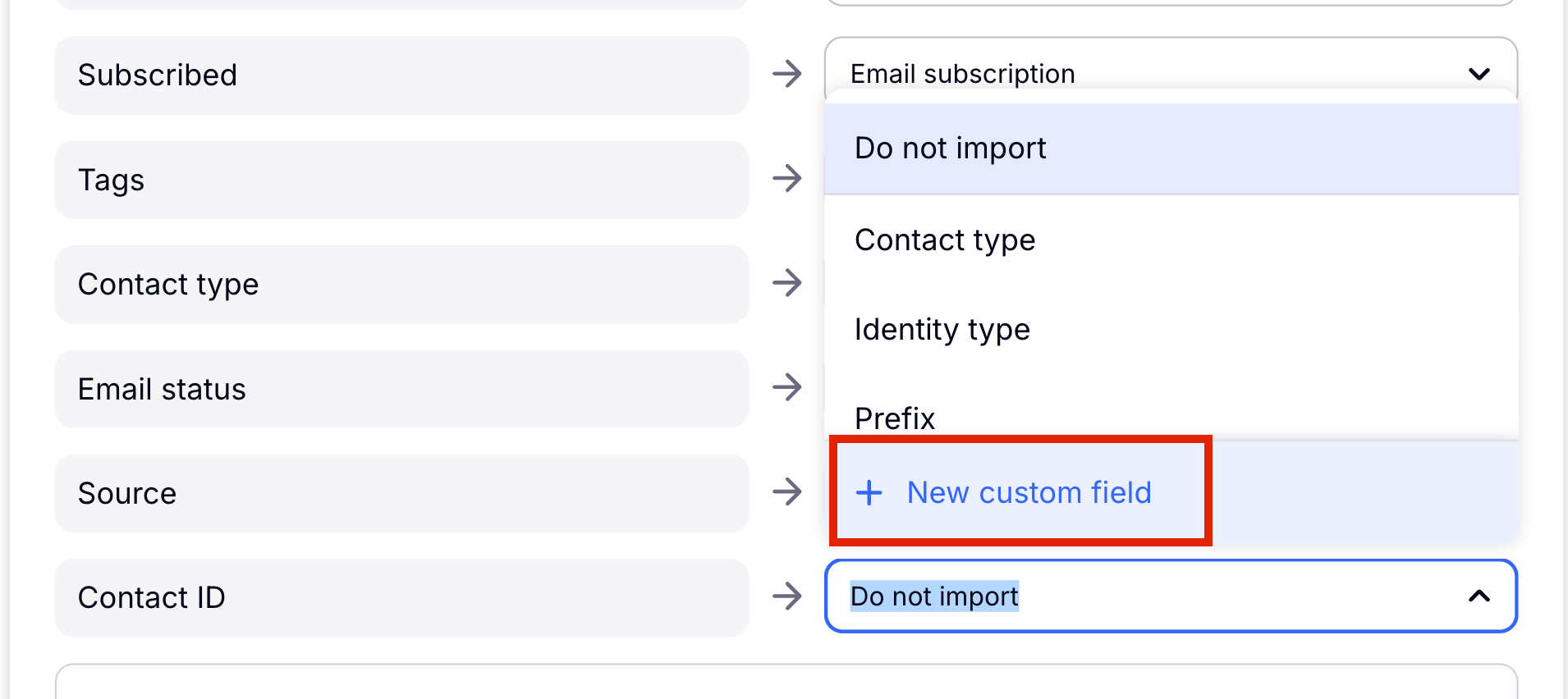
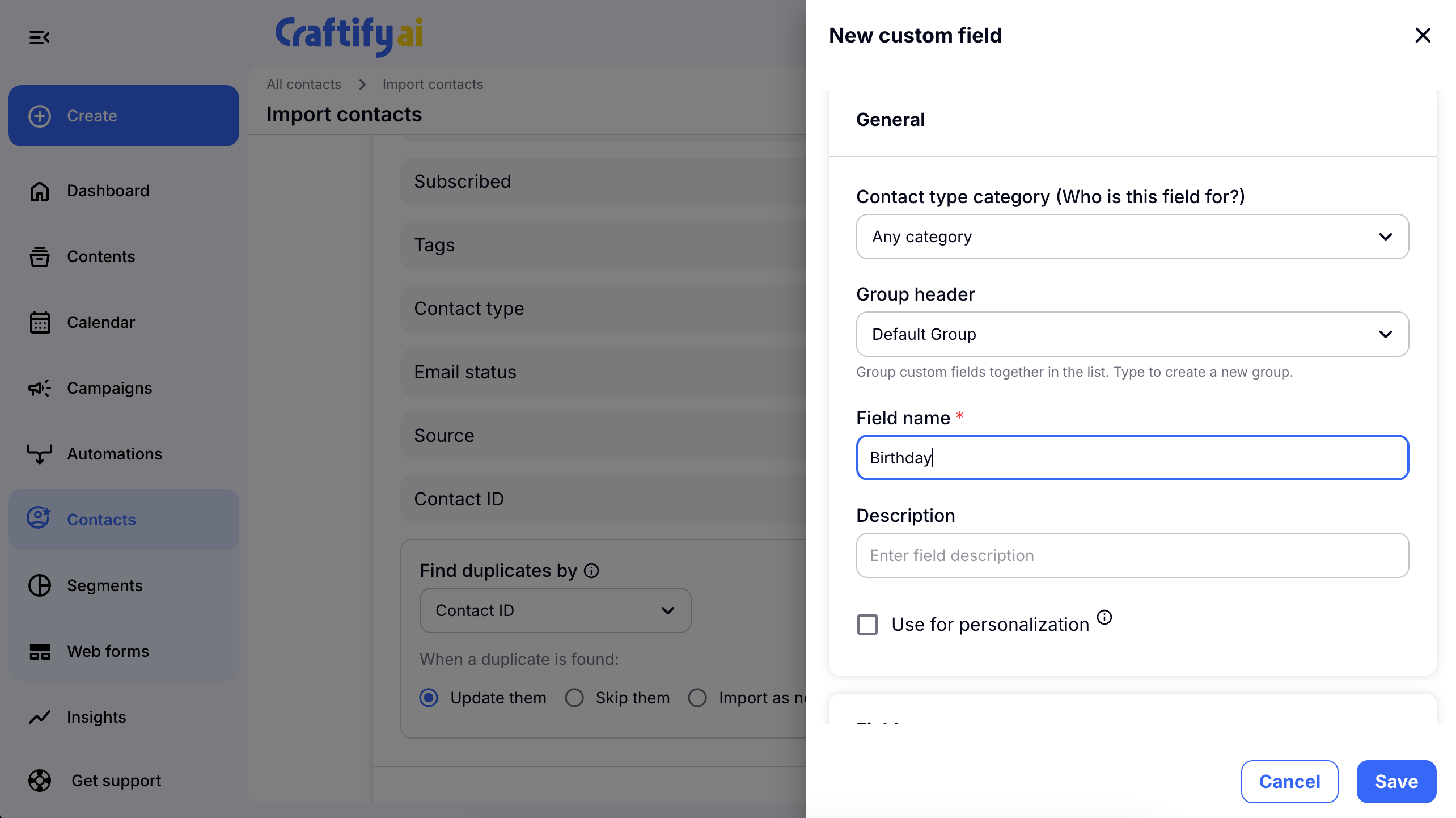
Map your spreadsheet headers to matching platform variables that you will find inside of Craftify AI. If you are importing specific custom attributes for the first time, you will align these properties manually by choosing to create a New Custom Field. On all future updates, the system reads your headers and automatically pairs them if the field names match exactly. Pay close attention to selecting your data type (such as text, date, or numbers) during initial creation, as it cannot be modified later. Utilize multi-select layouts whenever a column requires tracking multiple independent categories per contact card. Once you have filled out all of the required fields, choose 'Save' to save the new Custom Field.
Configure Multi-Point duplication rules
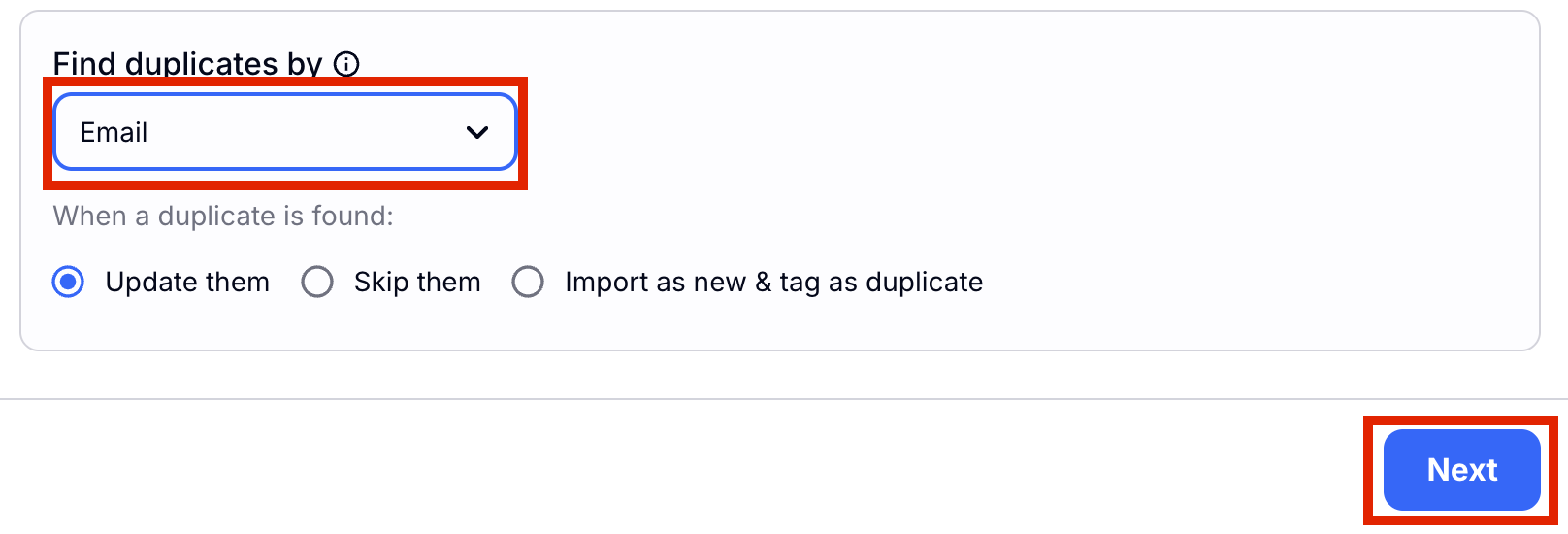
Next you will see the duplicate management criteria section. To be sure you don't have the same contact twice, configure your deduplication rules to look up conflicts based on matching email addresses, phone numbers, custom elements, or Contact IDs. The system uses this priority logic to accurately determine whether to overwrite existing variables or skip data conflicts entirely. Choose 'Next' to continue.
Validate test and import contacts
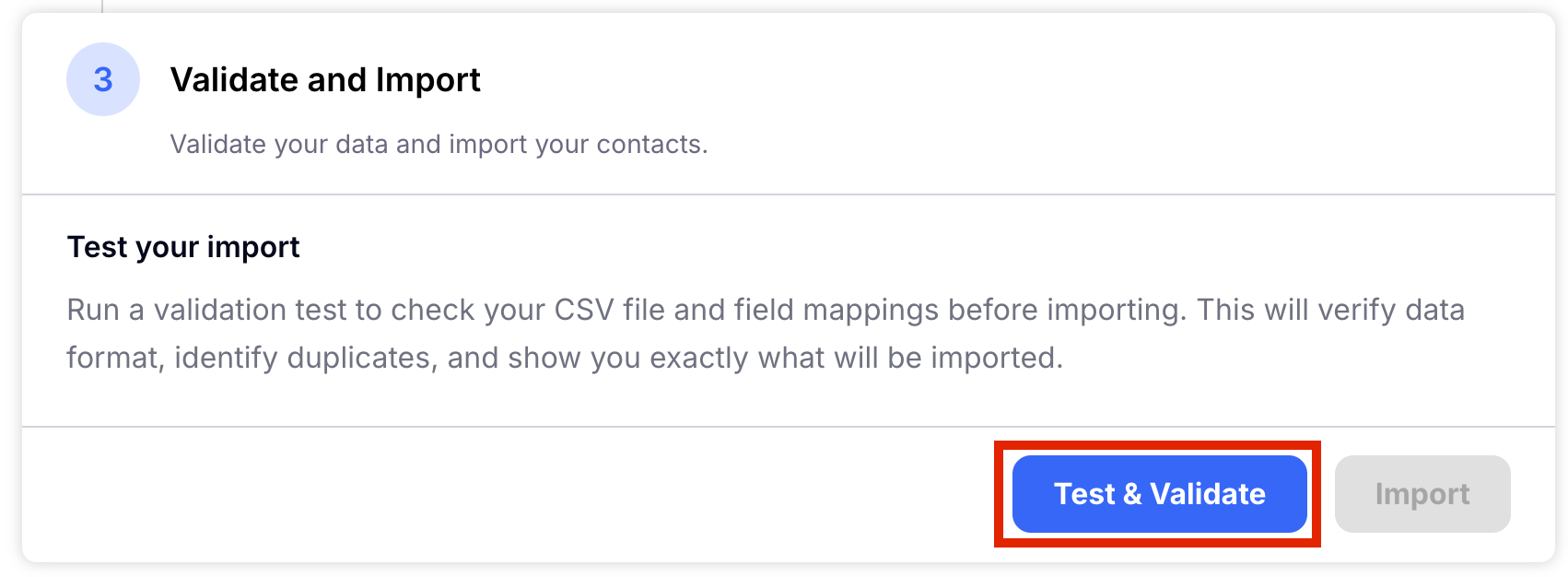
To be sure that all of the contacts that are in your file are correct, you will run a test to make sure they are all okay. This will search also for duplicates or any issues with individual contacts. To run the test, choose 'Test and Validate.'
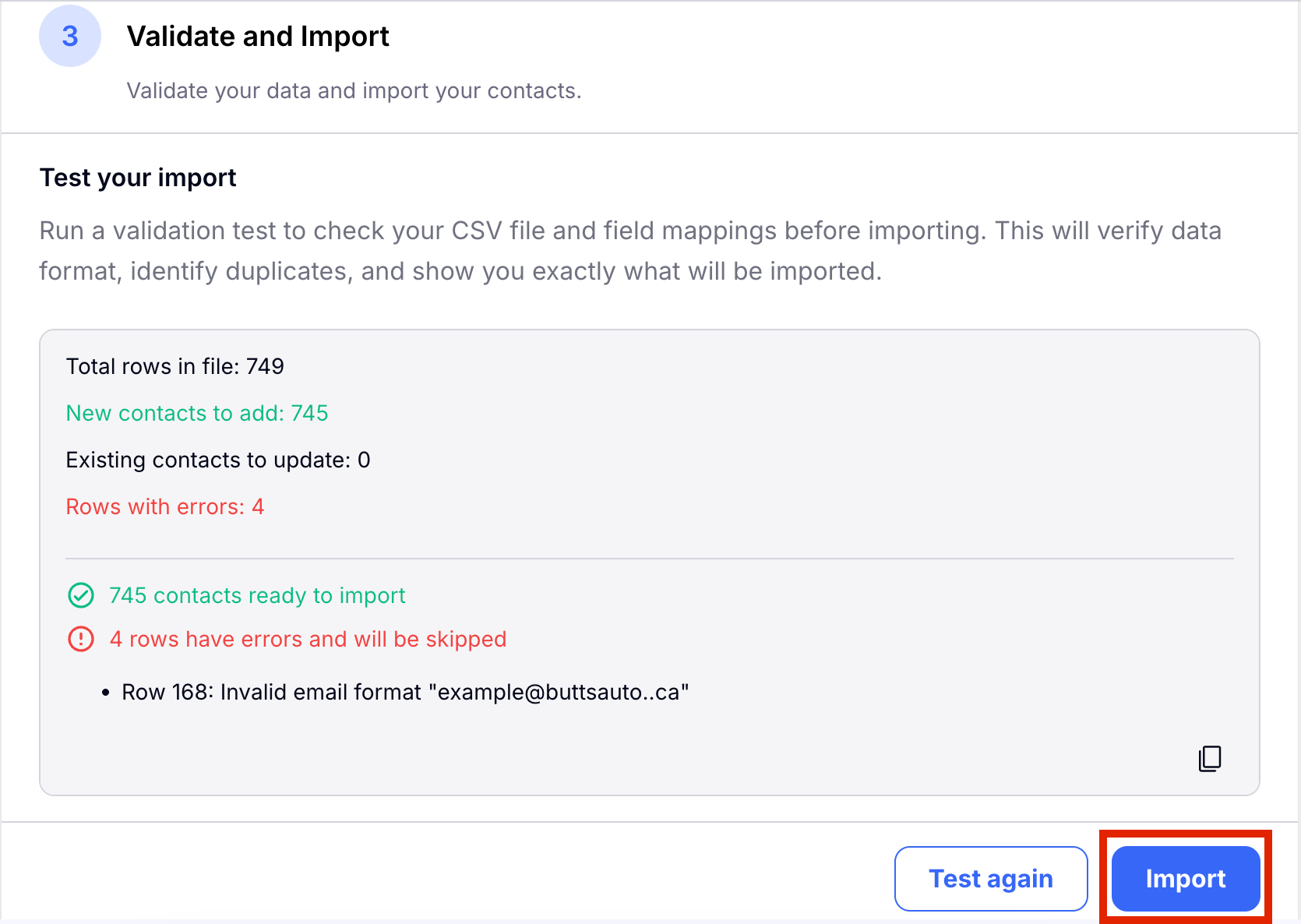
Once the test has been run it will show you any issues that are present in your list. Here you can see that some emails have typos. It will also point out any duplicates. You can choose to find those Rows in your CSV file and edit them before importing, or you can click the 'copy' button to copy this information, save it elsewhere and import those contacts individually after fixing the issue. Choose 'Import' to import all of your contacts.
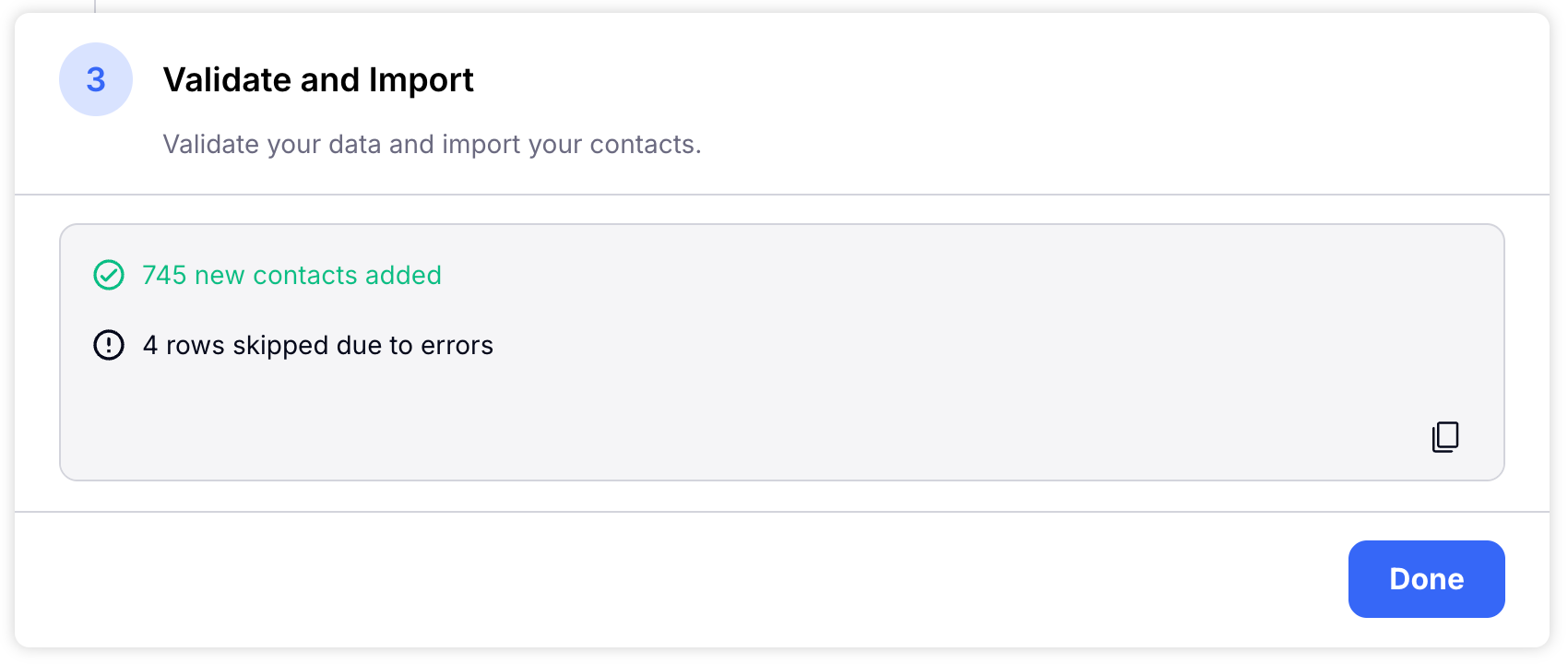
You will now see a confirmation page that shows us the number of contacts that have been successfully imported and the number that have been skipped due to errors in the data. Choose 'Done' to continue.
Execute Bulk Cleanups
Now you can edit your contacts in bulk, like adding tags or changing the Contact Type. To learn more about this, see the Bulk Contact Management Tutorial!

