Bulk Contact Management Tutorial
Cleaning up and organizing your database just got a lot faster with bulk editing in Craftify AI!
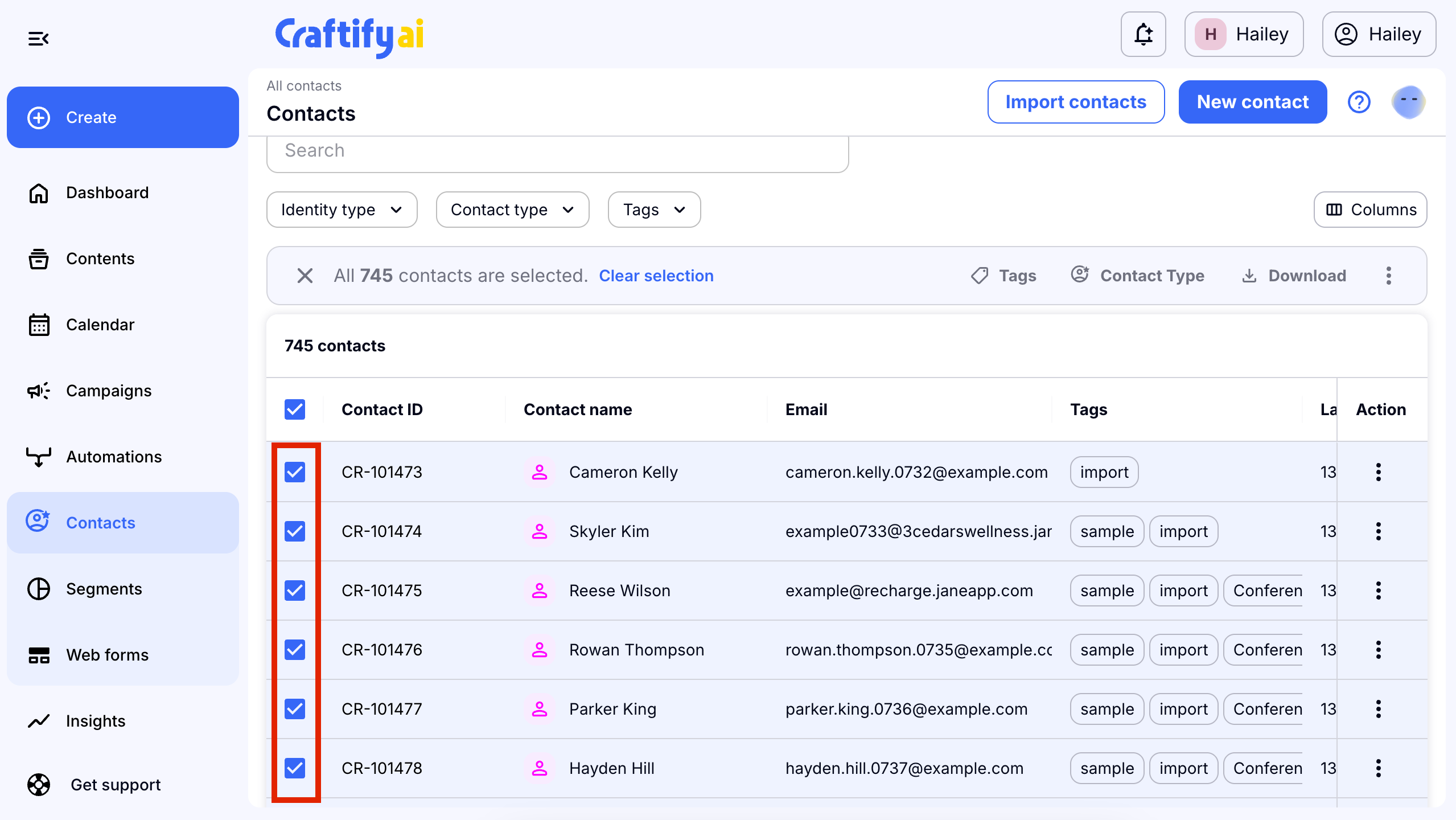
Instead of clicking into profiles one-by-one, you can select several contacts manually by checking the boxes next to their names on the left-hand side of your contact table.
Tags
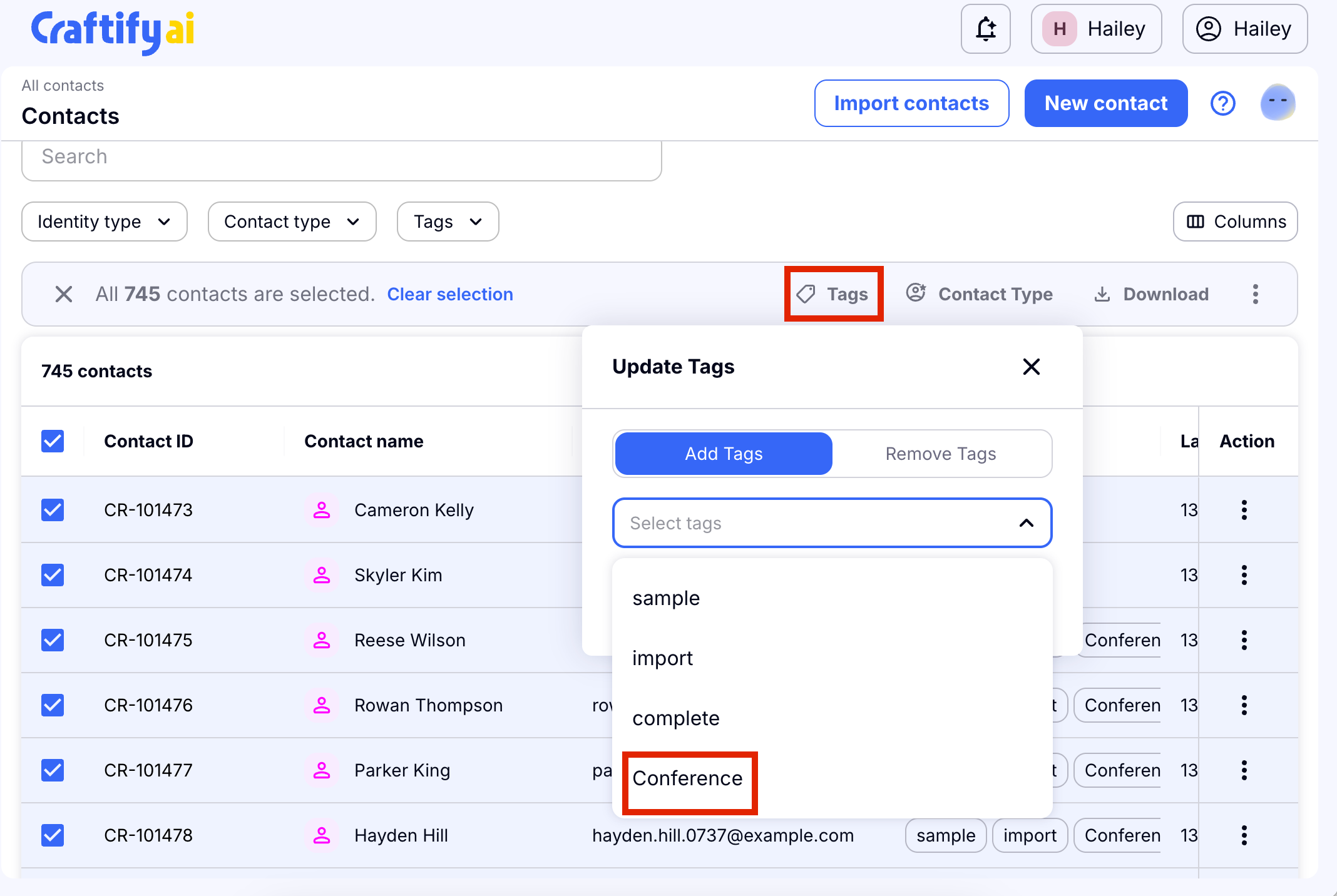
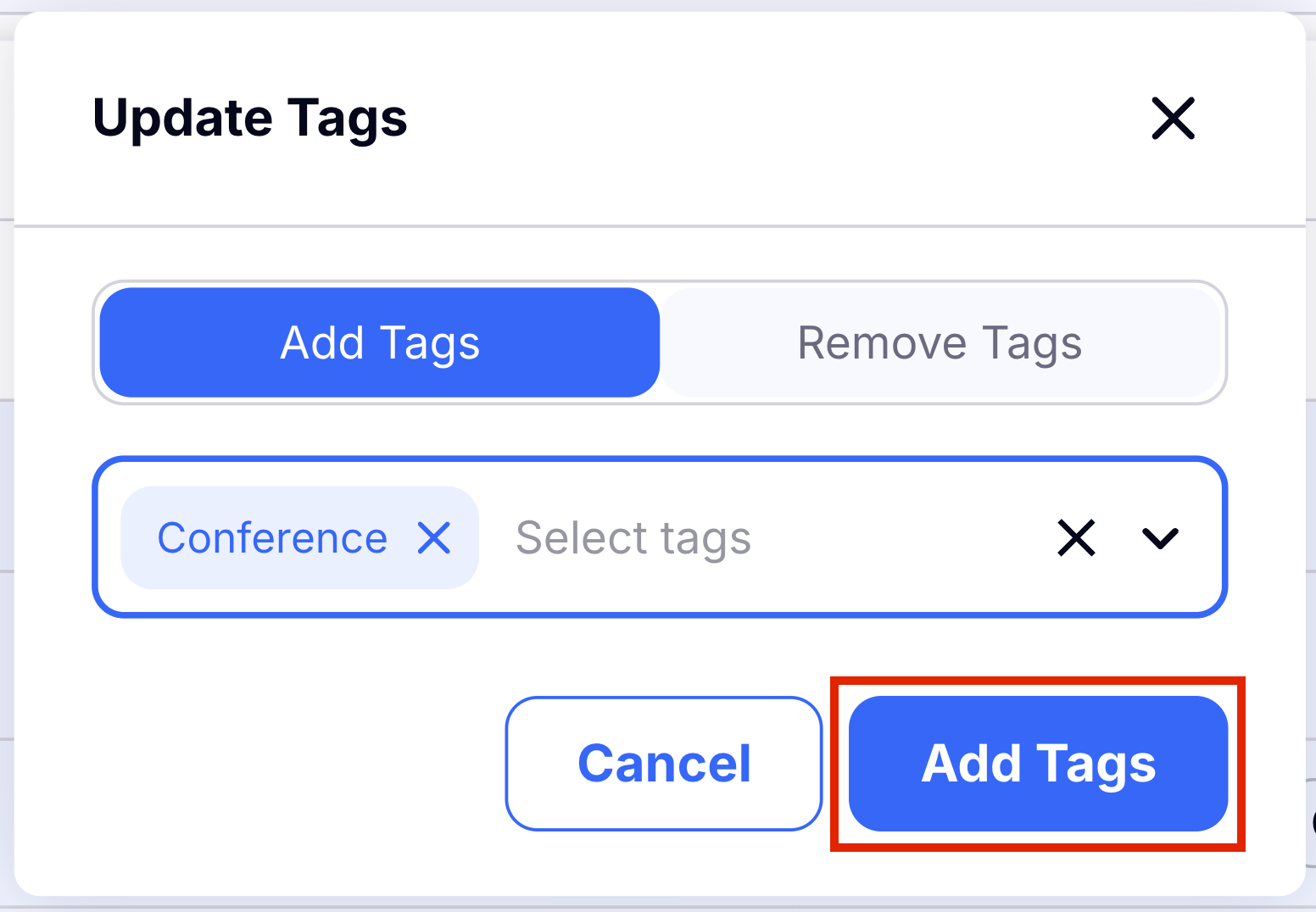
Once you make a selection, the operations menu appears at the top. Click Tags to easily add or remove labels across all of the chosen records at the same time. Once you have chosen the tags to add or remove you can choose 'Add tags' to save the changes. To learn how to manage tags in another way, you can find that in the Contacts Tutorial.
Contact type
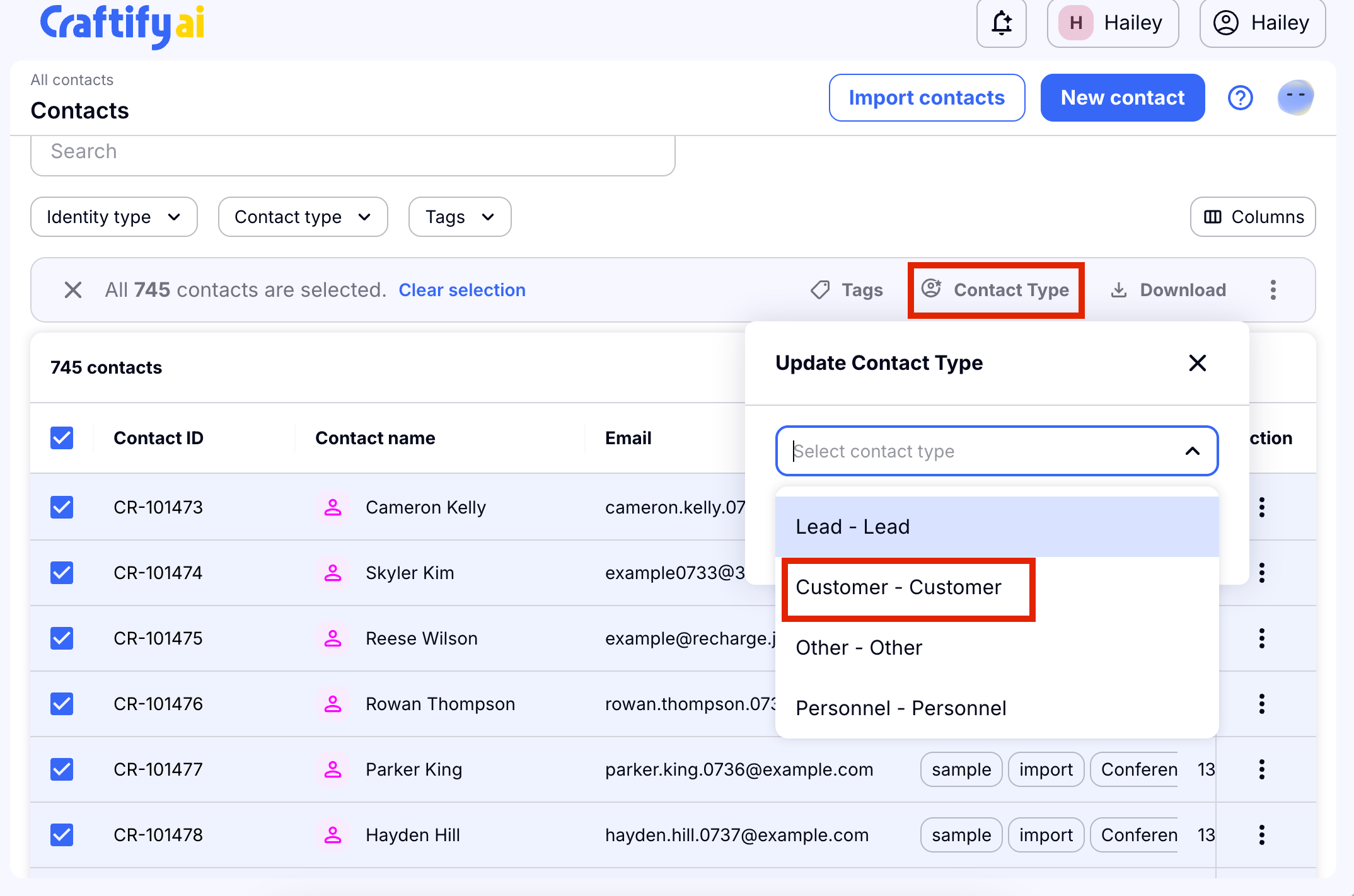
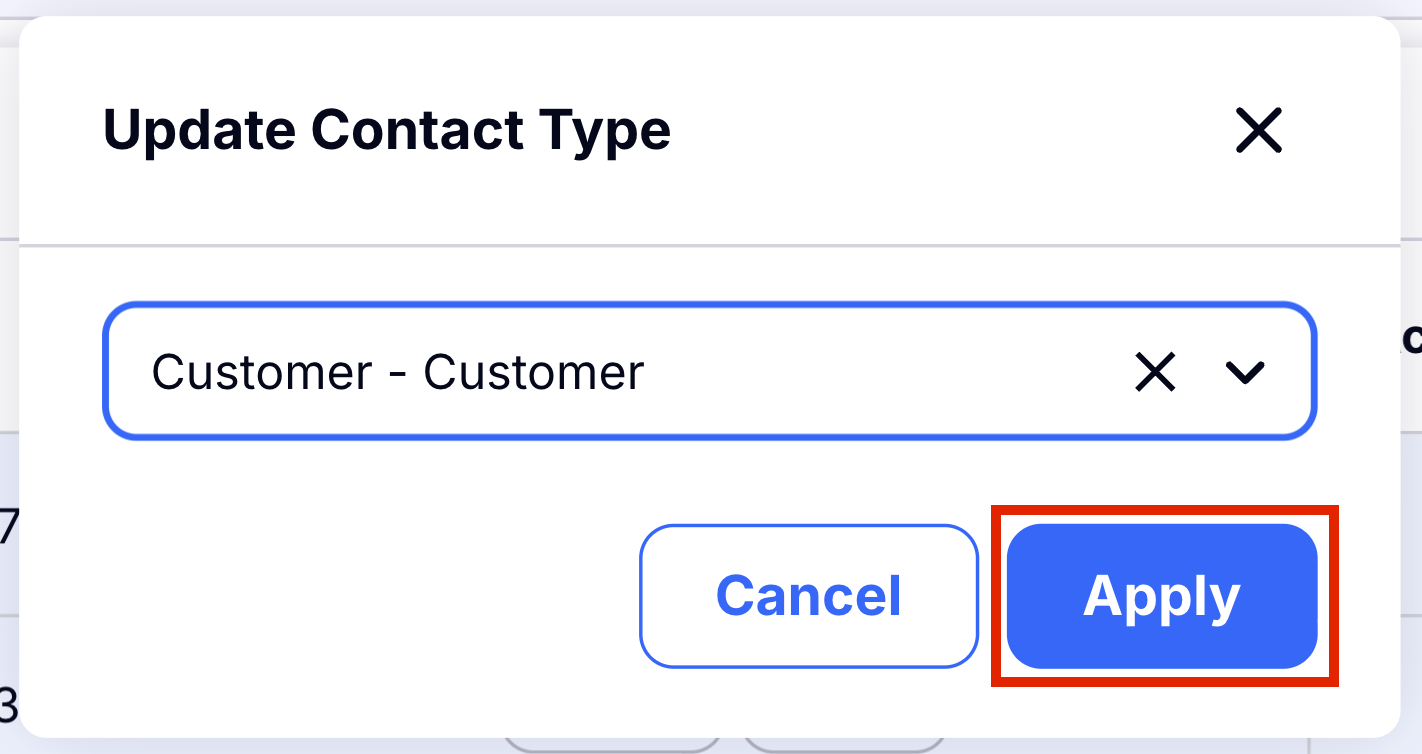
You can also instantly change the Contact Type for more than one contact at once. Change them from Lead to Customer in just a few clicks. Select the contacts you would like to change, then choose 'Contact Type' from the options bar, and then choose which type of contact you would like them to be categorized by. Choose 'Apply' to save. If you would like to learn more about Contact Types, you can at this tutorial: Contact Type Tutorial.
Download contacts
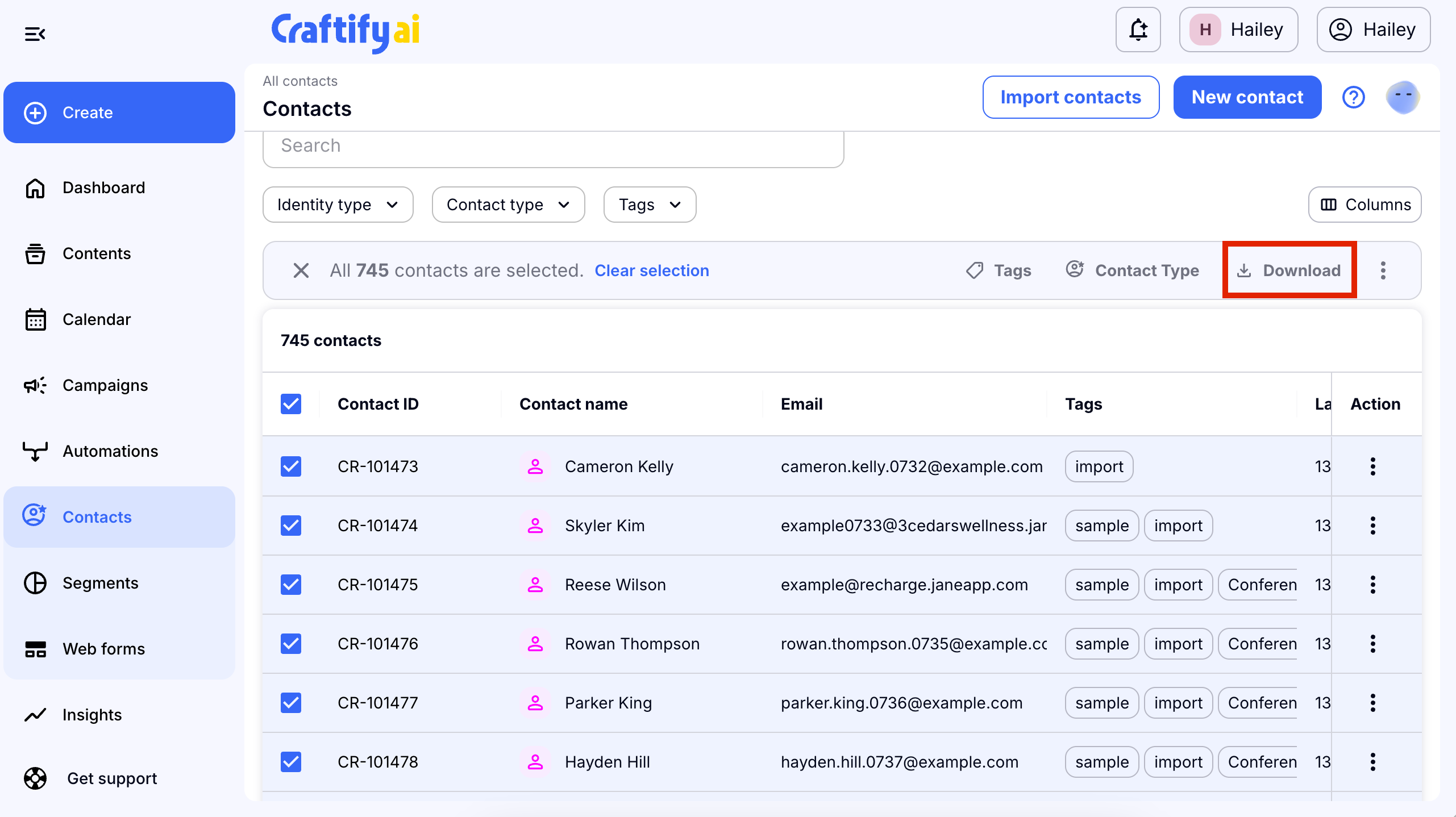
If you would like to download your contacts, either the entire database, or just a few of them, you can do so easily. Choose the contacts you would like to download, then click 'Download' and a .CSV file will be downloaded directly to your Downloads folder on your computer.
Edit all contacts
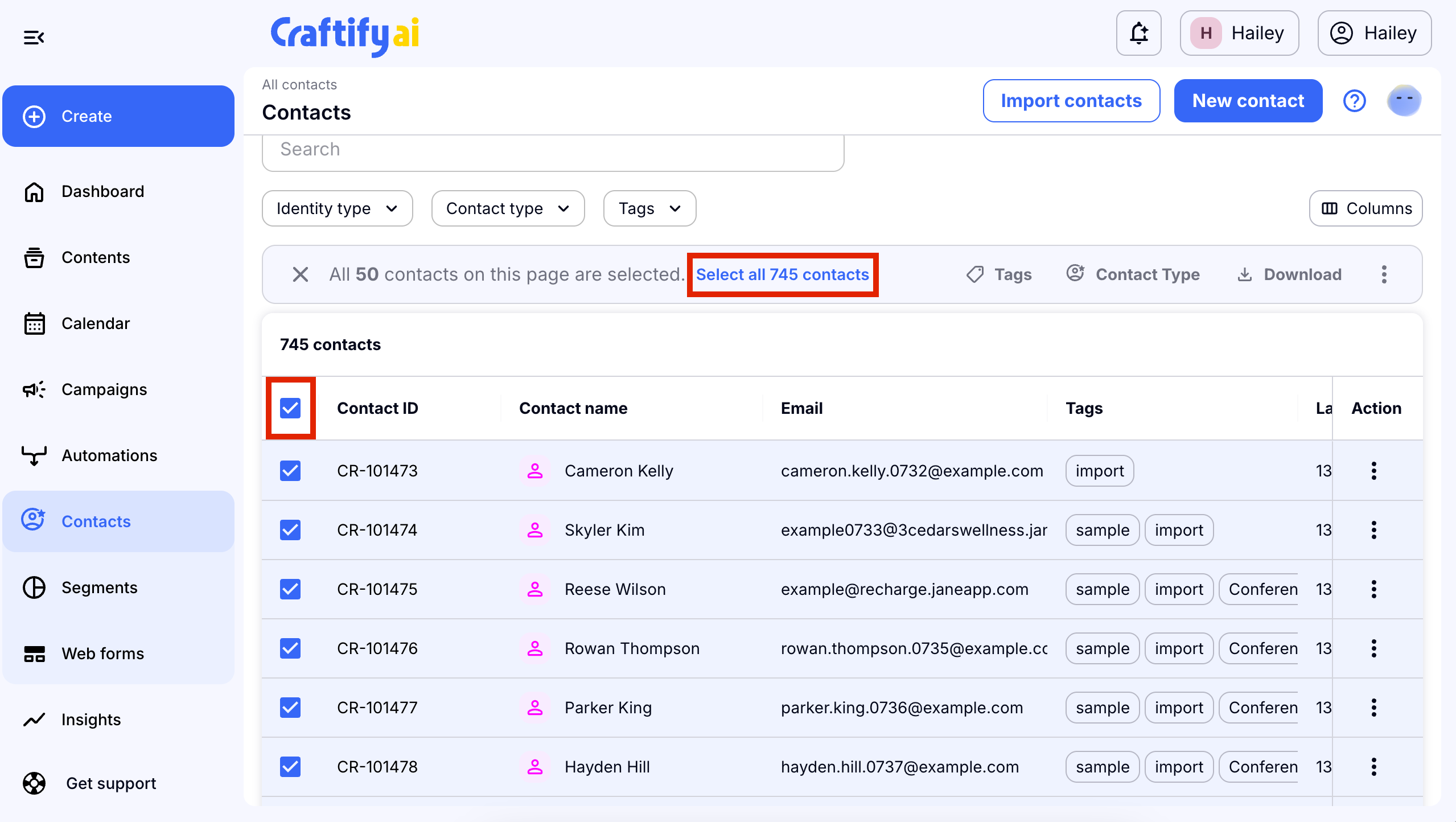
By choosing the checkbox at the top, you can choose all contacts in your database to edit in one quick step.
Delete
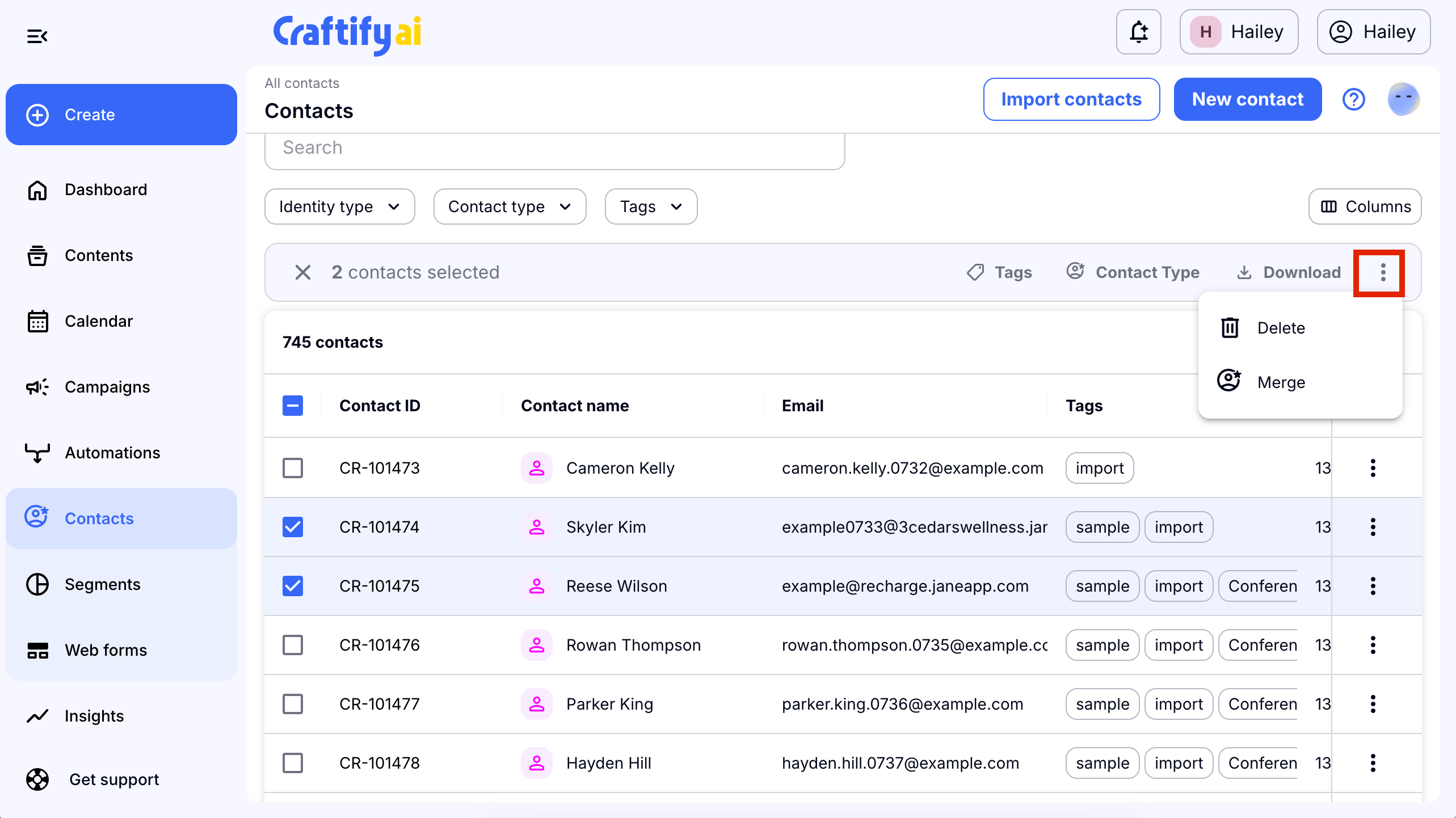
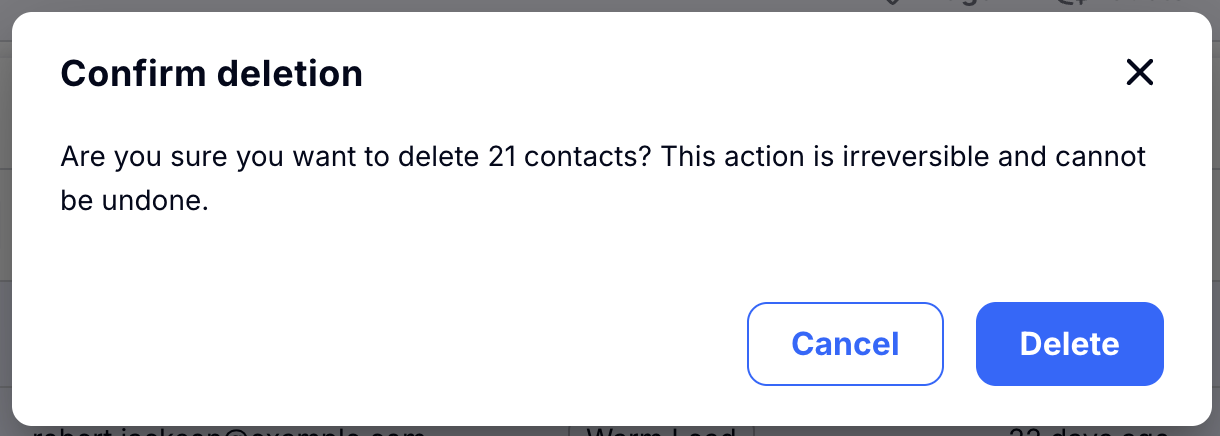
If you'd like you can even delete several contacts at once. click the three dots on the right-hand side of the option menu and choose delete. A pop up will show up to confirm your selection.
Filter your list and try updating your contacts in bulk!

