Crafts Templates Tutorial
Creating a template for your social media or email is easy!
Follow this short tutorial to see how easy it is to create your own templates so that you can keep crafting similar content for a series!
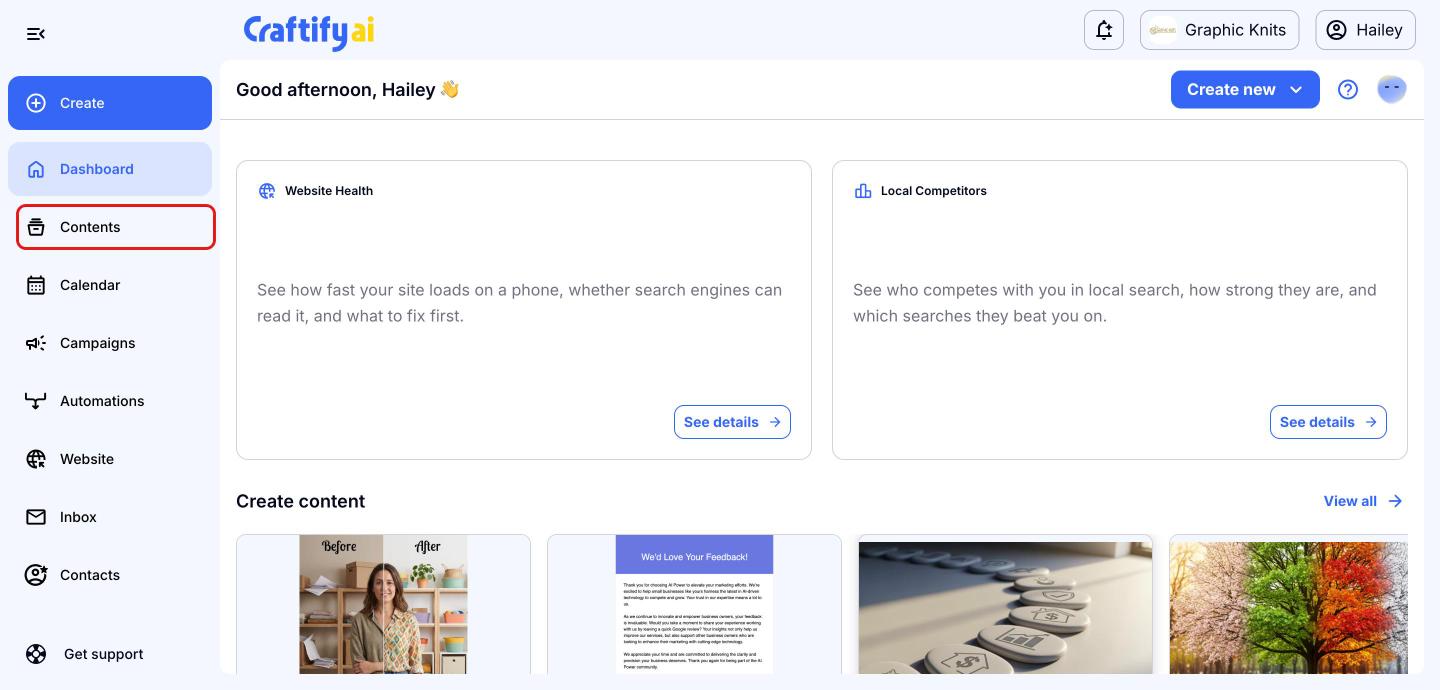
Go to your Contents
From your Craftify AI dashboard, click 'Contents' in the left menu. This is where all of your crafted emails and social media posts are saved.
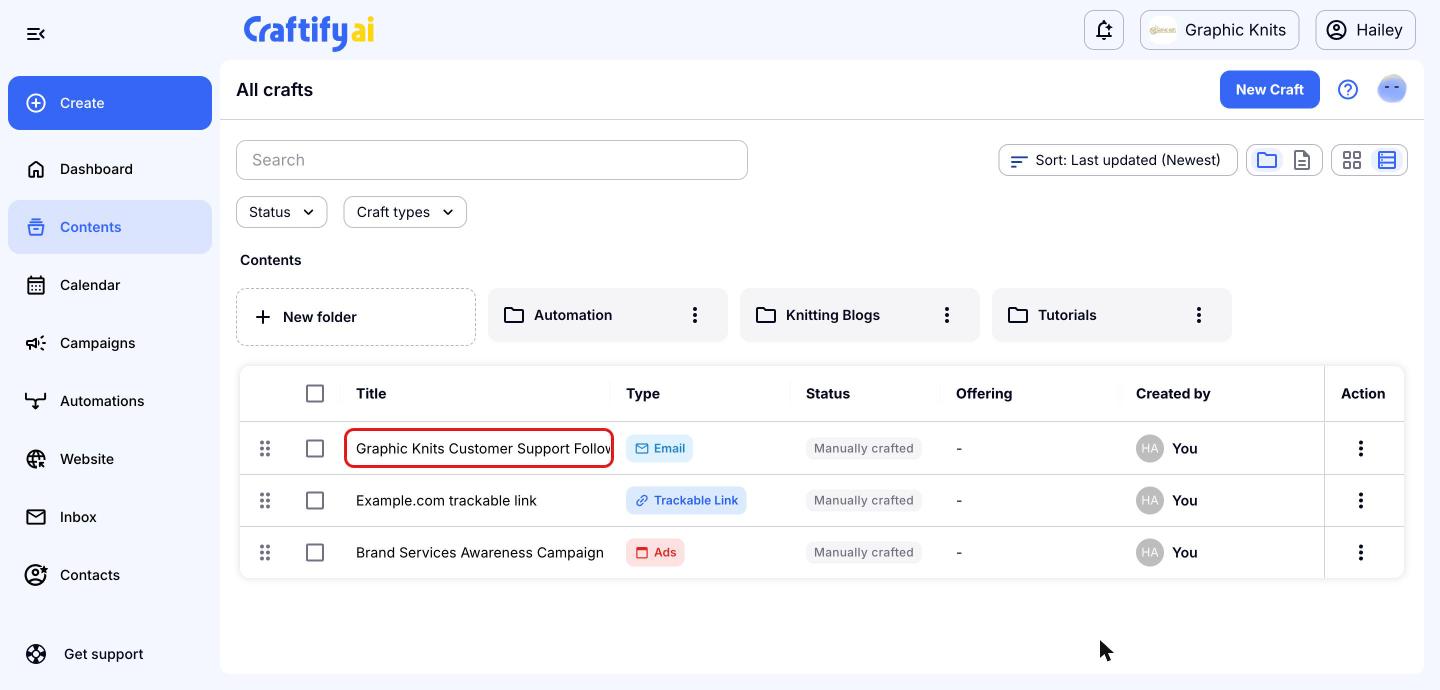
Open the craft you want to reuse
Find the email or social media post you'd like to turn into a template and click its title.
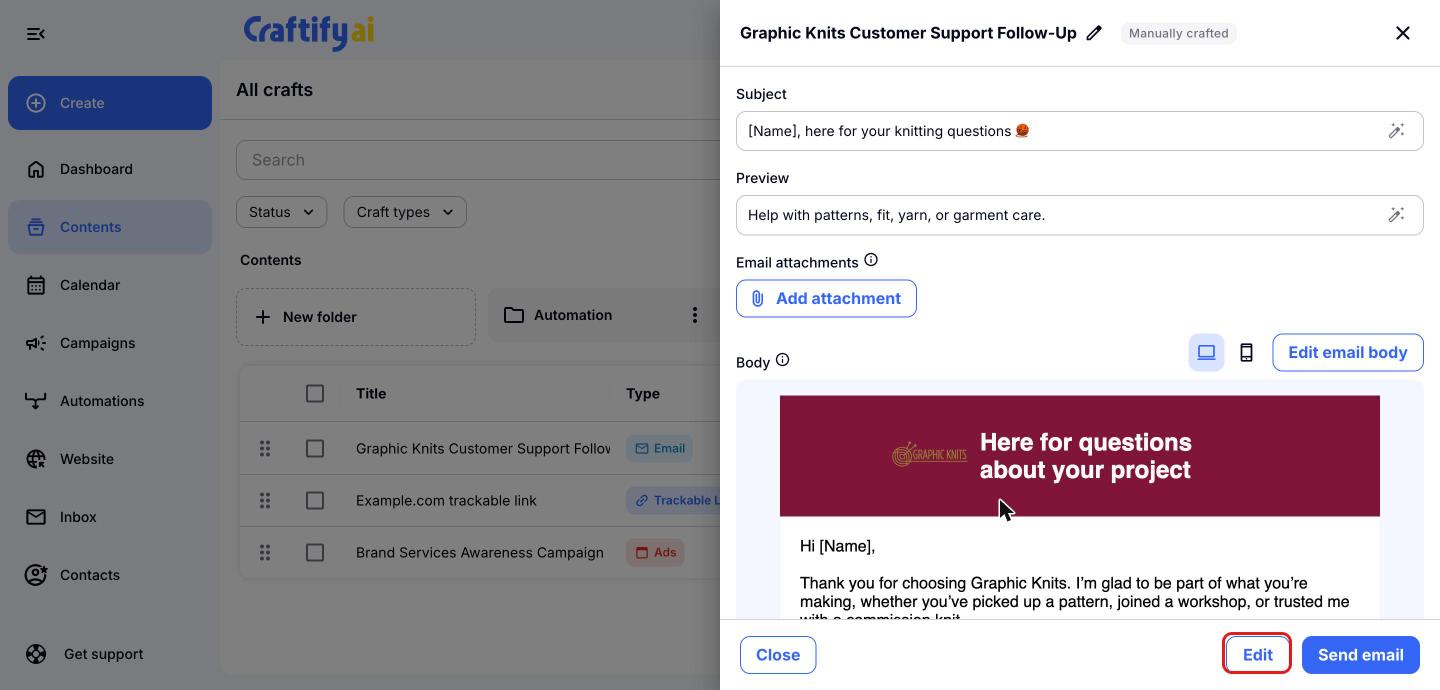
A preview of your craft will open on the right. Click 'Edit' at the bottom to open it in the editor.
Save your craft as a template
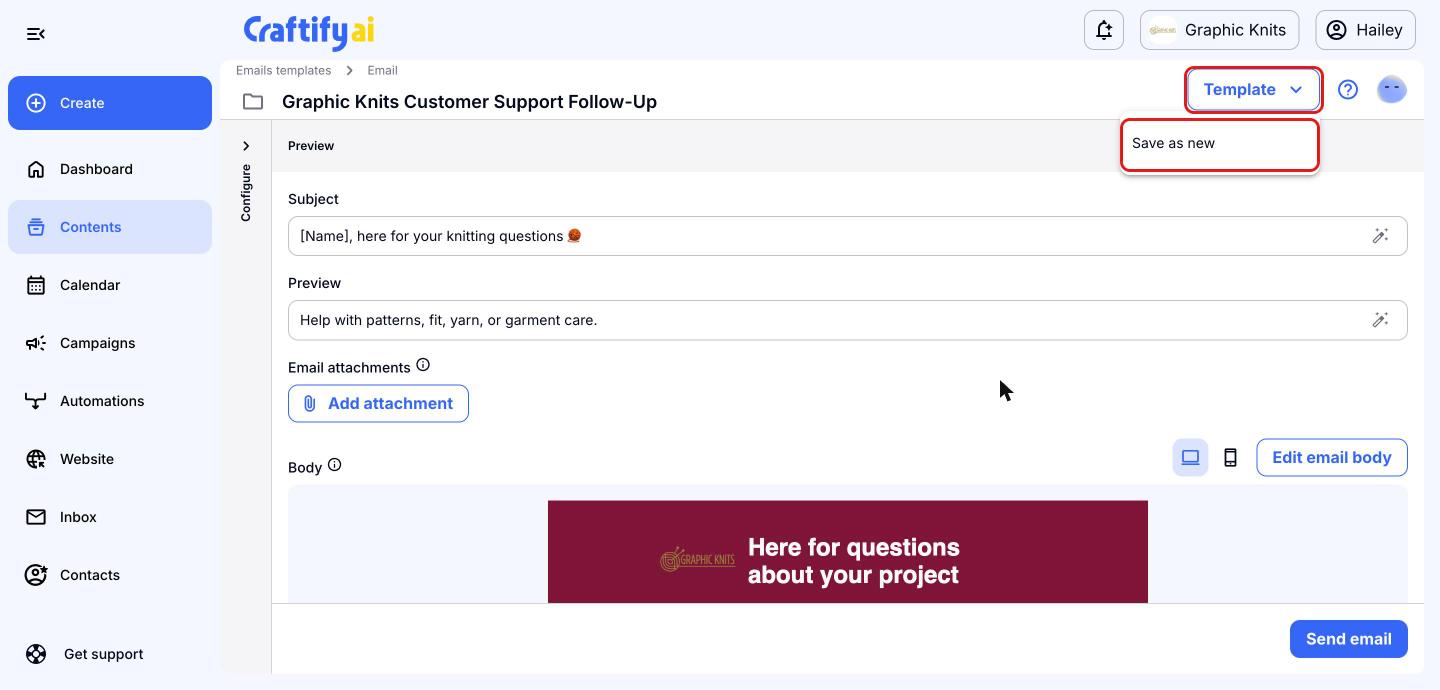
In the editor, click the 'Template' dropdown at the top right, then choose 'Save as new'.
Name and describe your template
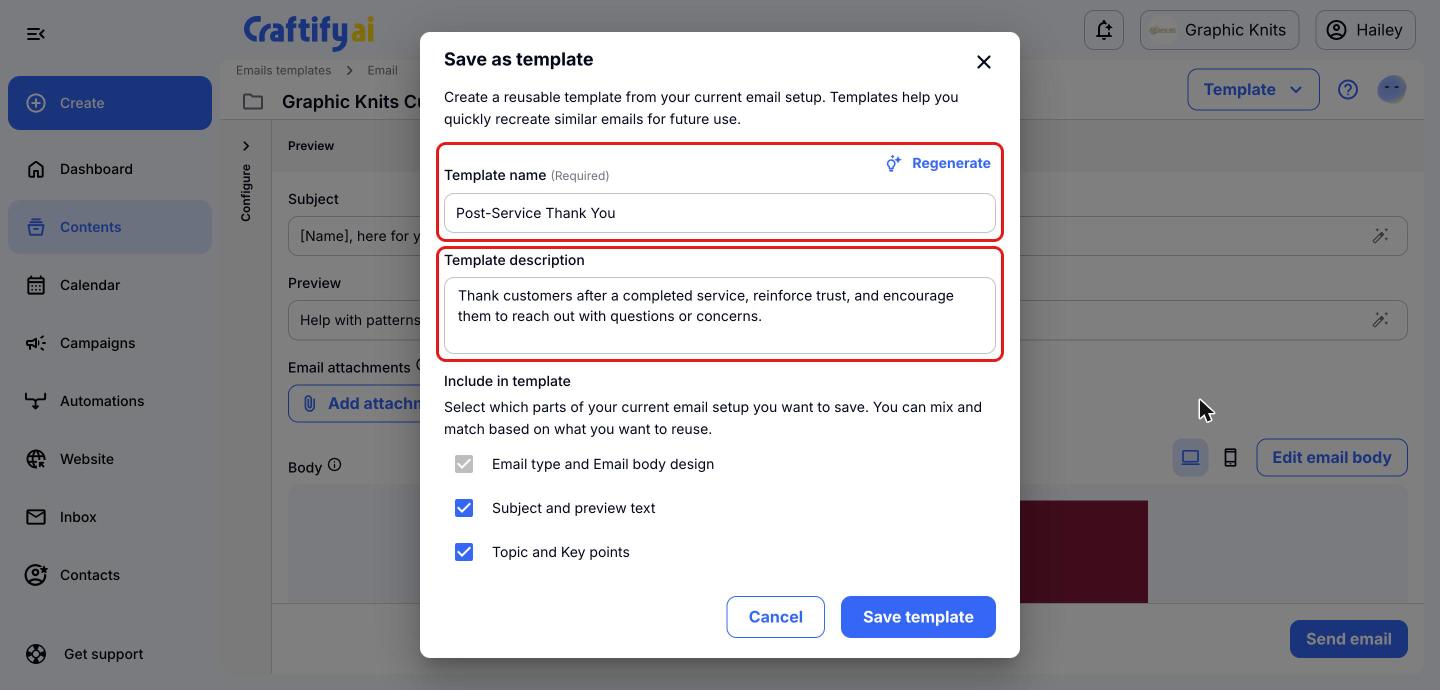
Craftify AI suggests a 'Template name' and 'Template description' for you. Keep them, type your own, or click 'Regenerate' for a new suggestion. A clear name makes the template easy to find later.
Choose what to include and save
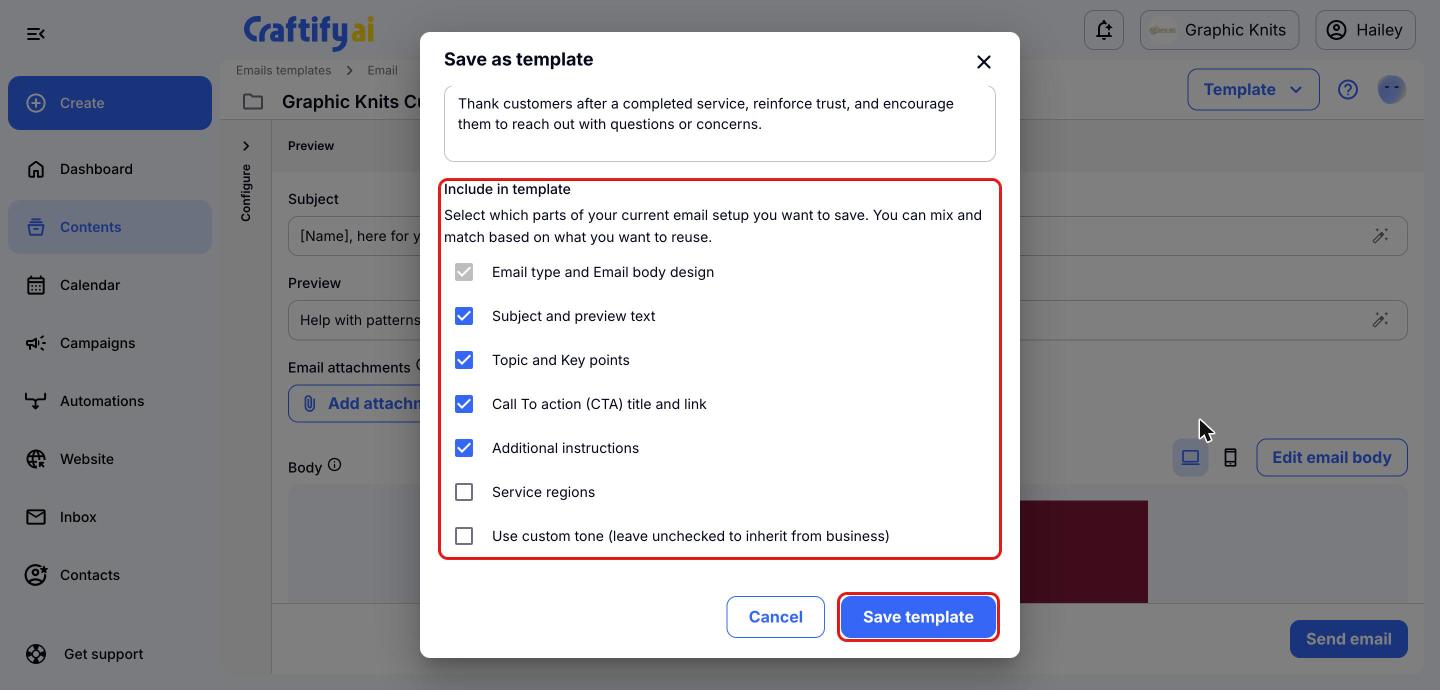
Under 'Include in template', check the parts of your craft you want to reuse, such as the subject and preview text, topic and key points, call to action, and additional instructions. The email type and body design are always included. Leave 'Use custom tone' unchecked to use your business's tone. When you're ready, click 'Save template'.
Use your template
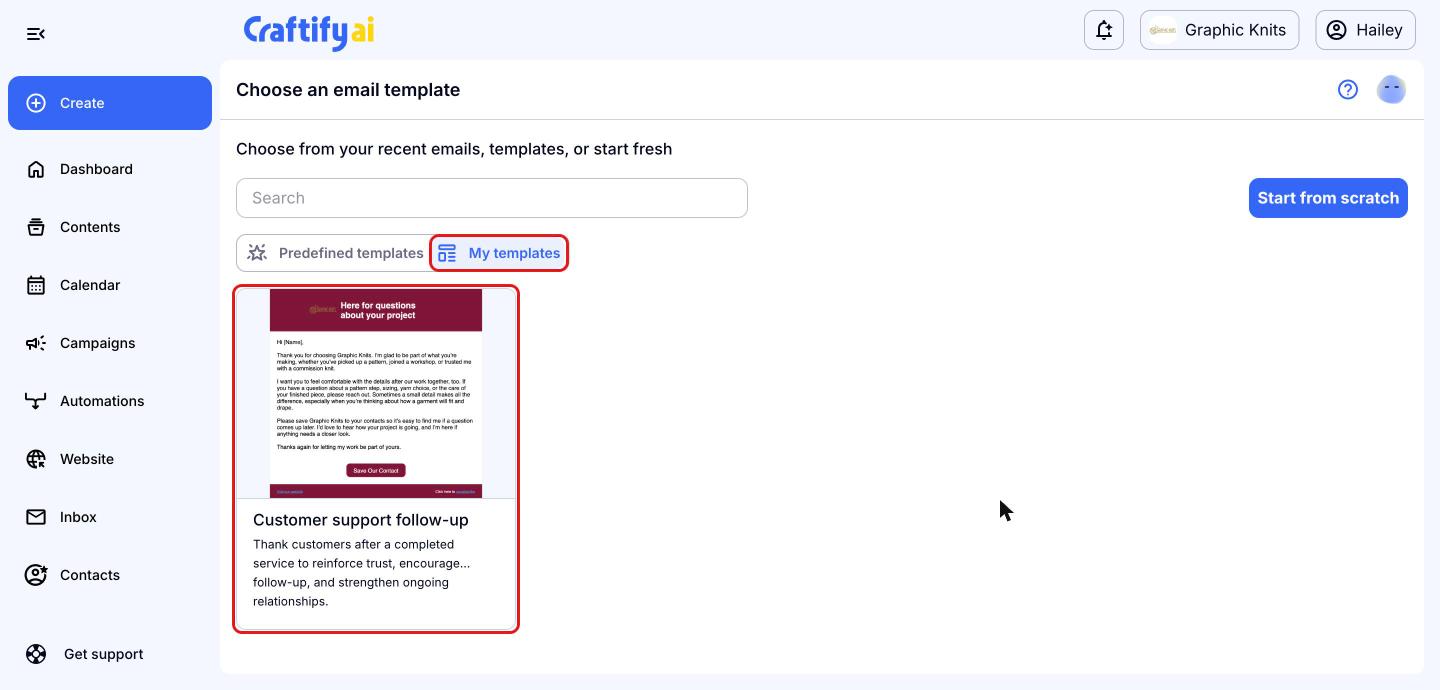
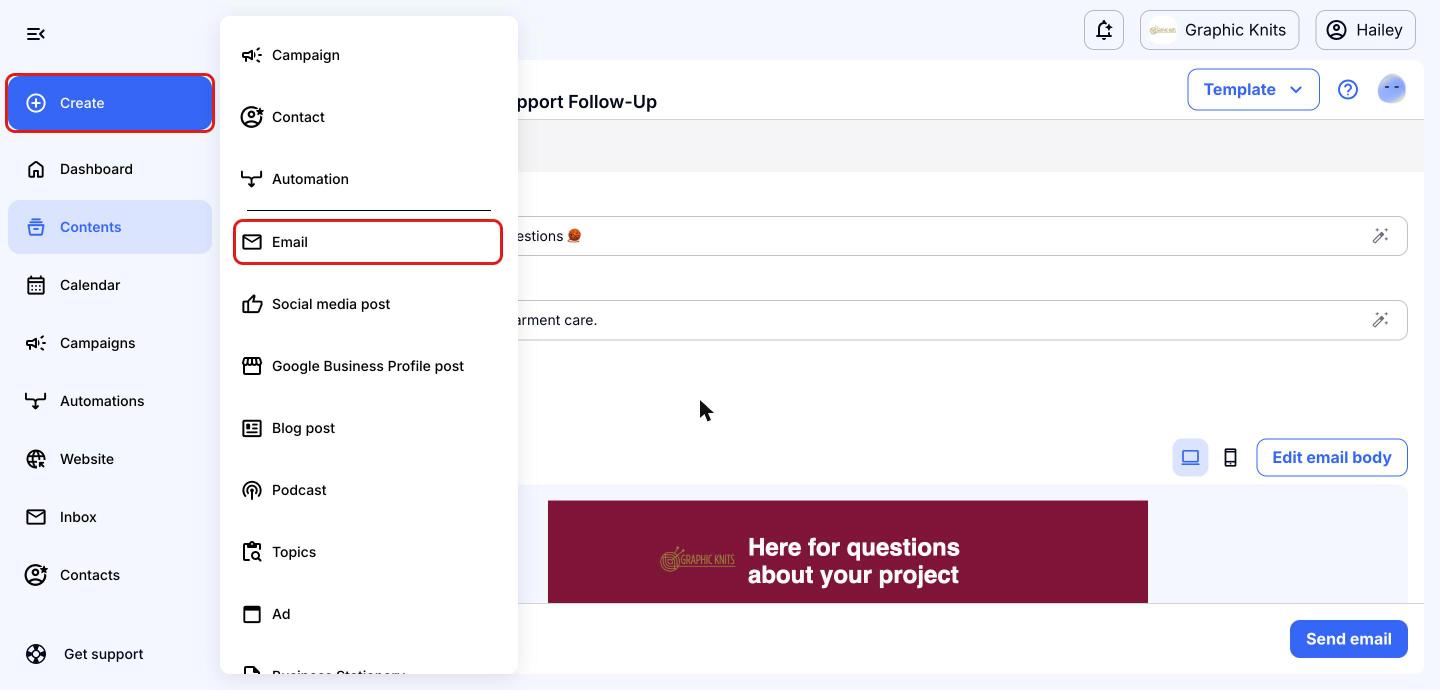
Whenever you want to craft something similar, click 'Create' in the left menu and choose 'Email'.
On the 'Choose an email template' page, click the 'My templates' tab. Your saved templates appear here, so just pick one to keep crafting similar content for your series!