Send an Email to a Segment Tutorial
Easily send emails to your Segments or Contacts in Craftify AI
There's 3 easy ways to send emails to your Segments or Contacts within the Craftify AI platform. Follow this short tutorial on how to send emails in all 3 ways!
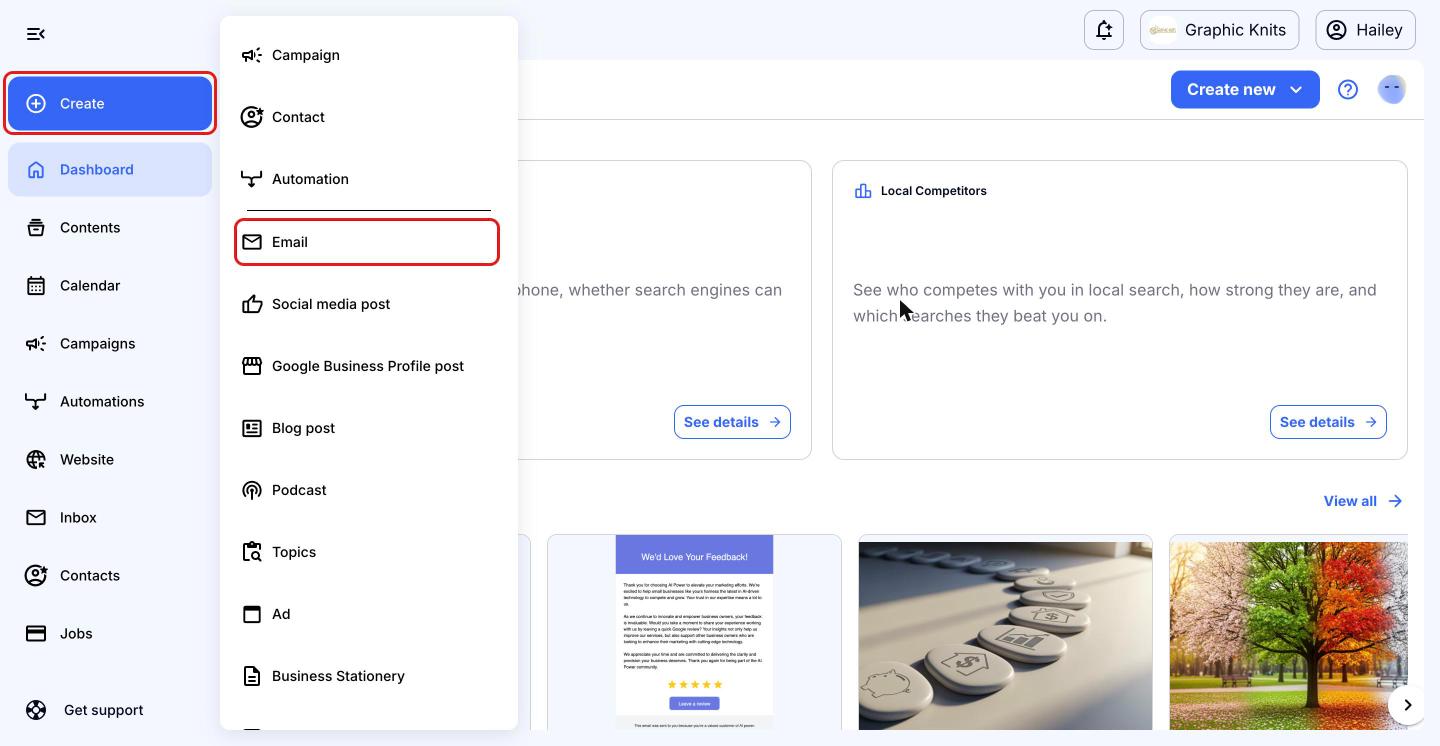
Open Create and choose Email
From your Craftify AI dashboard, click the blue 'Create' button at the top of the left-hand menu, then choose 'Email' from the menu.
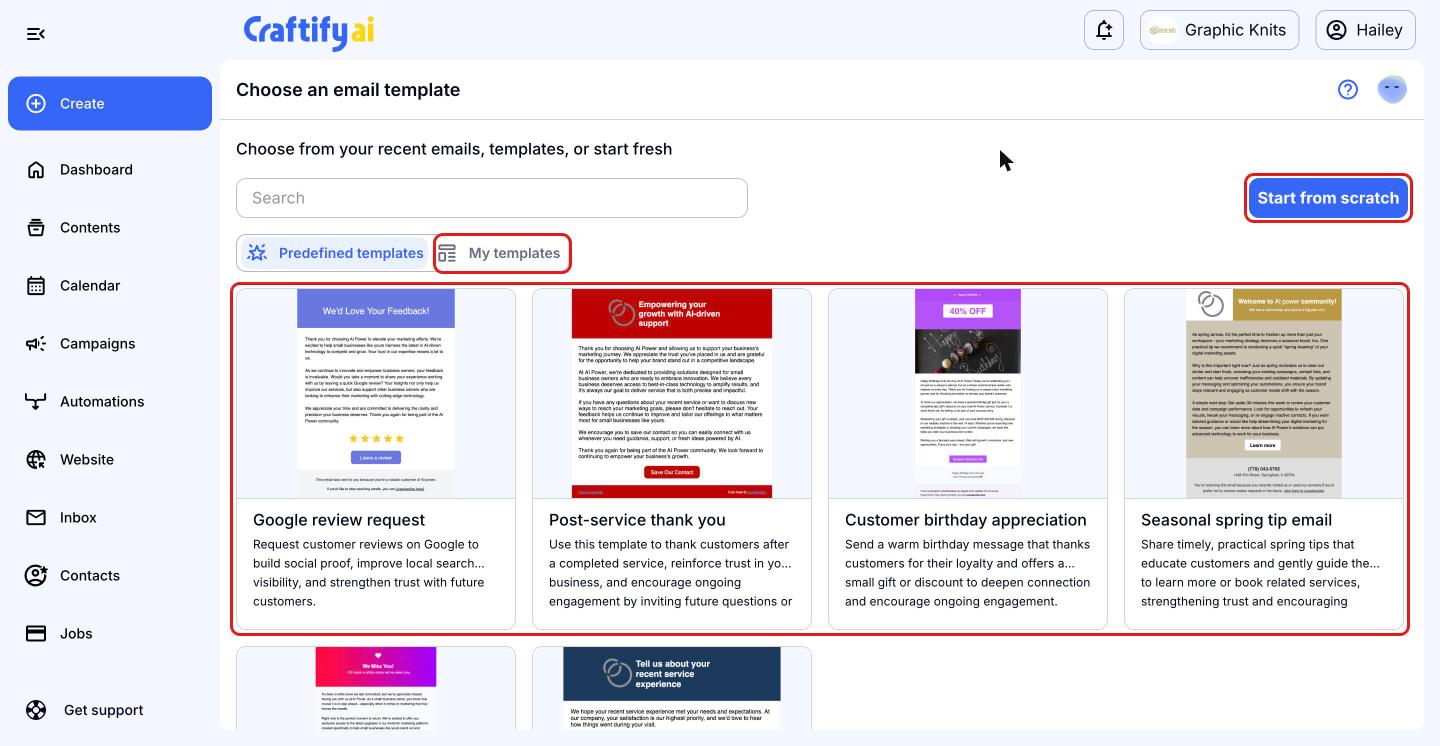
Choose an email template
Pick one of the predefined templates, such as 'Post-service thank you' or 'Seasonal spring tip email'. You can also find your own saved emails under 'My templates', or choose 'Start from scratch'.
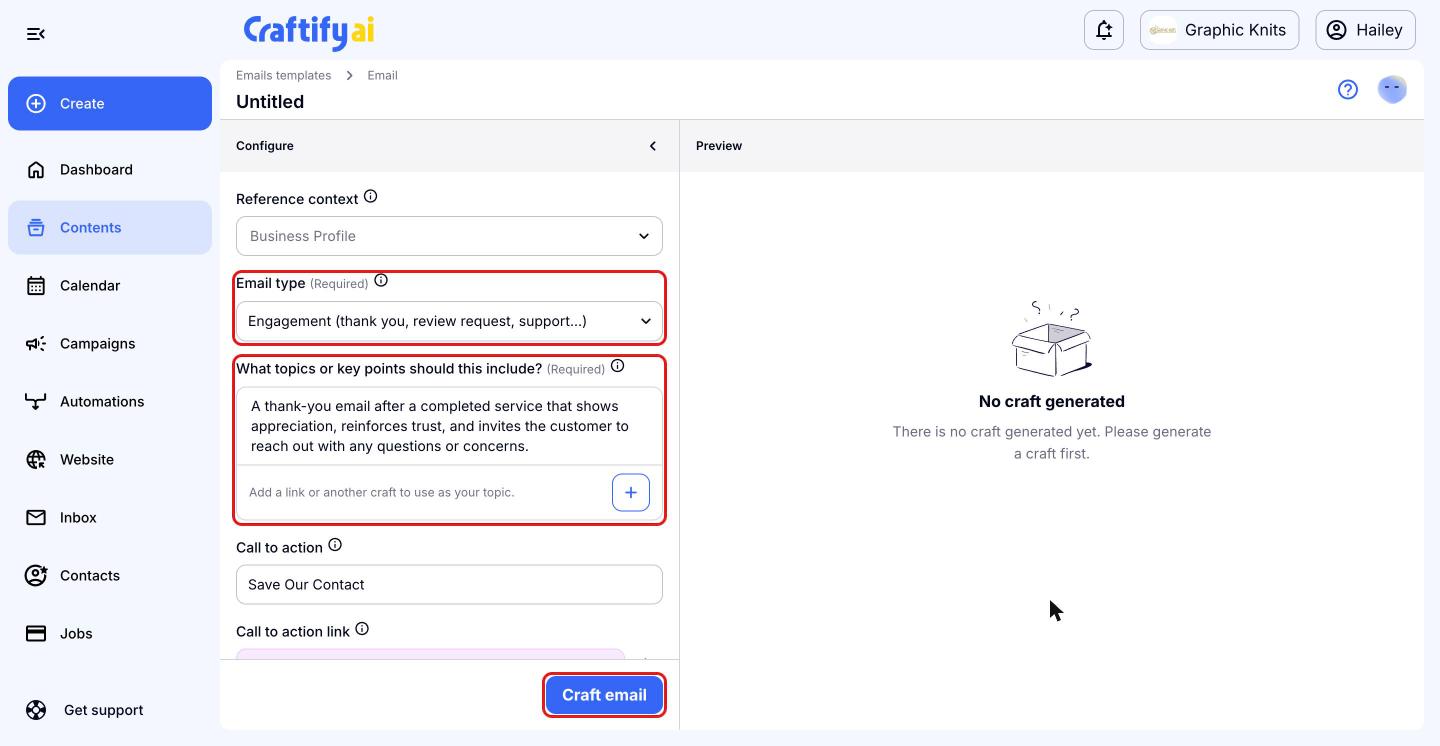
Set up and craft your email
In the 'Configure' panel, choose the 'Email type' and tell Craftify AI what the email should cover under 'What topics or key points should this include?'. You can also add a 'Call to action' and a link. When you're ready, click 'Craft email' and Craftify AI will write it for you.
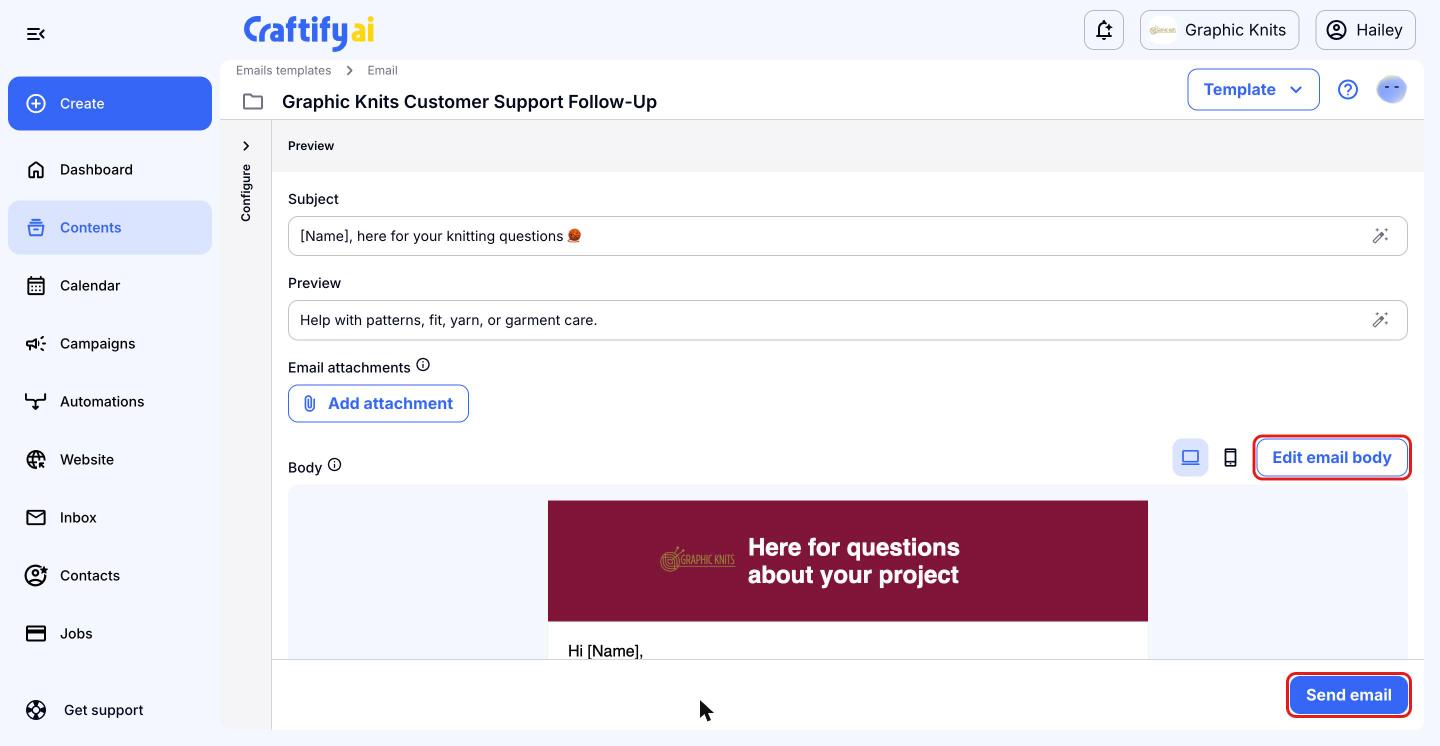
Review your email and click Send email
Your email is ready to review. You can change the 'Subject' and 'Preview' text, add an attachment, or click 'Edit email body' to make changes to the email itself. Your email is also saved in 'Contents', so you can come back to it later.
When it looks good, click 'Send email' in the bottom right-hand corner to open your sending options.
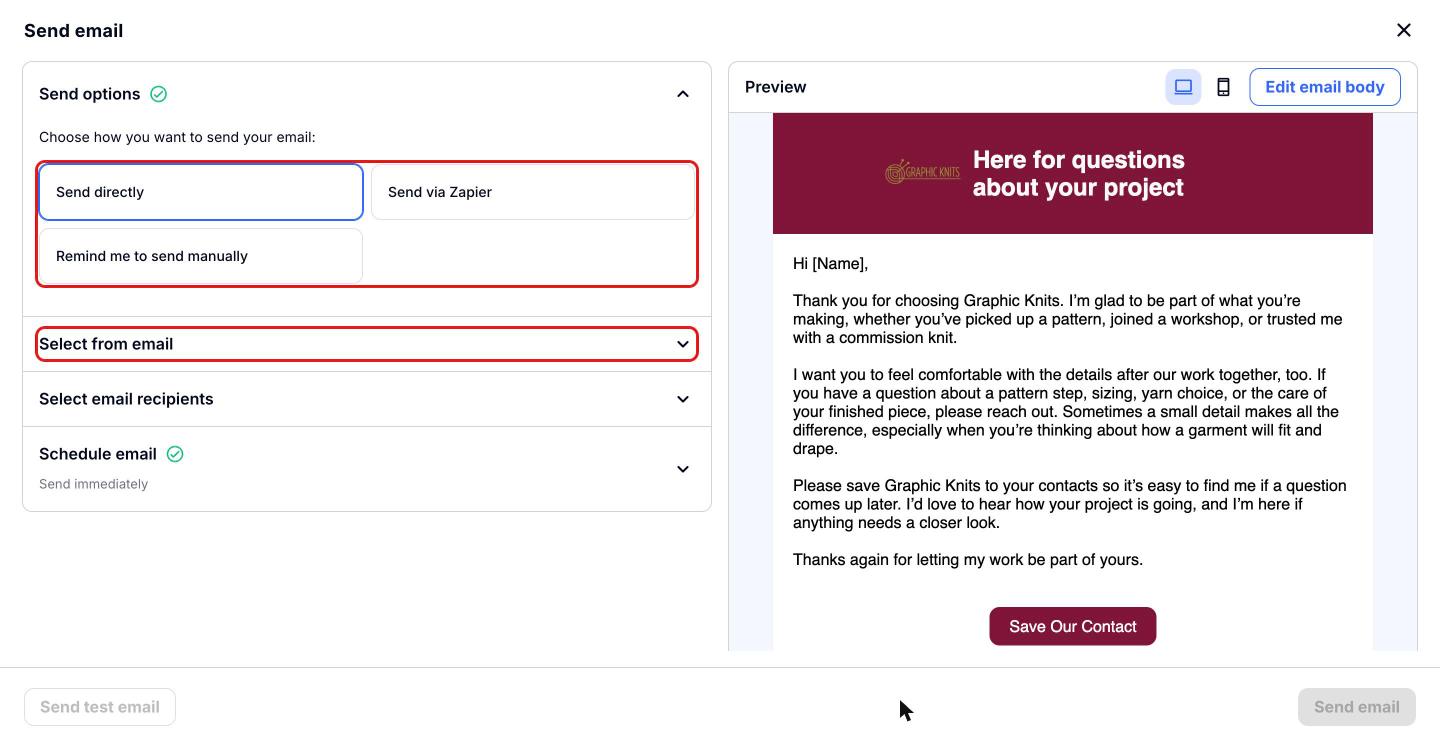
Choose how to send your email
The 'Send email' window will open. Under 'Send options', choose 'Send directly' to send it from Craftify AI. You can also choose 'Send via Zapier' or 'Remind me to send manually'. Then open 'Select from email' to check the name and email address the email will come from, and where replies should go.
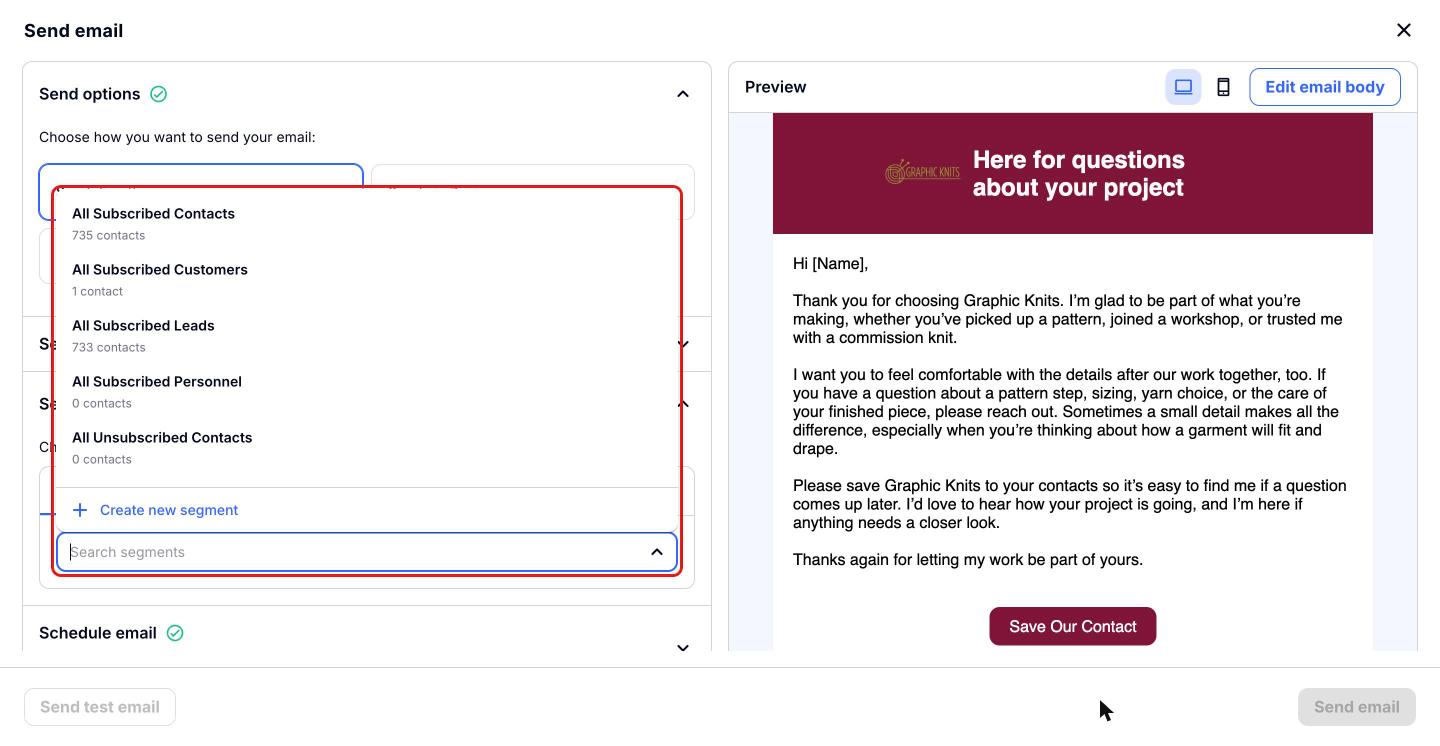
Choose your segment
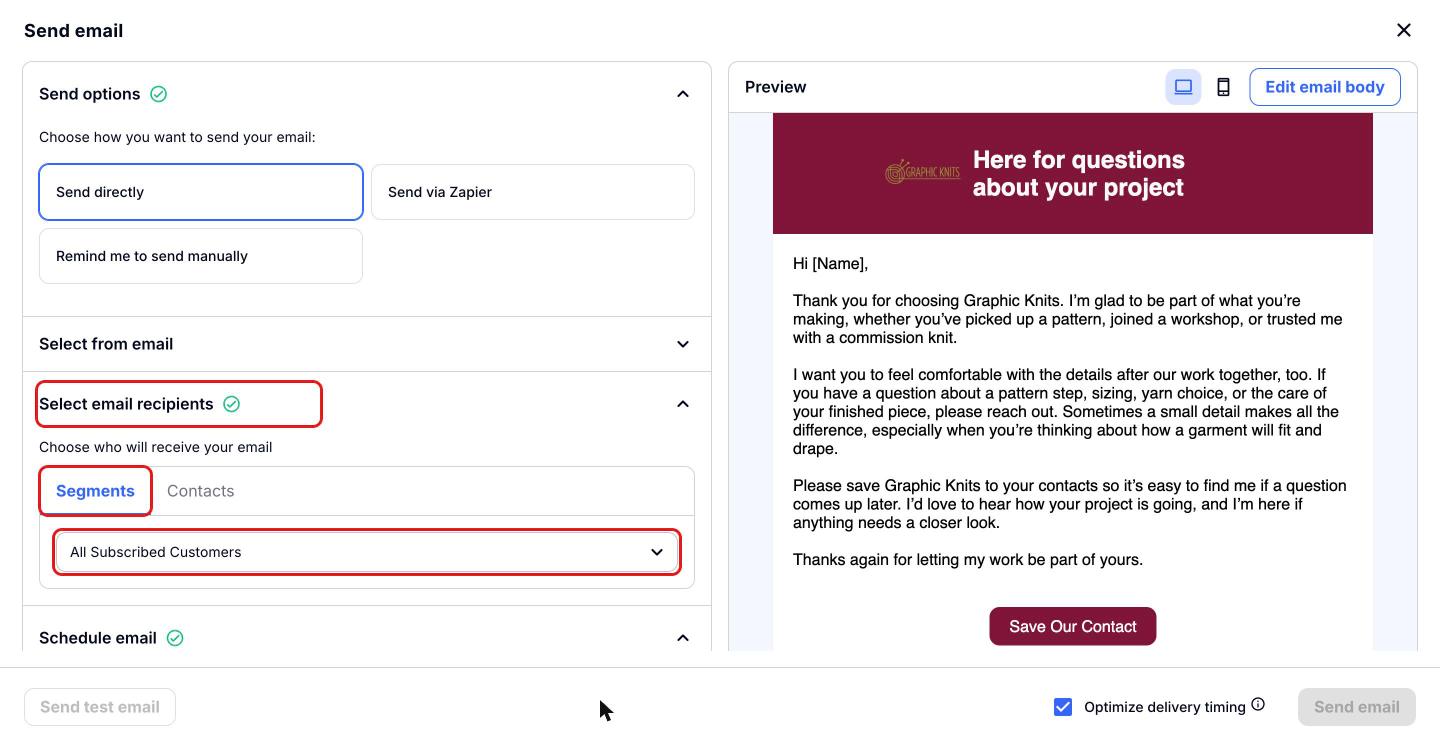
Open 'Select email recipients' and make sure the 'Segments' tab is selected. Click the 'Search segments' box to see all of your segments and how many contacts are in each, then choose the segment you want to email. If you need a new group, choose 'Create new segment'.
Want to email specific people instead? Switch to the 'Contacts' tab and choose them from your contact list.
Once you've chosen a segment, its name will appear in the box and a green check mark will show next to 'Select email recipients'.
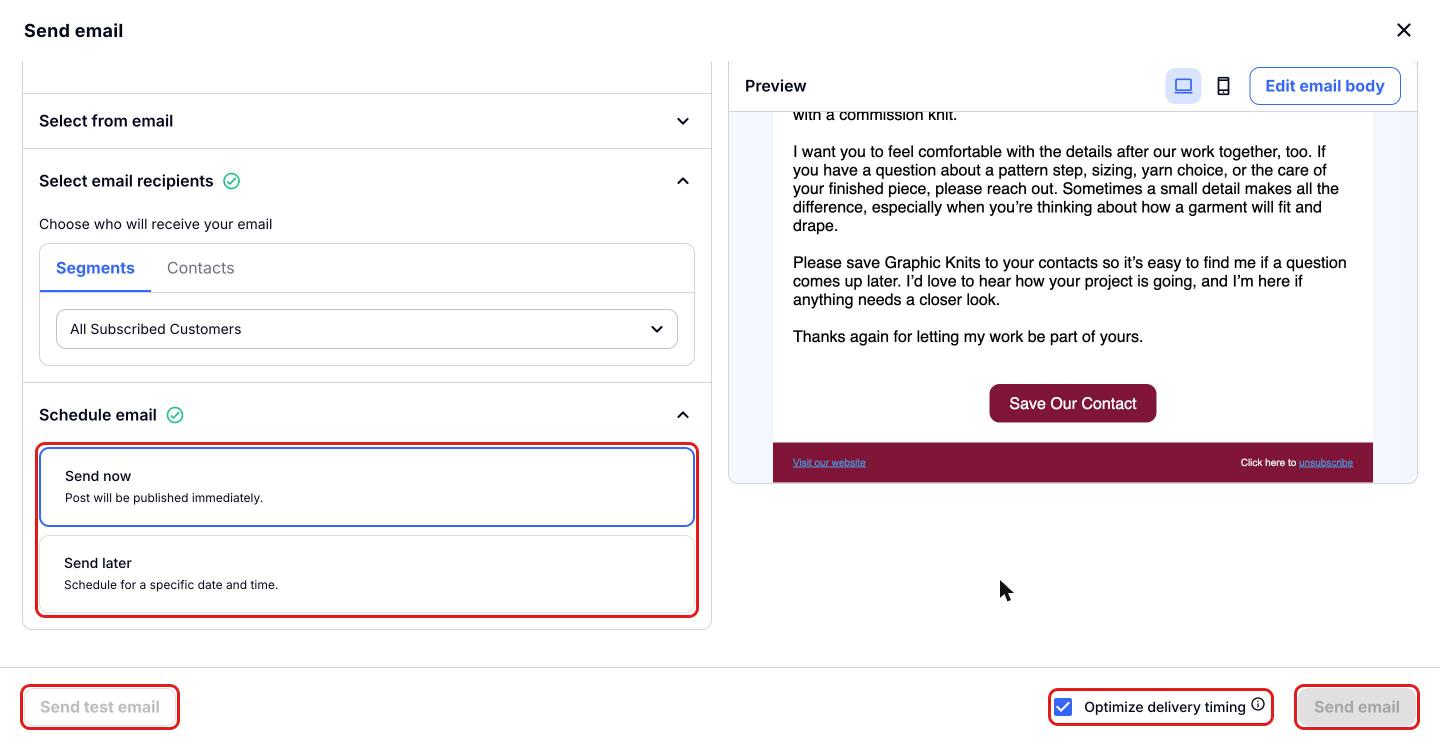
Schedule and send your email
Under 'Schedule email', choose 'Send now' to send it right away, or 'Send later' to pick a specific date and time. Leave 'Optimize delivery timing' ticked if you'd like your emails sent over a period of time to help with engagement.
If you'd like to see it in your own inbox first, click 'Send test email'. When you're ready, click 'Send email' and your email will go out to everyone in your segment.