Podcast Writer Tutorial
Podcast Writer Tutorial
Ever wanted to make a podcast but felt overwhelmed by the process and all of the equipment necessary? Well, the Craftify AI Podcast Writer will help you create a dynamic podcast in minutes, even help you record the voice using AI technology!
Watch the video to learn how simple it is to use this tool.
Open the Podcast Writer
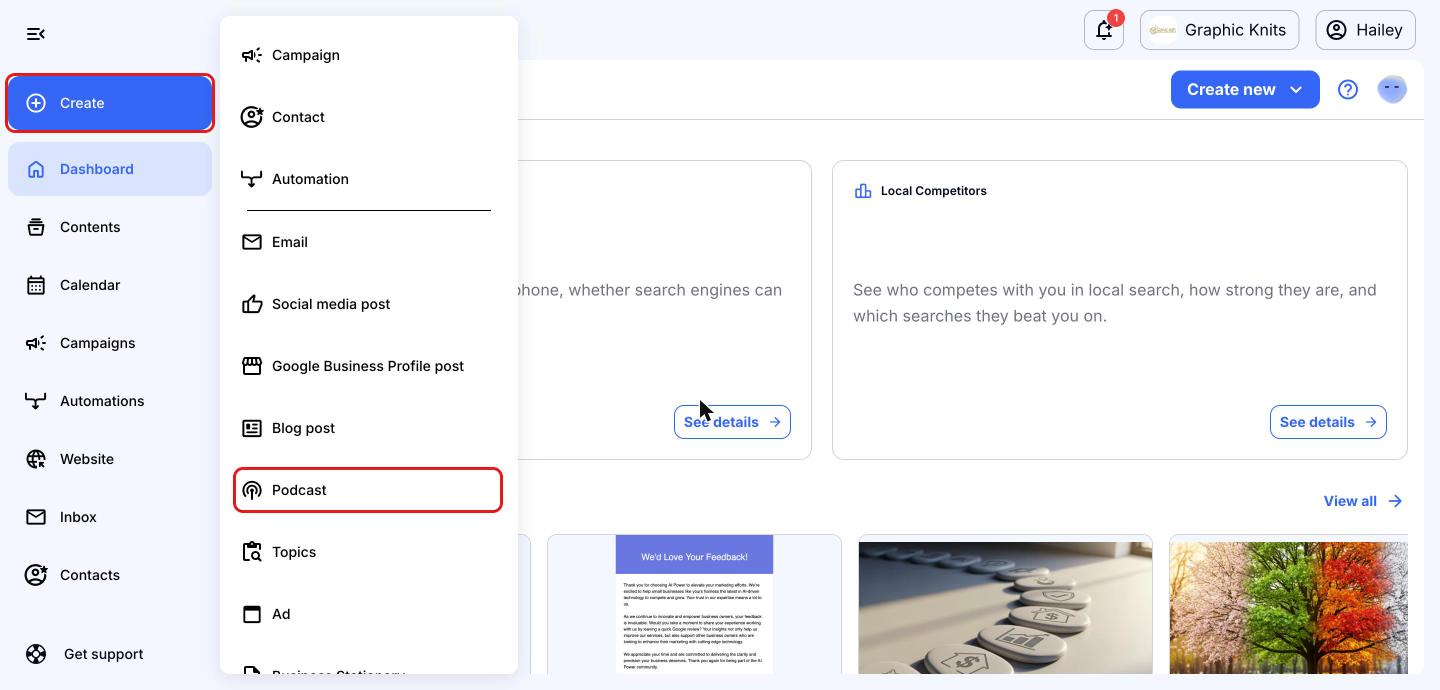
From your Craftify AI dashboard, click 'Create' in the left menu and choose 'Podcast'.
Add your context
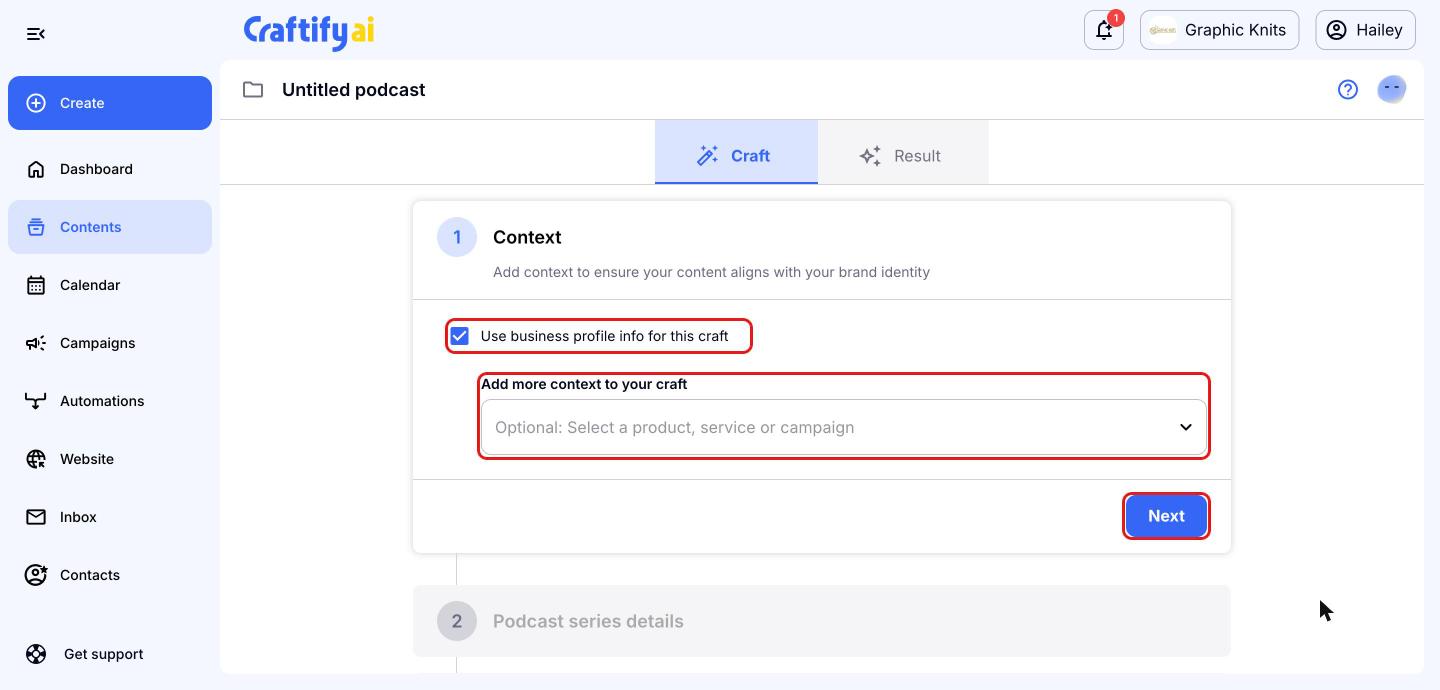
The Podcast Writer walks you through 10 short steps. First, keep 'Use business profile info for this craft' checked so your podcast matches your brand. You can also add a product, service or campaign for more context. Click 'Next'.
Describe your podcast series
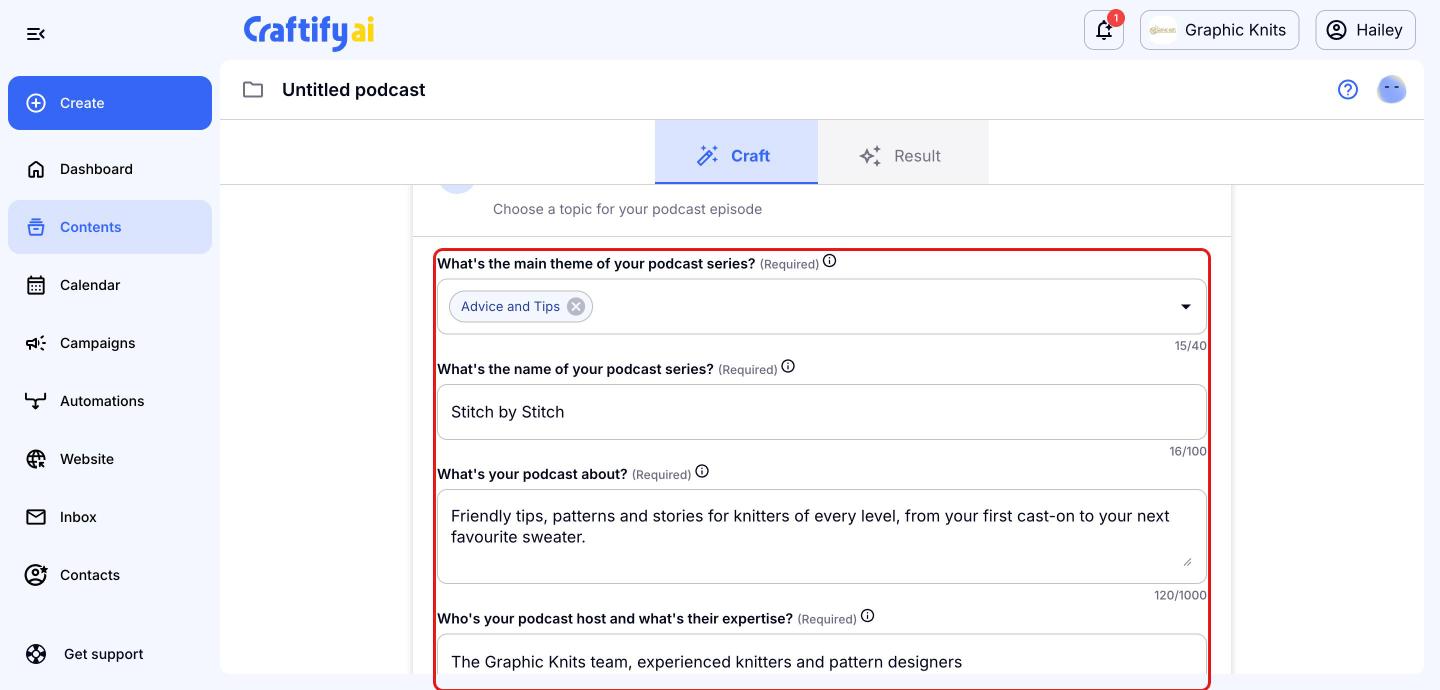
Under 'Podcast series details', pick a main theme from the list (or type your own), then add your series name, what your podcast is about, and who the host is. You can also add a closing catch phrase. Click 'Next' when you're done.
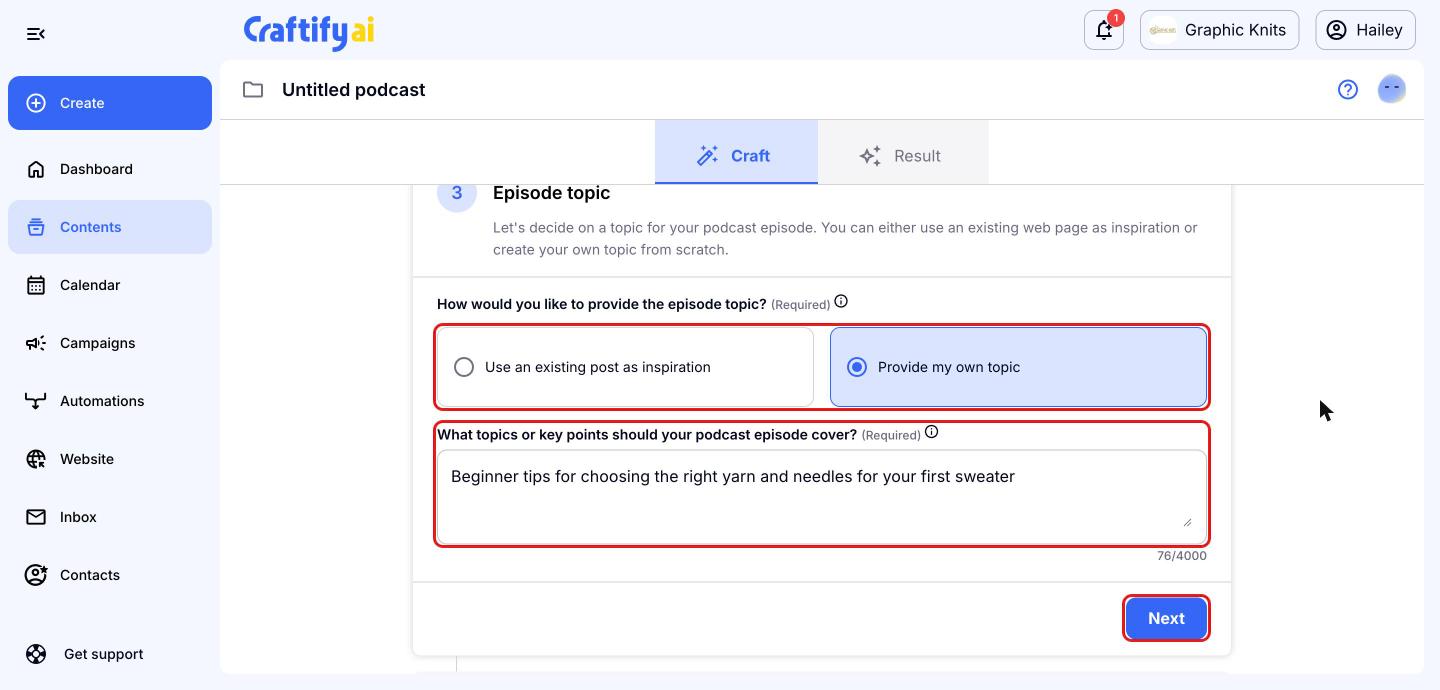
Choose your episode topic
Decide where your episode idea comes from. Choose 'Use an existing post as inspiration' to build the episode from a web page or trending topic, or 'Provide my own topic' and type the topics or key points you want to cover. Click 'Next'.
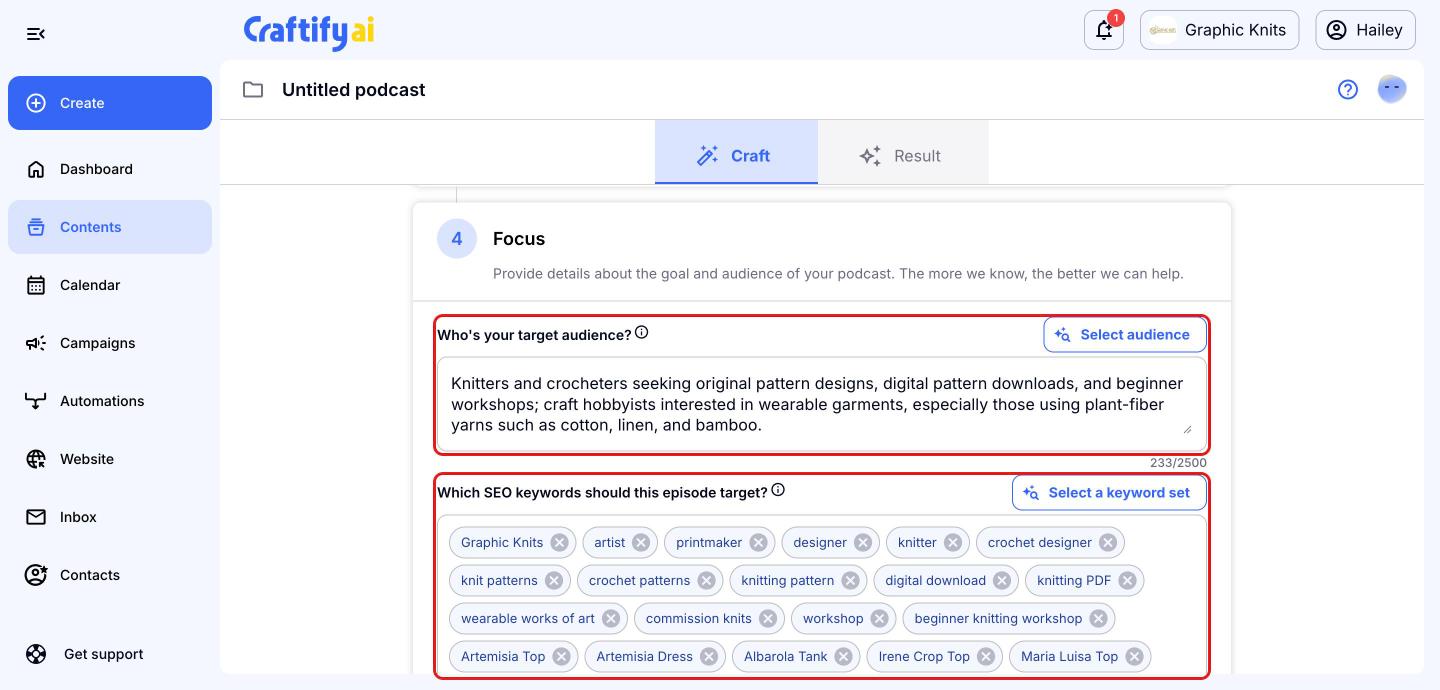
Set your focus
Craftify AI fills in your target audience and SEO keywords from your business profile. Edit them as needed, or click 'Select audience' and 'Select a keyword set' to use ones you've saved. Below, choose the tone of voice, add any extra instructions, and click 'Next'.
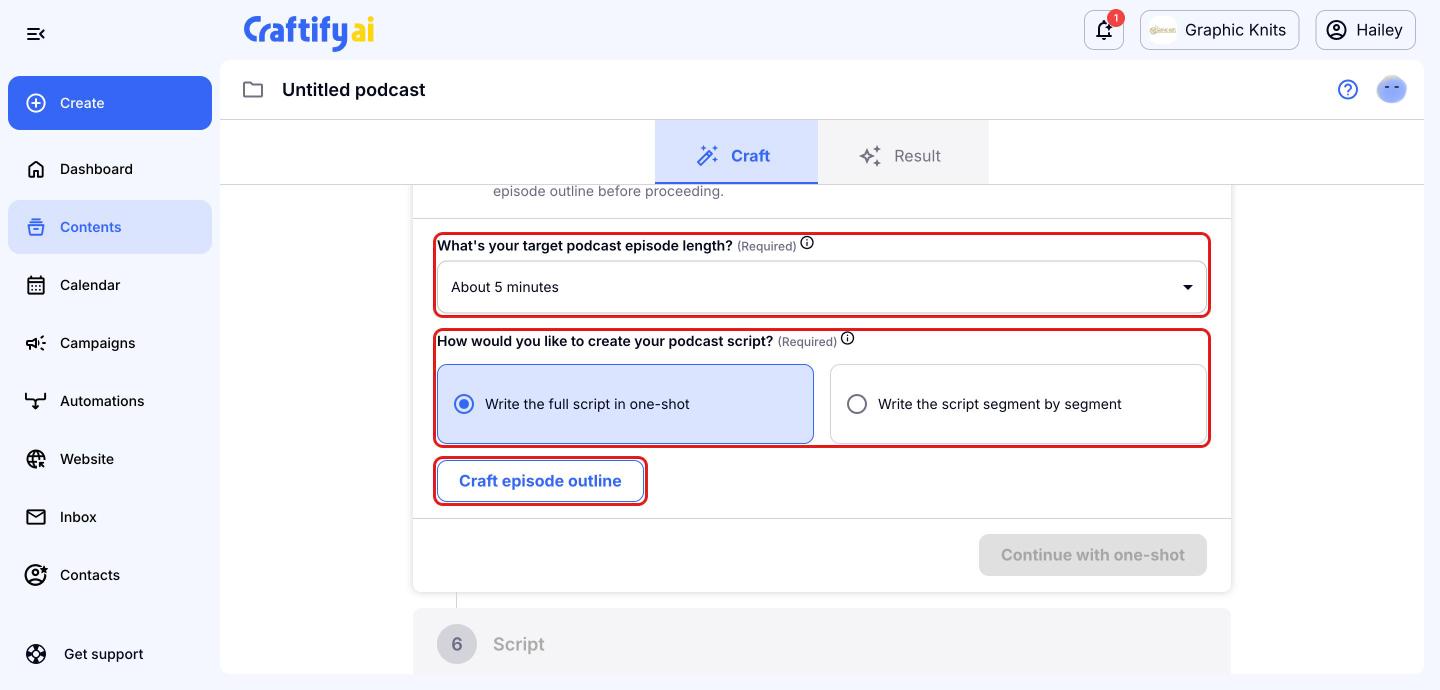
Create your episode outline
Choose your target episode length, from about 5 to about 20 minutes. Then choose how to create the script: 'Write the full script in one-shot' or 'Write the script segment by segment'. Click 'Craft episode outline' and review the outline Craftify AI writes for you.
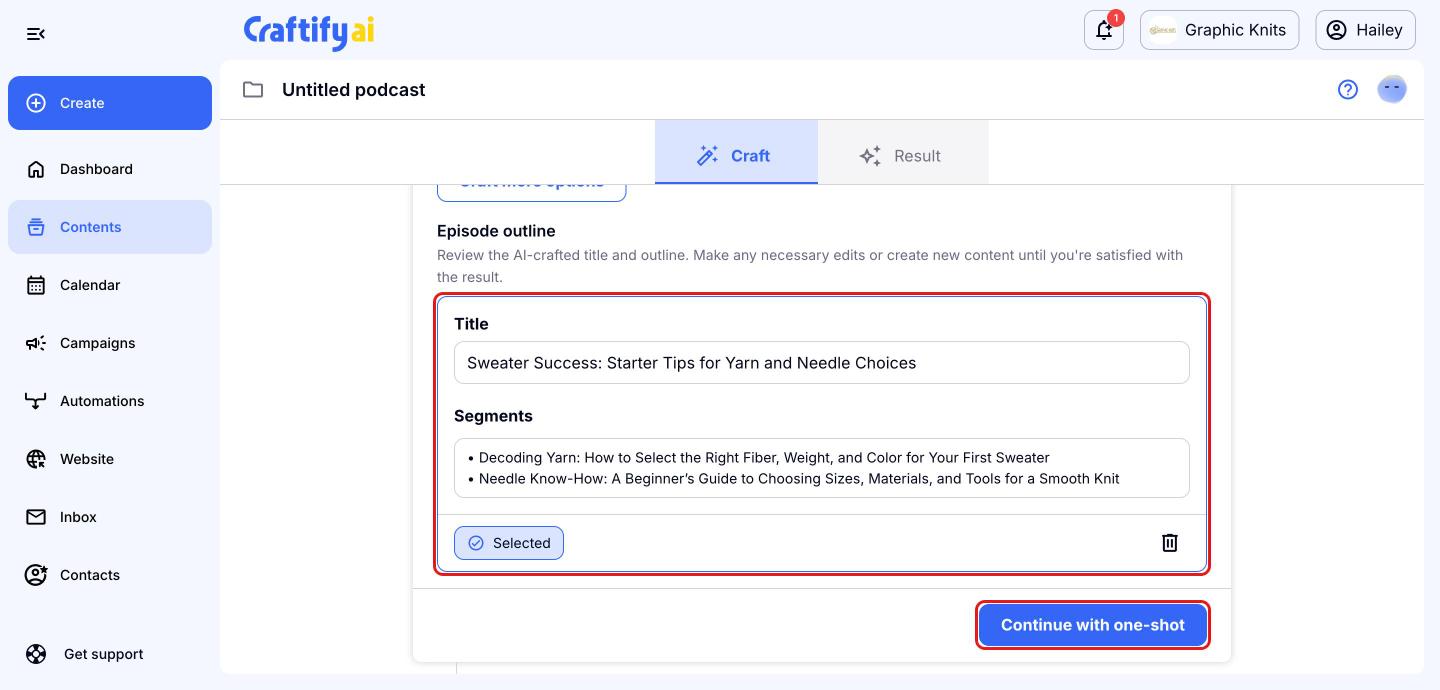
Edit the episode title and segments if you'd like, or click 'Craft more options' for new ideas. When you're happy, click 'Continue with one-shot'.
Review your script
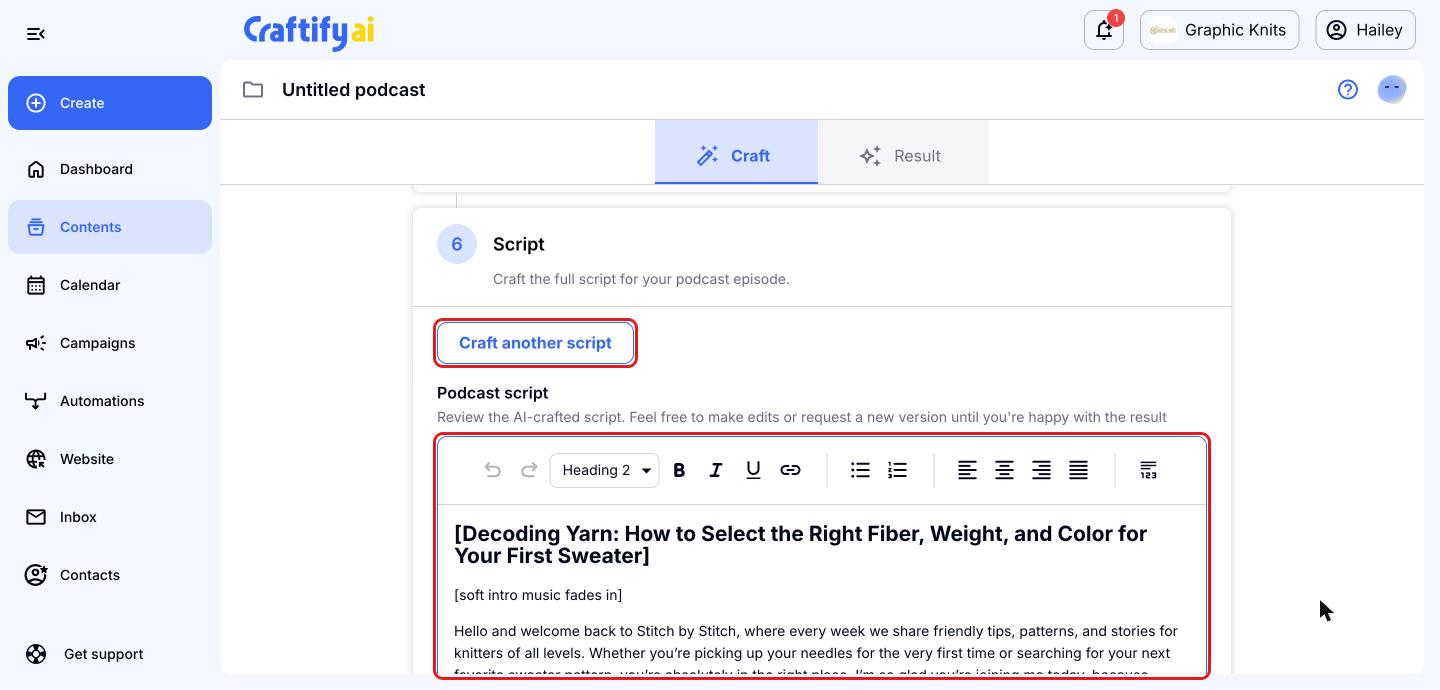
Craftify AI writes the full podcast script from your outline. Read it over and make any edits right in the editor, or click 'Craft another script' for a new version. Scroll down and click 'Next' when you're happy.
Choose a title and SEO tags
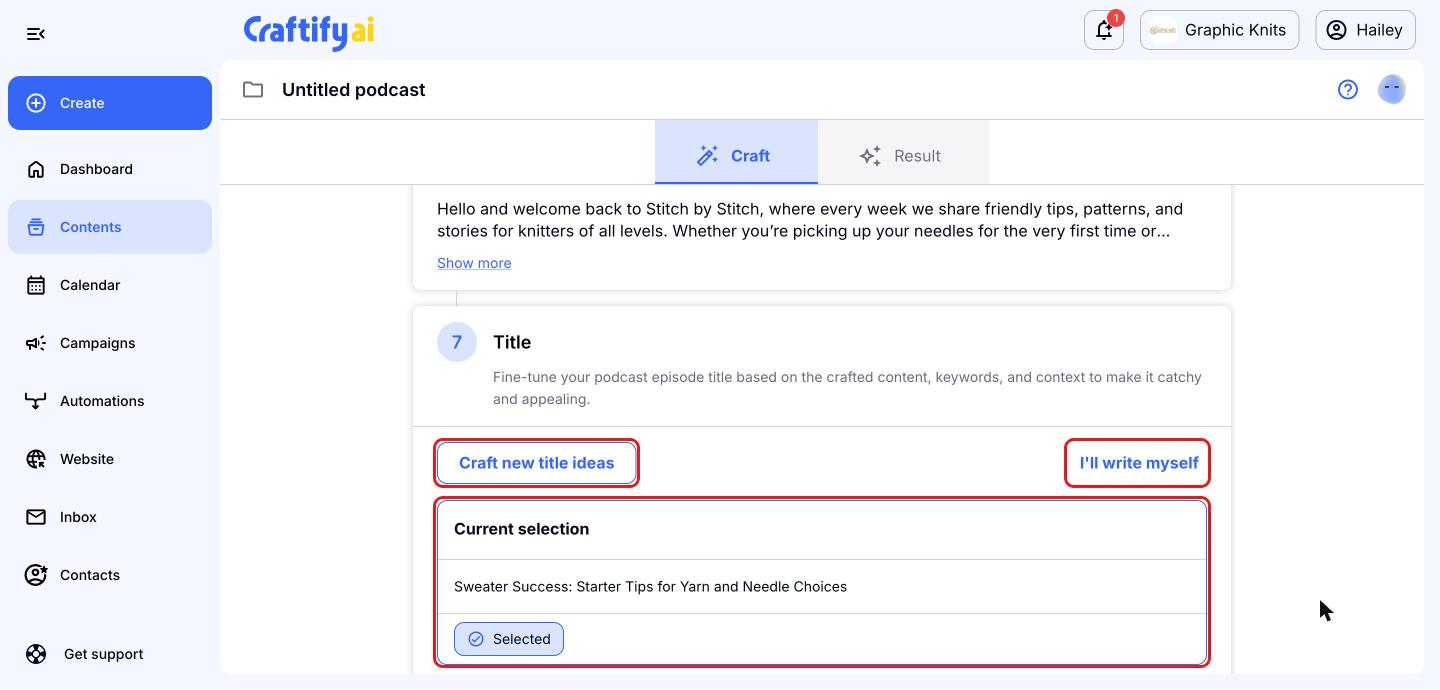
Craftify AI suggests an episode title. Keep it, click 'Craft new title ideas' for more options, or click 'I'll write myself' to type your own. Then click 'Next'.
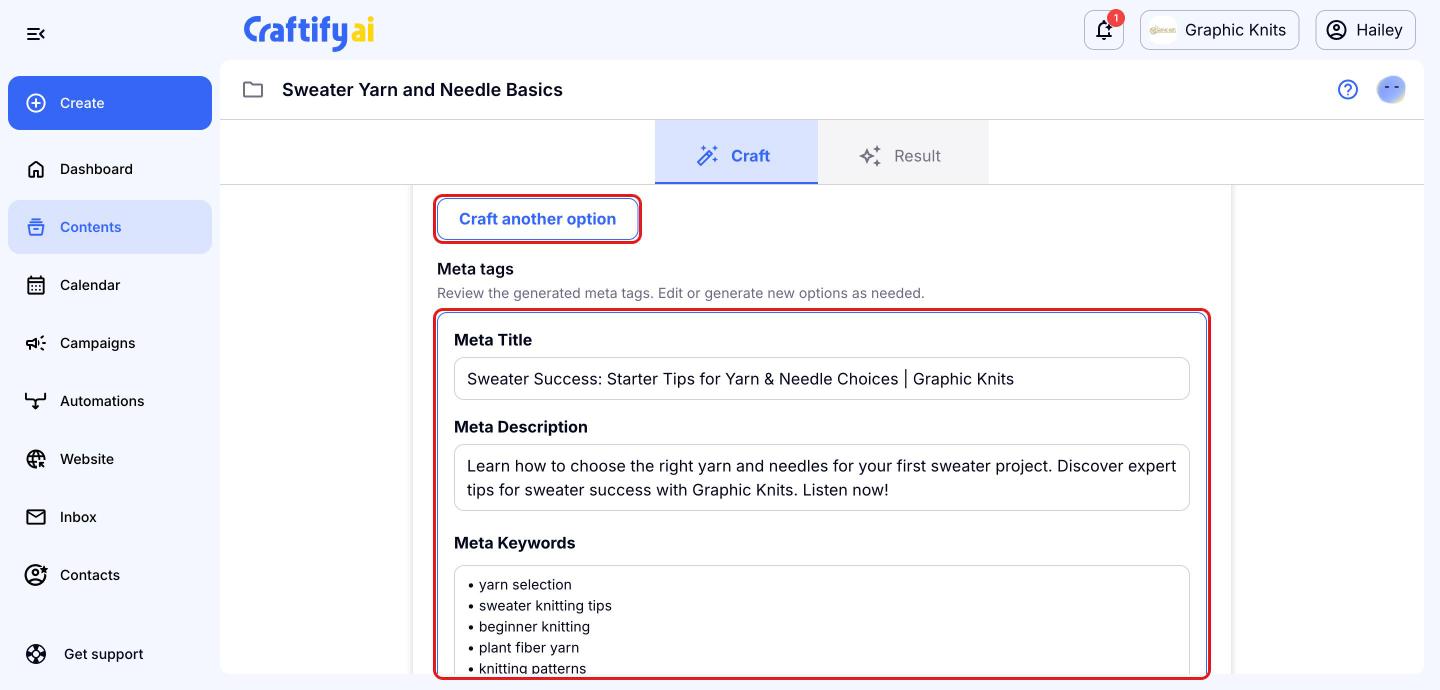
Next, Craftify AI creates SEO meta tags for your episode, including a meta title, description, keywords and slug, to help people find it. Edit them as needed or click 'Craft another option', then click 'Next'.
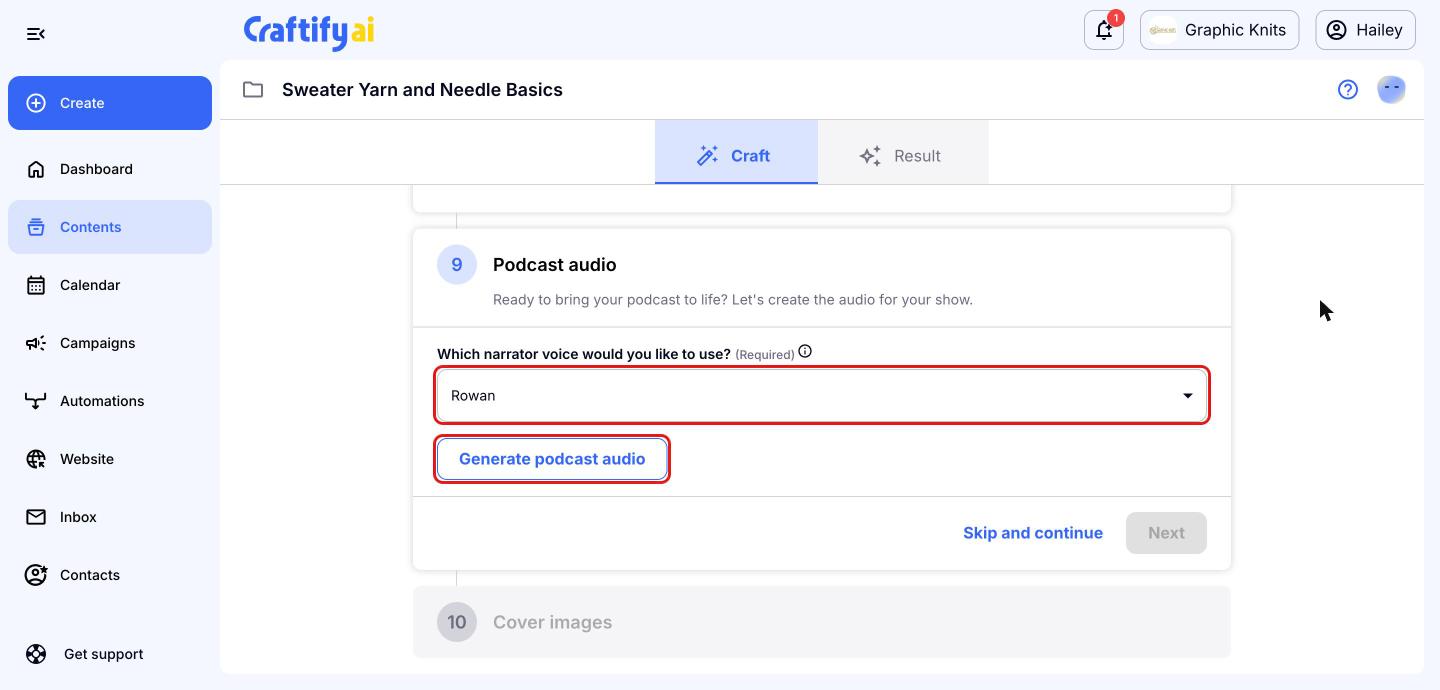
Generate your podcast audio
Now bring your episode to life. Open the 'Which narrator voice would you like to use?' dropdown and click the play button next to any voice to hear a sample.
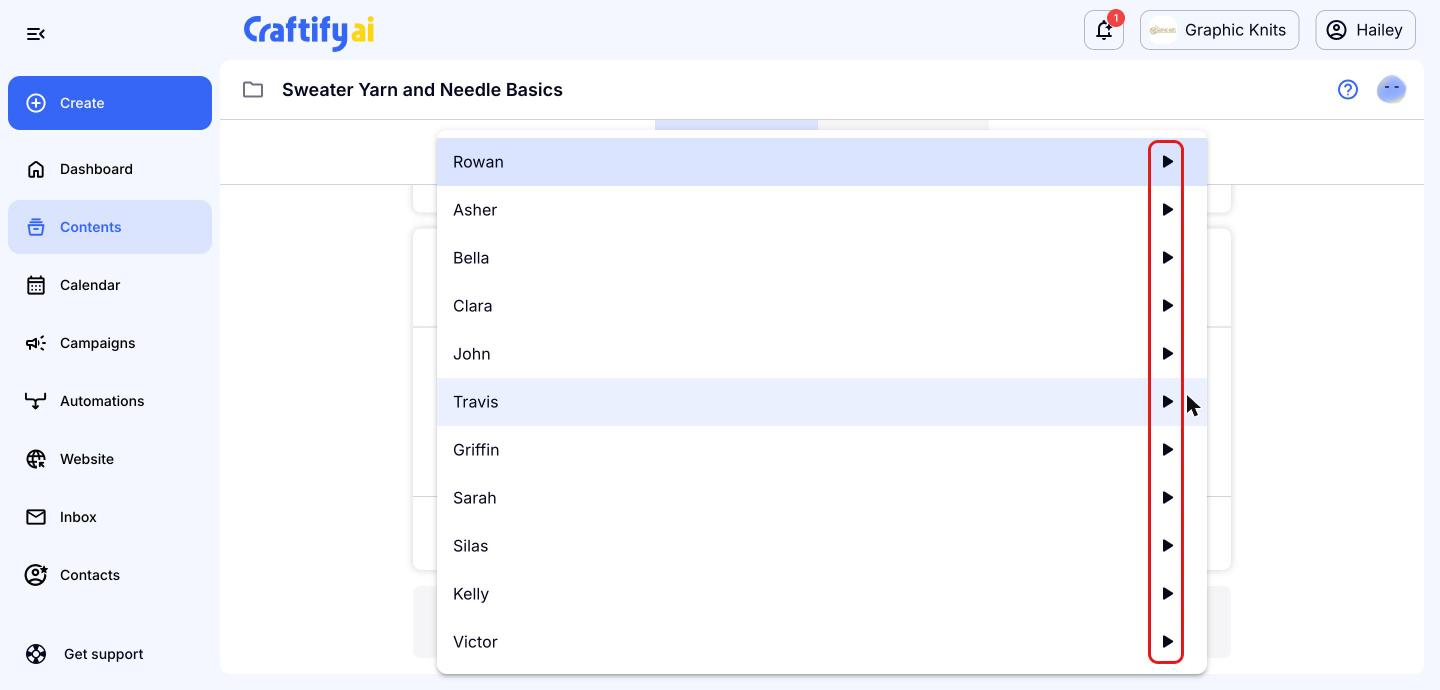
Select the voice you like, then click 'Generate podcast audio'. Once your audio is ready, click 'Next'. If you'd rather add audio later, click 'Skip and continue'.
Add cover images
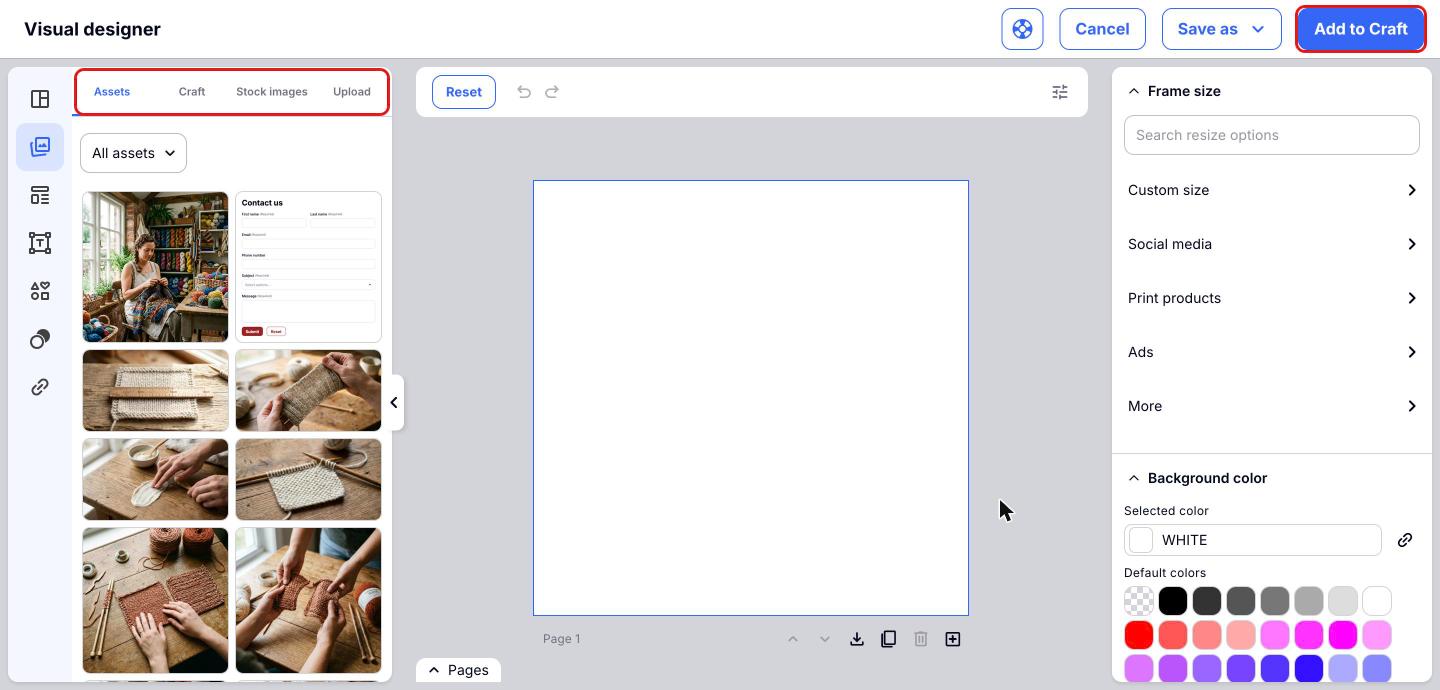
Finally, give your episode some eye-catching artwork. Click 'Add image' to open the visual designer, or click 'Skip and complete' if you'd prefer to add artwork later.
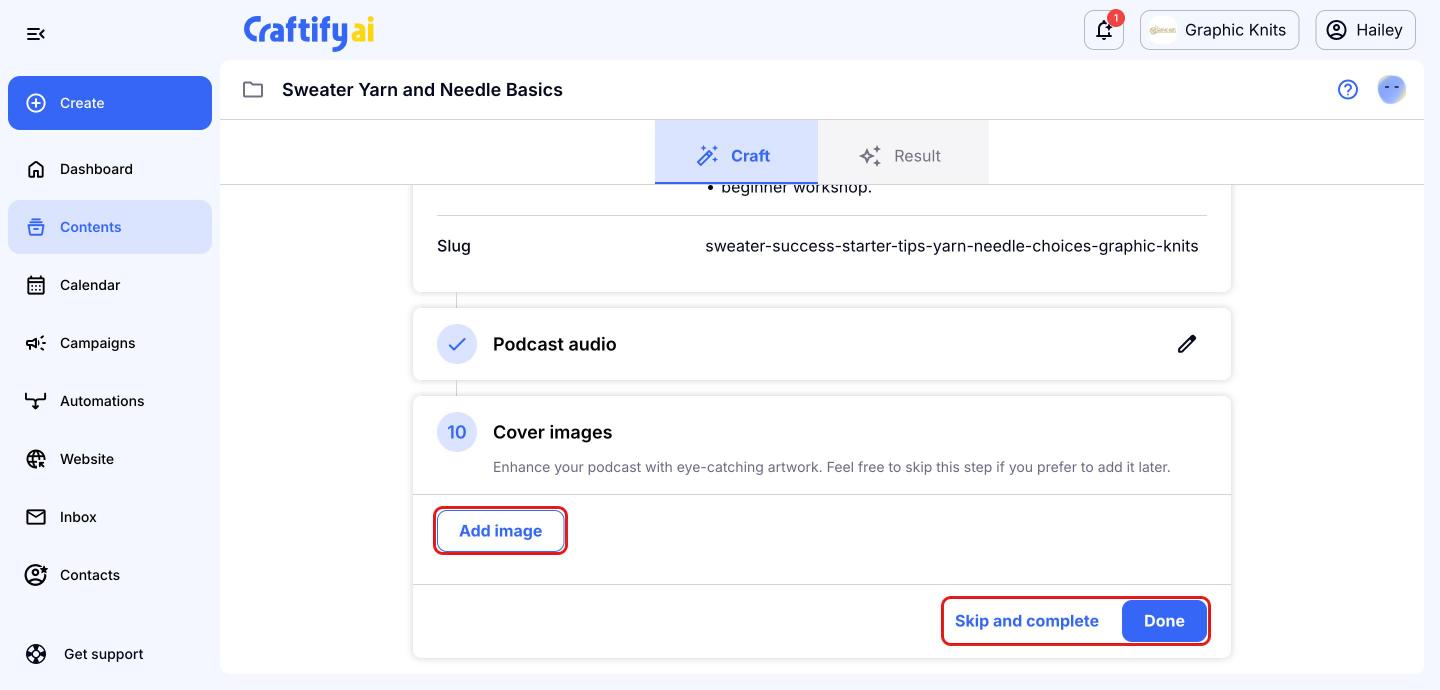
In the visual designer, choose a picture from your 'Assets', 'Craft', 'Stock images' or 'Upload' tabs and design your cover, then click 'Add to Craft'. When you're happy with everything, click 'Done' to finish your podcast episode.