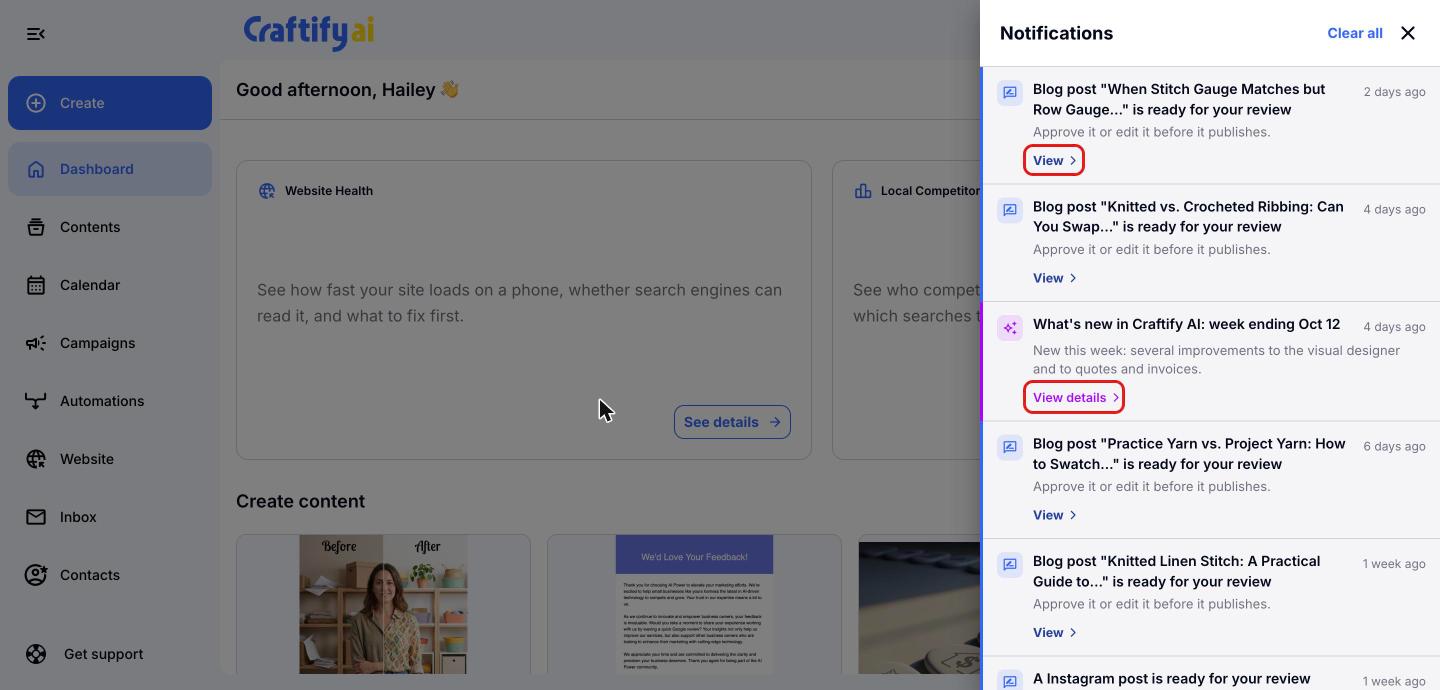
Notifications Tutorial
You can choose when and where you receive notifications in Craftify AI!
You can now choose and schedule how you get your notifcations on crafts, messages, and product updates within Craftify AI, in the app, and by email. Follow along on this short video tutorial on how to manage your notifications.
Open your settings
From your Craftify AI dashboard, click your name in the top right-hand corner, then choose 'Settings' from the drop-down menu.
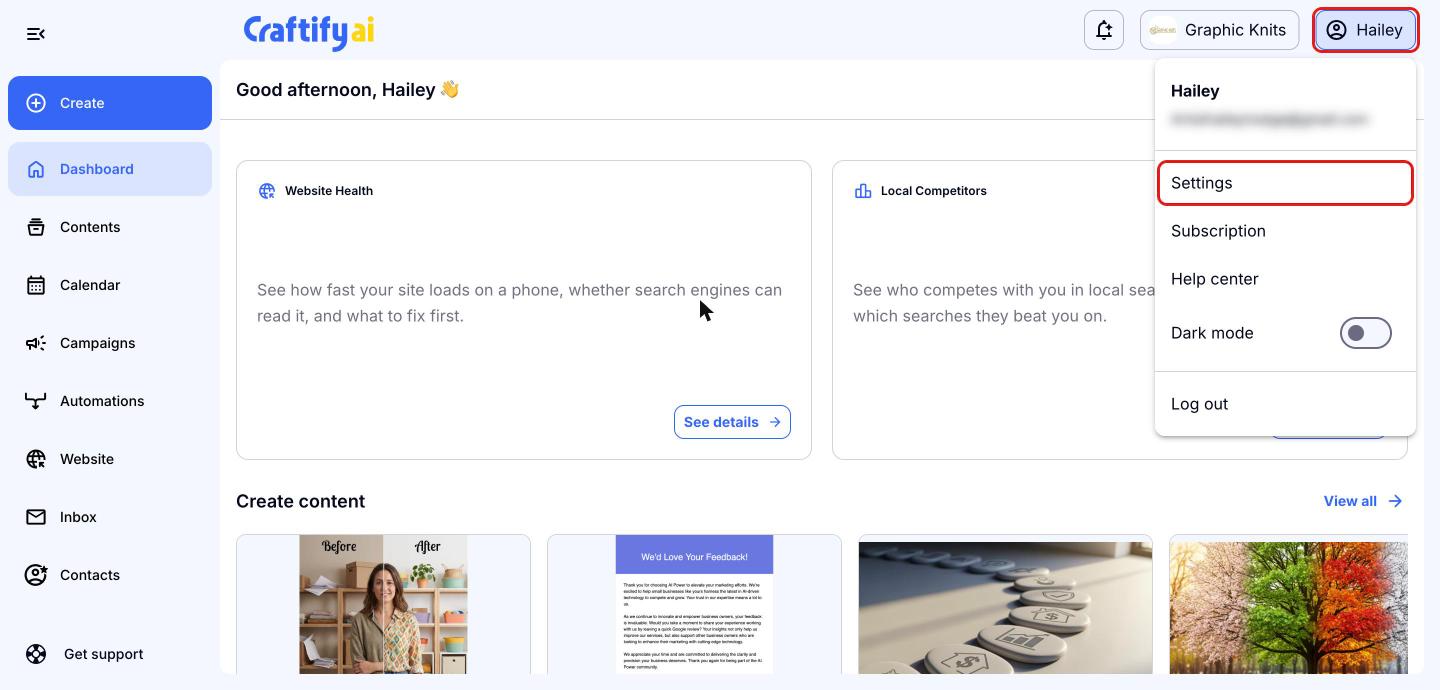
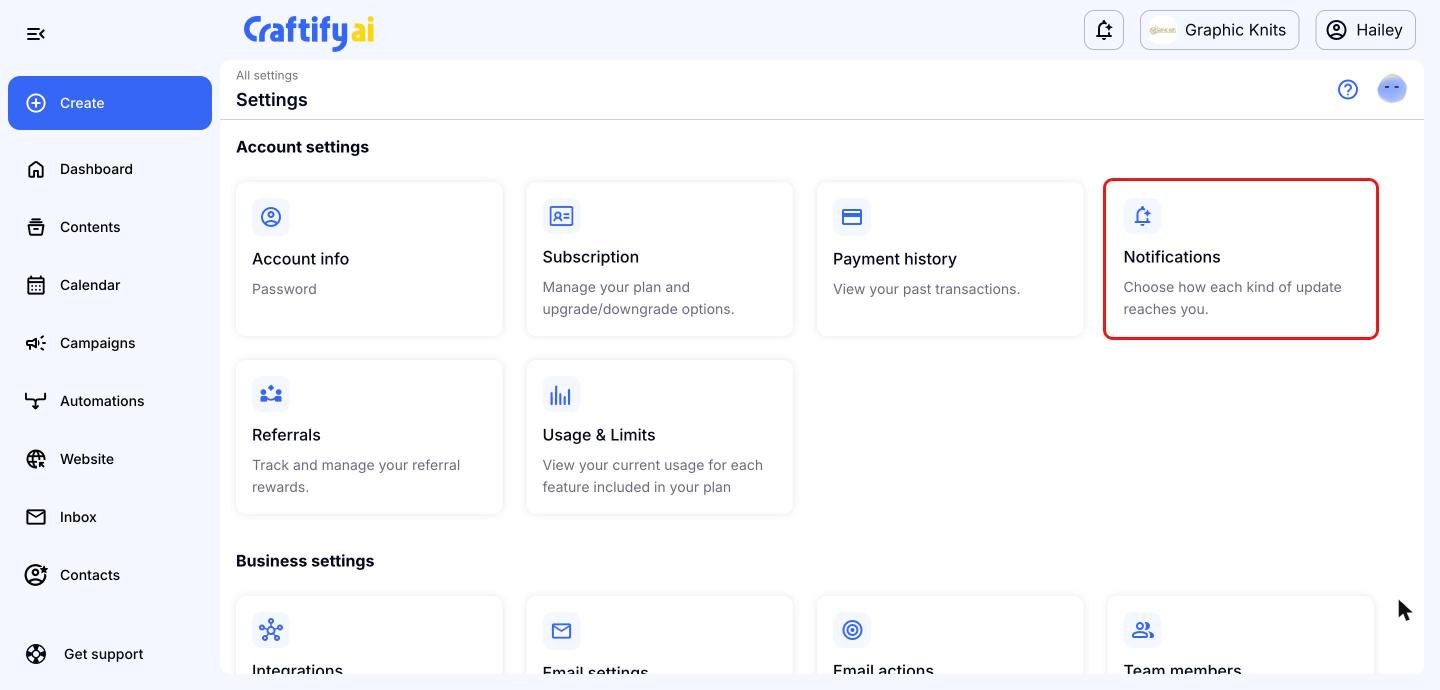
Choose Notifications
Under 'Account settings', choose 'Notifications'.
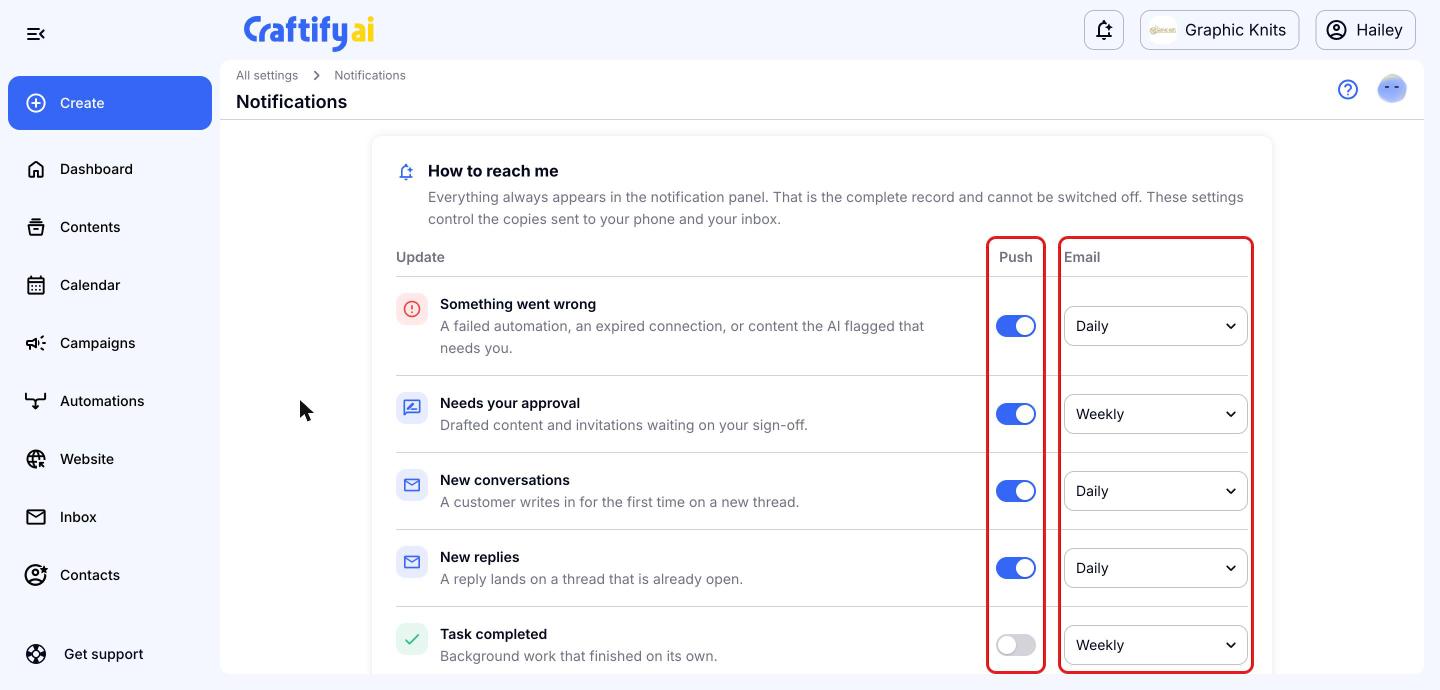
Choose how each update reaches you
Under 'How to reach me', you'll see each type of update, such as 'Something went wrong', 'Needs your approval', 'New conversations', 'New replies', 'Task completed' and 'Product announcements'.
For each one, use the 'Push' switch to turn phone notifications on or off, and use the 'Email' drop-down to choose how often you get an email summary: Daily, Weekly or Off (Product announcements can also be Monthly). Everything always appears in your notification panel, so turning a channel off only stops that copy.
Set when your email summaries arrive
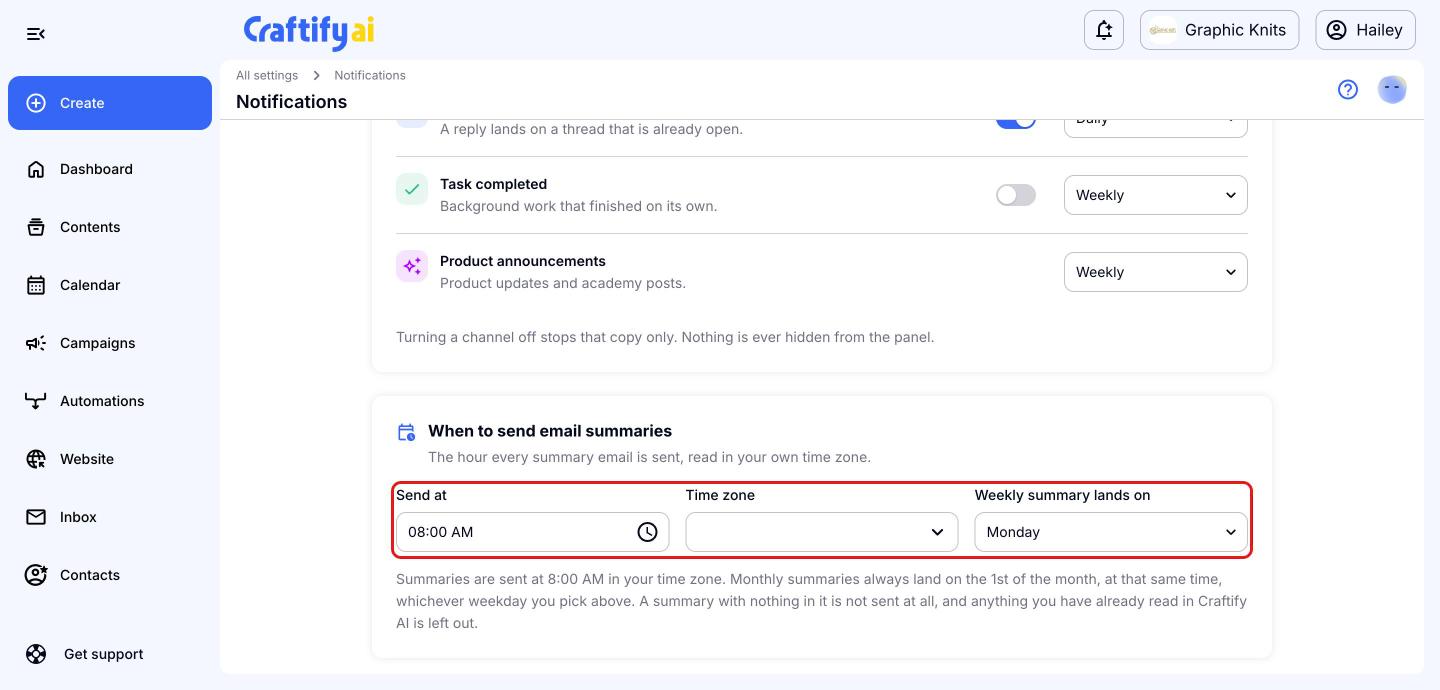
Scroll down to 'When to send email summaries'. Choose the time under 'Send at', pick your 'Time zone', and choose the day under 'Weekly summary lands on'. Monthly summaries always arrive on the 1st of the month at the same time.
Don't worry about clutter: a summary with nothing in it isn't sent, and anything you've already read in Craftify AI is left out.
Check your notification panel
Every notification is always saved in your notification panel, no matter which settings you choose. To open it, click the bell icon at the top of any page in Craftify AI.
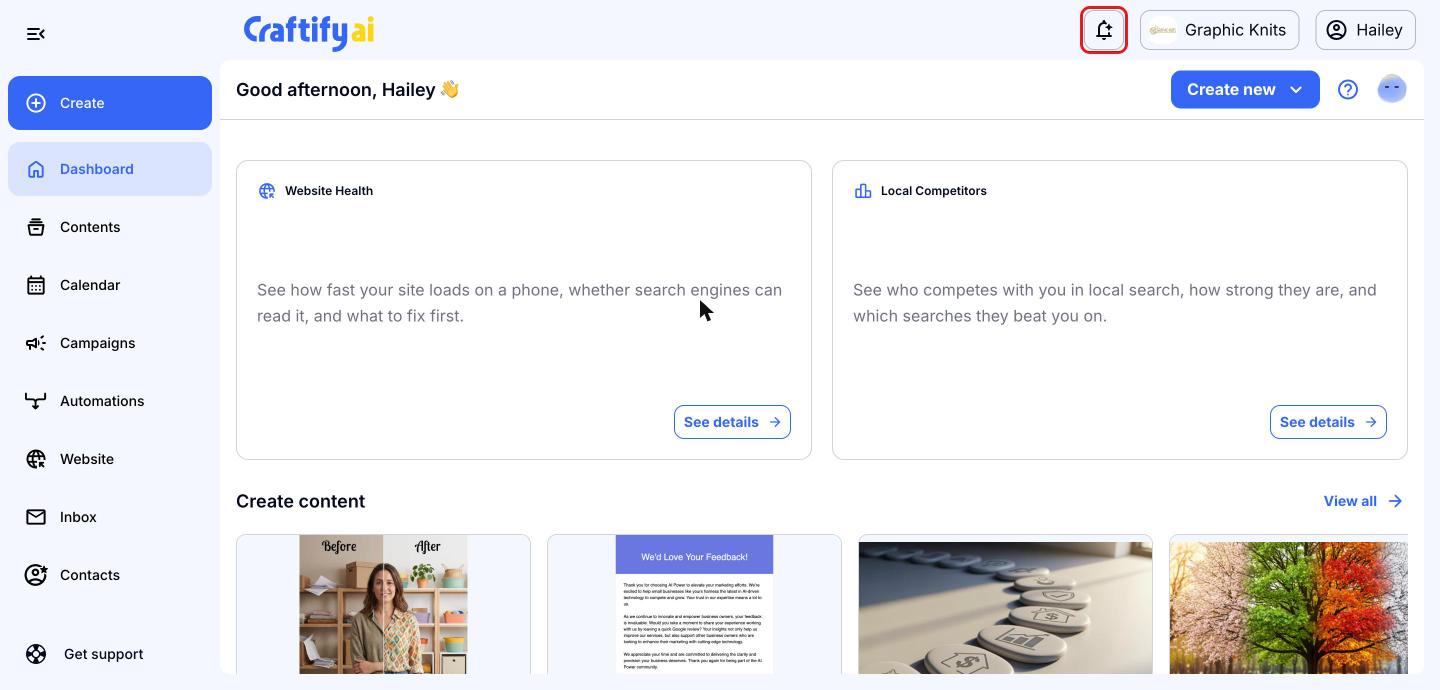
Your notifications will slide open on the right, with the newest at the top. Click 'View' on any notification to go straight to it, for example to approve a blog post that's ready for your review.