Google Search Console Integration Tutorial
- How to set up your Google Console Profile with Google
- Step 1: Log in to Google Console
- Step 2: Log in to your domain and go to the DNS settings.
- Step 3: Go to Insights in Craftify AI
- Get all of your Google Search updates on your business in one place!
- Step 4: Head over to your Settings
- Step 5: Choose Integrations
- Step 6: Choose 'Connect' for Google Search Console
- Step 7: Log in to the Google account that is connected to your Google Business Profile
- Step 8: Go to Insights to see the Google Analytics in real-time
How to set up your Google Console Profile with Google
If you don't already have a Google Console Profile, then you'll need to set that up too! Follow this short tutorial on how to create your profile.
If you have a Google Console already set up, then you can skip Steps 1 - 3 and go to Steps 4 - 5 to integrate it with your Craftify AI profile.
Step 1: Log in to Google Console
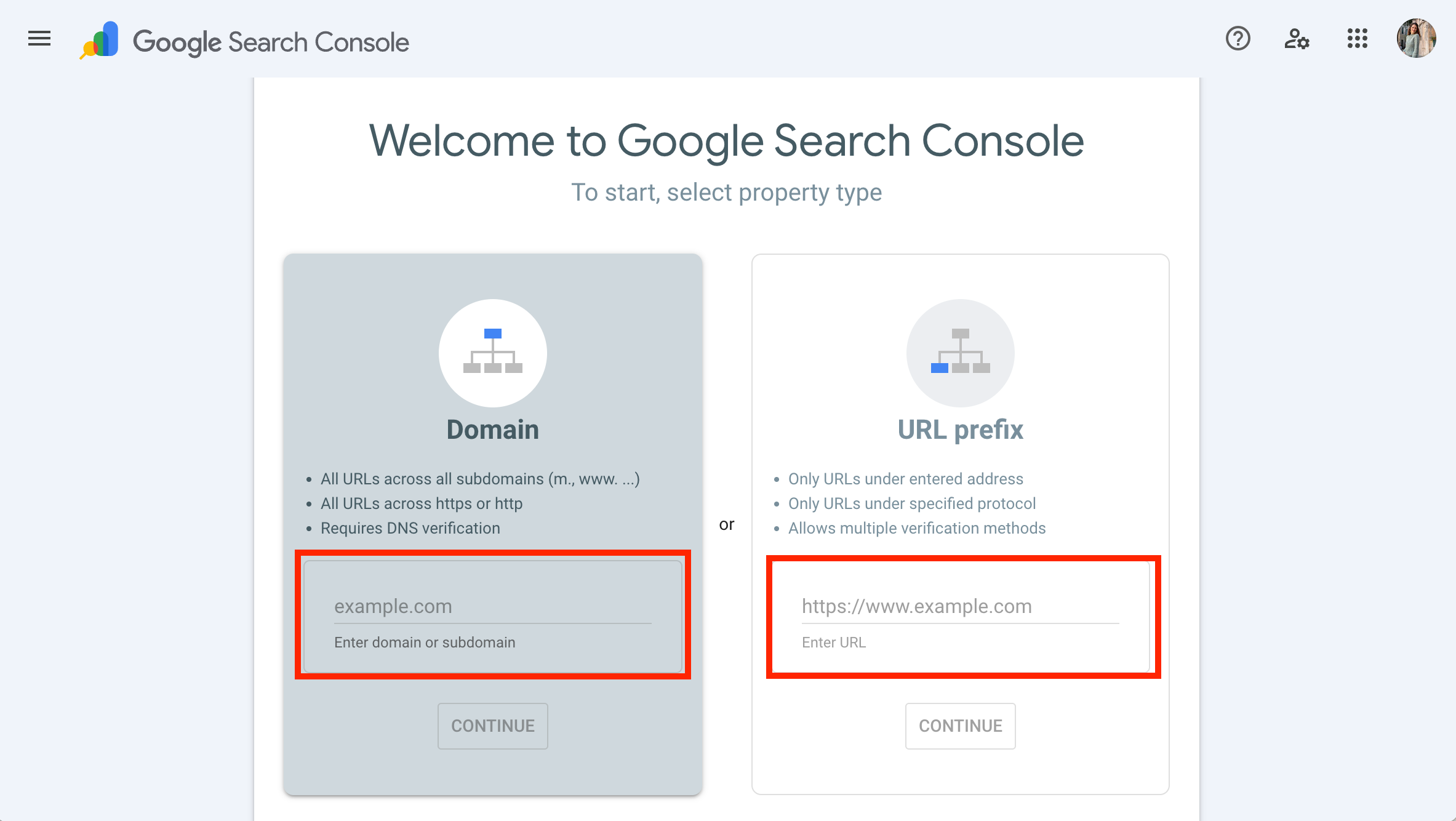
Head over to https://search.google.com/search-console/welcome
Input your domain name on the left, or on the right. They are both options for you to add your website to the console.
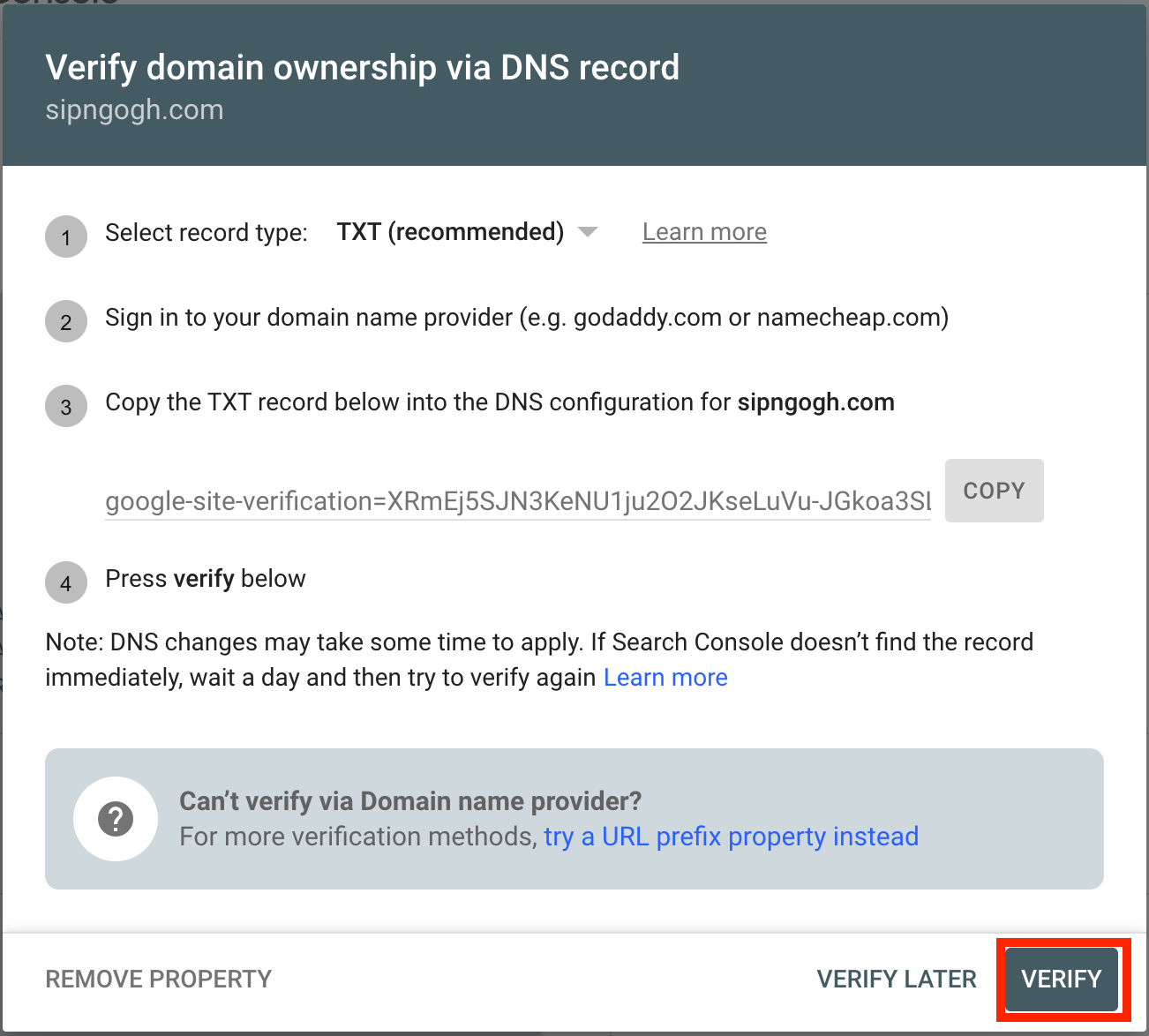
Step 2: Log in to your domain and go to the DNS settings.
Choose 'Add Record' and choose the TXT type, put '@' in the Name section, then copy the output from Google Search Console into the Content section. Save the record and go back to Google Search Console.
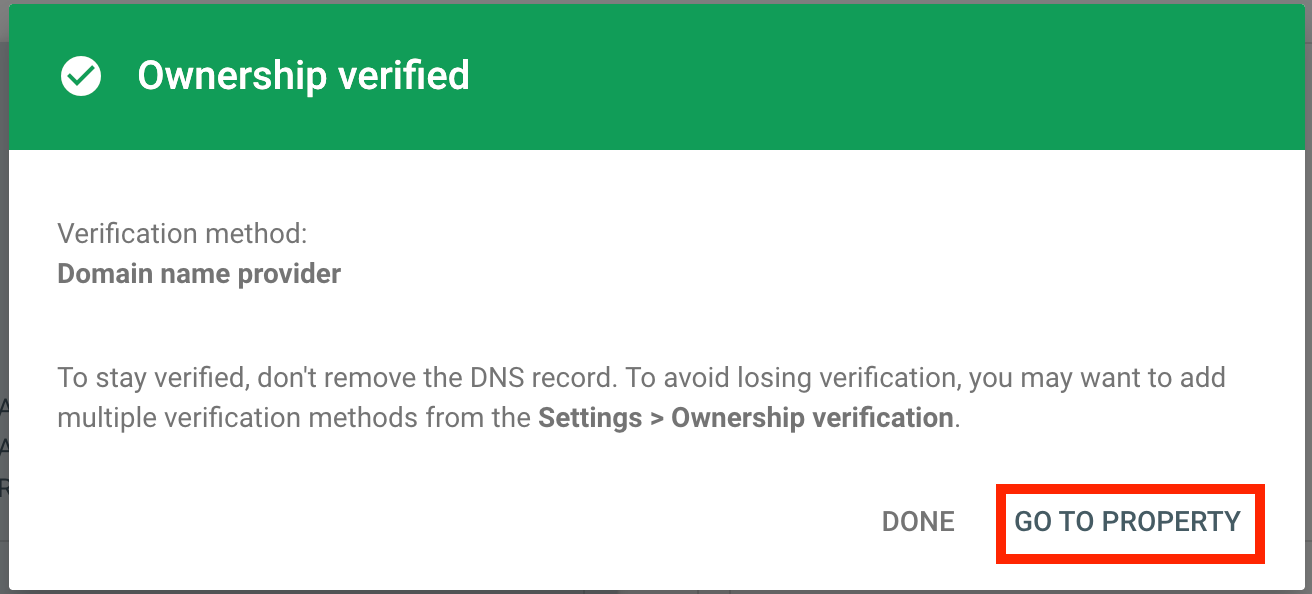
Once you are verified you should see the above message! You can choose to see your performance here, OR you can head over to your Insights section of Craftify AI.
Step 3: Go to Insights in Craftify AI
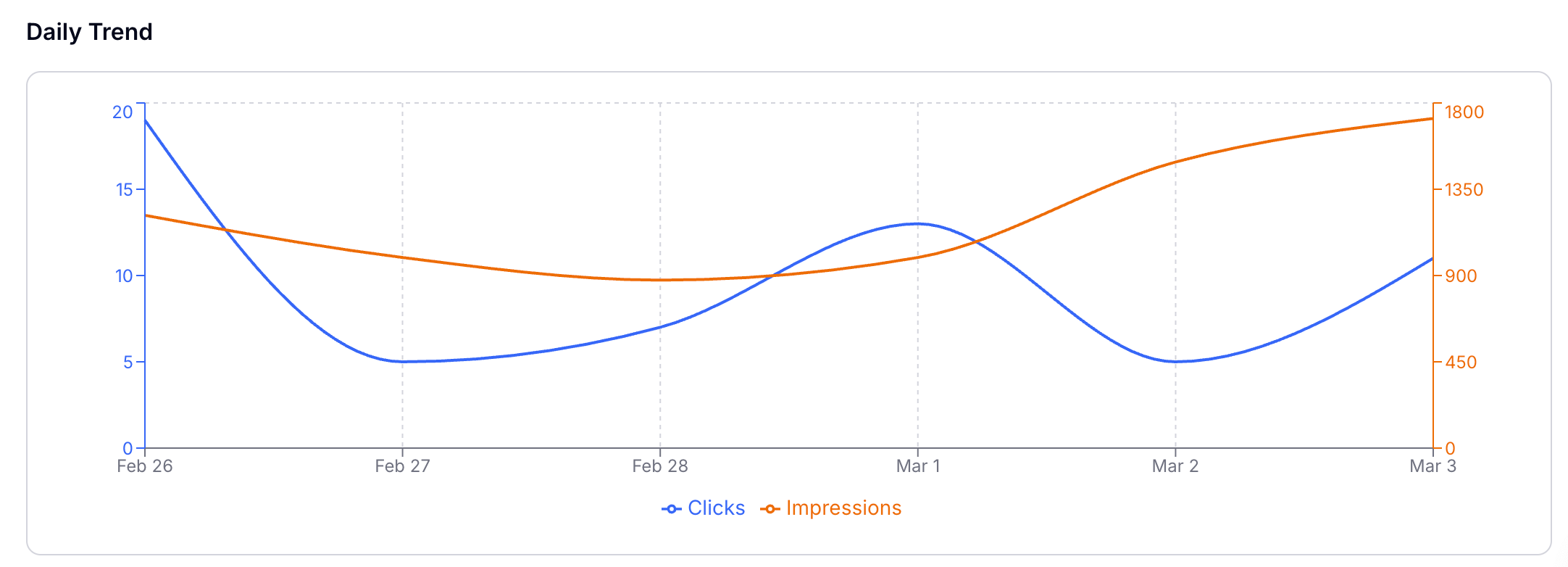
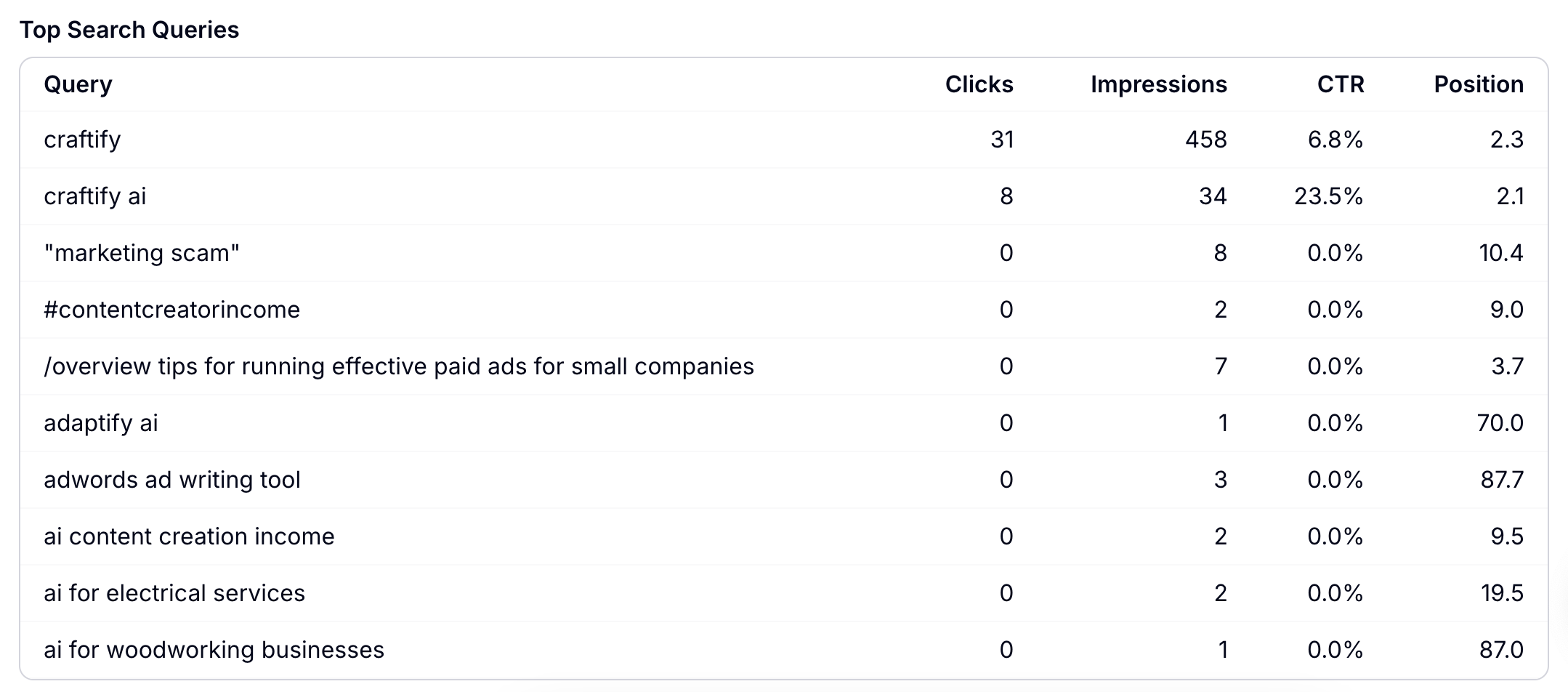
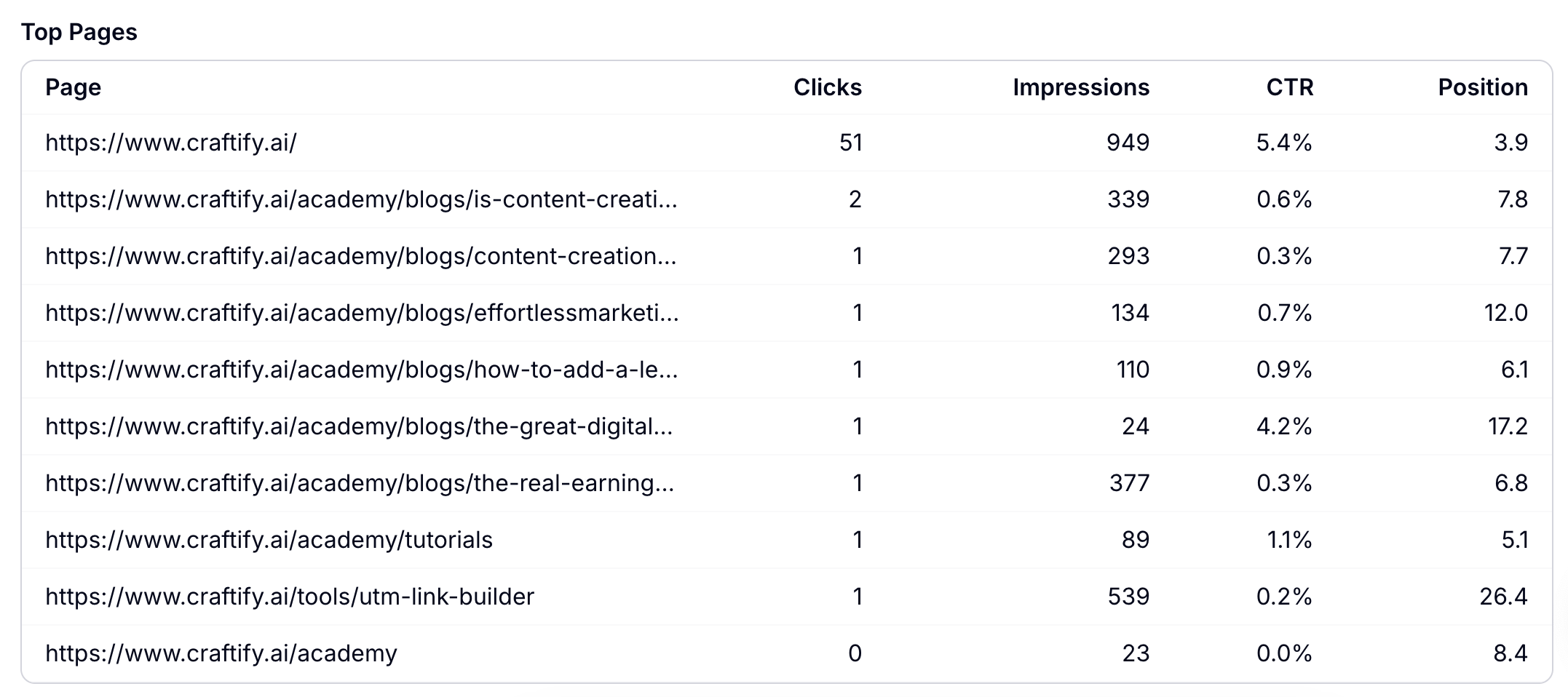
Choose 'Search Console' and you can view the Insights of your Google Console!
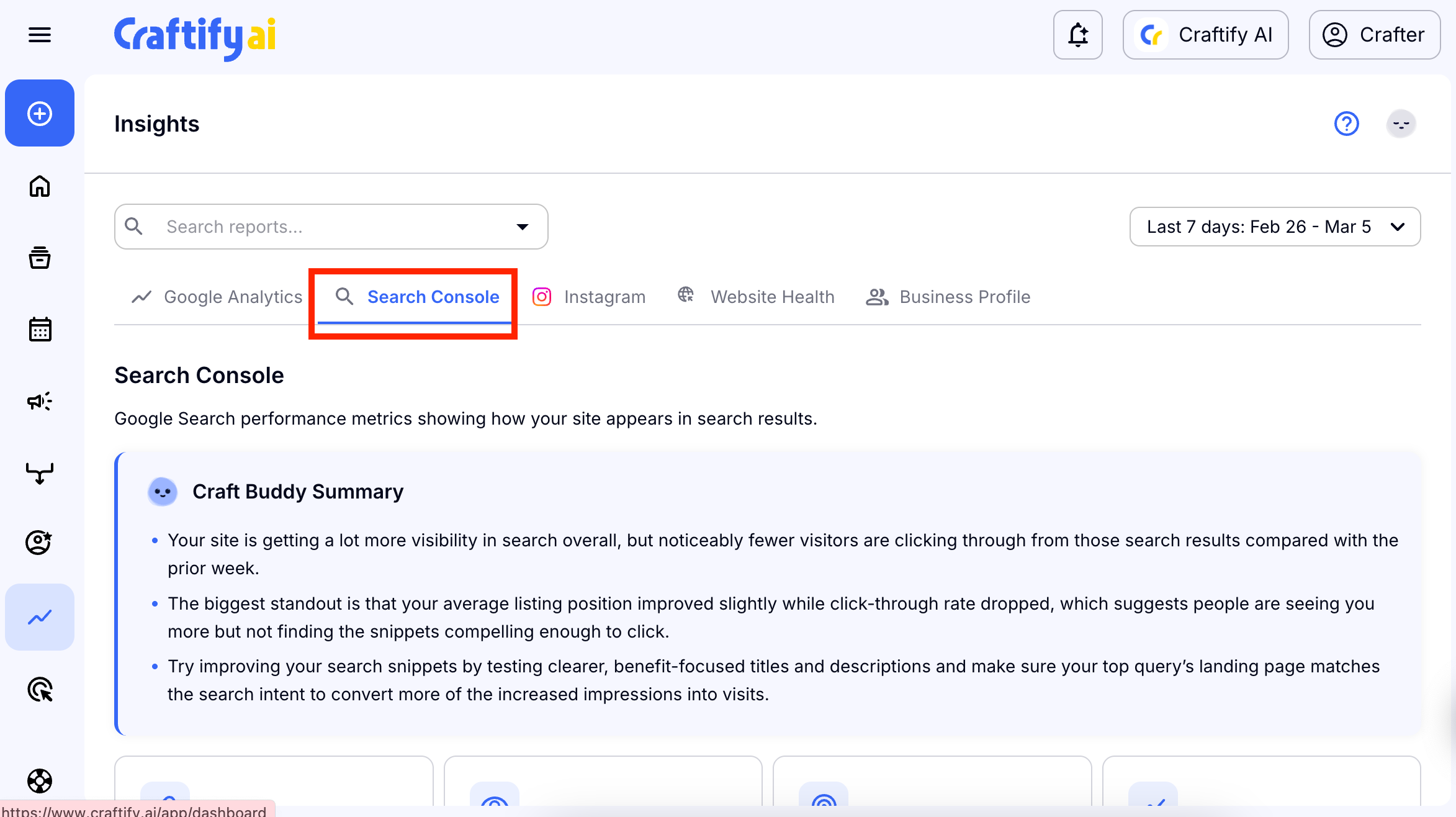
Get all of your Google Search updates on your business in one place!
Craftify AI now has a direct integration with Google so that you can see all of your reviews, clicks, calls, and more directly through your Craftify AI dashboard.
It's easy to set up.
Step 4: Head over to your Settings
Choose your username, and then choose 'Settings' in the drop-down menu.
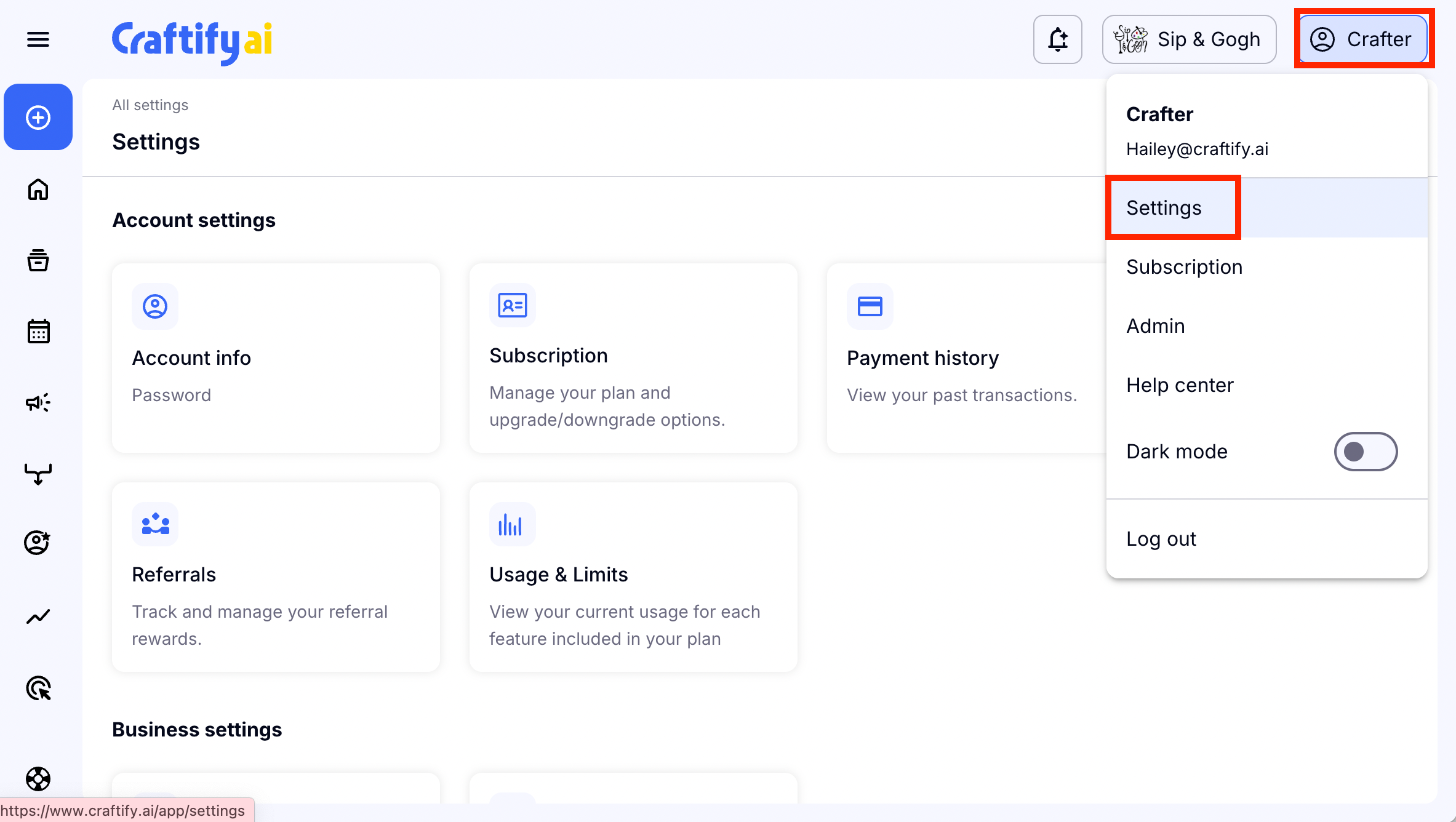
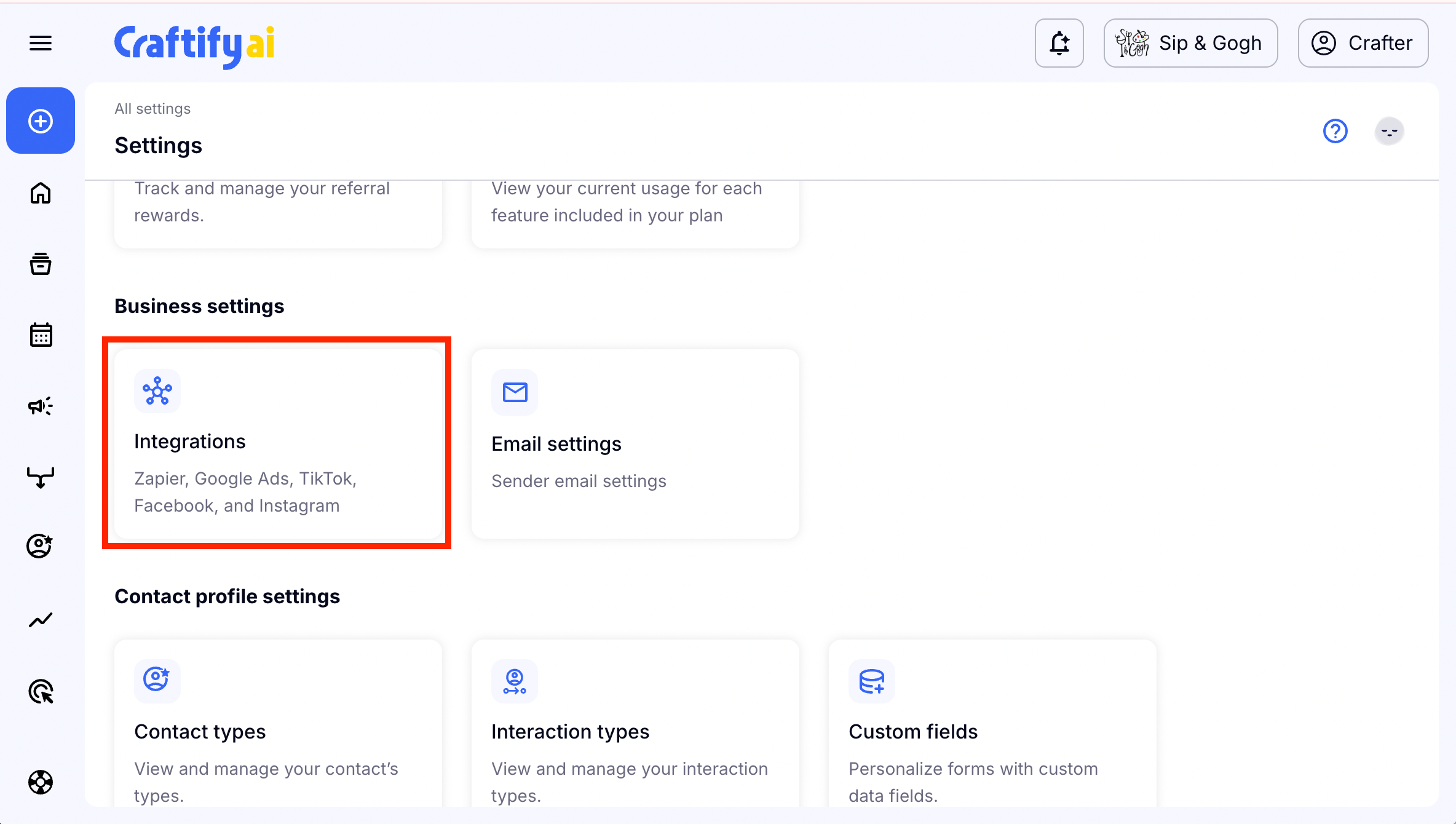
Step 5: Choose Integrations
Scroll down to the Business settings and choose 'Integrations.'
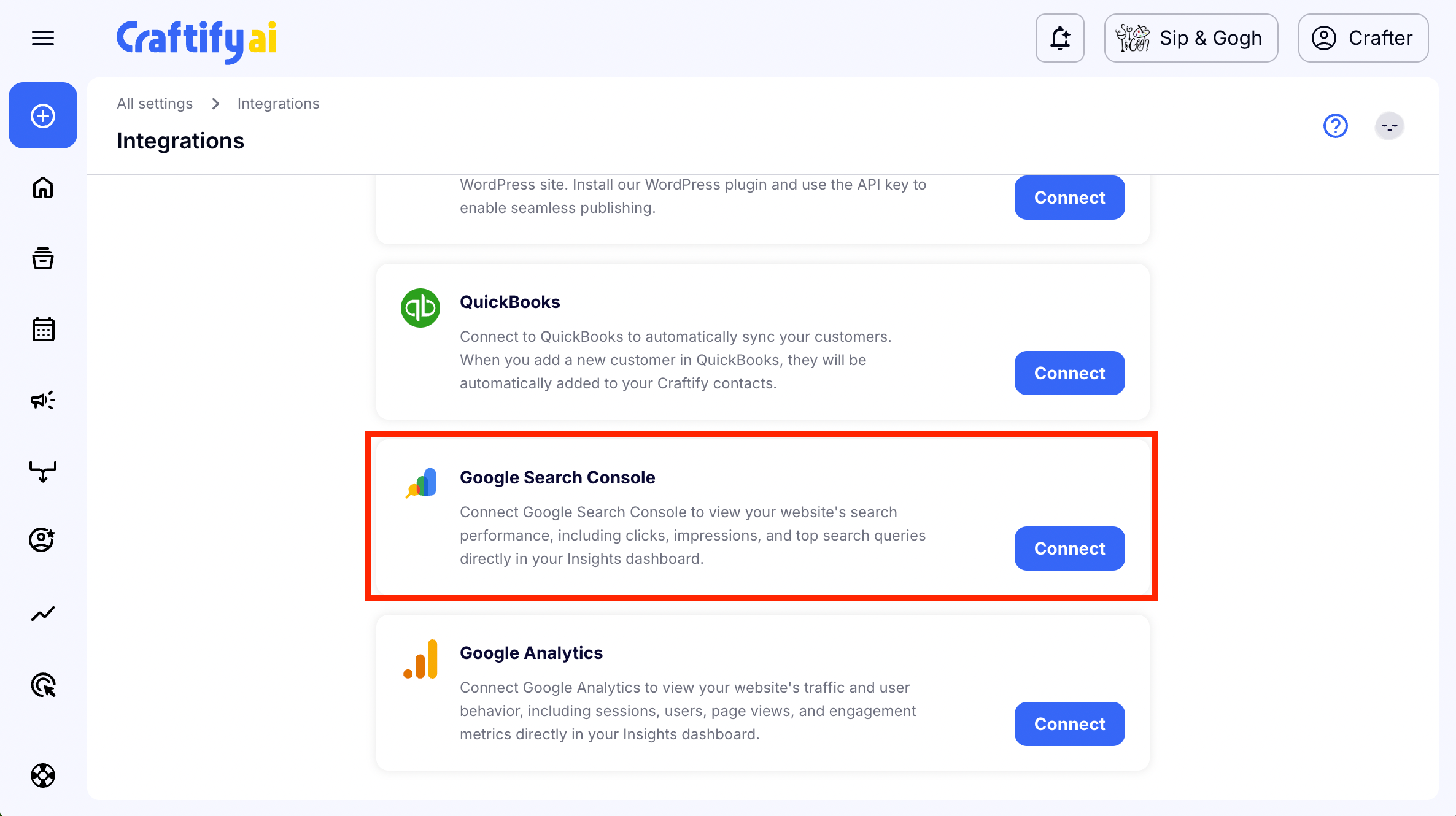
Step 6: Choose 'Connect' for Google Search Console
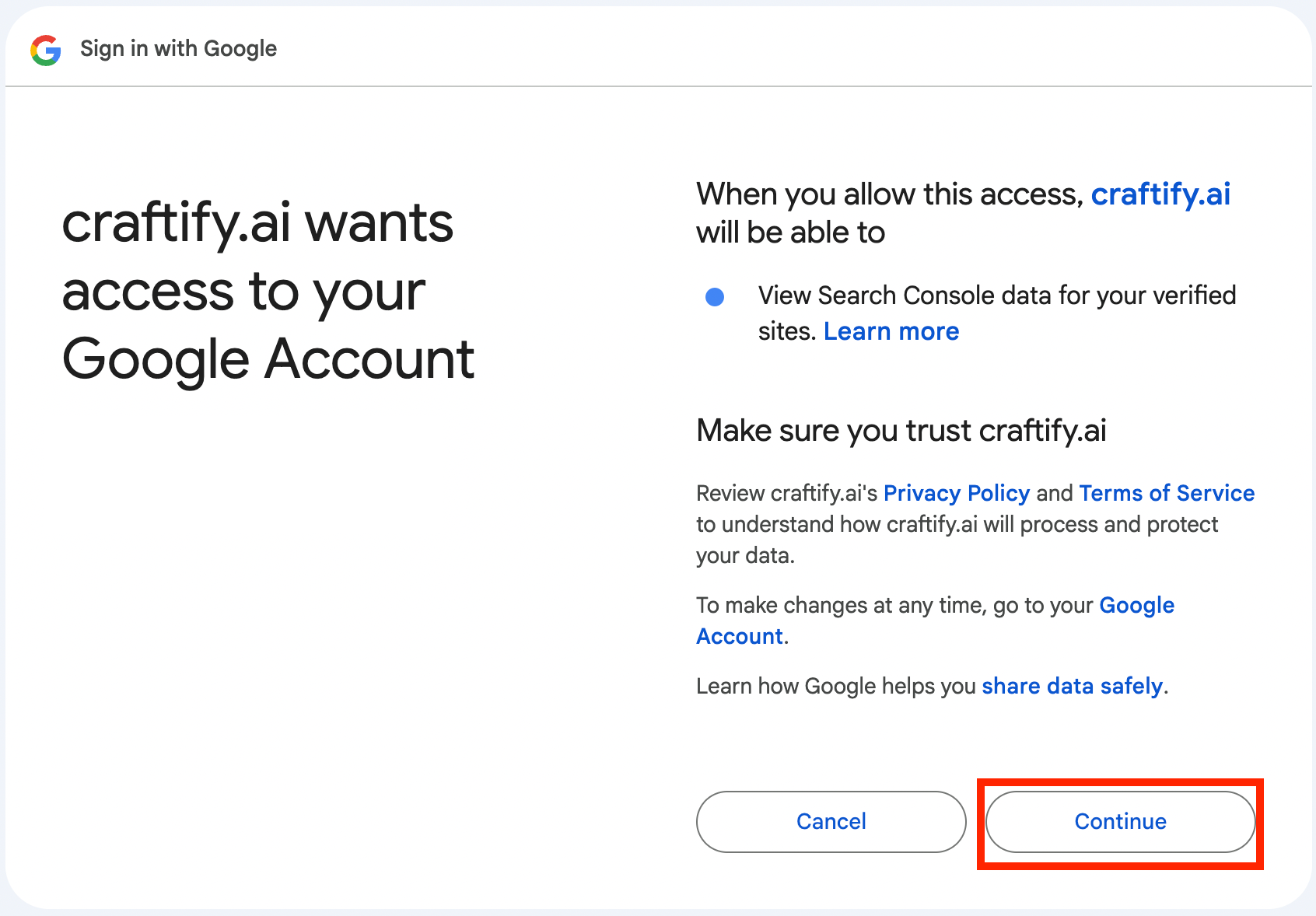
Step 7: Log in to the Google account that is connected to your Google Business Profile
From here you should be re-directed to Google to log in to the correct Google account associated with your Google Business Profile. From there you will need to then also accept the terms and conditions
Choose 'Continue' to connect the Google Search Console integration with Craftify AI.
Step 8: Go to Insights to see the Google Analytics in real-time
In the left-hand menu choose 'Insights.'
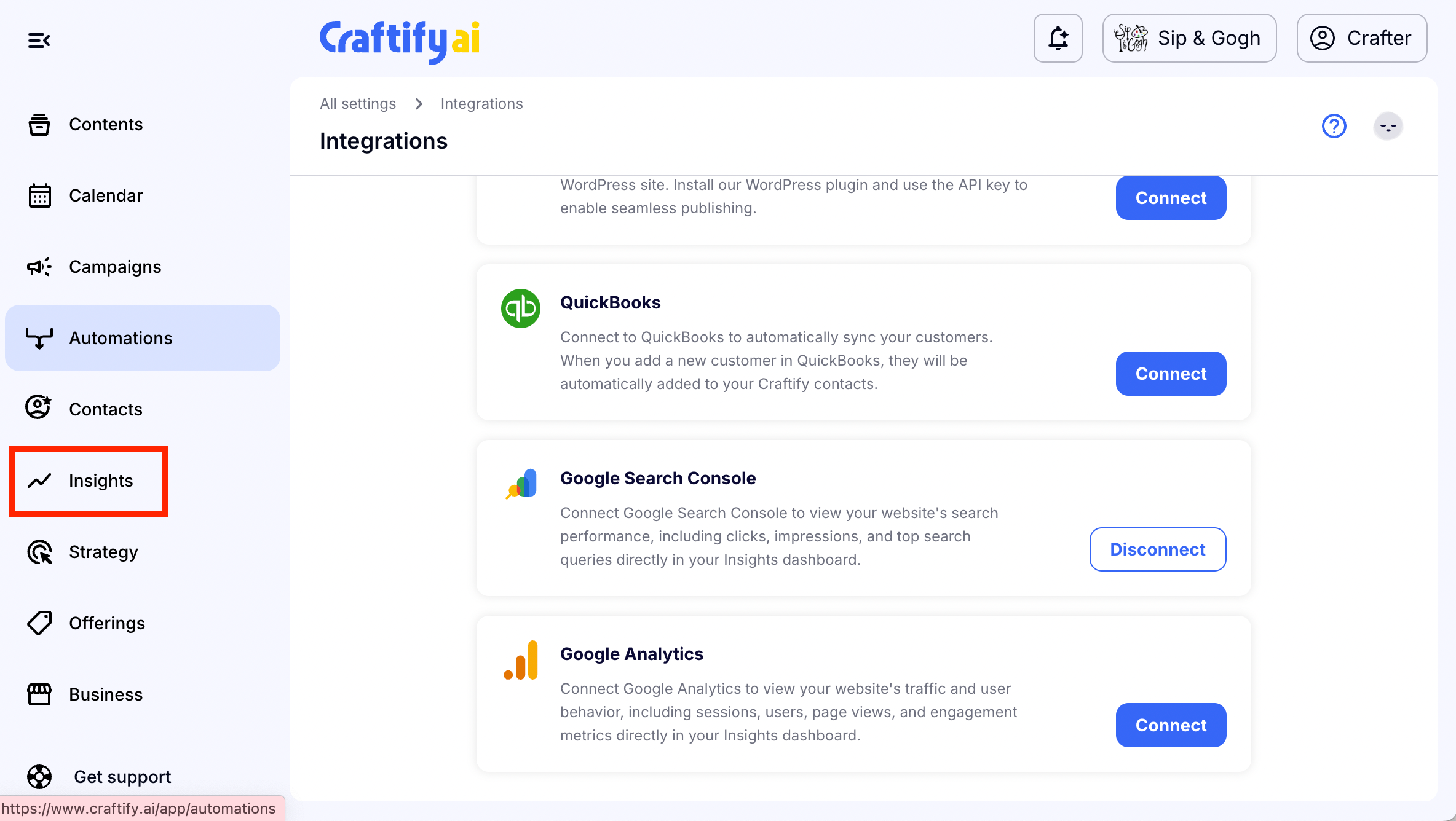
Choose 'Search Console' and scroll down to see your results!