Gift Cards Tutorial
- Gift Cards Tutorial
- Open your Gift cards settings
- Connect your Tremendous account
- Manage your balance and spending limits
- Add your customers' birthdays
- Add the Gift card block to your email
- Build a birthday automation
- Add the Send gift card step
- Add the email that carries the gift card
- Turn on your automation
- Send a gift card with any email
- What your customer sees
- See how your gift cards are working
- Frequently asked questions
- Who holds my money?
- What does it cost?
- What if my balance runs out?
- Can I limit spending?
- Can I use it for other moments?
- Can I send a gift card without an automation?
- What if my balance is short when a one-off email goes out?
- What if a customer never claims it?
Gift Cards Tutorial
Surprise your customers with a real gift card from brands like Starbucks, Amazon or Tim Hortons, delivered inside an email from your business. Craftify AI can send one automatically on every birthday, or you can add one to any email you send yourself.
- Two ways to send: automatically from an automation, or with any email you send to one contact or a list.
- Your money stays yours: your balance and card details live in your own Tremendous account. Craftify AI never holds either.
- Full tracking: see every card sent, claimed, and what customers did next, in Insights.
Follow along to set it up step by step.
Open your Gift cards settings
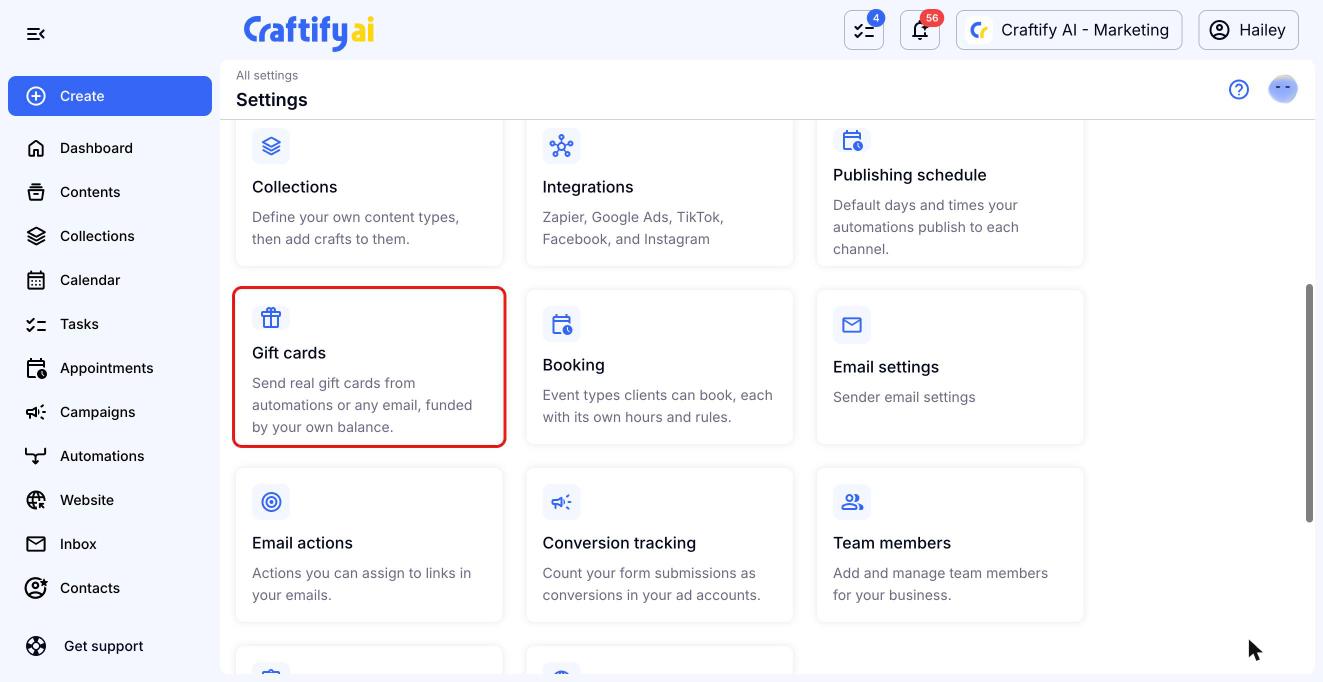
Click your name in the top right corner, then click 'Settings'. Under 'Business settings', click 'Gift cards'.
Connect your Tremendous account
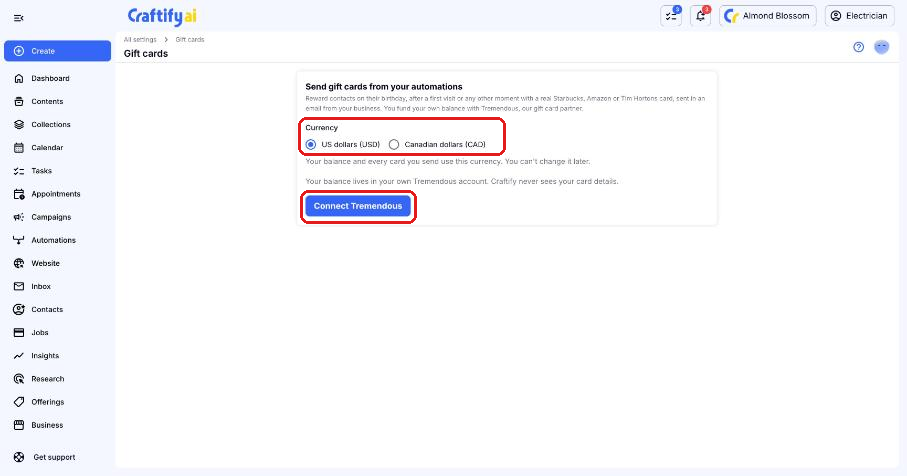
Gift cards are delivered by Tremendous, our gift card partner. You fund your own Tremendous balance, and Craftify AI orders cards from it for you.
- Pick the 'Currency' your balance and cards will use: 'US dollars (USD)' or 'Canadian dollars (CAD)'. You can't change it later.
- Click 'Connect Tremendous'.
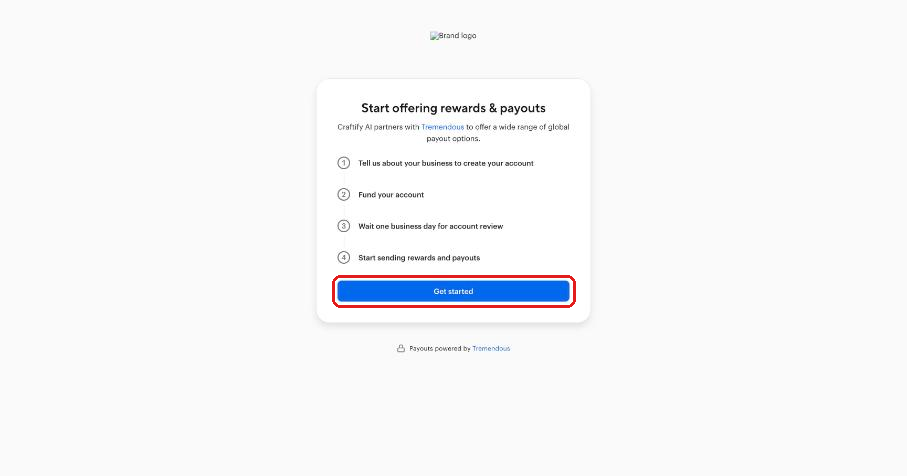
Tremendous opens in its own secure pages. Click 'Get started', create your account with your business email, and confirm it from the email Tremendous sends you. Then tell them about your business and add a payment method. You'll come back to Craftify AI automatically.
Good to know: Tremendous reviews new business accounts, usually within one business day. Gift cards start sending once your account is approved and funded.
Manage your balance and spending limits
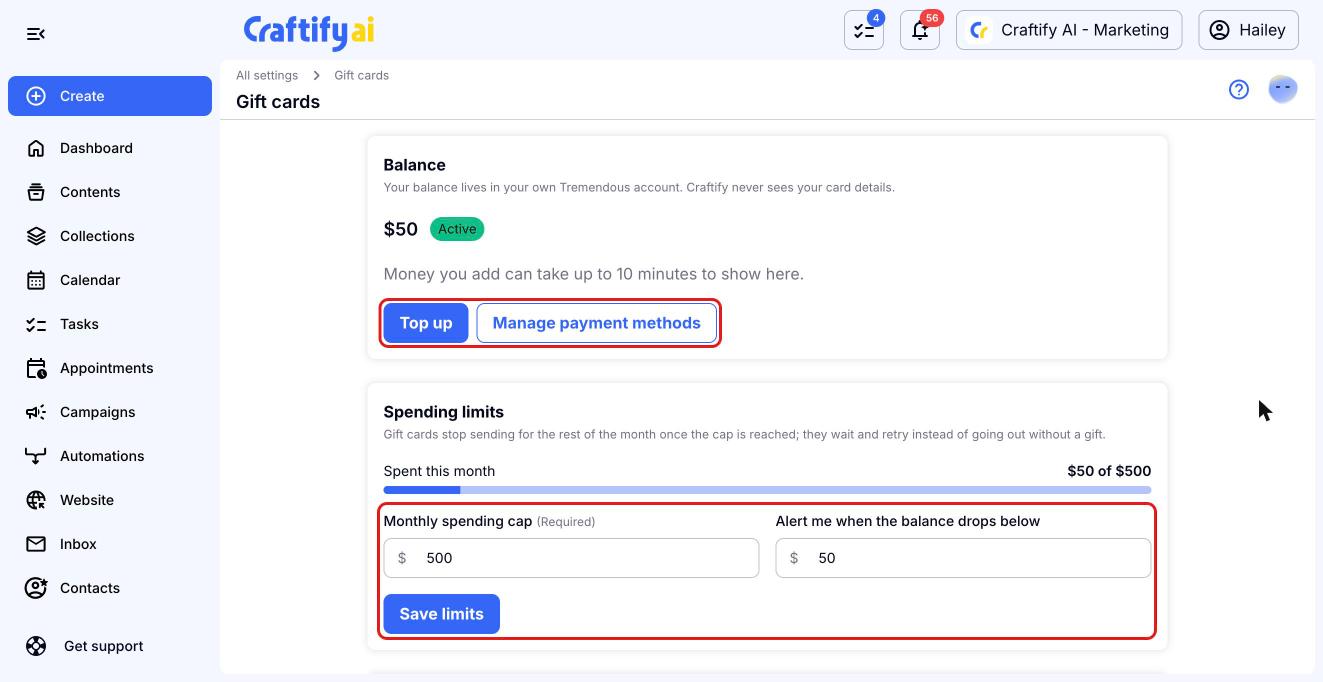
Once you're connected, the 'Gift cards' page shows your account:
- Balance: click 'Top up' to add funds from the payment method saved in Tremendous, or 'Manage payment methods' to change it. Money you add can take up to 10 minutes to show.
- Spending limits: set a 'Monthly spending cap' (required) so you never spend more than you plan, and an optional alert for when your balance runs low. Click 'Save limits'.
- Disconnect: 'Disconnect Tremendous' stops new cards. Cards already sent stay claimable, and your balance stays in your Tremendous account.
If a card can't go out because your balance is too low or you've reached your monthly cap, it waits and tries again every 6 hours instead of sending an email without a gift. After 72 hours, it skips that contact.
Add your customers' birthdays
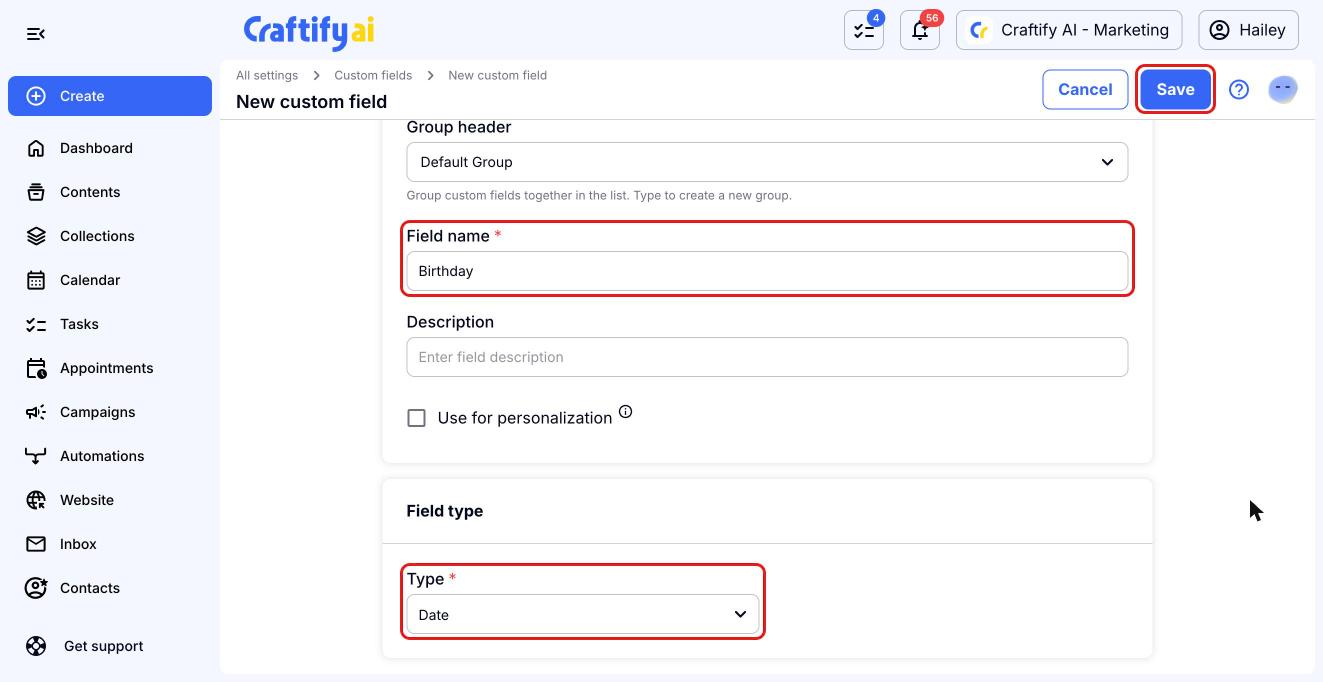
The birthday automation runs on a date saved on each contact. If you don't have a birthday field yet, go to 'Settings', click 'Custom fields', then 'New custom field'. Type 'Birthday' as the 'Field name', choose 'Date' as the 'Type', and click 'Save'.
Then fill in birthdays on your contacts. On a contact's page or edit form, the field is under 'Custom fields'. You can also map a birthday column when you import a CSV.
Add the Gift card block to your email
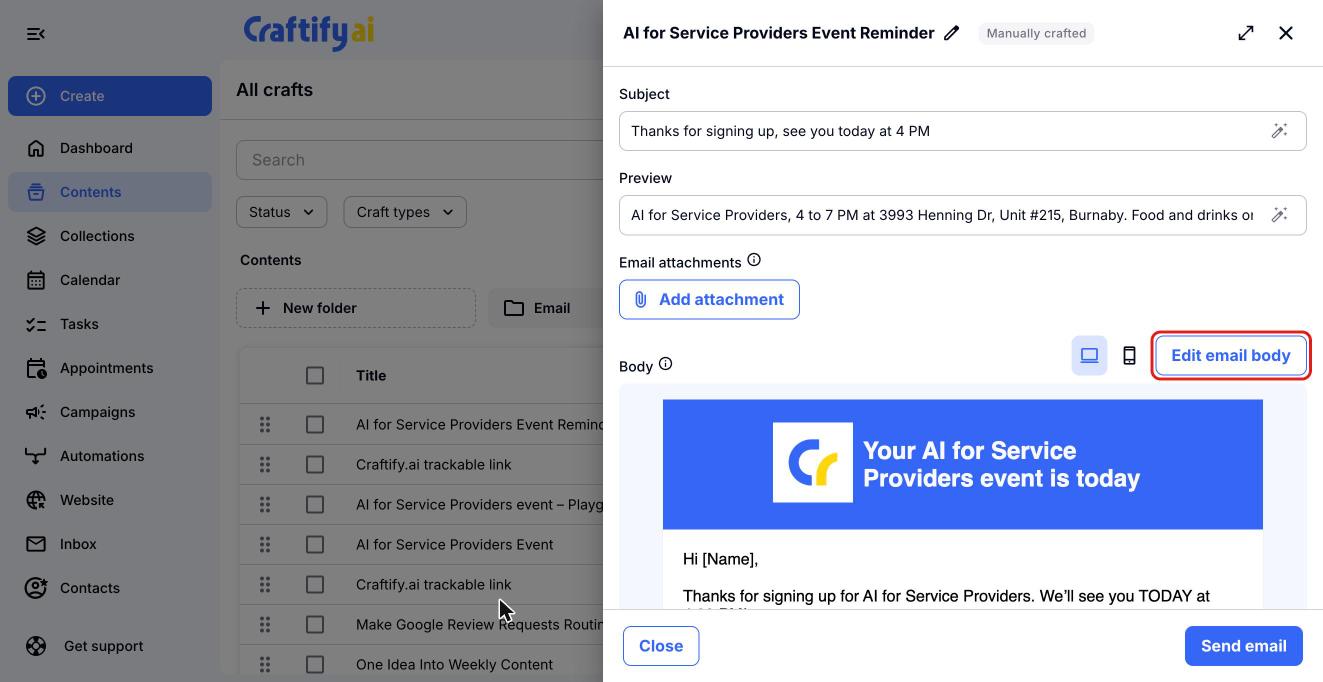
The gift card arrives inside an email from your business. Use any email you've crafted, or start a new one. Open the email in 'Contents' and click 'Edit email body' to open the email designer.
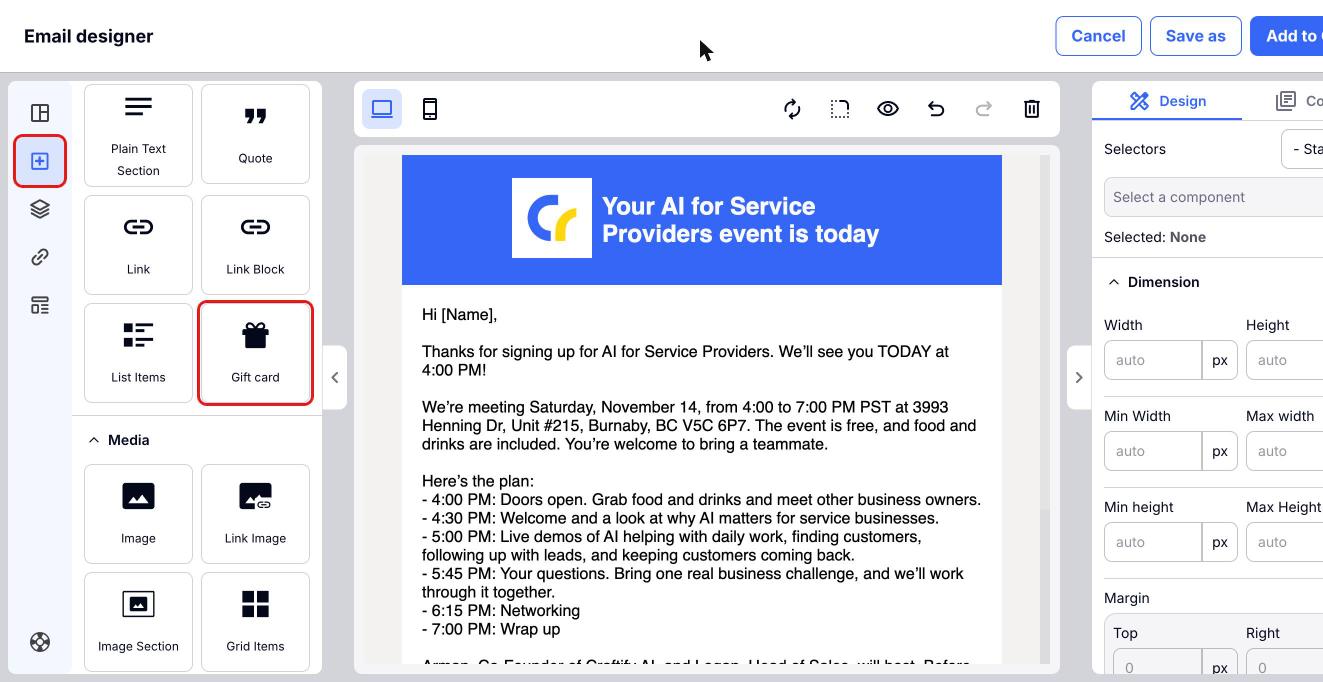
Click the blocks icon on the left. Under 'Content', find 'Gift card' and drag it into your email where you want the gift to appear. Then click 'Add to Craft' to save.
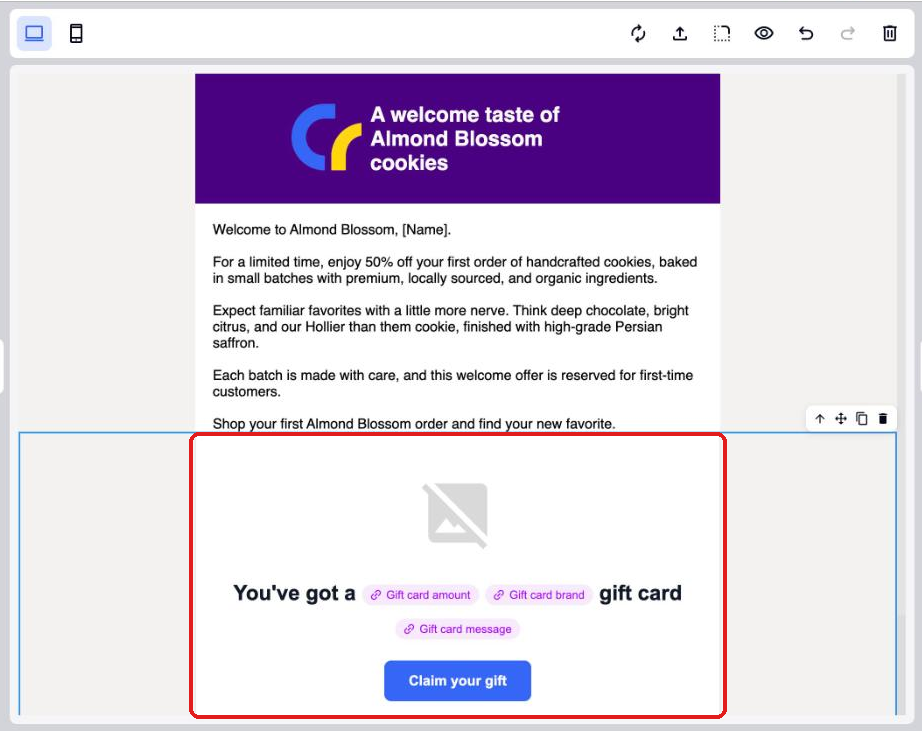
The block fills in the brand logo, the amount, your message and a 'Claim your gift' button for each customer. Every customer only ever sees their own card, whether it comes from an automation or an email you send to several people yourself.
Build a birthday automation
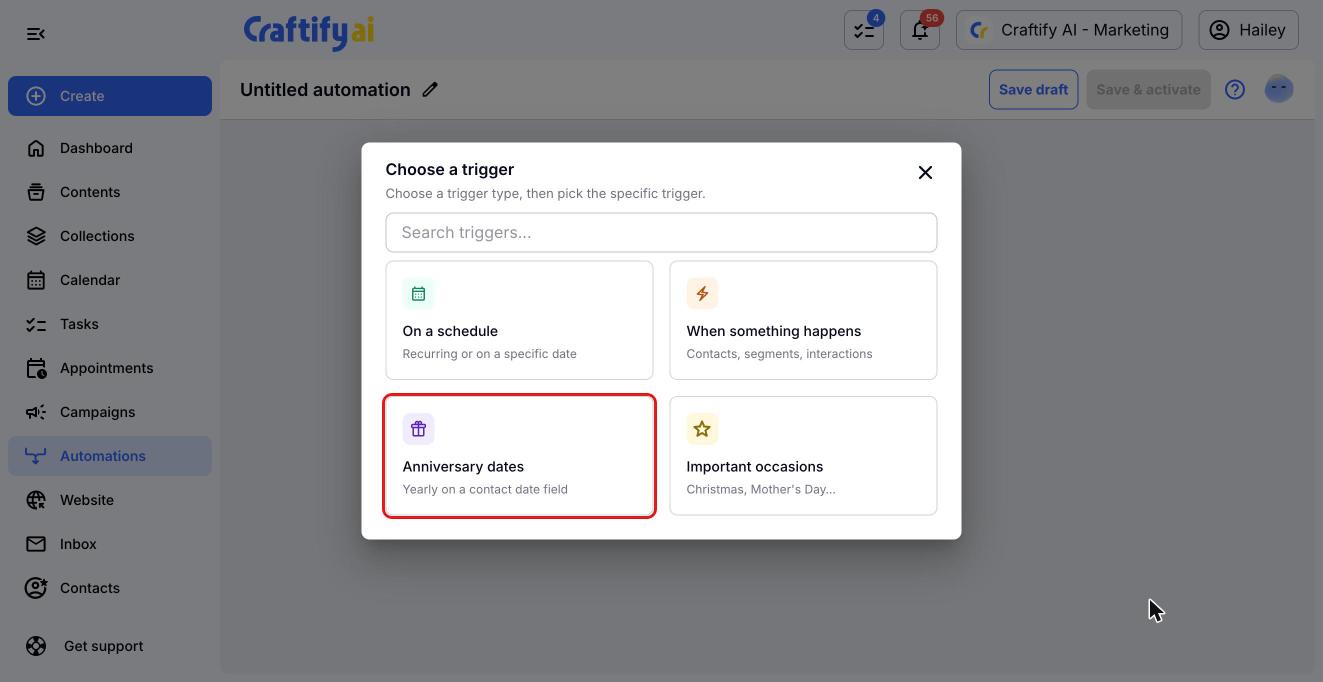
Go to 'Automations', click 'New automation', then 'Start from scratch'. Click 'Choose what triggers this', then choose 'Anniversary dates'.
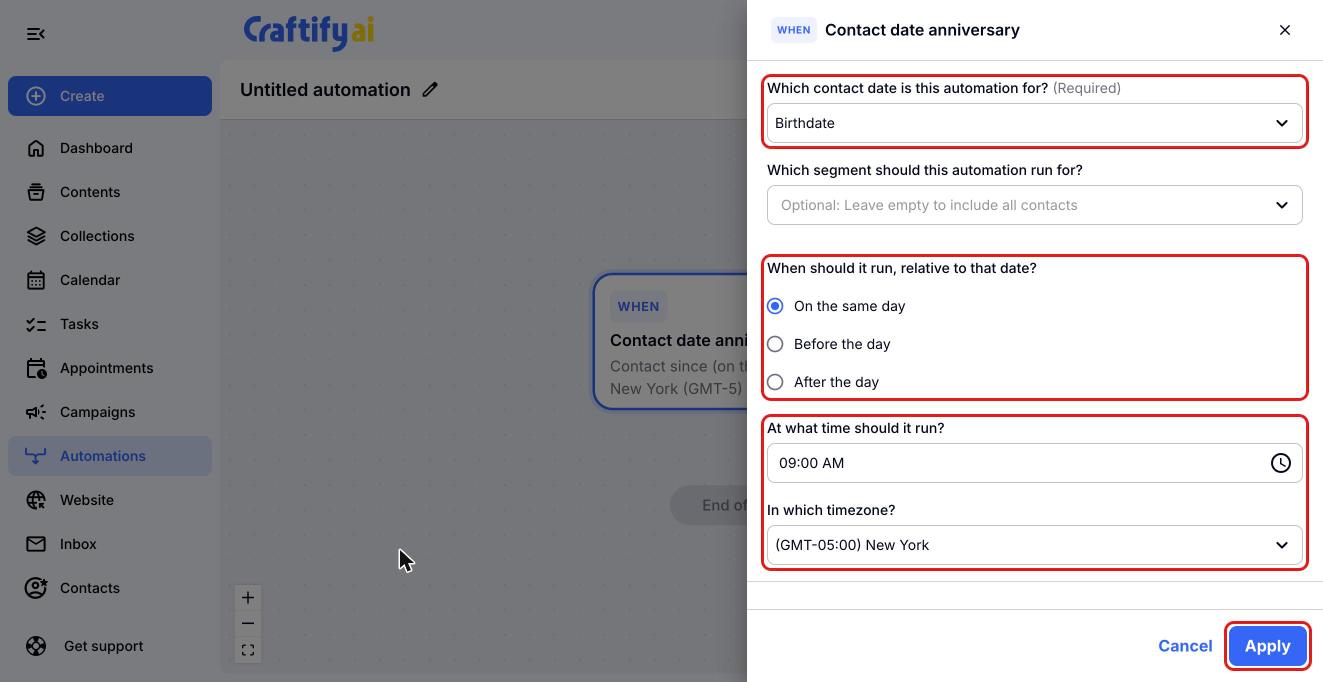
Click 'Contact date anniversary'. Under 'Which contact date is this automation for?', pick your birthday field. You can also pick a segment, or leave it empty to include all contacts. Keep 'On the same day', set the time and timezone, then click 'Apply'.
Add the Send gift card step
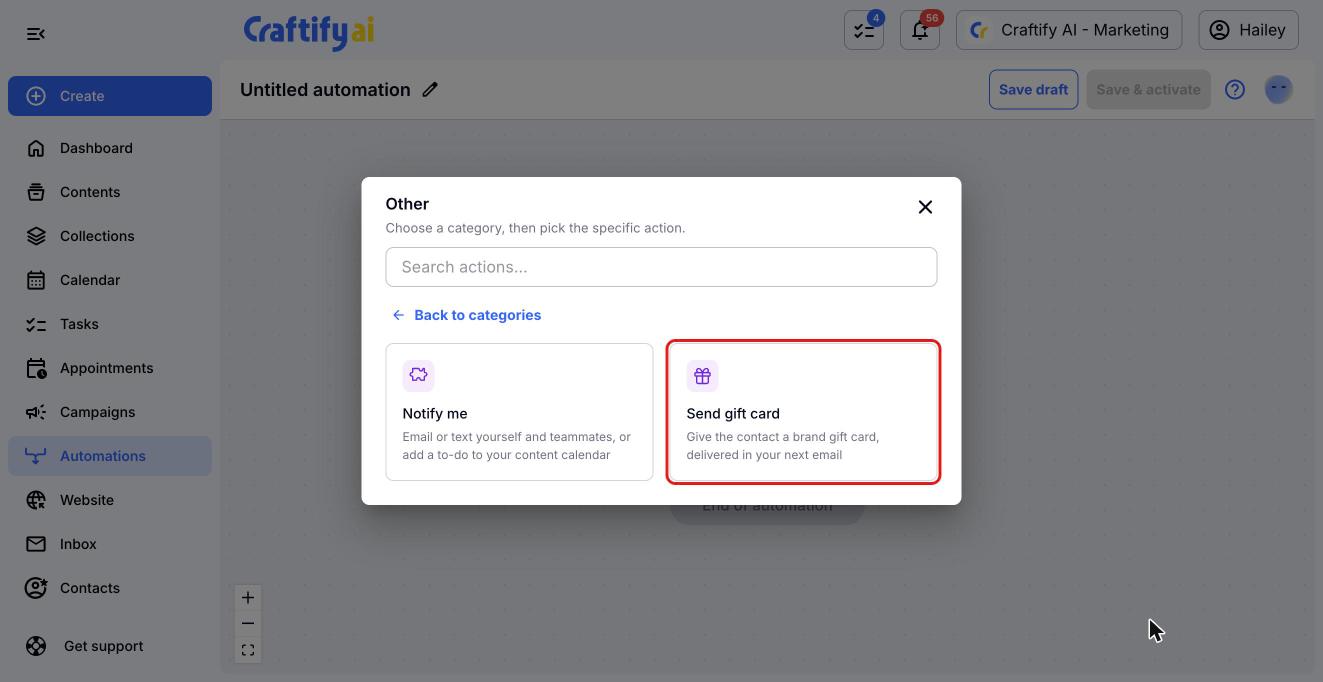
Click the '+' under your trigger, choose 'Other', then 'Send gift card'.
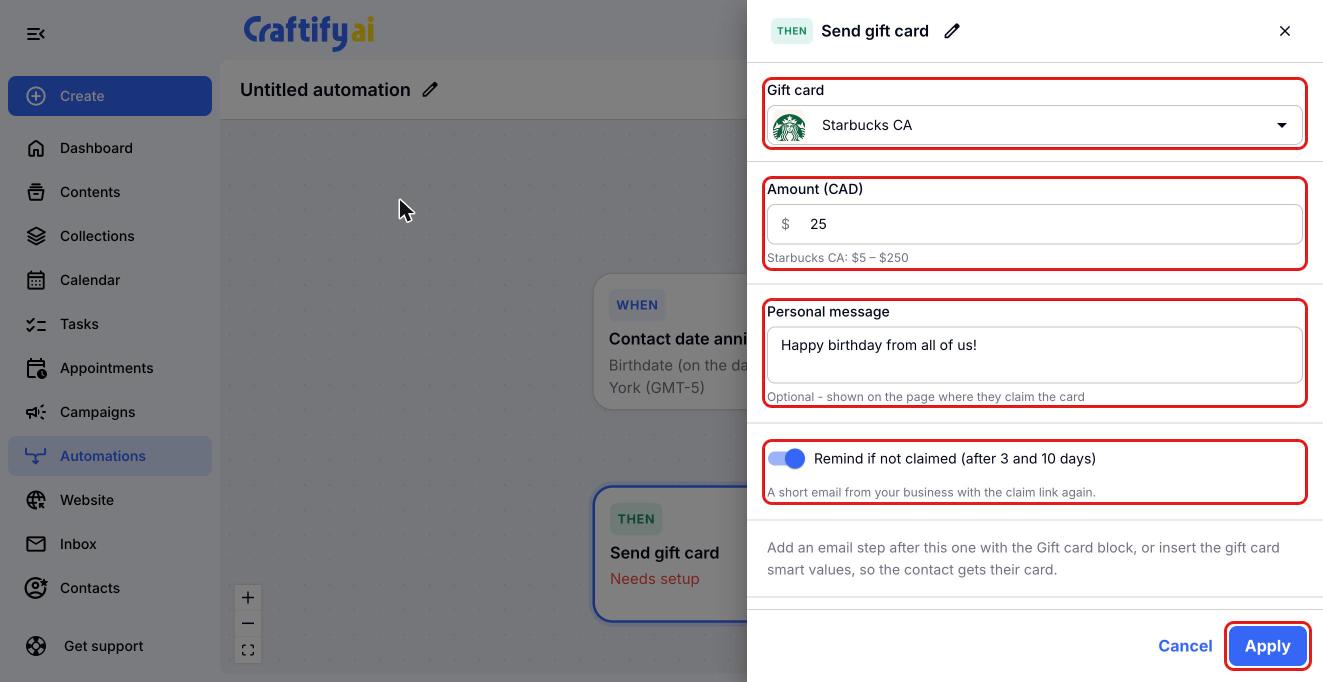
Search for a brand under 'Gift card' and pick it. Enter the 'Amount'. The allowed range for that brand shows under the box. Add a 'Personal message', which shows on the page where they claim the card, and turn on 'Remind if not claimed' if you'd like a gentle reminder after 3 and 10 days. Click 'Apply'.
Add the email that carries the gift card
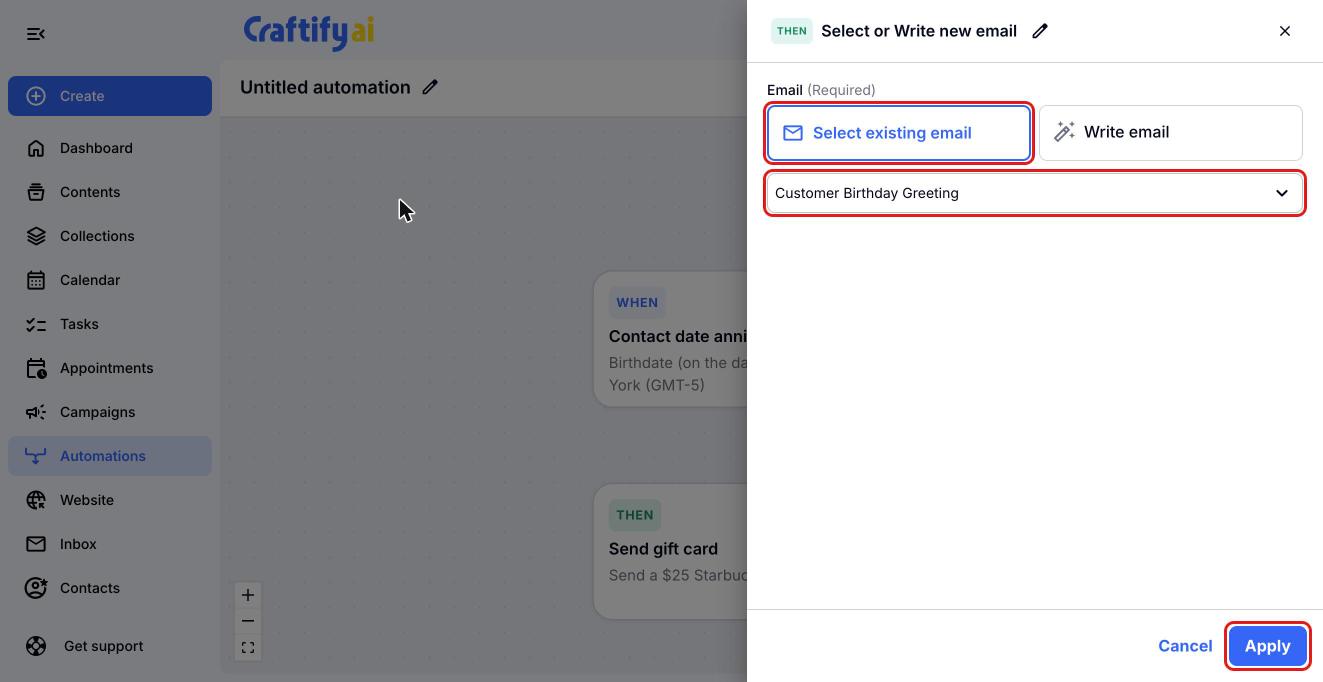
Click the '+' under the gift card step, choose 'Email', then 'Select or Write new email'. Choose 'Select existing email' and pick the email with the 'Gift card' block, then click 'Apply'.
Turn on your automation
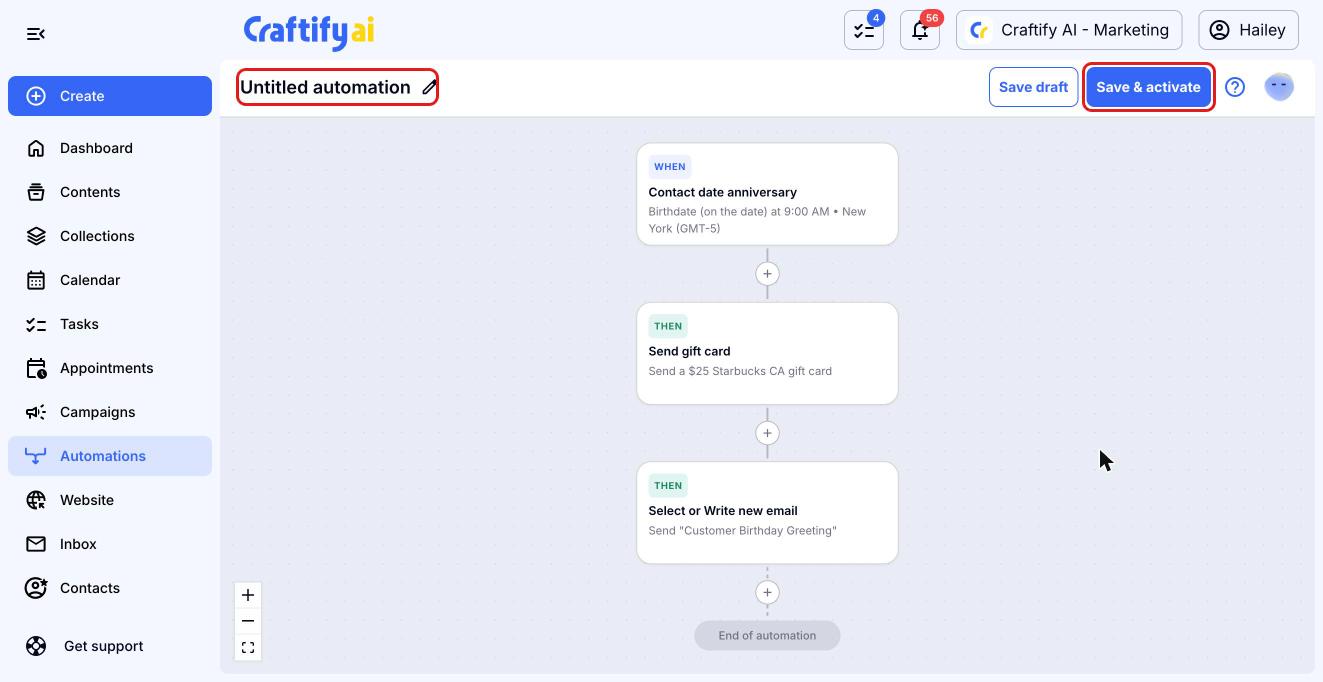
Give your automation a name by clicking the pencil next to 'Untitled automation', then click 'Save & activate'. From then on, every contact with a birthday saved gets their gift card on their day. Contacts without a birthday are simply skipped, so nobody gets a card by mistake. Not ready yet? Click 'Save draft' instead.
Send a gift card with any email
You don't need an automation to send a gift card. Add one to an email you send yourself, to one contact or a list of up to 200: a thank-you to your best customers, a referral reward, or a make-good after a bad experience.
- Open the email with the 'Gift card' block in 'Contents' and click 'Send email'. You can also start from a contact's page: click the envelope at the top, then 'Send an existing email'.
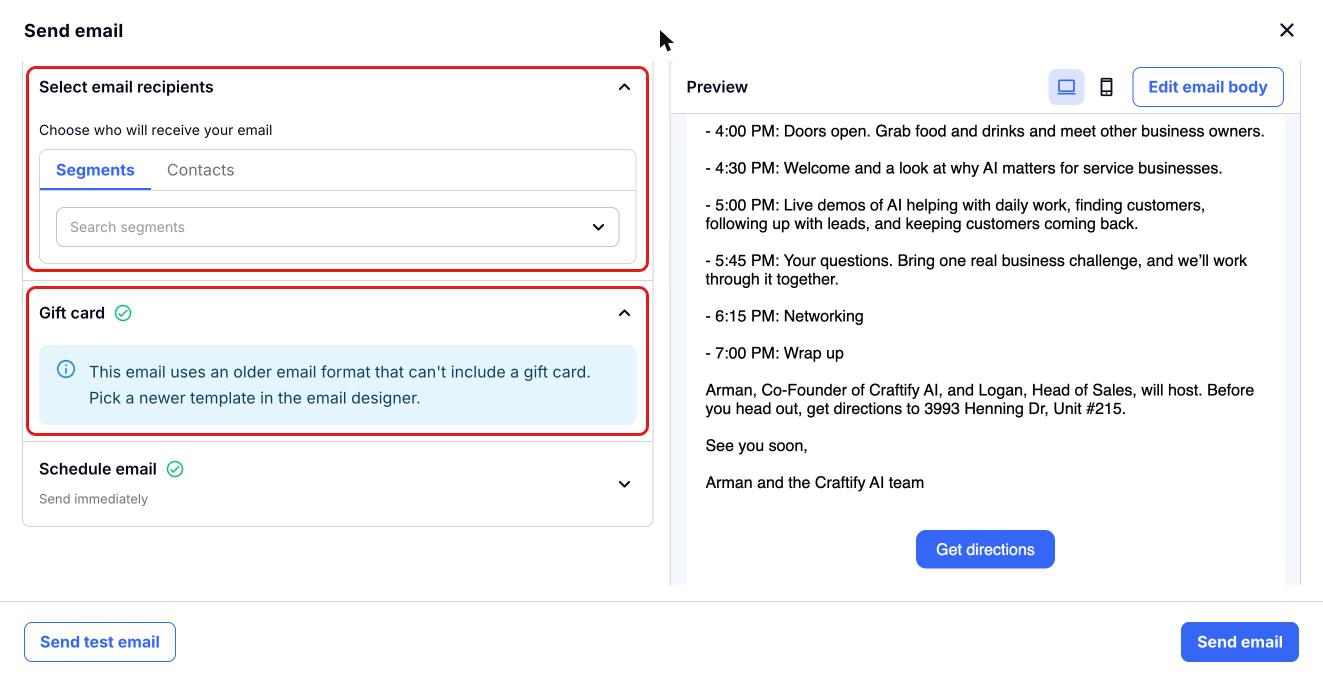
- Under 'Select email recipients', choose a segment or pick contacts.
- Open the 'Gift card' section.
If the section says the email uses an older email format that can't include a gift card, open the email designer and pick a newer template, then add the 'Gift card' block.
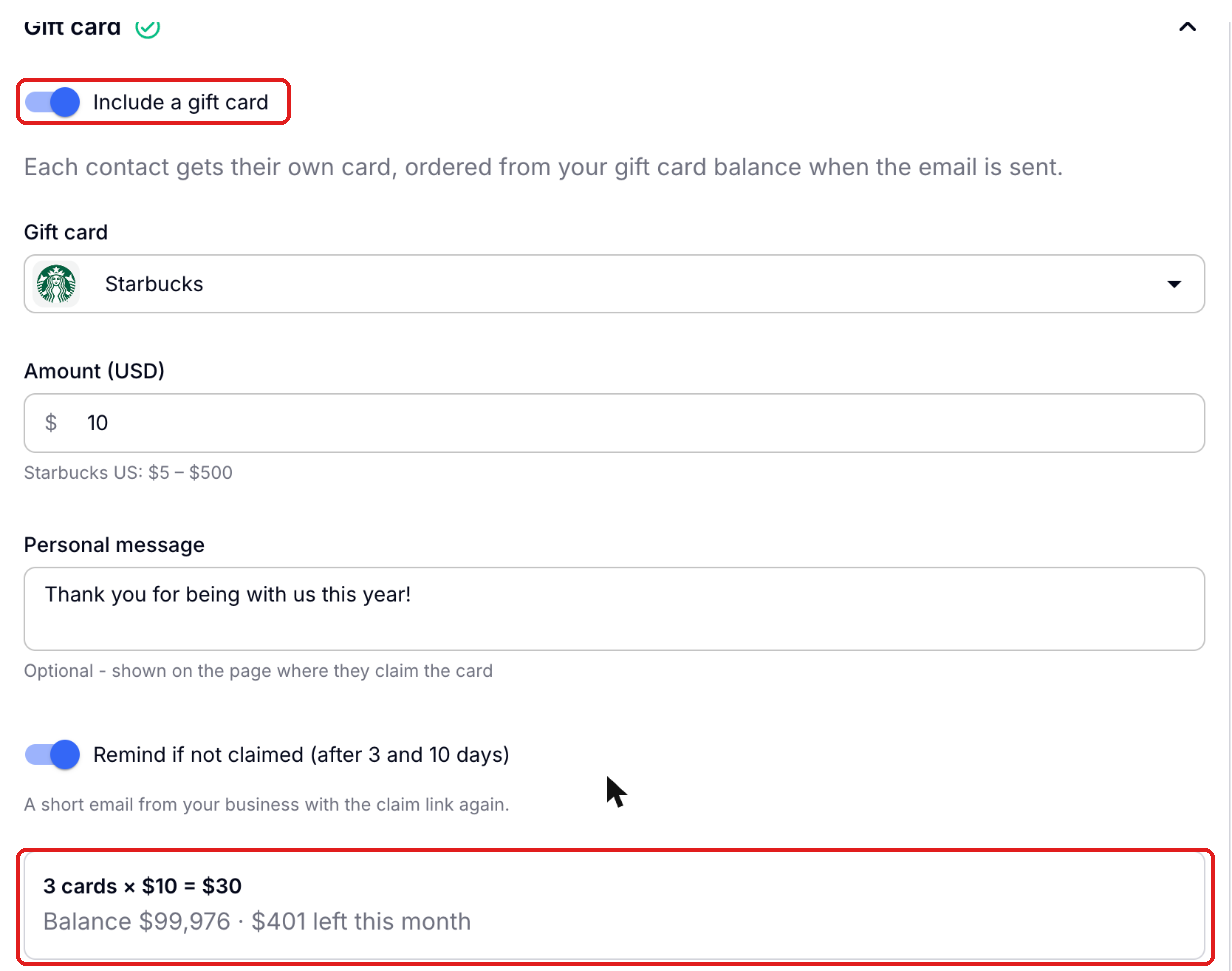
Turn on 'Include a gift card'. Pick the brand, the amount and an optional message, and turn on 'Remind if not claimed' if you'd like. Before you send, Craftify AI shows exactly what it will cost: the number of cards, the total, your balance and what's left of your monthly limit.
Click 'Send email'. When the email goes to more than one person, Craftify AI asks you to confirm the total first, before any cards are ordered.
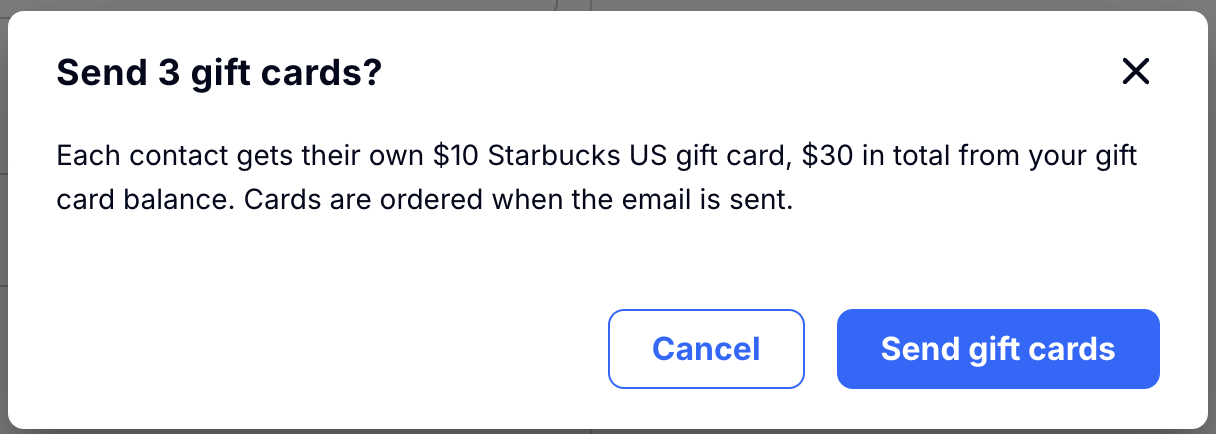
A few things to know about gift cards in emails you send yourself:
- Each contact gets their own card, ordered when the email goes out. If you schedule the email, nothing is bought until then, and cancelling the email means no cards are ordered.
- Sending stays off until the money is there. If your balance or this month's limit doesn't cover every card, the window says so and links to your gift card settings.
- Nobody gets an email without a gift. If a card can't be ordered when the email goes out, that contact doesn't get the email and you get a notification.
- No duplicate cards. Contacts who already got this email recently are left out before any card is ordered, unless you choose to send to them again.
- Optimize delivery is turned off while a gift card is included, so every card goes out with its email right away.
What your customer sees
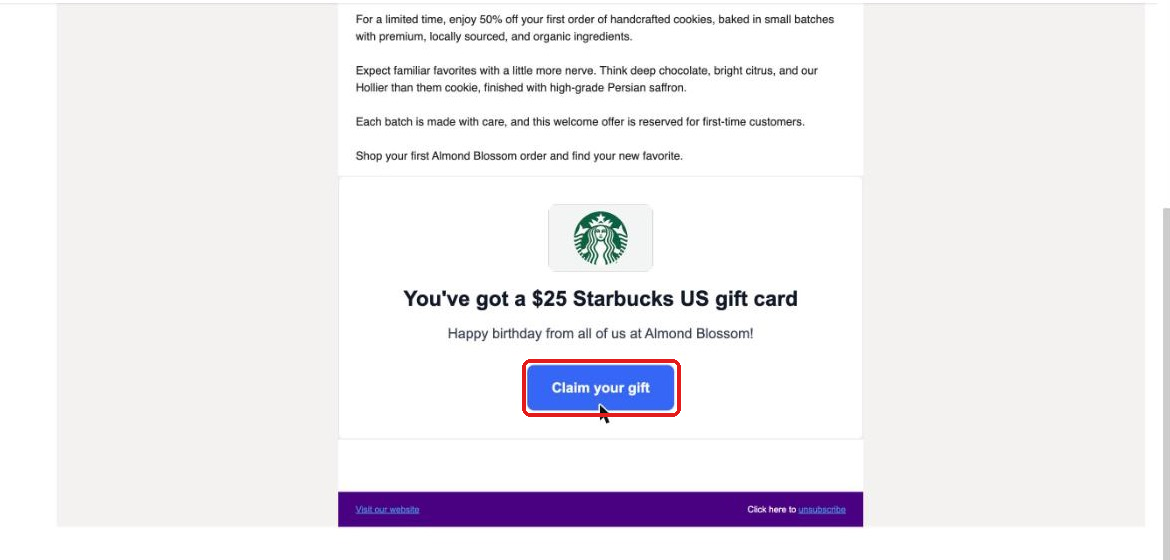
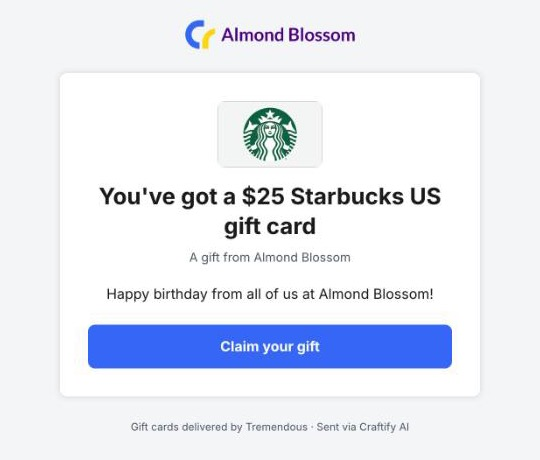
Your customer gets one email from your business with the gift card inside it, whether it came from a birthday automation or an email you sent yourself. They see the brand, the amount, your message and a 'Claim your gift' button.
'Claim your gift' opens a page from your business, and one more click opens their gift card. Opening the page alone doesn't use the card, so email security scanners can't claim it by accident. Once they've opened it, Tremendous also emails them a copy of the card so they can find it again later.
See how your gift cards are working
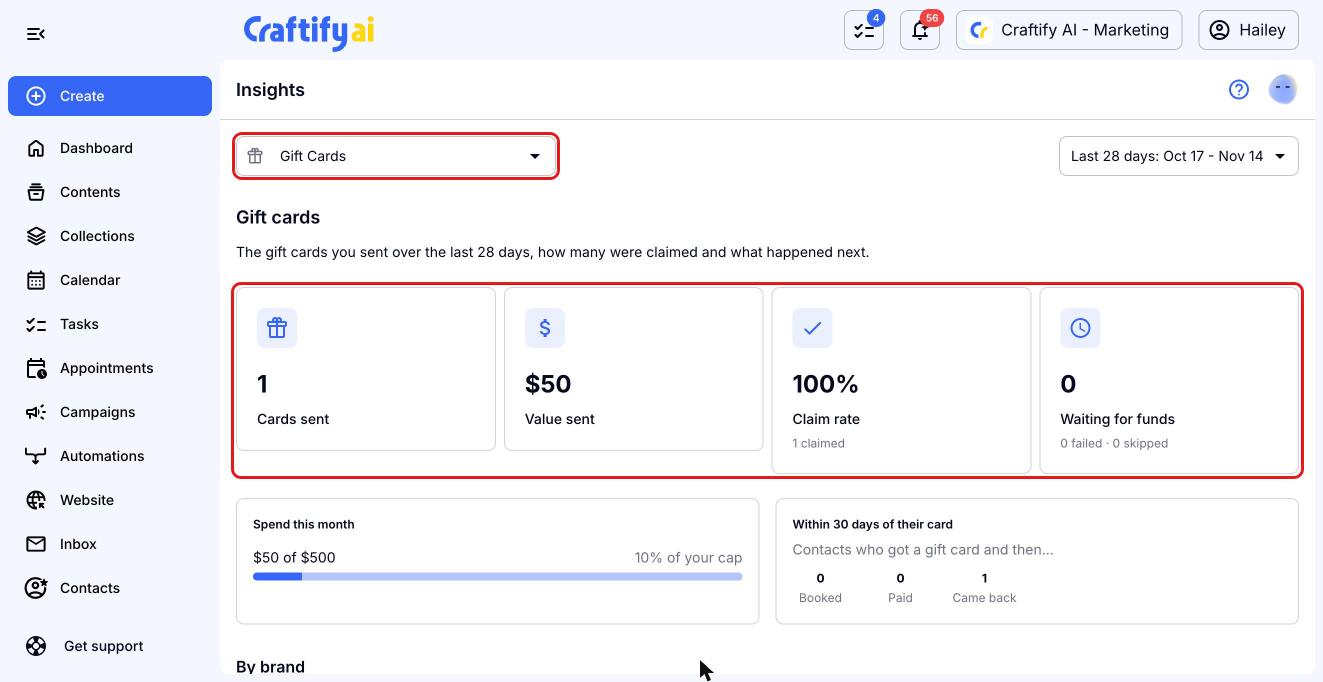
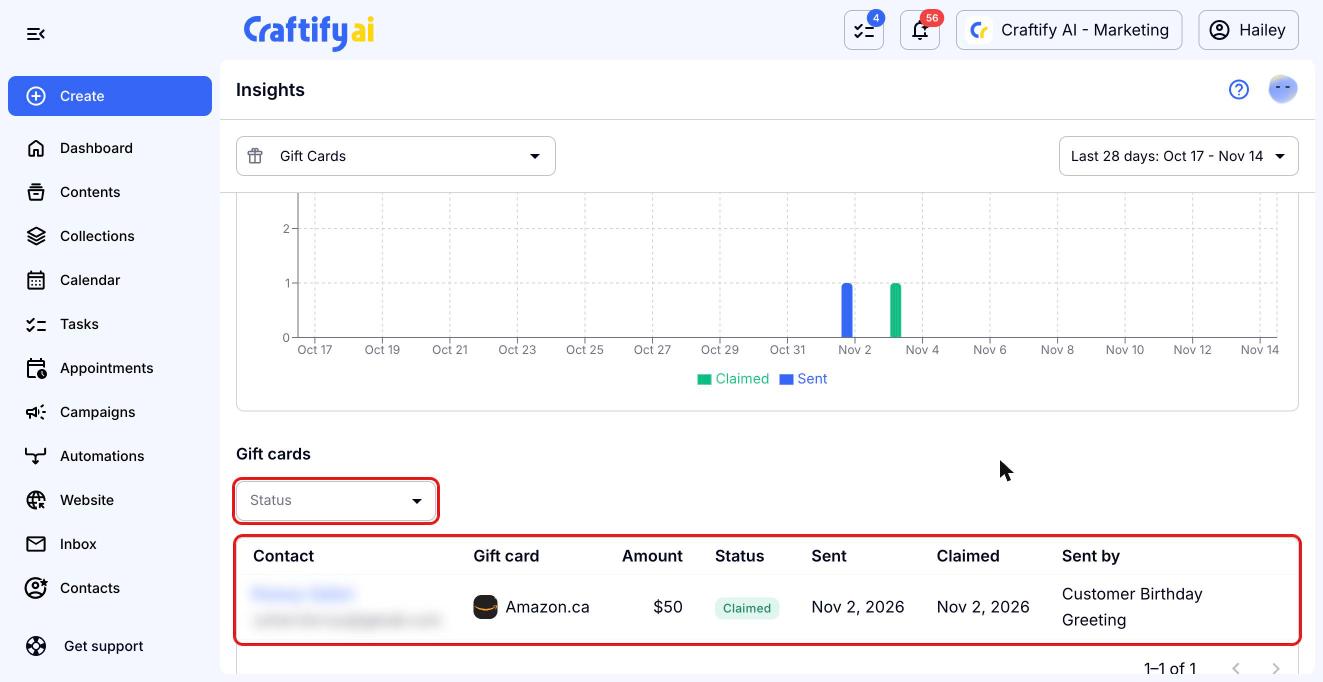
Go to 'Insights' and choose 'Gift Cards' from the report list. You'll see the cards you sent, their value, your claim rate, cards waiting for funds, your spend against your monthly cap, and what customers did within 30 days of getting their card: booked, paid or came back.
Scroll down for a daily chart of cards sent and claimed, and a list of every card with its status. Use the 'Status' filter to narrow the list. 'Sent by' shows where each card came from: the automation, or the name of the email you sent it with. You can cancel a card that hasn't been claimed yet. Each contact's timeline also shows when their gift card was sent and claimed, next to the email that carried it.
Frequently asked questions
Who holds my money?
You do. Your balance and payment details live in your own Tremendous account. Craftify AI only stores a secure connection to order cards for you.
What does it cost?
The face value of each card, paid from your Tremendous balance. See Tremendous's pricing for any fees on top-ups.
What if my balance runs out?
Cards from automations wait and retry every 6 hours. After 72 hours, that contact is skipped. Turn on the low-balance alert so you can top up in time.
Can I limit spending?
Yes. The monthly spending cap in your gift card settings is required and covers every card, from automations and one-off emails alike. When it's reached, automation cards wait until next month, and the Send email window won't let you send more than what's left.
Can I use it for other moments?
Yes. The Send gift card step works in any automation: a first visit, a review, an anniversary of becoming a customer, and more.
Can I send a gift card without an automation?
Yes. Turn on 'Include a gift card' in the Send email window, for one contact, several contacts or a segment, up to 200 at a time. Each person gets their own card.
What if my balance is short when a one-off email goes out?
Contacts whose card can't be ordered don't get the email, and you get a notification. Everyone else still gets theirs.
What if a customer never claims it?
With reminders on, they get a short email from you after 3 and 10 days. You can also cancel an unclaimed card from Insights.
Need help? Click 'Get support' at the bottom of the menu in Craftify AI and we'll answer by email.

