Free vCard Tool Tutorial
Make a vCard for your business for free and in minutes!
Head over to www.craftify.ai/tools to use our free marketing tools! This tutorial walks you through how simple it is to use the free vCard tool so you can create instant virtual business cards for you and your business!
Watch this short video tutorial on how to make your own vCard here:
Or you can follow these simple written instructions below!
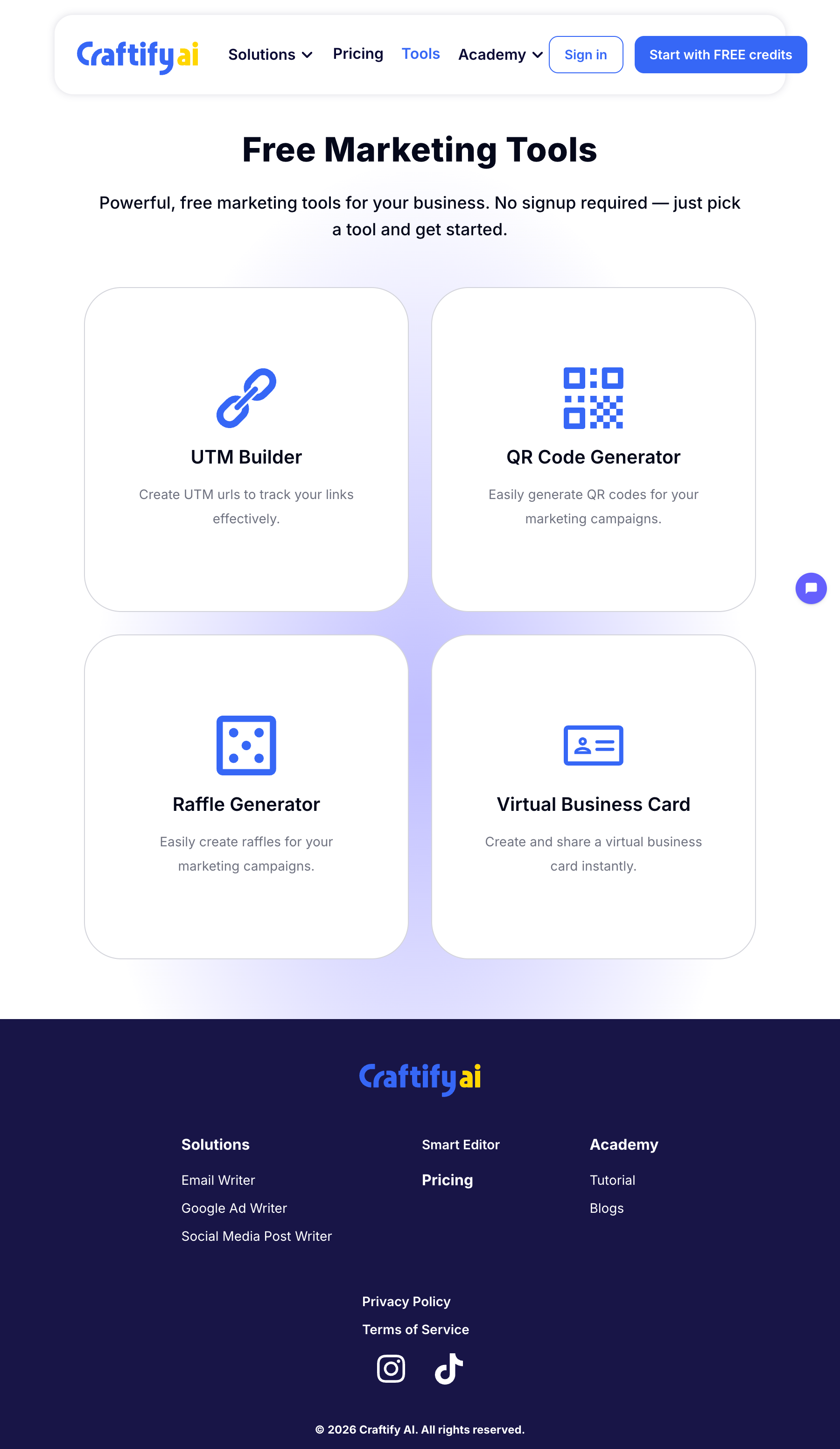
First you'll go to www.craftify.ai/tools to access the free Marketing tools.
From this link you can also learn how to make a UTM Link, QR code, and Raffle. All of these are free and don't require a subscription with Craftify AI!
Scroll down and choose 'vCard.'
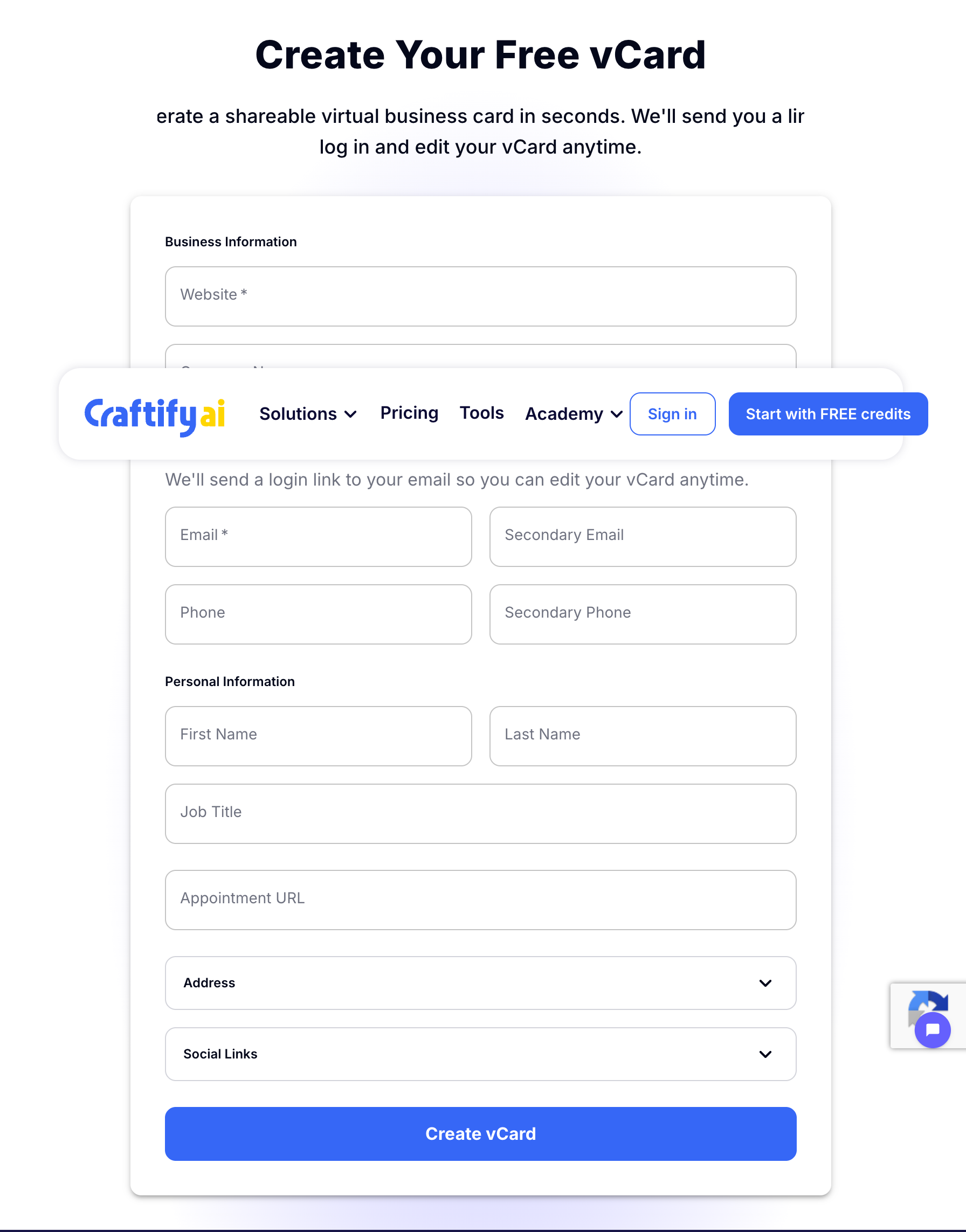
The tool will open and you will be prompted to add your website, business name, and Contact Information.
The only necessary fields are the website and a valid email address.
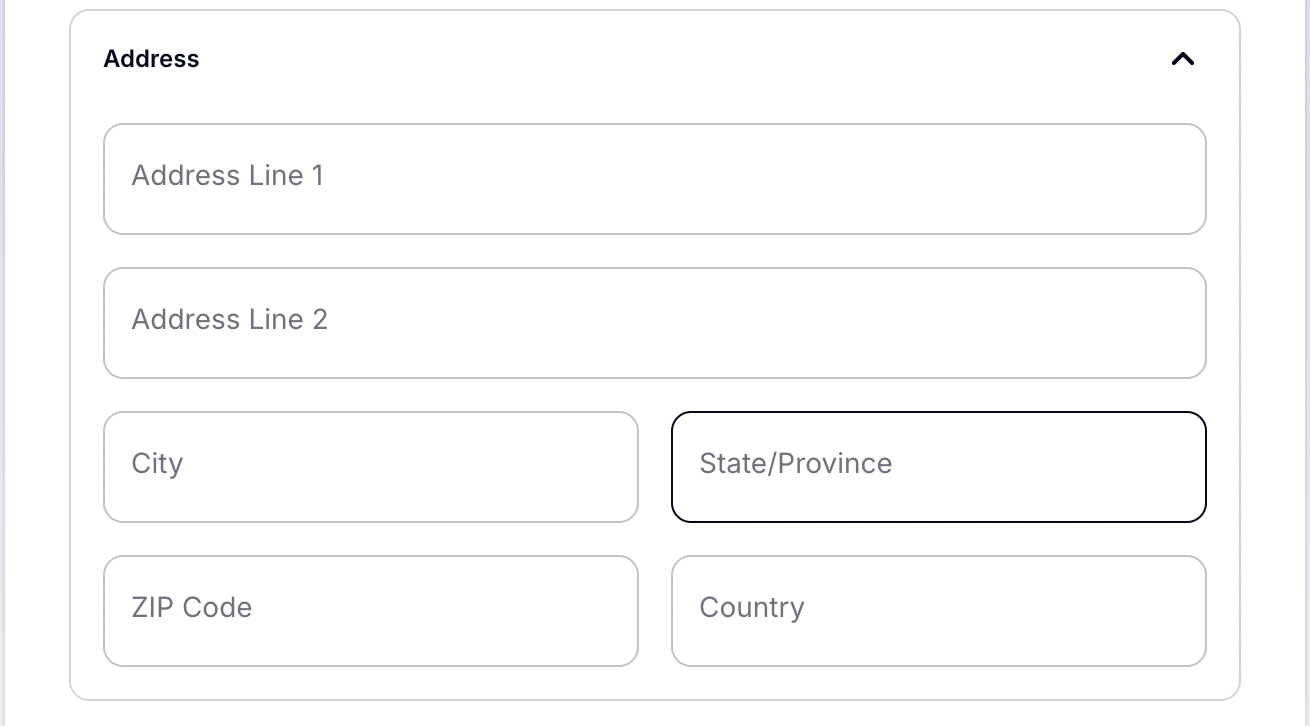
Optional: add the physical address of your business!
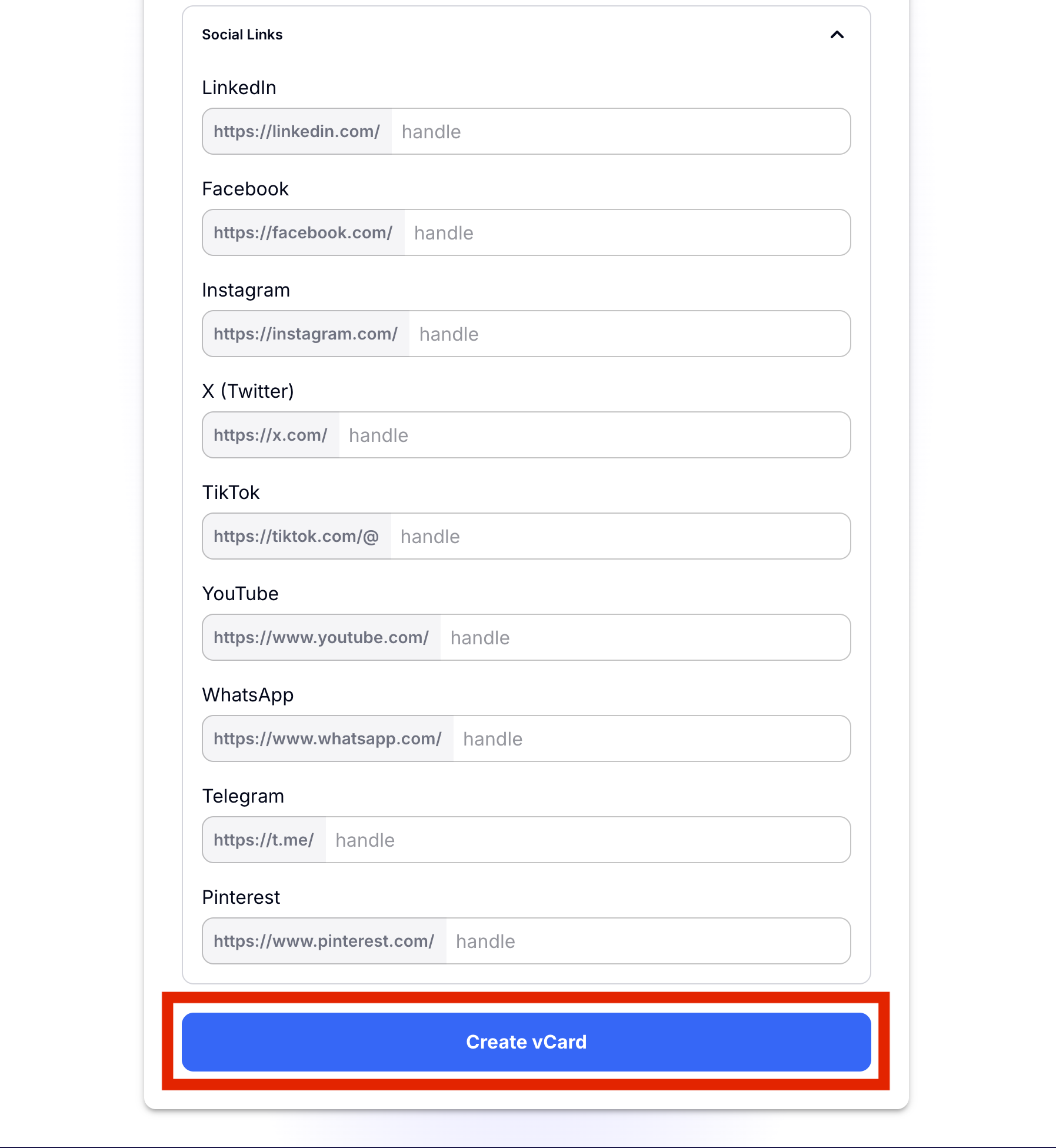
Also optional, but useful: add your social links! When you're done, choose 'Create vCard.'
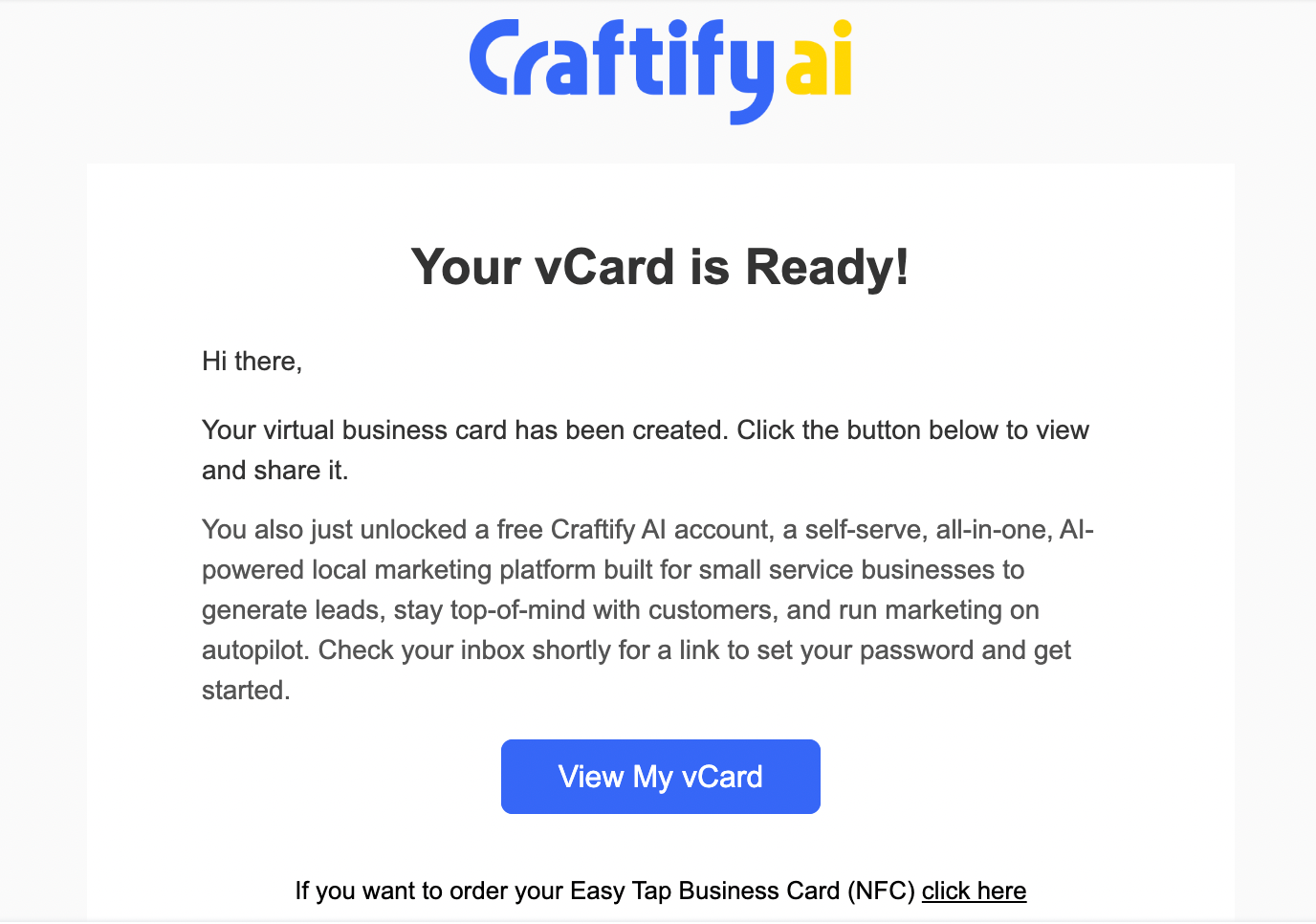
Then, go check your email (the same you used above for the email input)! You should receive an email that looks like the image below. Choose 'View My vCard' to see your vCard!
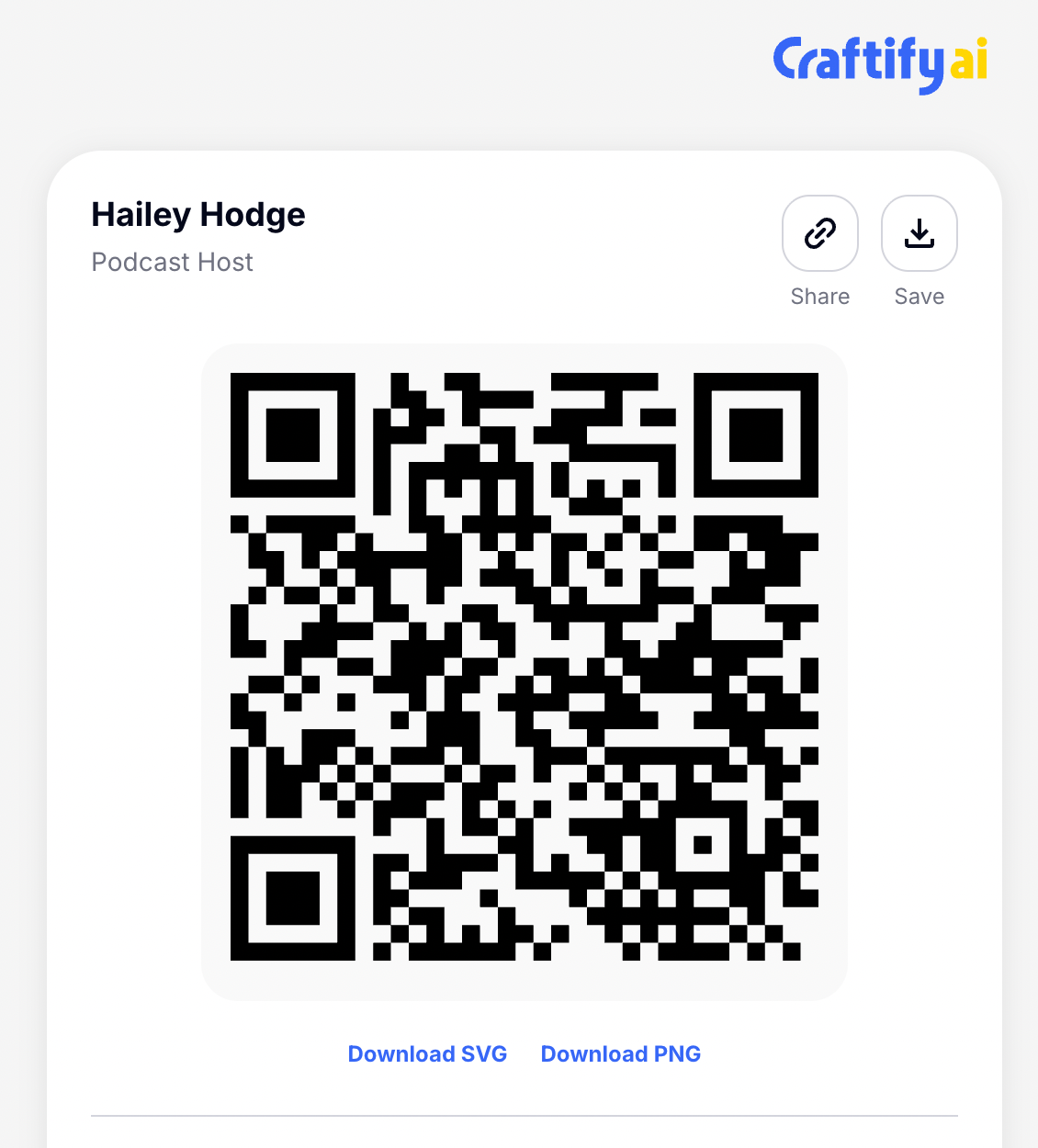
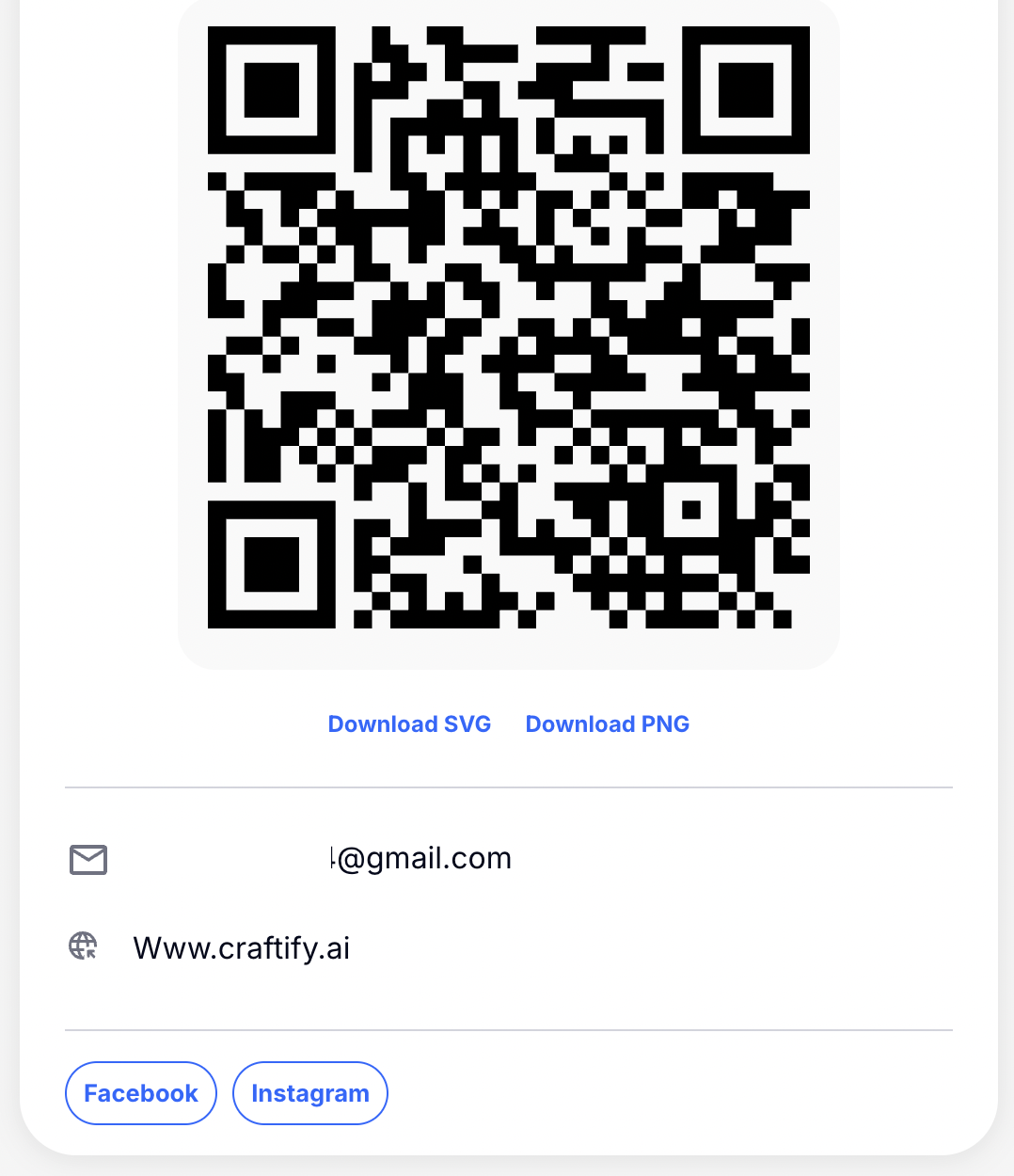
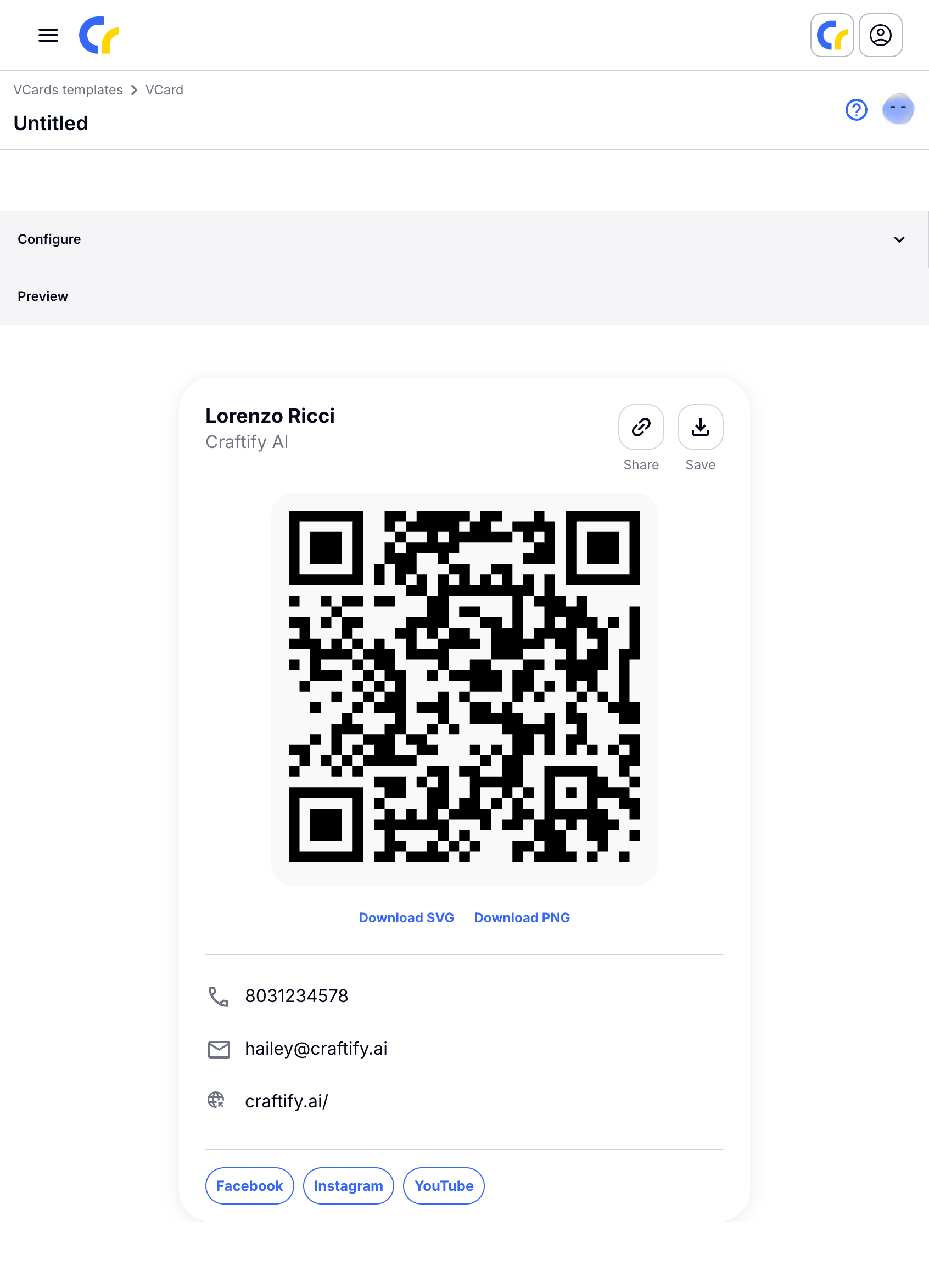
You will be re-directed to your vCard that includes all of the information that you provided in the steps above, plus a QR code. You can choose to share your vCard directly from here, download the contact card, or download the QR code in SVG or PNG to print!
How to edit your vCard
A few minutes after you have created your vCard, you will also receive an email to create your Craftify AI account, so you can edit or change your vCard anytime! The great thing about editing, is that you can change any information in your vCard but keep the same QR code. So if you happen to print this one, you don't have to worry about printing a new one!
Follow these instructions below on how to update your vCard!
Log in to your email and find the email from Craftify AI about your account. Make a new password and log in. Automatically you will get a 7 day trial of all of Craftify AI's tools and services. However, you do not need to have a subscription to access your vCard.
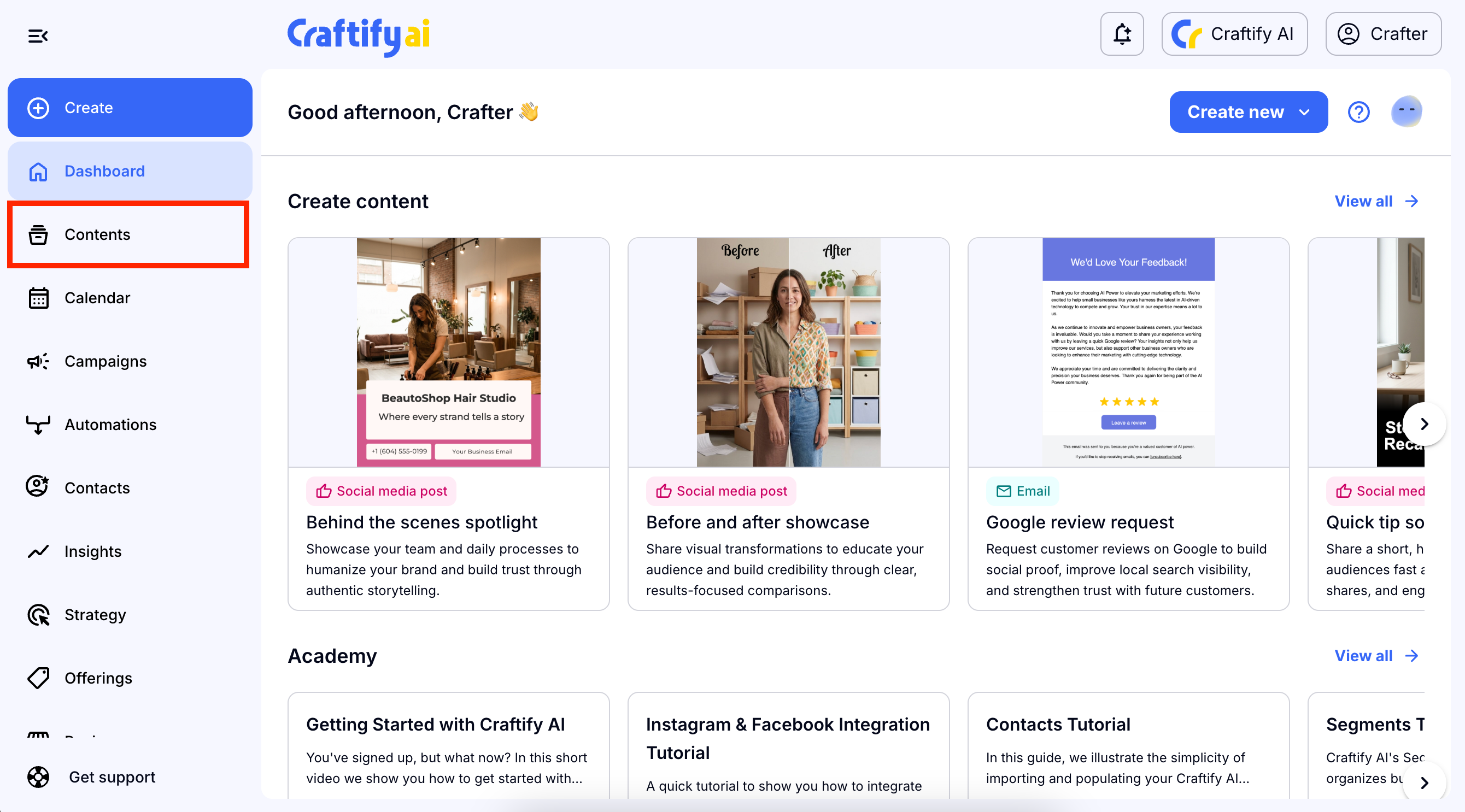
Once logged into Craftify AI, from the dashboard, choose 'Contents' on the left-hand menu.
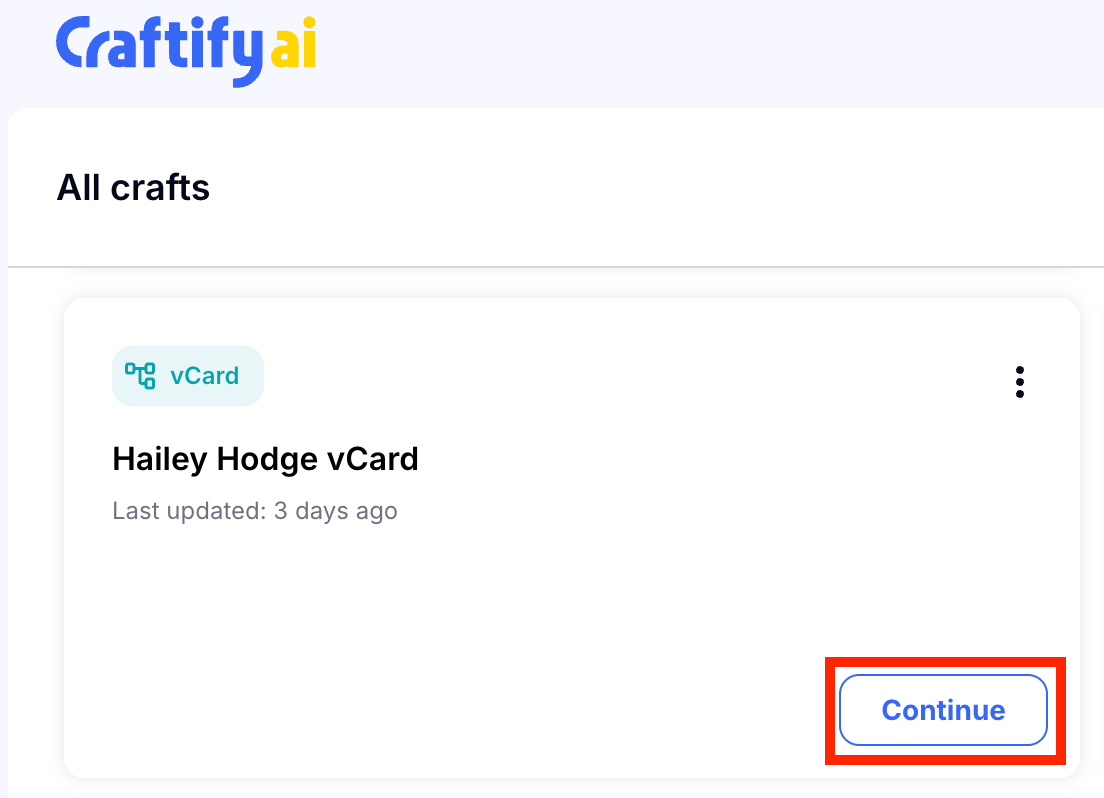
Then find the vCard. Since you are a new user, it it probably the only object in your Contents section. Choose 'Continue' to open your vCard.
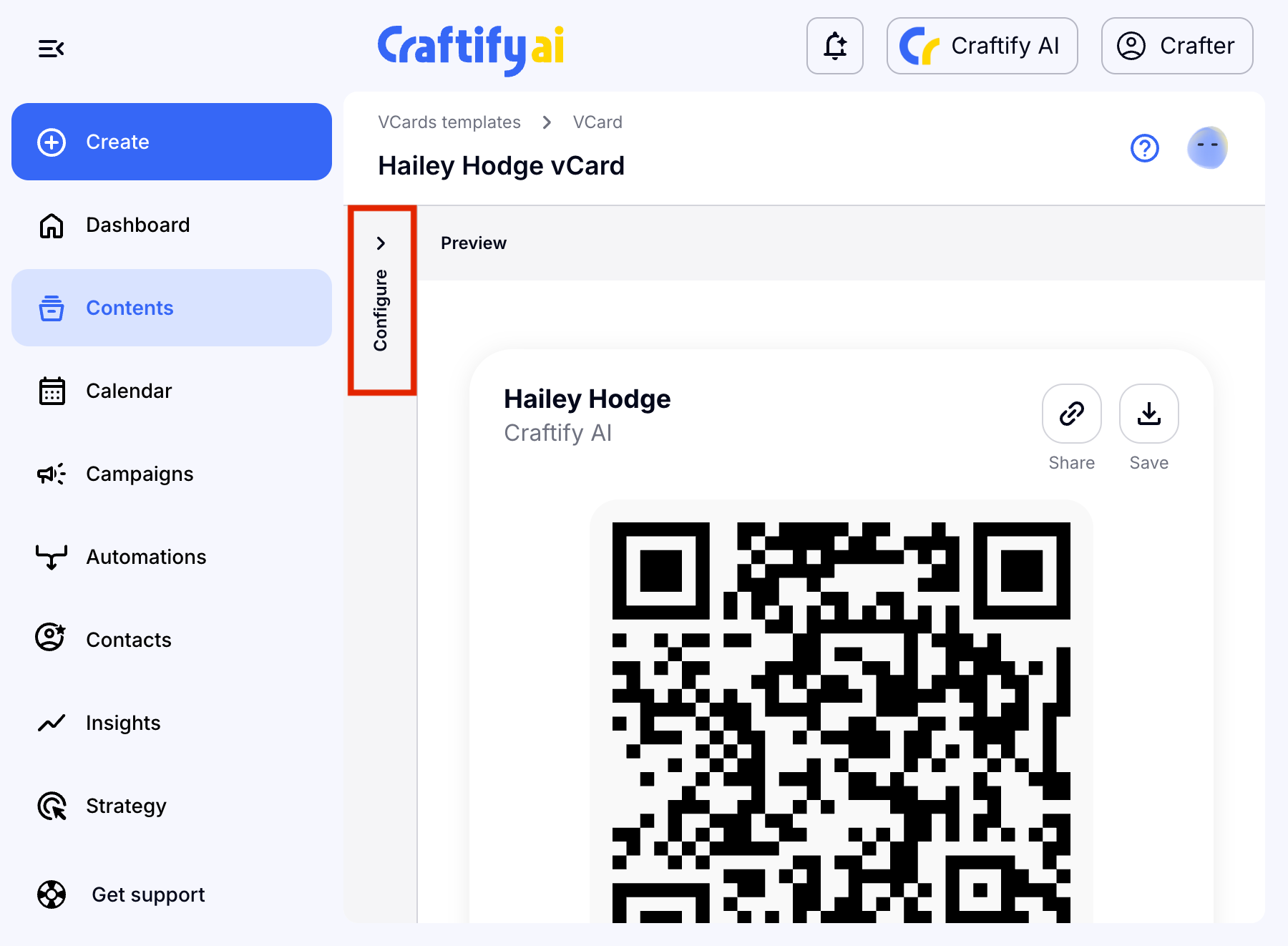
Click 'Configure' to edit your vCard.
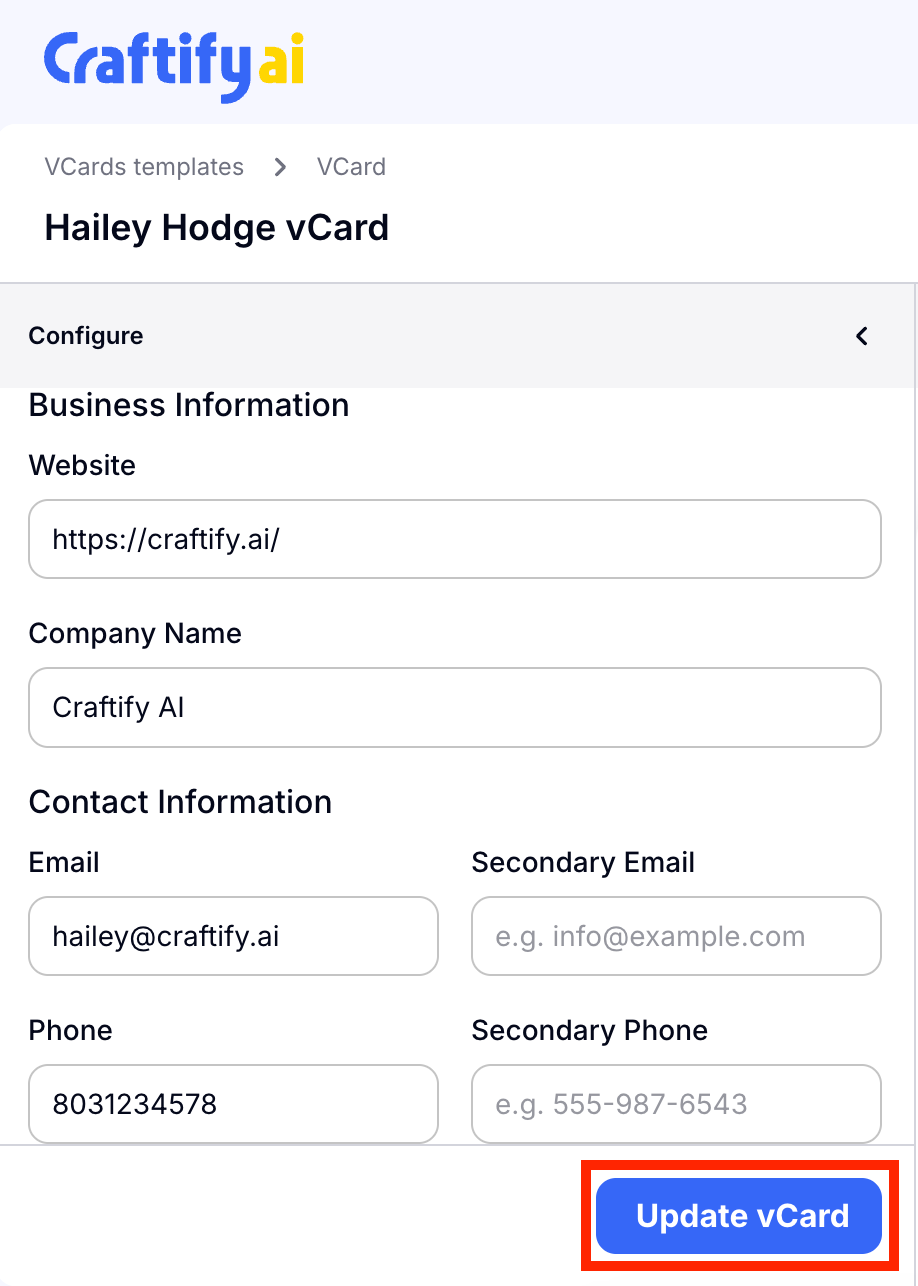
You can edit any of the details in the Configure section necessary. Choose 'Update vCard' when you're ready.
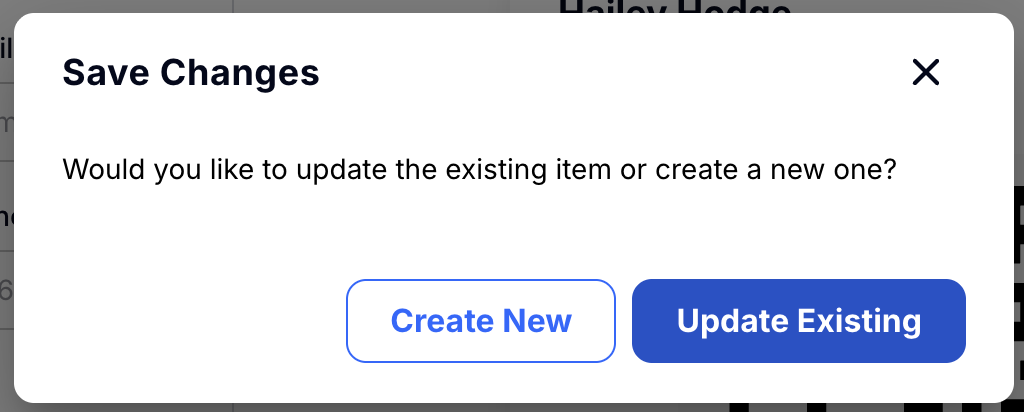
A save changes pop-up will appear and you can choose to create a new vCard with these changes, or simply keep the one you've already created. This means that if you choose to update the existing vCard, your QR code will remain the same!
Be sure to review your changes before sharing your vCard!
View your vCard download insights
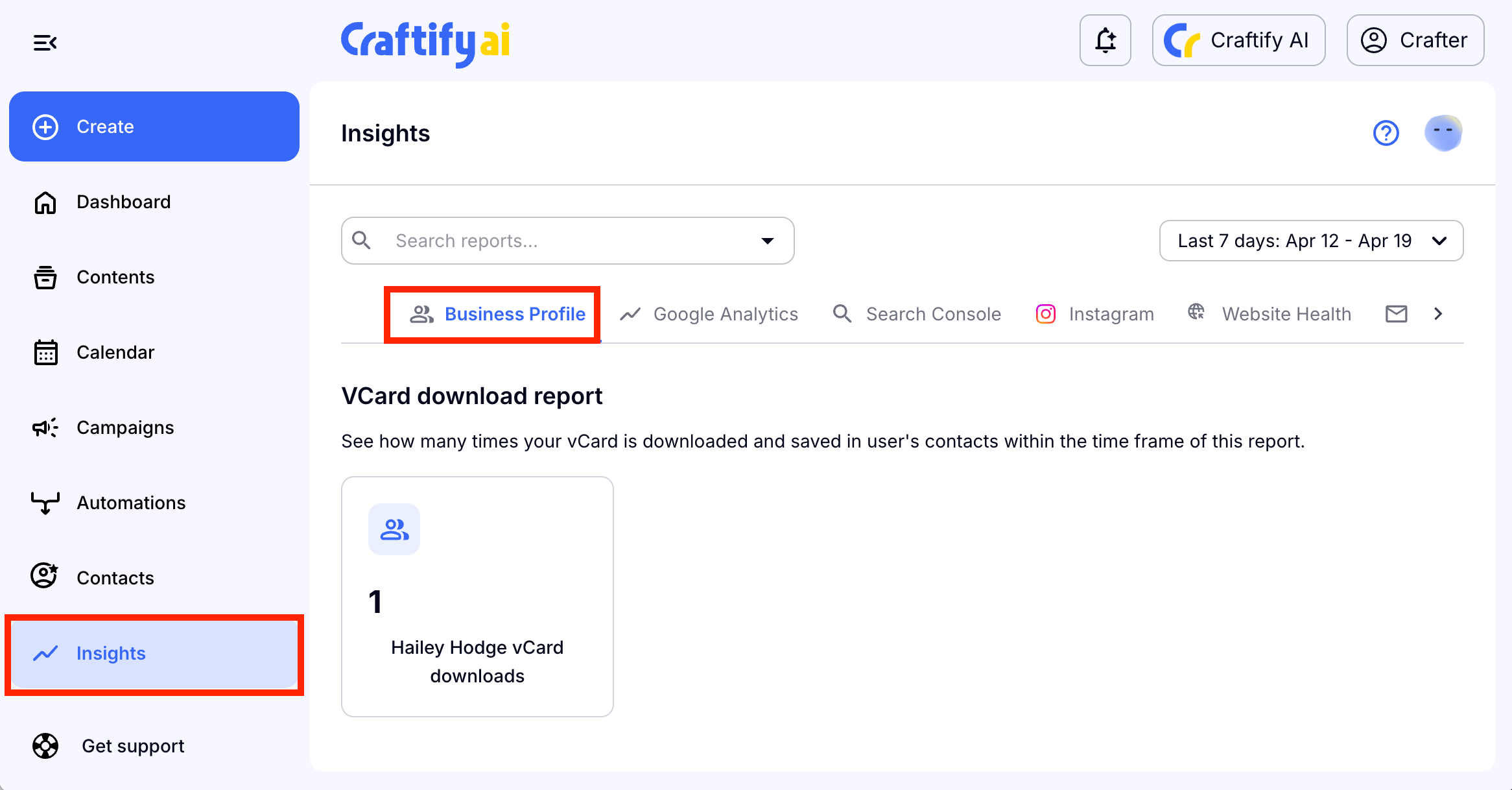
You can easily track how many contact downloads you have from your vCard on Craftify AI! Simply, head over to the 'Insights' tab on the left-hand menu.
Choose 'Business Profile' from the top bar and you'll be able to see how many downloads or scans of your QR code from your vCard have been made!