Content Guidelines Tutorial
Set Content Guidelines universally for all of your marketing crafts!
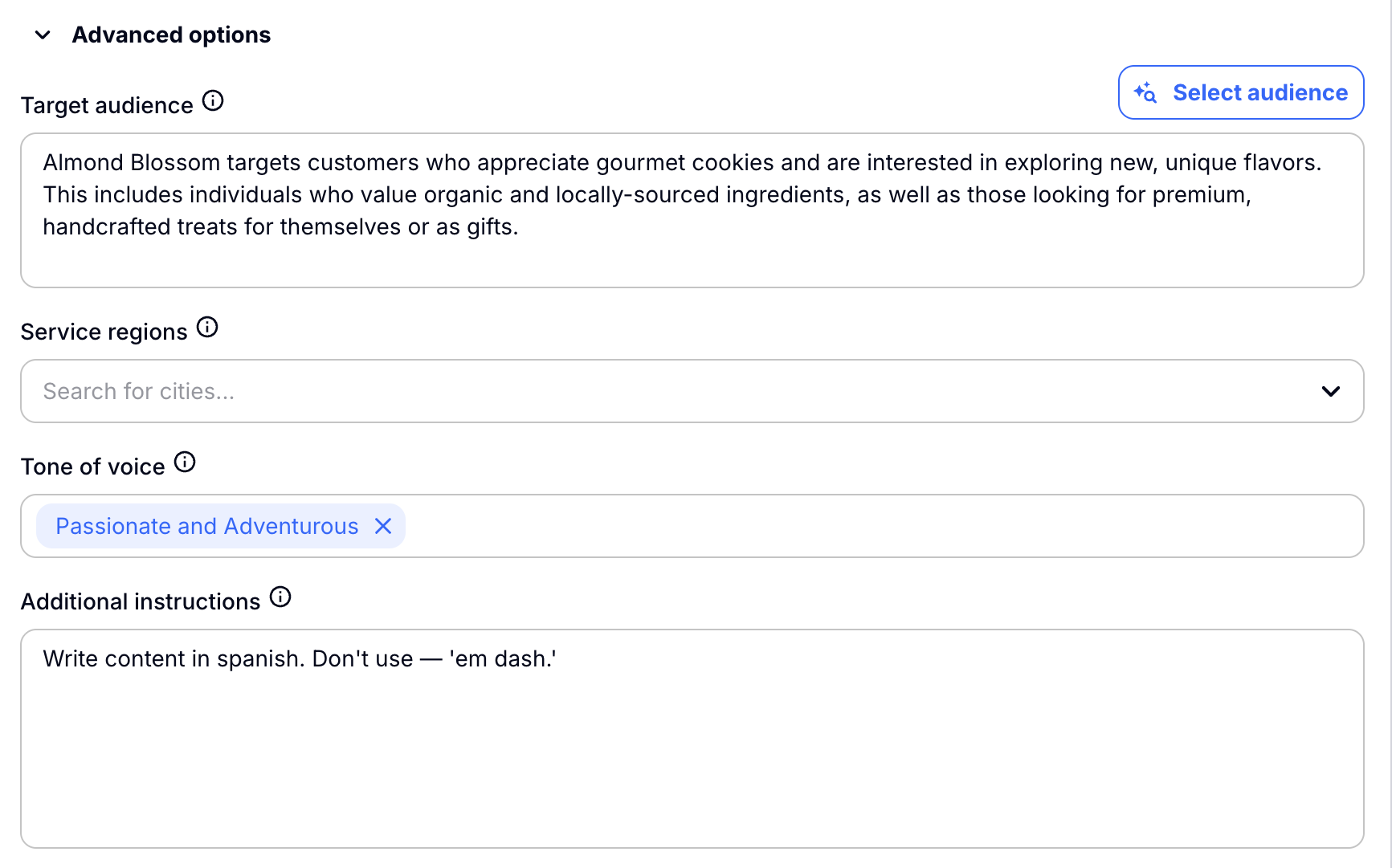
Inside of creating crafts like a Social Media Post or Email you can use the Advanced Options section to give specific instructions to Craftify AI to create your content. You can say to translate into a language, or to never talk in 3rd person for example.
However putting in these instructions every time you make a craft can be annoying, so we simplified the process! You can add the instructions that you would need universally for every craft that you makeft that you make. .
There are just a few simple steps to save these commands.
Open your Business Profile
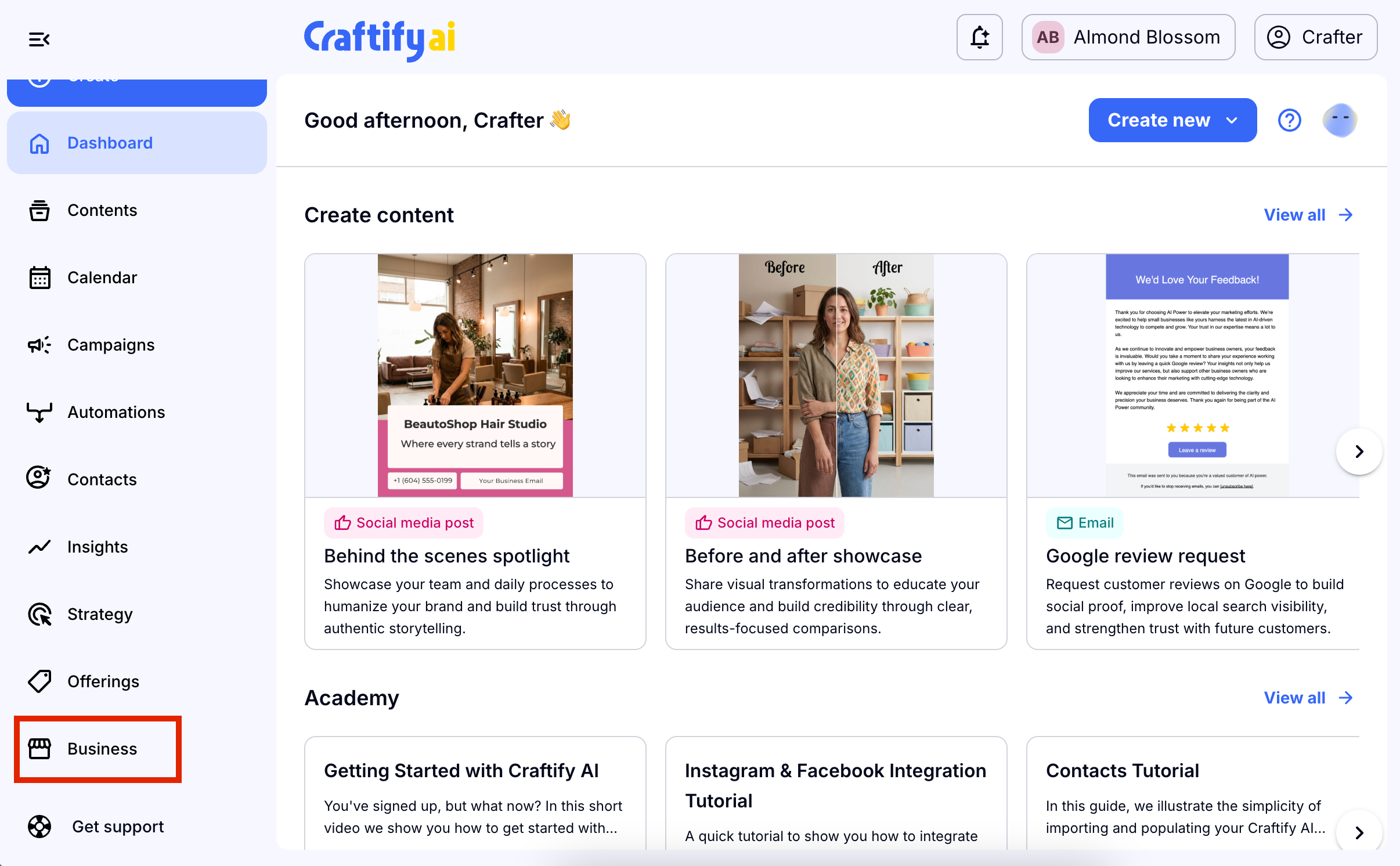
Using the left-hand menu, choose the 'Business' tab.
Edit the Content Guidelines
Scroll down inside the Brand messaging section and you will find the Content Guidelines area. Choose the edit icon to add your commands.
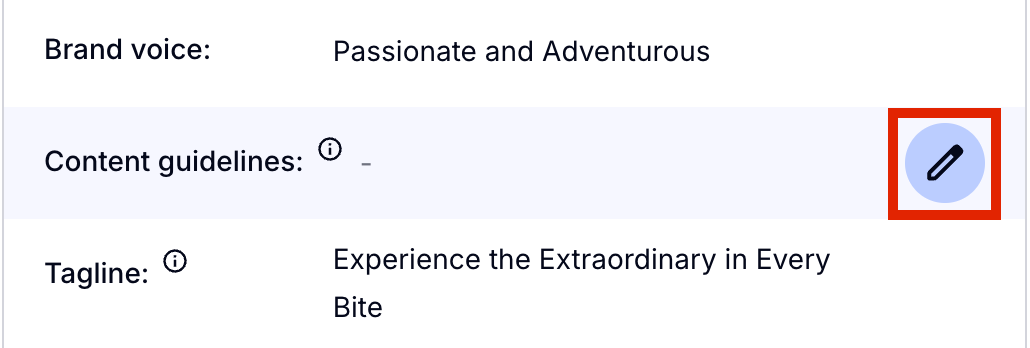
Here you can write in the commands that you wish to be universal on all of your crafts (like emails, social media, blogs) on Craftify AI. This way you don't have to add these every time you are making a craft in the Advanced Options section of each craft. When you have added the commands that work for you, choose the check mark icon to save it to your profile.

See the Content Guidelines in action
Go to create a craft. In the Configuration section you can choose the Advanced Options at the bottom. In the last section here you should find the Additional Instructions and the saved information you added to your Content Guidelines in your Business Profile should be there! If you ever want to edit these guidelines for individual posts, simply remove or add to the Additional Instructions section of each craft.