Business Email with Google Tutorial
- Business Email with Google Tutorial
- Open Website Domain Settings
- Start your business email setup
- Create your Google Workspace account
- Verify your domain
- Turn on email
- Protect your sending with DKIM
- Add info@ and open Gmail
- Check your business email status
- Frequently asked questions
- Does Craftify AI charge for this?
- How long until email works?
- What happens to my current email?
- Can I undo it?
- Who can set this up?
Business Email with Google Tutorial
Give your business a professional email address like info@yourbusiness.com. With Google Workspace, you get Gmail, Calendar and Drive on your own domain. You sign up with Google, and Craftify AI walks you through your domain settings so your email reaches you.
Here's what to expect before you start:
- Time: about 15 minutes, plus some waiting for Google.
- Cost: you pay Google directly. There's a 14-day free trial, then it's from about $7 a month per user. Craftify AI doesn't charge for this.
- You need: a domain you own, like yourbusiness.com.
How setup works depends on who runs your domain's DNS. If you bought your domain through Craftify AI or connected it with Domain Control, Craftify AI adds every record for you: you just paste codes from Google and click. If another company runs your DNS, like GoDaddy, IONOS, Namecheap or Squarespace, Craftify AI shows you each record to add, with copy buttons, and checks when it's live. Nothing is changed at your DNS provider for you.
Open Website Domain Settings
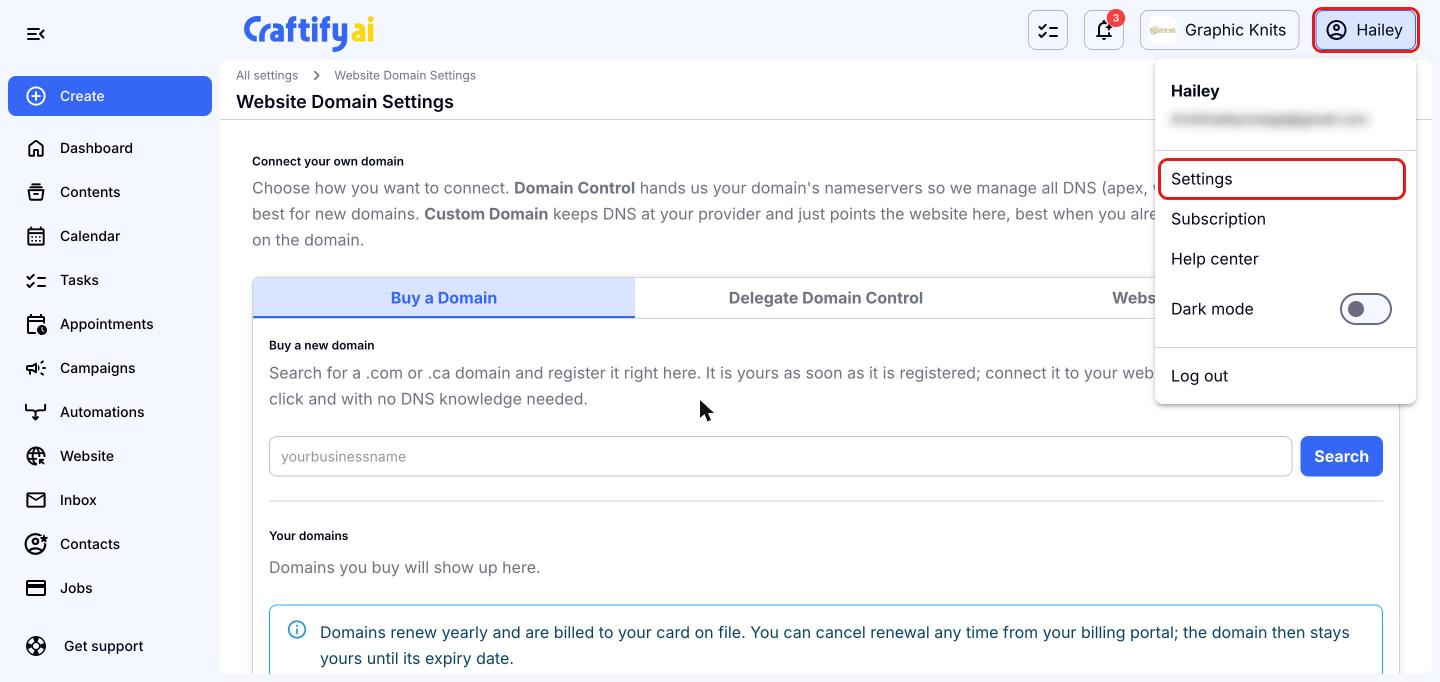
Click your name in the top right corner, then click 'Settings'.
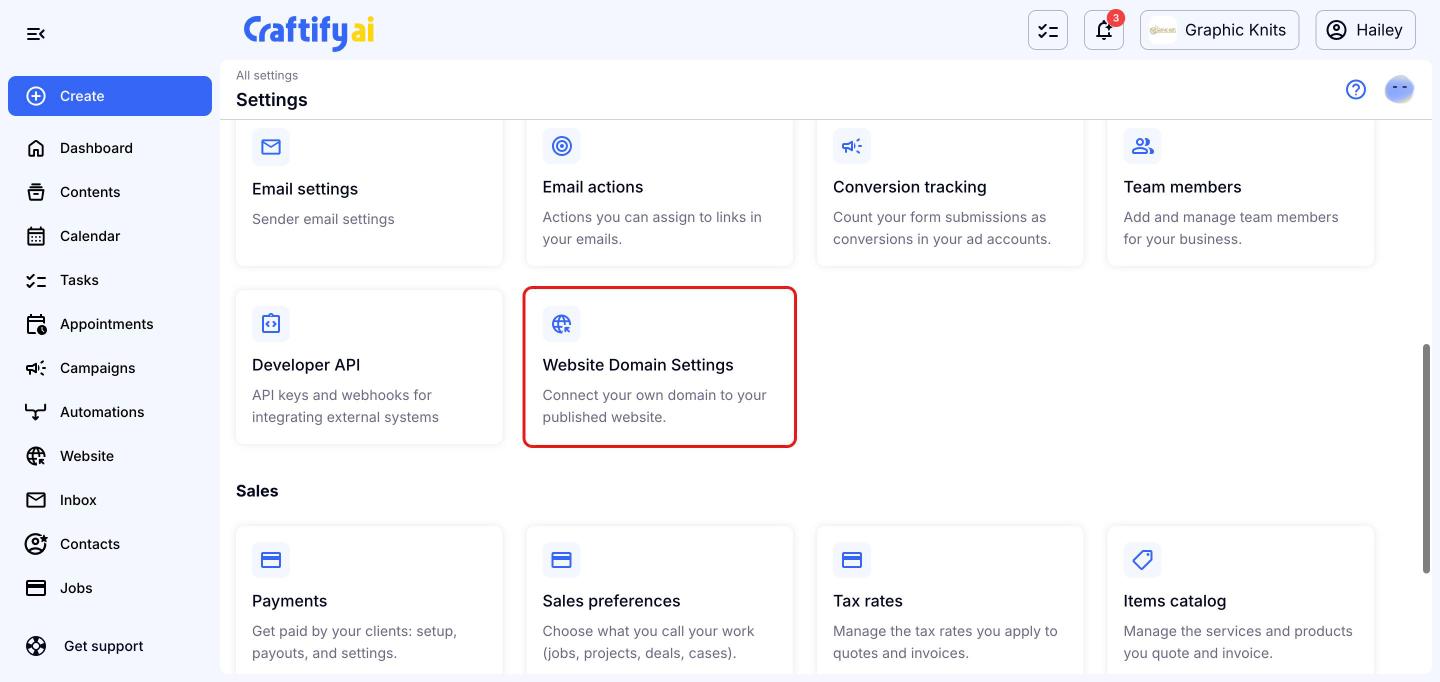
Scroll down to 'Business settings' and click 'Website Domain Settings'.
Start your business email setup
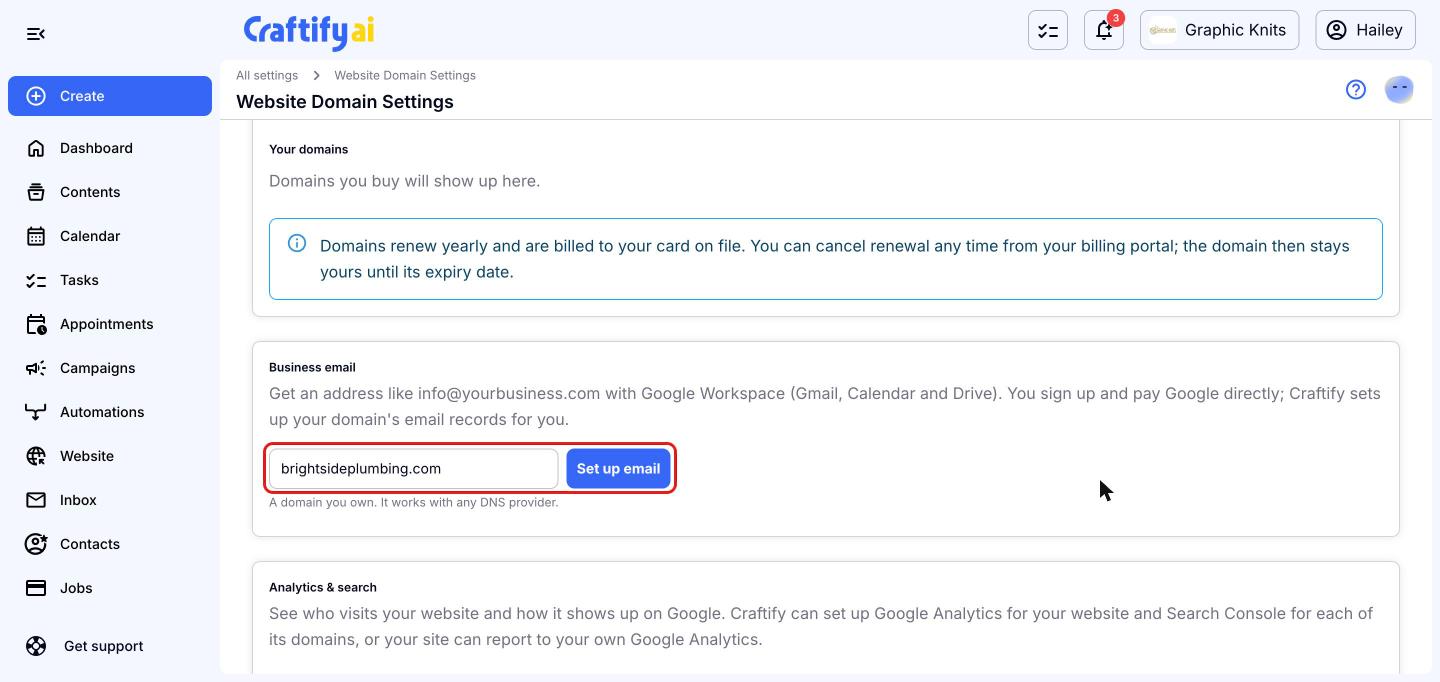
Scroll down to the 'Business email' card. If you bought your domain through Craftify AI, click 'Set up info@yourdomain'. Otherwise, type any domain you own, like yourbusiness.com, and click 'Set up email'. It works with any DNS provider.
Create your Google Workspace account
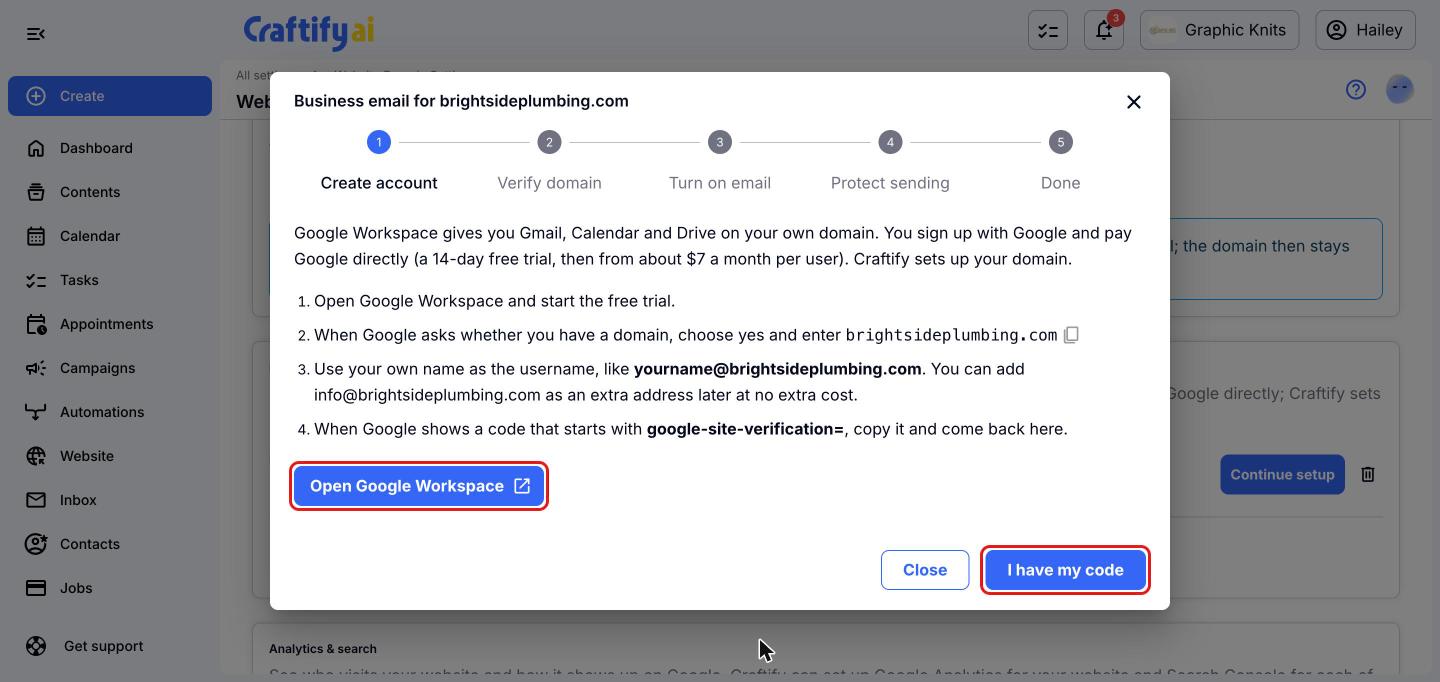
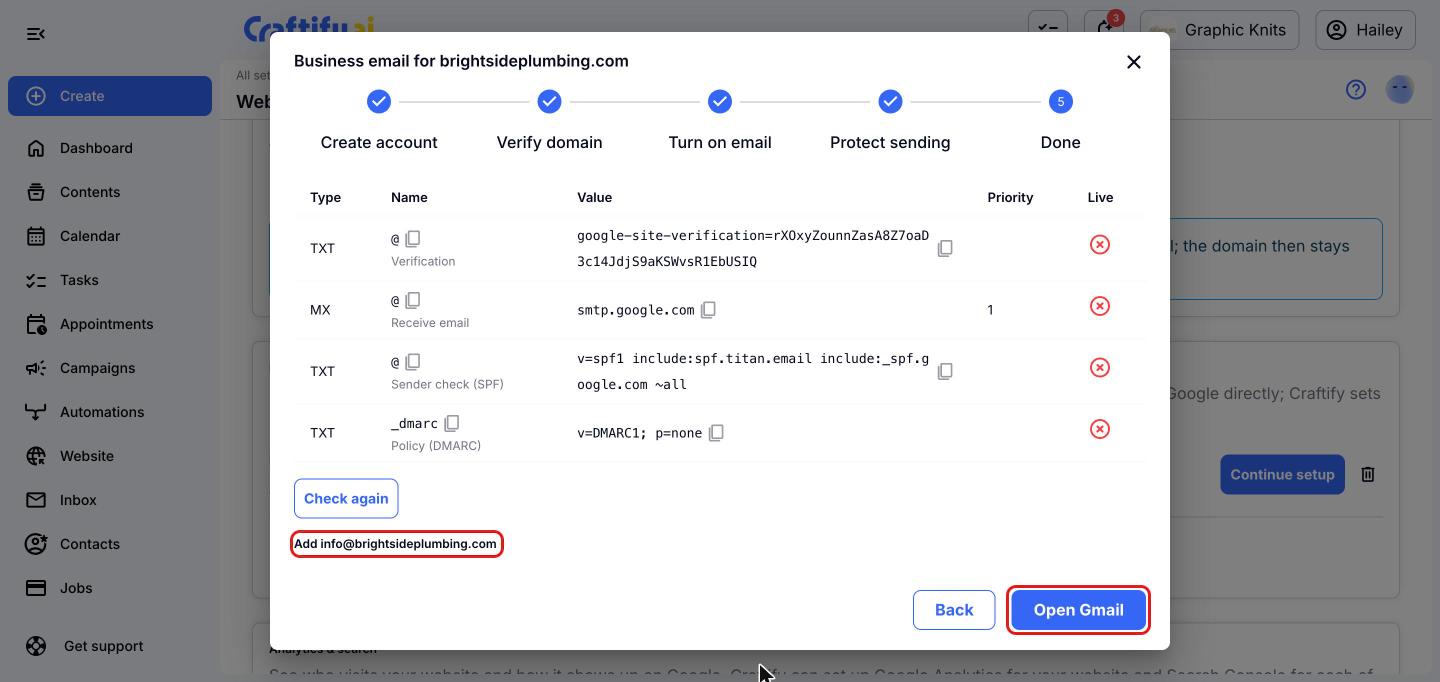
A setup window opens with five stages: 'Create account', 'Verify domain', 'Turn on email', 'Protect sending' and 'Done'.
- Click 'Open Google Workspace' and start the free trial.
- When Google asks whether you have a domain, choose yes and enter your domain. You can copy it from the setup window.
- Use your own name as the username, like yourname@yourbusiness.com. You can add info@ as an extra address later at no extra cost.
- When Google shows a code that starts with google-site-verification=, copy it, come back to Craftify AI and click 'I have my code'.
Verify your domain
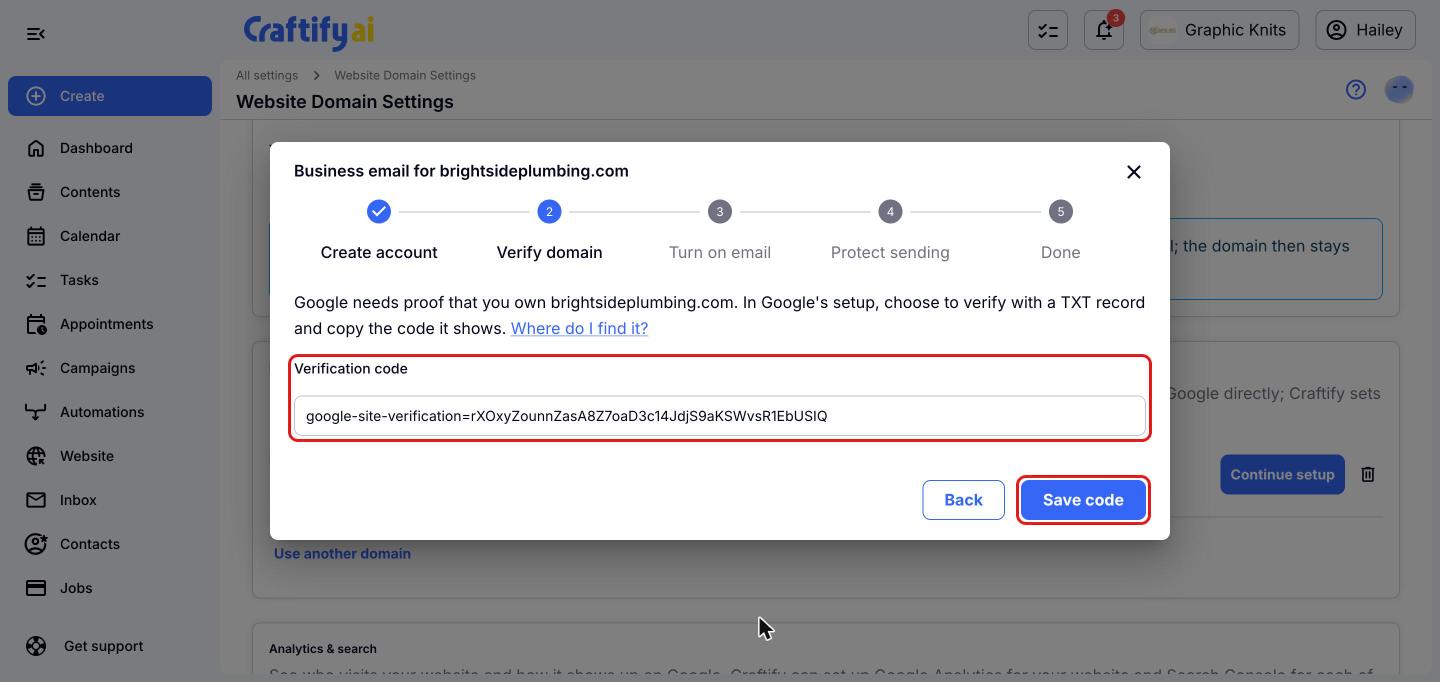
Google needs proof that you own your domain. In Google's setup, choose to verify with a TXT record, then paste the code into 'Verification code'. If you're not sure where it is, click 'Where do I find it?'.
- If Craftify AI runs your DNS: click 'Add code to my domain' and Craftify AI adds it for you.
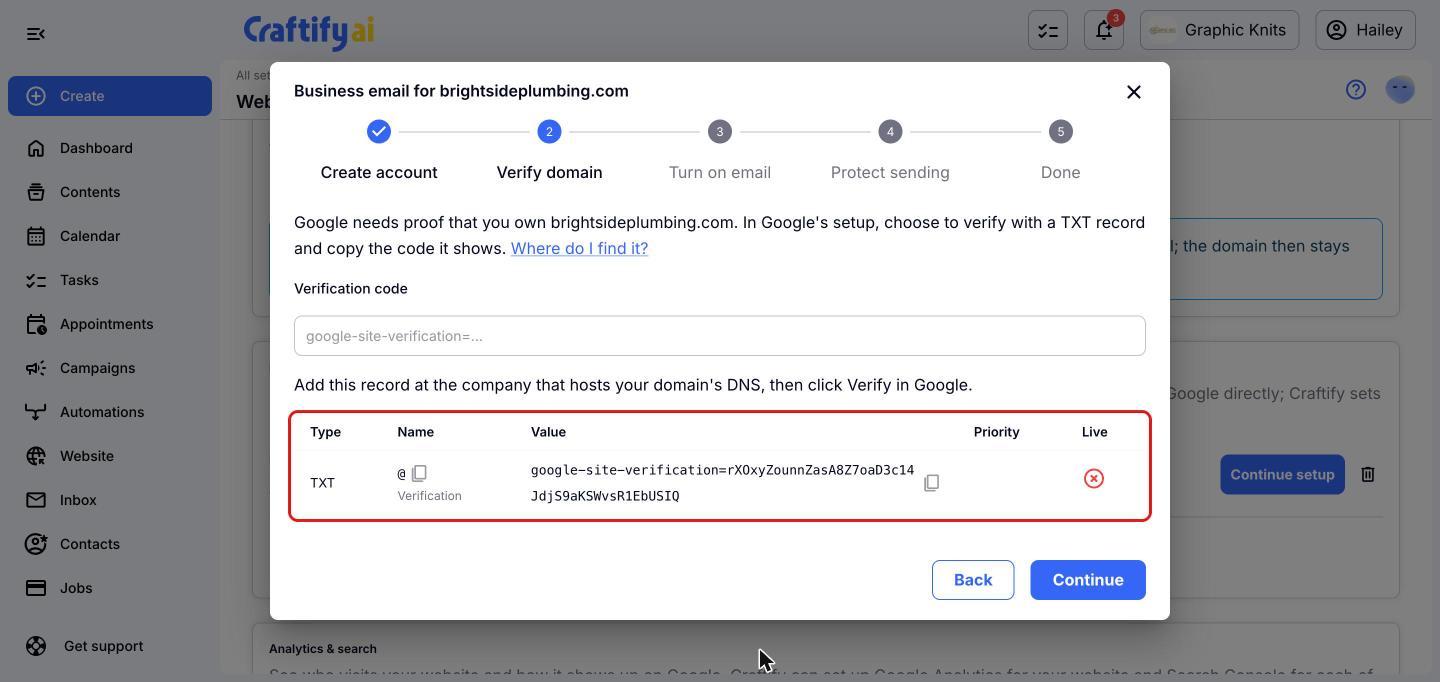
- If another company runs your DNS: click 'Save code', then add the TXT record Craftify AI shows at your DNS provider. Its name is @, which means the domain itself.
Then go back to Google and click 'Verify'. A new record usually shows up within minutes, though Google can take a little longer. A green tick in the 'Live' column means the record can be seen on the internet.
Once your code is saved, Craftify AI shows the record to add, with copy buttons for the 'Name' and 'Value'. A red cross in the 'Live' column means the record can't be seen on the internet yet. When you're ready, click 'Continue'.
Turn on email
This points your domain's email at Google and adds the records that keep your emails out of spam.
If Craftify AI runs your DNS: click 'Turn on email'. If your domain already gets email somewhere else, Craftify AI tells you first. Tick 'Switch my email to Google' to confirm, because new email will arrive in Google from then on.
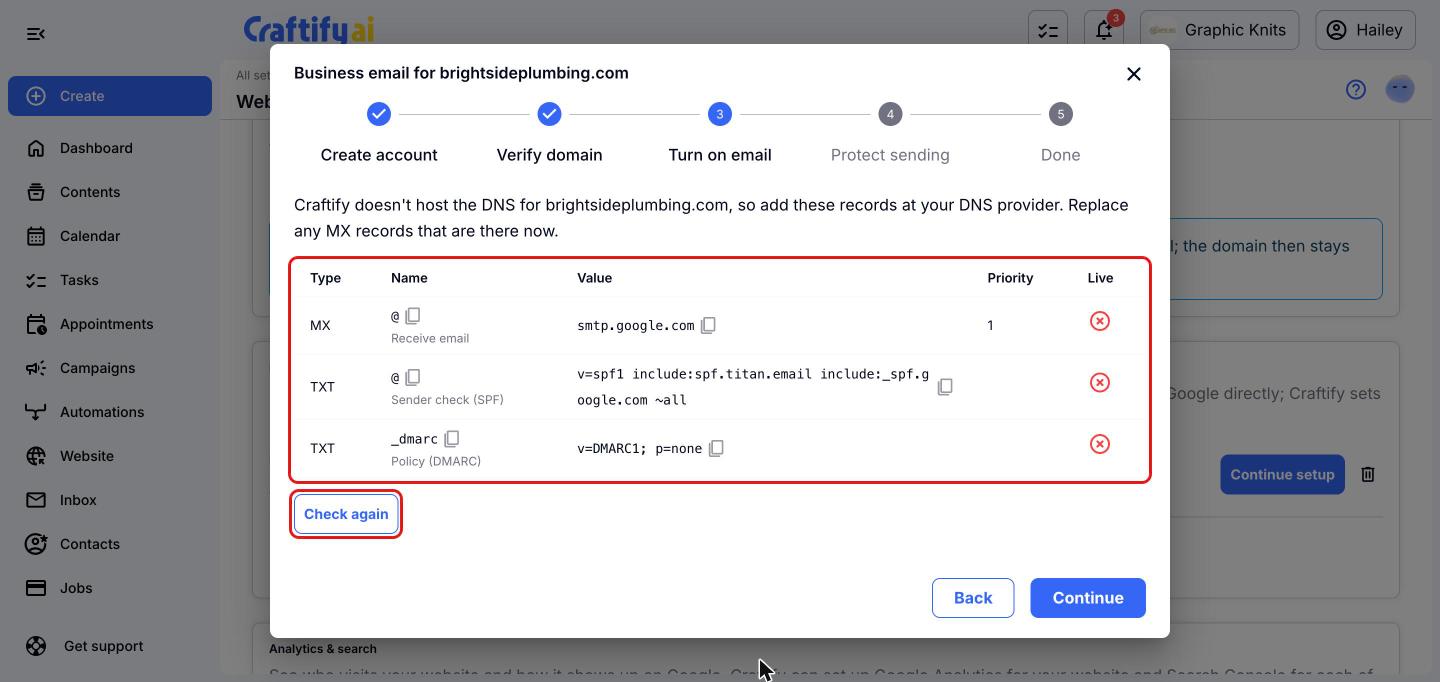
If another company runs your DNS: add the records Craftify AI shows at your DNS provider, then click 'Check again':
- MX record: smtp.google.com with priority 1. Remove or replace any other MX records.
- SPF record: a TXT record that starts with v=spf1. A domain can only have one. If you already have one, edit it to the value Craftify AI shows, which keeps what was there and adds Google.
- DMARC record at _dmarc, only if Craftify AI shows it as missing.
Good to know: some providers, IONOS among them, switch off their own mail service when you change the MX record. That's expected. If they also remove the SPF record, add it back using the value Craftify AI shows.
Protect your sending with DKIM
A DKIM key signs the emails you send, so they land in inboxes rather than spam.
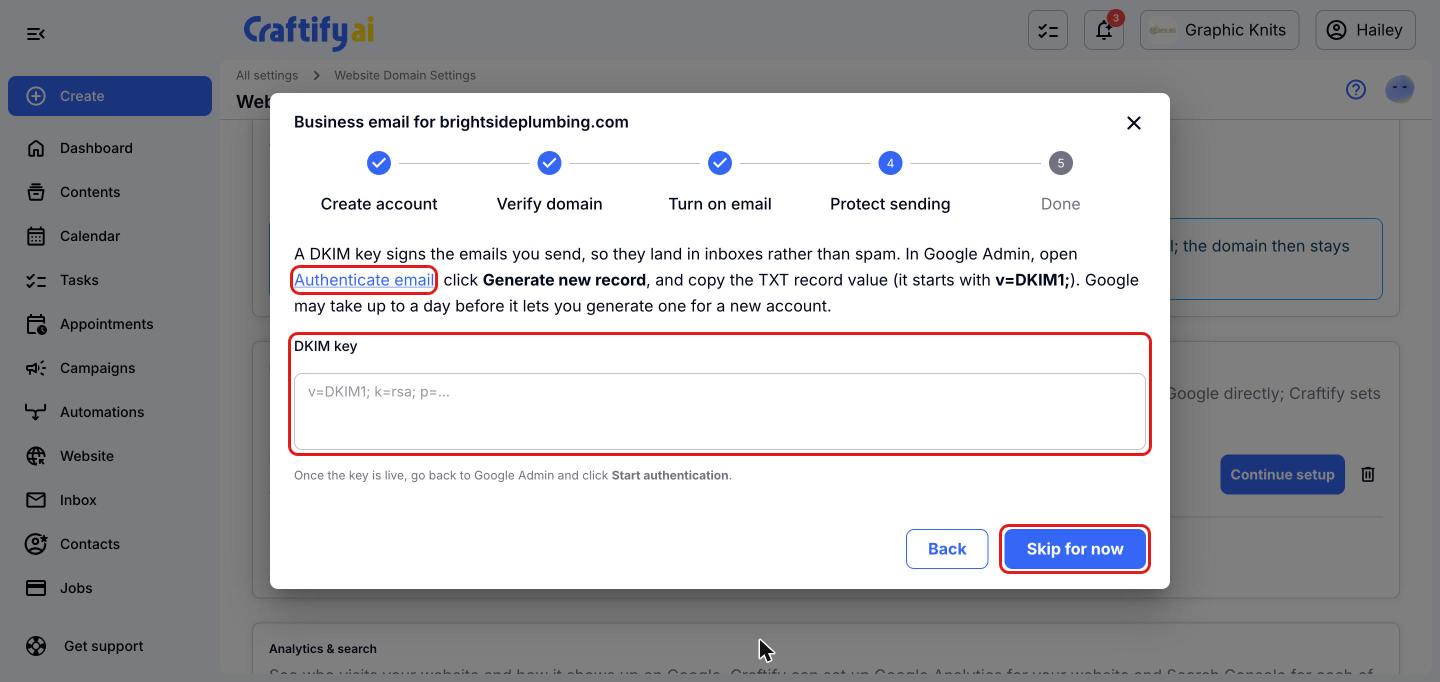
- Click the 'Authenticate email' link to open it in Google Admin, then click 'Generate new record'.
- Copy the TXT record value. It starts with v=DKIM1;. Paste it into 'DKIM key' and click 'Save key'.
- If another company runs your DNS, add the record Craftify AI shows at your DNS provider. Its name is google._domainkey.
- Once it's live, go back to Google Admin and click 'Start authentication'.
Google can take up to a day before it lets a new account generate a key. If that happens, click 'Skip for now' and come back later with 'Continue setup'.
Add info@ and open Gmail
On the 'Done' stage, Craftify AI lists every record with its status, and you can click 'Check again' any time. To get info@yourbusiness.com at no extra cost ('Add info@yourdomain'), open 'Users' in Google Admin, click your name, then 'Alternate email addresses', and add info. Email sent to info@ then arrives in your own inbox.
Click 'Open Gmail' to start using your new business email.
Check your business email status
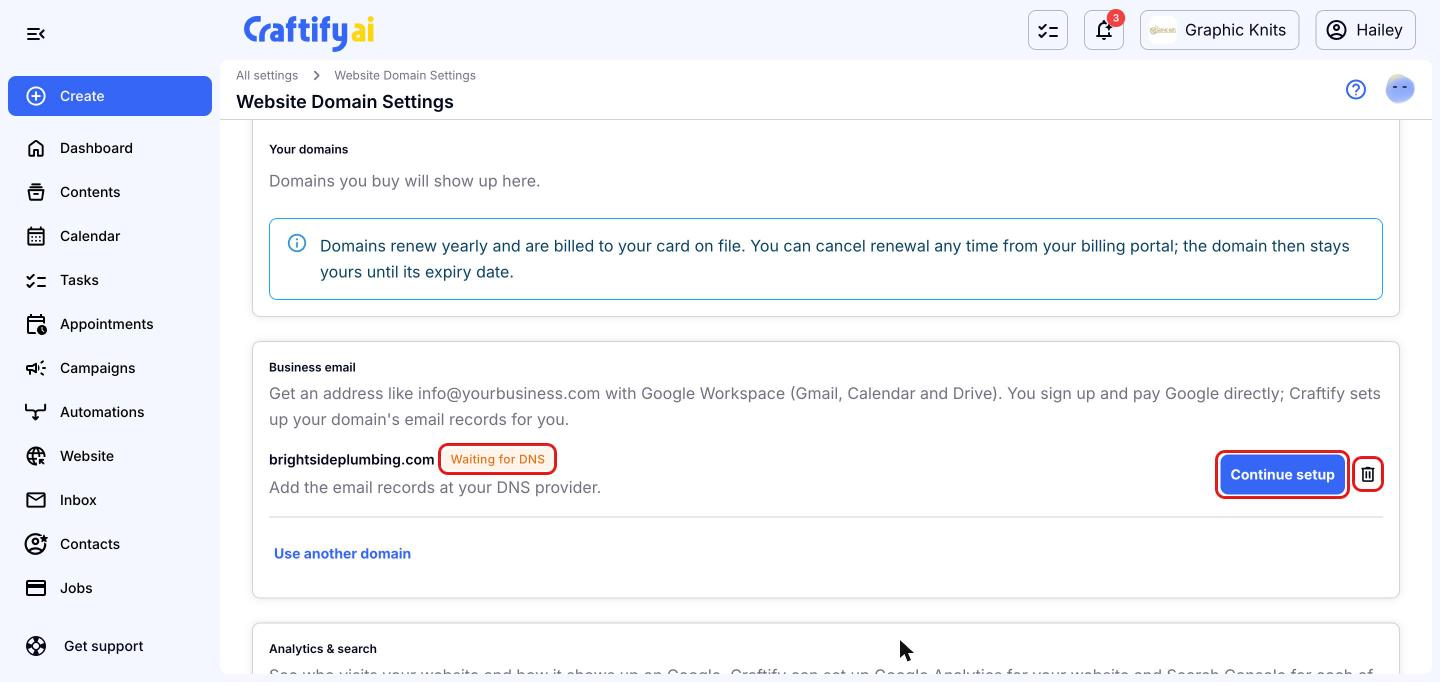
Back on the 'Business email' card, your domain shows a status. If you haven't finished, click 'Continue setup' to pick up where you left off. Here's what each status means:
- Not finished: the Google account or verification code isn't in yet. Click 'Continue setup'.
- Waiting for DNS: the code is saved but can't be seen on the internet yet. Wait a few minutes and check again.
- Domain verified: Google can verify the domain. Next, turn on email.
- Receiving email: email for your domain goes to Google Workspace.
- Needs attention: email was working, but a record changed, for example the MX record now points elsewhere. Open the setup to see which one.
To use a different domain, click 'Use another domain'.
Frequently asked questions
Does Craftify AI charge for this?
No. You pay Google for Workspace directly. Craftify AI only helps with the setup.
How long until email works?
Usually a few minutes. Some changes can take up to an hour to reach everyone, so a record can show as not live for a short while.
What happens to my current email?
Once you turn on email, new messages arrive in Google Workspace. Messages already in your old mailbox stay there. Google has a 'Data migration' tool in Google Admin to bring them over.
Can I undo it?
Yes. Click the bin icon next to the domain. If Craftify AI runs your DNS, it takes out the records it added and puts back the email provider it replaced. If another company runs your DNS, Craftify AI stops tracking it and you remove the records there. Your Google Workspace account isn't deleted, so cancel it in Google Admin if you no longer need it.
Who can set this up?
The business owner or a manager. Other team members can see the setup but can't change it.
Need help? Click 'Get support' at the bottom of the menu in Craftify AI and we'll answer by email.

